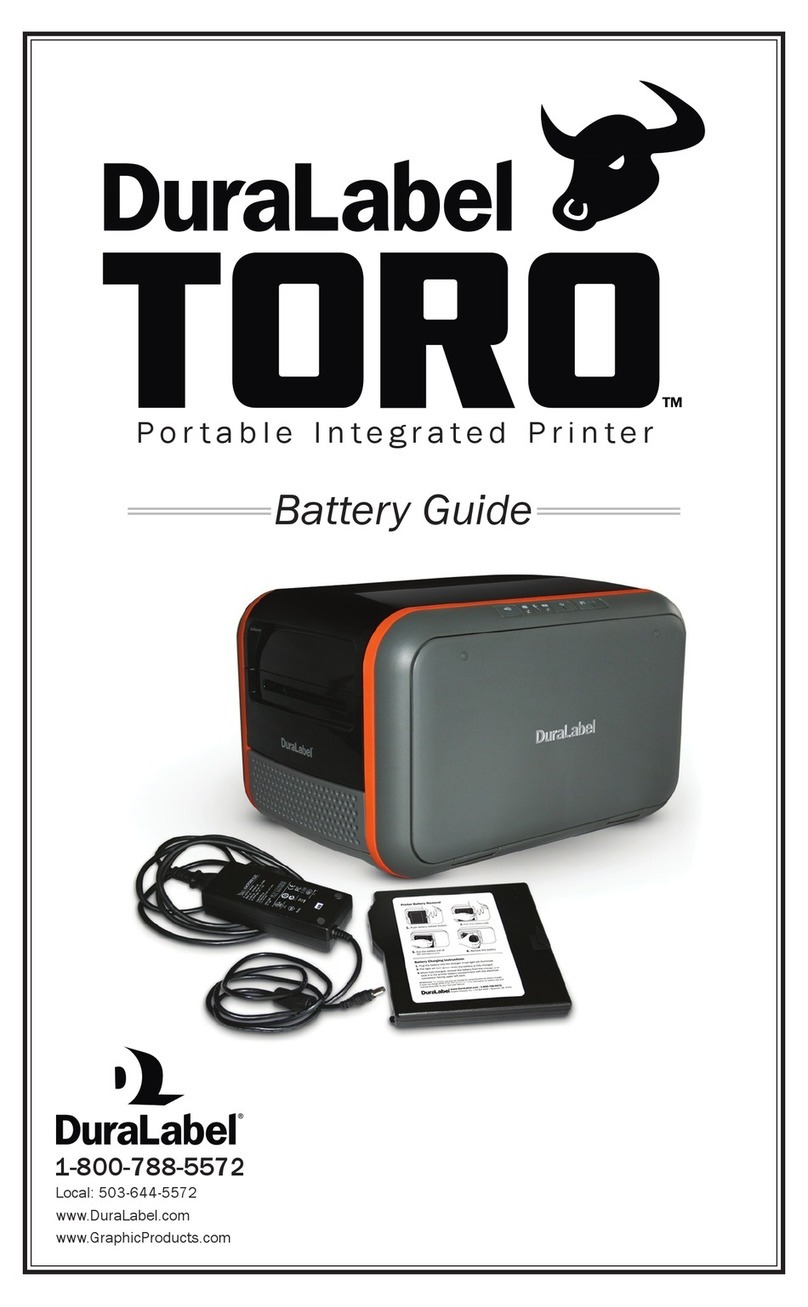
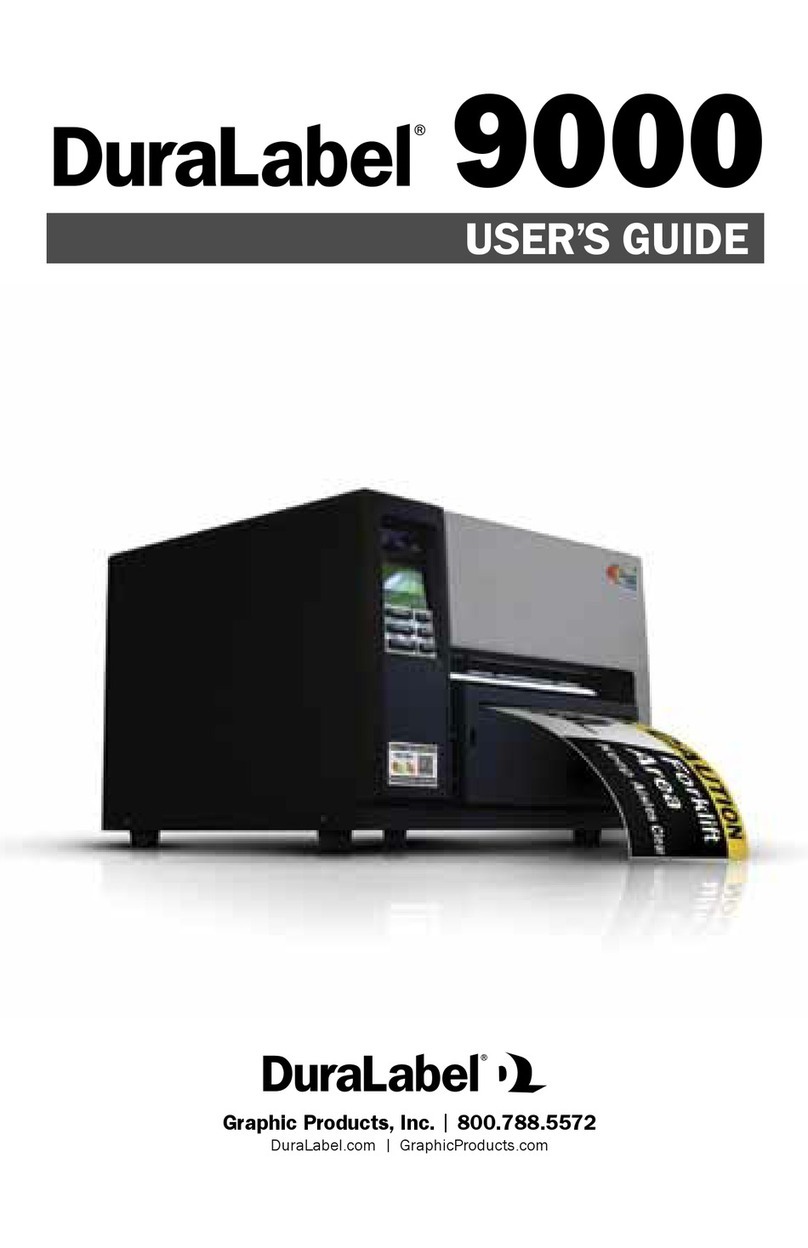
DuraLabel 9000 User manual

THERMAL TRANSFER / DIRECT THERMAL
BAR CODE PRINTER
DuraLabel 9000
Printer Manual

i
Contents
1. Introduction................................................................................................1
1.1 Product Introduction ...............................................................................1
1.2 Compliances ............................................................................................1
2. Operations Overview.................................................................................3
2.1 Unpacking and Inspection ......................................................................3
2.2 Printer Overview ......................................................................................4
2.2.1 Front View ......................................................................................4
2.2.2 Interior View ...................................................................................5
2.2.3 Rear View........................................................................................6
2.3 Operator Controls....................................................................................7
2.3.1 Front Panel Display .......................................................................7
2.3.2 LED Indicators ...............................................................................7
2.3.3 Front Panel Keys ...........................................................................8
2.4 Setting Up the Printer..............................................................................8
2.5 Loading Supply........................................................................................9
2.6 Loading Ribbon......................................................................................12
3. Menu Function.........................................................................................15
3.1 Setup Menu Overview............................................................................16
3.1.1 Printer Setup ................................................................................17
3.1.2 Sensor...........................................................................................23
3.1.3 Serial Comm.................................................................................31
3.1.4 Ethernet........................................................................................34
3.2 File Manager...........................................................................................37
3.2.1 File List.........................................................................................37
3.2.2 Avail. Memory...............................................................................38
3.2.3 Del. All Files..................................................................................38
3.3 Diagnostics ............................................................................................39
3.3.1 Print Config. .................................................................................39
3.3.2 Dump Mode..................................................................................40
3.3.3 Rotate Cutter................................................................................41
3.4 Language................................................................................................41
3.5 Service....................................................................................................42
3.5.1 Initialization..................................................................................42
1D bar code..................................................................................................44
2D bar code..................................................................................................44

6. Troubleshooting.......................................................................................46
6.1 Common Problems................................................................................46
7. Maintenance.............................................................................................49
ii

1. Introduction
1.1 Product Introduction
Thank you for purchasing the DuraLabel®9000 Industrial Sign and Label Printer.
The DuraLabel 9000 provides thermal transfer printing (TTP) on continuous and die-cut
supplies. It produces quality signs and labels with 300 DPI resolution and prints at speeds up
to 3 ips.
The DuraLabel 9000 includes a built-in high performance MONOTYPE IMAGING®True
Type font engine and one CG Triumvirate Bold Condensed smooth font. With flexible
firmware design, the True Type Font can be downloaded from a PC into the printer memory
for printing labels. Besides the scalable font, it also provides a choice of five different sizes
of alphanumeric bitmap font, OCR-A and OCR-B fonts.
1.2 Compliances
CE Class A:
EN55022:1998+A1:2000+A2:2003:
EN55024:1998+A1:2001+A2:2003:
EN 61000-4 SERIES REQULATIONS
ETSI EN 301 489-17:V1.2.1(2002-08)
FCC:
CFR 47, Part 15/CISPR 22 3RD EDITION:1997, Class A
(CAUTION: Danger of explosion if battery is incorrectly replaced. Replace only with the
same or equivalent type recommended by the manufacturer. Dispose of used batteries
according to the manufacturer instructions.)

2
Federal Communication Commission (FCC) Interference Statement
This equipment has been tested and found to comply with the limits for a Class B digital
device, pursuant to Part 15 of the FCC Rules. These limits are designed to provide
reasonable protection against harmful interference in a residential installation. This
equipment generates, uses and can radiate radio frequency energy and, if not installed
and used in accordance with the instructions, may cause harmful interference to radio
communications. However, there is no guarantee that interference will not occur in a
particular installation. If this equipment does cause harmful interference to radio or
television reception, which can be determined by turning the equipment off and on, the
user is encouraged to try to correct the interference by one of the following measures:
- Reorient or relocate the receiving antenna.
- Increase the separation between the equipment and receiver.
- Connect the equipment into an outlet on a circuit different from that to which the
receiver is connected.
- Consult the dealer or an experienced radio/TV technician for help.
This device complies with Part 15 of the FCC Rules. Operation is subject to the
following two conditions:
1. This device may not cause harmful interference, and
2. This device must accept any interference received, including interference that may
cause undesired operation.
Information to User
To assure continued compliance (example - use only shielded interface cables
when connecting to computer or peripheral devices), any changes or
modifications not expressly approved by the party responsible for compliance
could void the user’s authority to operate this equipment.
WARNING
HAZARDOUS MOVING PARTS – KEEP FINGERS AND OTHER BODY PARTS AWAY
CAUTION
RISK OF EXPLOSION IF BATTERY IS REPLACED BY AN INCORRECT TYPE. DISPOSE OF USED
BATTERIES ACCORDING TO THE INSTRUCTIONS.

2. Operations Overview
2.1 Unpacking and Inspection
This printer has been specially packaged to withstand damage during shipping. Please
carefully inspect the printer and its packaging upon receiving it. Please retain the
packaging materials in case you need to return the printer.
Check that all DuraLabel 9000 equipment and supplies are present and undamaged
before proceeding.
Equipment Checklist:
• DuraLabel 9000 printer unit with built-in cutter
• DuraLabel 9000 CD with printer driver, label templates and symbols
• DuraLabel 9000 User’s Guide
• DuraLabel 9000 QuickStart Guide
• Power cord
• USB cord
• Supply guides (2)
• Ribbon core
• Ribbon guides with screws (2)
If any parts are missing, please contact the Graphic Products customer service
department at 1-800-788-5572.
Please contact us for all your labeling needs. From standardized to custom labels, we’re
ready to provide the labeling supplies you need. Call 1-800-788-5572 today to get your
labeling problems solved.
3

2.2 Printer Overview
2.2.1 Front View
4
1
2
3
6
4
5
1. LED indicators
2. LCD display
3. Front panel buttons
4. Printed label opening
5. Cutter mechanism
6. Printer cover

2.2.2 Interior View
12
5
8
11
1
10
9
7
6
2
5
3
4
1. Ribbon Guides
2. Media Sensor (green)
3. Ribbon Sensor (black)
4. Print Head
5. Print Head Release Lever (green)
13
6. Adjustable Media Guides (white)
7. Media Guide Bar
8. Print Head Mechanism
9. Ribbon Spindle (back spindle)
10. Ribbon rewind spindle (front spindle)
11. Supply Bar
12. Supply Guides
13. Platen Roller (black)

2.2.3 Rear View
6
1. Fan-fold paper entrance chute
2. Parallel Port (Centronics Interface)
3. USB Interface
4. Serial Port (RS-232C Interface)
5. Power Jack Socket
6. Power Switch
7. PS/2 Interface
8. Ethernet Interface
*9. SD Card Slot
* Recommended SD card specification.
SD V 1.0, V 1.1 SD V 2.0 (SDHC)
128MB
256MB
512MB
1GB
4GB class 6
-Supported DOS FAT file system.
-Folders stored on the SD card should be in the 8.3 filename format.
-Approved SD card manufacturer: SanDisk, Transcend.
2 3 4 5
7
9
8
6
1

2.3 Operator Controls
2.3.1 Front Panel Display
7
Front
p
anel buttons
LCD display
LED indicators
2.3.2 LED Indicators
LED Status Indication
Off Printer power off
On Printer power on
On Printer is ready
Printer is paused
Blinking Printer is downloading data
Off Printer is ready
On Carriage open OR cutter error
Blinking No paper, paper jam OR "no ribbon”
Other manuals for 9000
5
Table of contents
Other DuraLabel Printer manuals
DuraLabel
DuraLabel PRO 300 User manual
DuraLabel
DuraLabel 9000 User manual
DuraLabel
DuraLabel 4 TTP User manual

DuraLabel
DuraLabel 9000 User manual
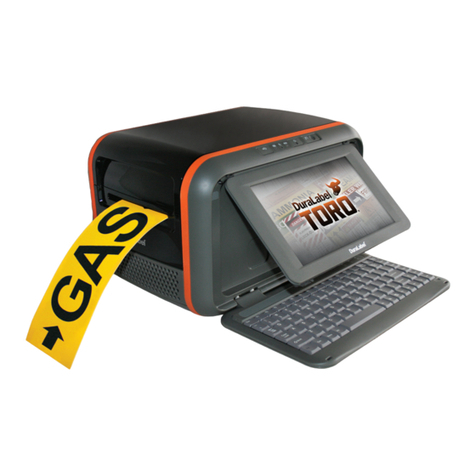
DuraLabel
DuraLabel Toro User manual
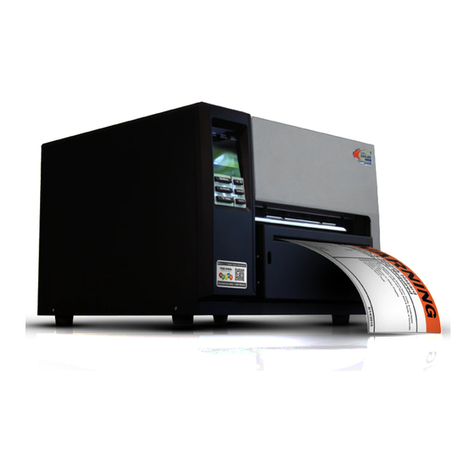
DuraLabel
DuraLabel 9000 User manual
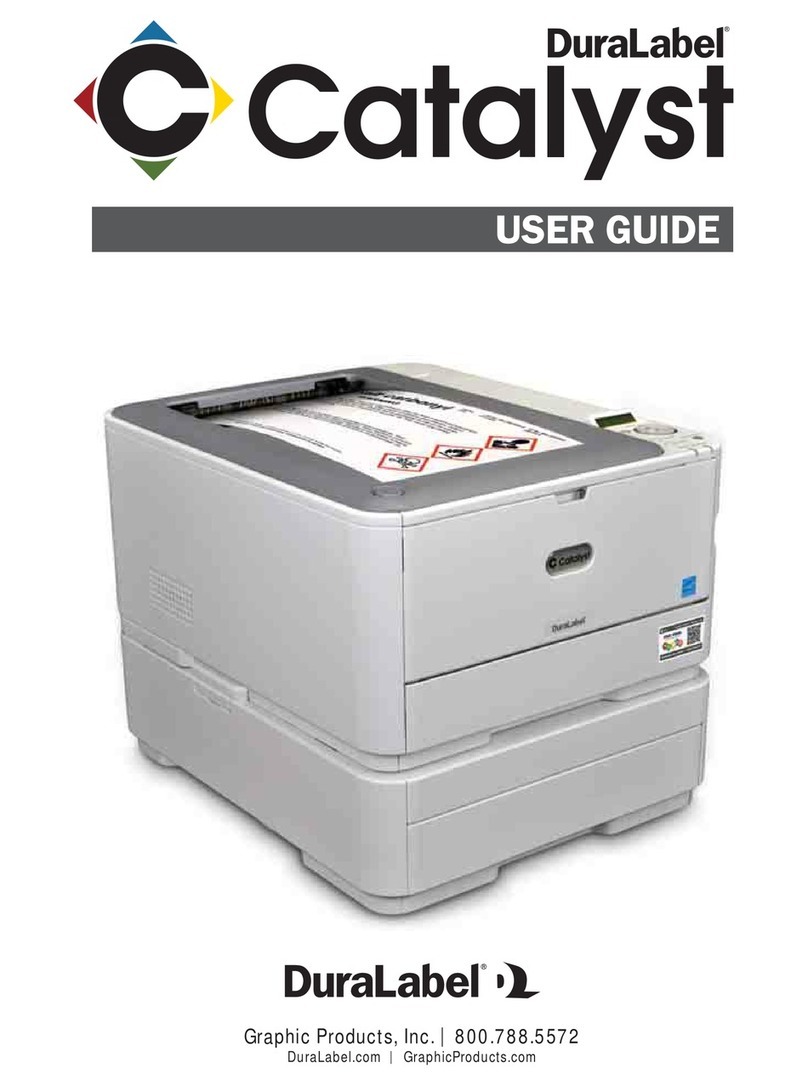
DuraLabel
DuraLabel Catalyst User manual
DuraLabel
DuraLabel Toro User manual
DuraLabel
DuraLabel Toro User manual
DuraLabel
DuraLabel 900 User manual