manuals.online logo
Brands
  1. Home
  2. •
  3. Brands
  4. •
  5. EverFocus
  6. •
  7. DVR
  8. •
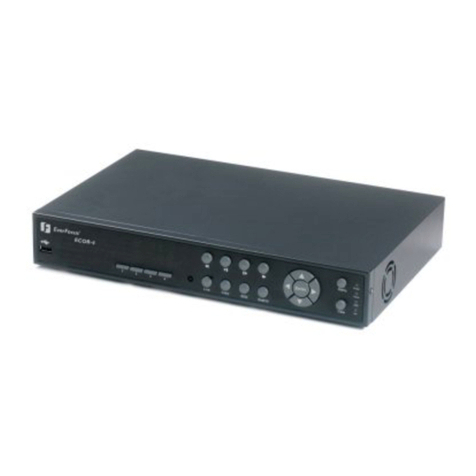
  9. EverFocus ECOR264-4D1 User manual

EverFocus ECOR264-4D1 User manual

This manual suits for next models

3

Other EverFocus DVR manuals

EverFocus ECOR Series User manual

EverFocus

EverFocus ECOR Series User manual

EverFocus DVR-100H User manual

EverFocus

EverFocus DVR-100H User manual

EverFocus EPHD04 Owner's manual

EverFocus

EverFocus EPHD04 Owner's manual

EverFocus ECOR264-D2 DVR Series User manual

EverFocus

EverFocus ECOR264-D2 DVR Series User manual

EverFocus EDSR-900 User manual

EverFocus

EverFocus EDSR-900 User manual

EverFocus eZ.HD ECOR HD 16X1 User manual

EverFocus

EverFocus eZ.HD ECOR HD 16X1 User manual

EverFocus ECOR264-16X1 User manual

EverFocus

EverFocus ECOR264-16X1 User manual

EverFocus ECOR264-4X1 User manual

EverFocus

EverFocus ECOR264-4X1 User manual

EverFocus ECOR264-D2 DVR Series User manual

EverFocus

EverFocus ECOR264-D2 DVR Series User manual

EverFocus EDR410M User manual

EverFocus

EverFocus EDR410M User manual

EverFocus NVR User manual

EverFocus

EverFocus NVR User manual

EverFocus EDSR 900F Manual

EverFocus

EverFocus EDSR 900F Manual

EverFocus ECOR FHD 4F User manual

EverFocus

EverFocus ECOR FHD 4F User manual

EverFocus EDSR100M User manual

EverFocus

EverFocus EDSR100M User manual

EverFocus ENDEAVOR 264X4 User manual

EverFocus

EverFocus ENDEAVOR 264X4 User manual

EverFocus ECOR4D User manual

EverFocus

EverFocus ECOR4D User manual

EverFocus eIVP-CFS-IV-V0004 User manual

EverFocus

EverFocus eIVP-CFS-IV-V0004 User manual

EverFocus PARAGON960 X4 User manual

EverFocus

EverFocus PARAGON960 X4 User manual

EverFocus EDVR16D3 User manual

EverFocus

EverFocus EDVR16D3 User manual

EverFocus ENDEAVOR EDRHD-2H14 User manual

EverFocus

EverFocus ENDEAVOR EDRHD-2H14 User manual

EverFocus ENVR8304X 04CH User manual

EverFocus

EverFocus ENVR8304X 04CH User manual

EverFocus VANGUARD 16x8H Plus User manual

EverFocus

EverFocus VANGUARD 16x8H Plus User manual

EverFocus EDSR100H User manual

EverFocus

EverFocus EDSR100H User manual

EverFocus eZ.HD PARAGON FD 16x4 User manual

EverFocus

EverFocus eZ.HD PARAGON FD 16x4 User manual

Popular DVR manuals by other brands

Pace TDC577X manual

Pace

Pace TDC577X manual

Zavio NQ2040 user manual

Zavio

Zavio NQ2040 user manual

KGuard Security KG-SHA104 user manual

KGuard Security

KGuard Security KG-SHA104 user manual

SanDisk V-Mate Quick manual

SanDisk

SanDisk V-Mate Quick manual

Panasonic WJND200 - NETWORK DISK RECORDER Setup instructions

Panasonic

Panasonic WJND200 - NETWORK DISK RECORDER Setup instructions

Hunt Electronic HVRM-T1600Q Install & user's guide

Hunt Electronic

Hunt Electronic HVRM-T1600Q Install & user's guide

Portwell PIVS-6104 user manual

Portwell

Portwell PIVS-6104 user manual

AVer EXR6004 Mini Quick user guide

AVer

AVer EXR6004 Mini Quick user guide

Security Labs SLD261 owner's manual

Security Labs

Security Labs SLD261 owner's manual

Swann DIGITAL VIDEO RECORDER instruction manual

Swann

Swann DIGITAL VIDEO RECORDER instruction manual

Xoro HRK 7550 user manual

Xoro

Xoro HRK 7550 user manual

FLIR M3100E Series instruction manual

FLIR

FLIR M3100E Series instruction manual

VTRACKPRO FPRO300 user manual

VTRACKPRO

VTRACKPRO FPRO300 user manual

Swann NVR-7085 models instruction manual

Swann

Swann NVR-7085 models instruction manual

RMRC FPV1000 manual

RMRC

RMRC FPV1000 manual

urmet domus 1093/004AHD instructions

urmet domus

urmet domus 1093/004AHD instructions

Toshiba D-VR3SU Service manual

Toshiba

Toshiba D-VR3SU Service manual

CMOS DOTCOM ANX-1670 manual

CMOS DOTCOM

CMOS DOTCOM ANX-1670 manual

manuals.online logo
manuals.online logoBrands
  • About & Mission
  • Contact us
  • Privacy Policy
  • Terms and Conditions

Copyright 2025 Manuals.Online. All Rights Reserved.

User Manual
E
EC
CO
OR
R2
26
64
4-
-4
4F
F1
1/
/E
EC
CO
OR
R2
26
64
4-
-4
4D
D1
1
E
EC
CO
OR
R2
26
64
4-
-8
8F
F1
1/
/E
EC
CO
OR
R2
26
64
4-
-8
8D
D1
1
EVERFOCUS ELECTRONICS CORPORATION
ECOR264-4F1/ ECOR264-4D1
ECOR264-8F1/ ECOR264-8D1
Instruction Manual
2009 EverFocus Electronics Corp
www.everfocus.com
All rights reserved. No part of the contents of this manual may be reproduced or transmitted in any form or by
any means without written permission of the Everfocus Electronics Corporation.
Release Date: Nov. 2009
QuickTime is a registered trademark of the Apple Computer, Inc.
Windows is a registered trademark of the Microsoft Corporation.
Linksys is a registered trademark of the Linksys Corporation.
D-Link is a registered trademark of the D-Link Corporation.
DynDNS is a registered trademark of the DynDNS.org Corporation.
Other product and company names mentioned herein may be the trademarks of their respective owners.
ii
iiii
ii
Safety Precautions
Refer all work related to the installation of this product to qualified service personnel or system
installers.
Do not block the ventilation opening or slots on the cover.
Do not drop metallic parts through slots. This could permanently damage the appliance. Turn the
power off immediately and contact qualified service personnel for service.
Do not attempt to disassemble the appliance. To prevent electric shock, do not remove screws or
covers. There are no user-serviceable parts inside. Contact qualified service personnel for
maintenance. andle the appliance with care. Do not strike or shake, as this may damage the
appliance.
Do not expose the appliance to water or moisture, not try to operate it in wet areas. Do take immediate
action if the appliance becomes wet. Turn the power off and refer servicing to qualified service
personnel. Moisture may damage the appliance and also cause electric shock.
Do not use strong or abrasive detergents when cleaning the appliance body. Use a dry cloth to clean
the appliance when it is dirty. When the dirt is hard to remove, use a mild detergent and wipe gently.
Do not overload outlets and extension cords as this may result in a risk of fire or electric shock.
Do not operate the appliance beyond its specified temperature, humidity or power source ratings. Do
not use the appliance in an extreme environment where high temperature or high humidity exists. Use
the appliance at temperature within indoor type DVR for 0°C~40°C (32°F~104°F) and at relative
humidity between 20%~80%. The input power source for this device is 100~240VAC.
Read Instructions
All the safety and operating instructions should be read before the unit is operated.
Retain Instructions
The safety and operating instructions should be retained for future reference.
Heed Warnings
All warnings on the unit and in the operating instructions should be adhered to.
Follow Instructions
All operating and use instructions should be followed.
Cleaning
Unplug the unit from the outlet before cleaning. Do not use liquid cleaners or aerosol cleaners. Use a
damp cloth for cleaning
iii
iiiiii
iii
Attachments
Do not use attachments not recommended by the product manufacturer as they may cause hazards.
Water and Moisture
Do not use this unit near water-for example, near a bath tub, wash bowl, kitchen sink, or laundry tub,
in a wet basement, near a swimming pool, in an unprotected outdoor installation, or any area which is
classified as a wet location.
Servicing
Do not attempt to service this unit by yourself as opening or removing covers may expose you to
dangerous voltage or other hazards. Refer all servicing to qualified service personnel.
Power Cord Protection
Power supply cords should be routed so that they are not likely to be walked on or pinched by items
placed upon or against them, playing particular attention to cords and plugs, convenience receptacles,
and the point where they exit from the appliance.
O ject and Liquid Entry
Never push objects of any kind into this unit through openings as they may touch dangerous voltage
points or short-out parts that could result in a fire or electric shock. Never spill liquid of any kind on the
unit.
ATTENTION!
This is a class A product which may cause radio interference in a domestic environment; in
this case, the user may be urged to take adequate measures.
Federal Communication Commission Interference Statement
This equipment has been tested and found to comply with the limits for a Class B digital device, pursuant to
Part 15 of the FCC Rules. These limits are designed to provide reasonable protection against harmful
interference in a residential installation. This equipment generates, uses and can radiate radio frequency
energy and, if not installed and used in accordance with the instructions, may cause harmful interference to
radio communications. owever, there is no guarantee that interference will not occur in a particular
installation. If this equipment does cause harmful interference to radio or television reception, which can be
determined by turning the equipment off and on, the user is encouraged to try to correct the interference by
one of the following measures :
•Reorient or relocate the receiving antenna.
•Increase the separation between the equipment and receiver.
•Connect the equipment into an outlet on a circuit different from that to which the receiver is connected.
•Consult the dealer or an experienced radio/TV technician for help.
FCC Caution: Any changes or modifications not expressly approved by the party responsible for compliance
could void the users’ authority to operate this equipment.
iv
iviv
iv
This Product is Ro S compliant.
WEEE
The information in this manual was current upon publication. The manufacturer reserves the right to revise and improve his products.
Therefore, all specifications are subject to change without prior notice. Manufacturer is not responsible for misprints or typographical
errors.
Please read this manual carefully before installing and using this unit. Be sure to keep it handy for later reference.
v
vv
v
TABLE OF CONTENTS
1PRODUCT OVERVIEW..................................................................................................... 1
1.1 FEATURES....................................................................................................................... 1
1.2 PACKAGE
CONTENTS................................................................................................... 2
1.3 SPECIFICATIONS ........................................................................................................... 3
1.4 FRONT
PANEL ................................................................................................................ 4
1.5 REAR
PANEL................................................................................................................... 6
1.6 VIDEO
INPUTS/OUTPUTS
INSTALLATION............................................................... 7
1.7 AUDIO
INSTALLATION ................................................................................................ 7
1.8 ALARM
CONTACTS
INSTALLATION......................................................................... 7
1.8.1
Alarm Input Contacts ..............................................................................................................................8
1.8.2
Alarm Output Relay.................................................................................................................................8
1.9 RS-485
KEYBOARD
/
PTZ
I
NSTALLATION
........................................................................... 8
1.9.1
General RS-485 bus installation .............................................................................................................8
1.9.2
RS-485 socket pin assignment...............................................................................................................10
1.9.3
EKB-500 connection with network patch cable.....................................................................................10
1.9.4
EKB-500 connection to several DVRs...................................................................................................10
1.9.5
Speed Dome Installation .......................................................................................................................10
1.10 USB-M
OUSE INSTALLATION
.......................................................................................... 11
1.11 NETWORK
CONNECTION........................................................................................ 11
1.11.1
Direct PC Connection through Crossover Network Cable ...................................................................11
1.11.2
Network Connection through Patch Cable............................................................................................12
1.12 FINAL
INSTALL PROCESS....................................................................................... 12
2MOUSE AND FRONT PANEL OPERATION ............................................................... 13
2.1 GENERAL USB MOUSE OPERATION....................................................................... 13
2.1.1
How to select a channel / Enable audio................................................................................................13
2.1.2
OSD Root Menu ....................................................................................................................................13
2.1.3
Operation in the Configuration Menus .................................................................................................13
2.1.4
Field Input Options ...............................................................................................................................14
2.2 G
ENERAL
F
RONT
P
ANEL
O
PERATION
............................................................................... 16
2.2.1 How to select a channel / Enable audio.......................................................................................................16
2.2.2 OSD Root Menu ...........................................................................................................................................16
2.2.3 Front Panel Key Review...............................................................................................................................16
2.2.4
Operation in Configuration Menu.........................................................................................................16
2.2.5
Field Input Options ...............................................................................................................................17
3. GENERAL DVR OPERATIONS...................................................................................... 19
3.1 RECORD......................................................................................................................... 19
3.2 LOGIN............................................................................................................................. 19
3.3 SELECT CAMERA OPERATION................................................................................. 20
3.5 PLAYBACK.................................................................................................................... 20
3.6 PTZ.................................................................................................................................. 22
vi
vivi
vi
3.6.1
General PTZ control (if PTZ cameras are installed) ........................................................................22
3.6.2
Express Control of PTZ.........................................................................................................................23
3.7 LAYOUT......................................................................................................................... 25
3.7.1
Bring to full screen mode ......................................................................................................................25
3.8 CHANNEL
SWITCHING............................................................................................... 25
3.9 DISPLAY ........................................................................................................................ 26
3.10 SEQUENCE.................................................................................................................. 26
3.11 ZOOM........................................................................................................................... 26
3.12 SEARCH....................................................................................................................... 27
3.12.1
Time Search...........................................................................................................................................28
3.12.2
Event Search..........................................................................................................................................29
3.13 COPY............................................................................................................................ 30
3.14 LOGOUT...................................................................................................................... 31
4DVR CONFIGURATION.................................................................................................. 32
4.1 CONFIGURATION MENU............................................................................................ 32
4.2 EXPRESS........................................................................................................................ 32
4.3 CAMERA SETTING ...................................................................................................... 35
4.3.1
Basic Setting..........................................................................................................................................35
4.3.2
Video Adjust ..........................................................................................................................................37
4.3.3
Motion ...................................................................................................................................................38
4.3.4
Video Loss.............................................................................................................................................41
4.4 RECORD & PLAY SETTING........................................................................................ 42
4.4.1
Record ...................................................................................................................................................42
4.4.2
Built-in Calculator ................................................................................................................................43
4.4.3
Play .......................................................................................................................................................44
4.5 ALARM & EVENT SETTING....................................................................................... 45
4.5.1
Alarm.....................................................................................................................................................45
4.5.2
Event......................................................................................................................................................47
4.5.3
Schedule Setting ....................................................................................................................................54
4.5.4
Express Setup ........................................................................................................................................54
4.5.5
Holidays ................................................................................................................................................55
4.5.6
Schedule ................................................................................................................................................56
4.5.7
Alarm Action .........................................................................................................................................61
4.6 NETWORK SETTING.................................................................................................... 65
4.6.1
LAN .......................................................................................................................................................65
4.6.2
EMAIL...................................................................................................................................................67
4.6.3
DDNS ....................................................................................................................................................68
4.6.4
Alarm Server .........................................................................................................................................70
4.7 D
ISK
I
NFORMATION
.......................................................................................................... 71
4.7.1
Disk .......................................................................................................................................................71
4.8 DISPLAY SETTING....................................................................................................... 72
4.8.1
Monitor OSD.........................................................................................................................................72
4.8.2
Main M/T SEQ ......................................................................................................................................73
4.9 SYSTEM SETTING........................................................................................................ 74
4.9.1
Date/Time..............................................................................................................................................74
4.9.2
Daylight Saving.....................................................................................................................................75
4.9.3
User.......................................................................................................................................................76
4.9.4
I/O Control............................................................................................................................................79

vii
viivii
vii
4.9.5
Misc.......................................................................................................................................................80
4.10 INFORMATION........................................................................................................... 81
4.10.1
System....................................................................................................................................................81
4.10.2
Log.........................................................................................................................................................82
5NETWORKING OVERVIEW.......................................................................................... 84
5.1 I
NTRODUCTION TO
TCP/IP ............................................................................................... 84
5.2 S
UBNET
M
ASKS
................................................................................................................ 84
5.3 G
ATEWAY
A
DDRESS
......................................................................................................... 84
5.4 V
IRTUAL
P
ORTS
................................................................................................................ 85
5.5 P
RE
-I
NSTALLATION
.......................................................................................................... 85
5.6 W
HAT IS YOUR
N
ETWORK
S
ETUP
?.................................................................................... 86
5.7 S
IMPLE
O
NE TO
O
NE
C
ONNECTION
................................................................................... 87
5.8 D
IRECT
H
IGH
S
PEED
M
ODEM
C
ONNECTION
..................................................................... 92
5.9 R

OUTER OR
LAN
C
ONNECTION
........................................................................................ 94
6 REMOTE OPERATION FROM BROWSER...................................................................... 97
6.1 CONNECTING TO ECOR264-4/ECOR264-8 ................................................................... 97
6.2 BROWSERSECURITYSETTING .................................................................................... 98
6.2.1
Installing ActiveX controls....................................................................................................................98
6.2.2
Enabling ActiveX Controls..................................................................................................................101
6.3 REMOTE LIVE VIEW ................................................................................................. 104
6.4 REMOTE PLAYBACK................................................................................................ 105
7EVERFOCUS DDNS SETUP.......................................................................................... 106
8LINKSYS & D-LINK PORT FORWARDING ............................................................. 108
8.2 TYPICAL LINKSYS PORT FORWARDING............................................................. 108
8.3 TYPICAL
D-LINK PORT FORWARDING ................................................................ 110
9TROUBLESHOOTING................................................................................................... 113
APPENDIX A: TIMING OF ALARM MODES.................................................................... 114
APPENDIX B: EXPRESS SETUP RECORDING VALUE SELECTION RULES .......... 117
APPENDIX C: REMOTE CONTROL................................................................................... 119
1
1PRODUCT OVERVIE
This new EverFocus digital video recorder is based on .264 compression technology, resulting in
increased recording capacity and improved network image transmission speed while retaining high image
quality. Comprehensive features and extended event recording settings enable the almost universal
application of this DVR. The ECOR264-4/ECOR264-8 DVR permits multiple control inputs. These inputs
include mouse control, front panel control, IR remote control and EverFocus keyboard (EKB500) control.
Mouse control employs a simple Graphical User Interface (GUI), offering experienced PC users the
similarity of interactive command of a computer-controlled device. With the GUI, users can command
specific actions on the ECOR264-4/ECOR264-8 DVR through graphical icons and visual indicators. Simply
point, click and drag the playback bar on the screen to playback your recordings in any time slot. All GUI
functions can be operated via the front panel buttons or mouse. op on the Express Lane! The ECOR264-
4/ECOR264-8 DVR is engineered for express operations. Setup, copy, search and playback recordings in
seconds with a simple “point and click” on the command icons.
1.1 FEATURES
•.264 Compression format
•Pentaplex Operation (Simultaneous live, recording, playback, archiving and remote viewing)
•User friendly GUI with graphical icons and visual indicators
•Free EverFocus DDNS Service
•Multiple Control Inputs: mouse/front panel/remote control/keyboard
•Built-in DVR calculator for fast recording estimation
•Express Setup: Menu option allows quick & easy installation
•Flexible alarm input tripper response scheduling
•Remote configuration support from built-in web interface
•Audio recording capabilities
•Supports 1 internal SATA DD
•Built-in DVD burner(Optional – “D” model)
•1 USB 2.0 port on front panel for video archive
•1 USB 1.0 port on rear panel for mouse control
•Multi-language support
Chapter
1
2
1.2 PACKAGE CONTENTS
Digital Video Recorder x1
User Manual x 1
AC Adapter and Power Cord x1
Mouse x 1