9
Gallagher TWR-Weigh Scale Quick Start Guide
English
START A SESSION
When you gather informaon about an animal, it is recorded in a Session.
Each event such as weighing, adds a record to the current session.
A template using pre-determined defaults can be set up and used each me you
start a new session.
Note: It is recommended a new session is opened for a new day’s acvity or for
a new group of animals. An animal cannot appear within the same session more
than once.
To start a new weighing session:
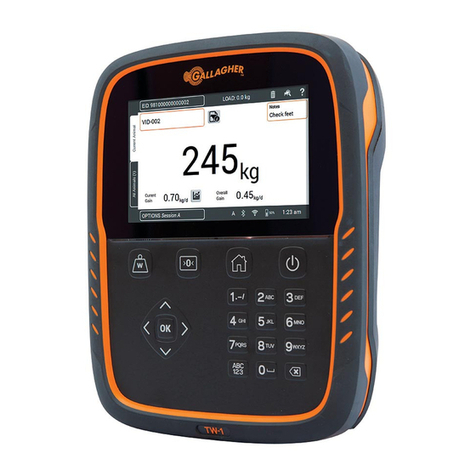
1. From the Home screen, tap New . The New Session screen is
displayed.
2. Tap
Quick Start to open the Weigh screen with the scale default sengs.
Note: To set up and use templates, refer to the TWR-5 On-board Help.
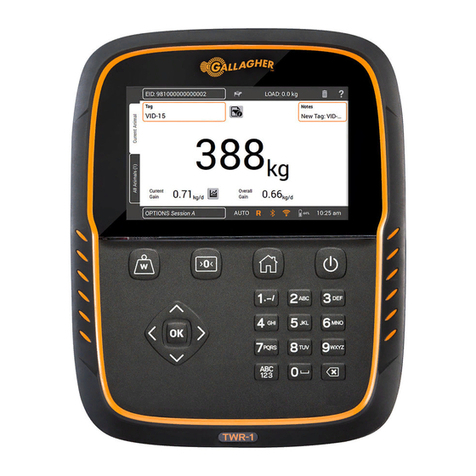
Note: Before weighing, 0.0 should be displayed. If not, press .
3. Load the animal onto the plaorm.
4. If using the internal reader, the animal’s Electronic ID will be scanned, or you
can scan with a hand-held reader and record the animal’s Visual Tag Number.
Note: The internal reader will only read a tag when loadbars are connected
and weight is detected on the weighing plaorm.
5. If weighing in AUTO - Automac weight lock, the scale will lock on to the
weight and hold it on the screen unl the animal leaves the plaorm.
If weighing in MAN - Manual weight lock, you must first press Weigh .
When the weight becomes stable, it will lock.
6. Move the animal offthe plaorm.
Important: If the weight displayed does not always return to 0.0 aer weighing,
check for dirt or manure that may have been leon the plaorm.
The TWR-can be re-zeroed by pressing .
To customize the session:
click on the OPTIONS
buon at the lower leof
the screen. Here you can
set up the weighing mode,
draing opons, traits and
name for the session. Refer
to Session Opons (p. 11) for
more informaon.