manuals.online logo
Brands
  1. Home
  2. •
  3. Brands
  4. •
  5. Marea Smart
  6. •
  7. Watch
  8. •
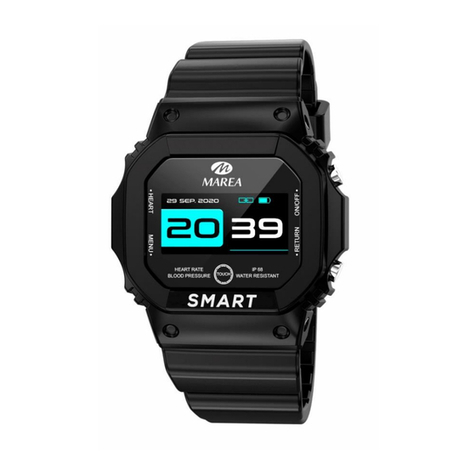
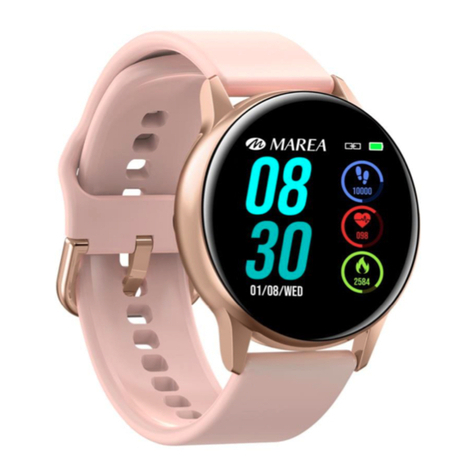
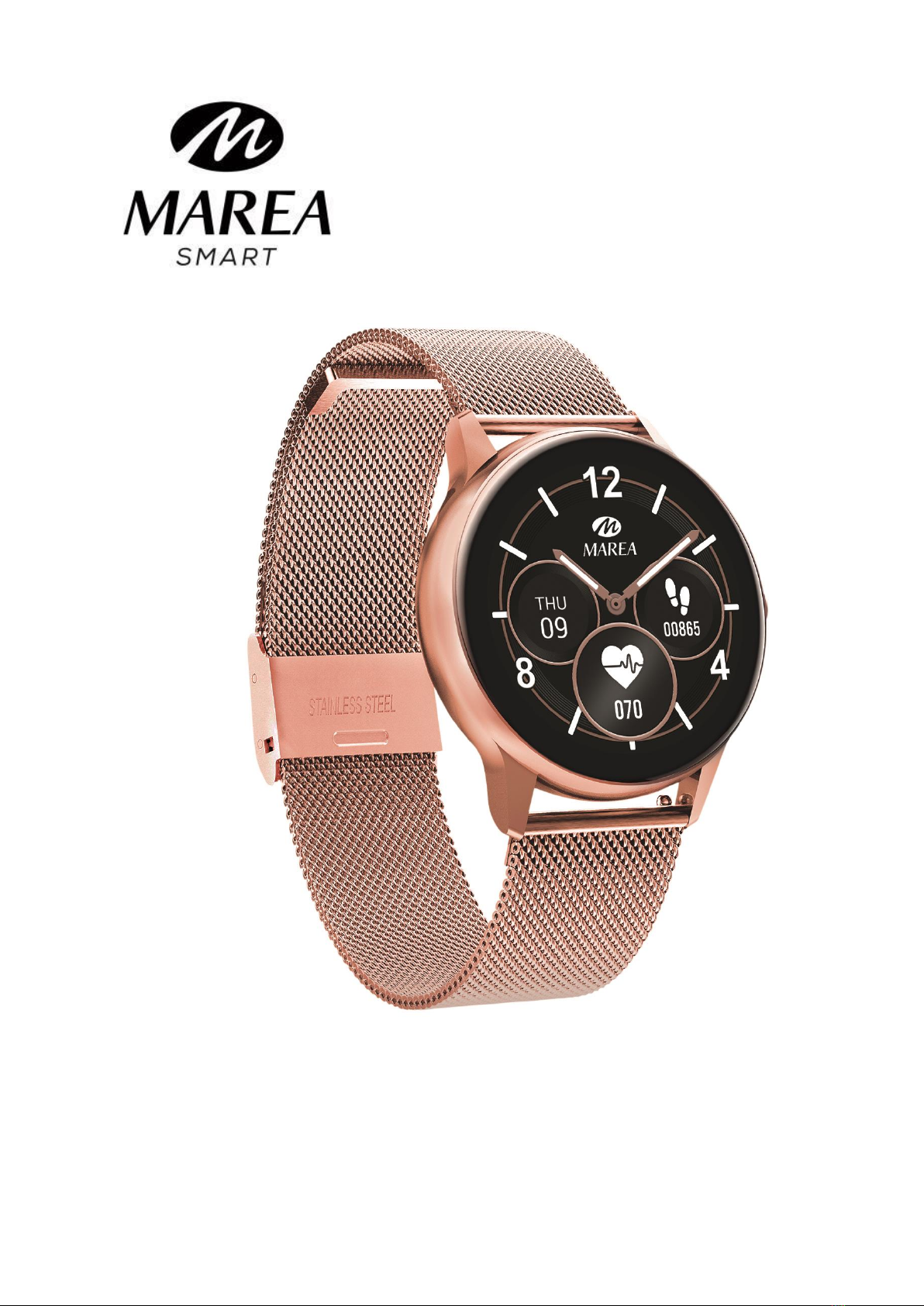
  9. Marea Smart B58008 User manual

Marea Smart B58008 User manual

Other Marea Smart Watch manuals

Marea Smart B59002 User manual

Marea Smart

Marea Smart B59002 User manual

Marea Smart B58007 User manual

Marea Smart

Marea Smart B58007 User manual

Marea Smart B59006 User manual

Marea Smart

Marea Smart B59006 User manual

Marea Smart B58001 User manual

Marea Smart

Marea Smart B58001 User manual

Marea Smart B57008 User manual

Marea Smart

Marea Smart B57008 User manual

Marea Smart B60002 User manual

Marea Smart

Marea Smart B60002 User manual

Marea Smart B60001 User manual

Marea Smart

Marea Smart B60001 User manual

Marea Smart B58009 User manual

Marea Smart

Marea Smart B58009 User manual

Marea Smart B58002 User manual

Marea Smart

Marea Smart B58002 User manual

Marea Smart B61002 User manual

Marea Smart

Marea Smart B61002 User manual

Marea Smart B59004 User manual

Marea Smart

Marea Smart B59004 User manual

Marea Smart B58003 User manual

Marea Smart

Marea Smart B58003 User manual

Marea Smart B61001 User manual

Marea Smart

Marea Smart B61001 User manual

Marea Smart B59005 User manual

Marea Smart

Marea Smart B59005 User manual

Marea Smart B59001 User manual

Marea Smart

Marea Smart B59001 User manual

Popular Watch manuals by other brands

Pandora WATCH2 quick guide

Pandora

Pandora WATCH2 quick guide

Casio QW-4343 Service manual

Casio

Casio QW-4343 Service manual

Suunto X6 user guide

Suunto

Suunto X6 user guide

Seiko N830 instruction manual

Seiko

Seiko N830 instruction manual

MotionX 365 user guide

MotionX

MotionX 365 user guide

Garmin VENU SQ 2 owner's manual

Garmin

Garmin VENU SQ 2 owner's manual

QCY Watch GTC manual

QCY

QCY Watch GTC manual

Canyon Cindy CNE-KW41WP quick guide

Canyon

Canyon Cindy CNE-KW41WP quick guide

Esq Watches Operating instructions warranty & service guide

Esq

Esq Watches Operating instructions warranty & service guide

Crane AA5-CDSM-3A user manual

Crane

Crane AA5-CDSM-3A user manual

Timex W-214 product manual

Timex

Timex W-214 product manual

DETOMASO MATERA manual

DETOMASO

DETOMASO MATERA manual

Geemarc Watch N Shake user guide

Geemarc

Geemarc Watch N Shake user guide

LORUS W590 instruction manual

LORUS

LORUS W590 instruction manual

STENLILLE Actío user manual

STENLILLE

STENLILLE Actío user manual

Casio 5594 Operation guide

Casio

Casio 5594 Operation guide

Sinn HUNTER'S WATCH 3. Edition manual

Sinn

Sinn HUNTER'S WATCH 3. Edition manual

Slazenger SLZ800 manual

Slazenger

Slazenger SLZ800 manual

manuals.online logo
manuals.online logoBrands
  • About & Mission
  • Contact us
  • Privacy Policy
  • Terms and Conditions

Copyright 2025 Manuals.Online. All Rights Reserved.

B58008
User Manual
Please read this manual before using the product to
fully understand its use and operation.
CAUTION
The company reserves the right to modify the contents
of this manual without any further notification. Some
functions may vary in certain versions of software.
Please charge this product with the charger provided
for no less than 2 hours before using it for the first
time.Use only the charger that is included with the
product. Make sure that the charger and the smart
watch are properly connected while charging. Do not
charge if the watch has water (or sweat) to avoid short
circuits and damaging the product.
The two contacts of the charging cable cannot be in
contact with a conductor material at the same time, it
will cause a short circuit and burn.
Avoid hitting the smart watch, it could break the glass.
The waterproof rank is IP68, therefore the smart watch
can be used for daily life. But the smart watch cannot
be used for diving or be under water for a long time.
Furthermore, the smart watch cannot be used in
showers / baths with hot water (the water steam can
damage it) or in salt water (if it entered the smart
watch, it would corrode the internal parts).

Download and install the application
1. Go to our website www.mareasmart.com and find your
smart watch model. The model number is found on the
back of the smart watch (it starts with “B” and is followed
by five digits).

2. Download and install on your phone the official app that
corresponds with your smart watch model.
3. Open the app and enable all the permissions that the app
requests.
4. Turn on Bluetooth on your phone.
5. Make sure that the smart watch has not been linked
directly through Bluetooth to your phone. If so, unlink it.
6. Bind your Marea Smart watch through the app.
Notes on linking:
Only one smart watch pairing application should be
installed on the phone to ensure that the connection
with the smart watch is normal. If several applications
are connected, they can affect the connection between
the watch and the phone. Some Android phones will
prompt you that they cannot install the app. Please go
to ‘settings’ of the phone and authorize the ‘Unknown
source’.
When the mobile phone requests permissions, click
"Allow". On the contrary, you may not receive
notifications, scan QR codes, open the remote camera
or use other functions. These permissions do not affect
the flow of the phone or other information on the
phone.
Some Android phones may accidentally close the app
when cleaning the applications. Please keep the app
running in the background. To turn on this function on
your phone: open the phone settings - application
management - official application - rights management
- backstage management - select background running.
The setting method may be different due to different
mobile phone versions and models.
For iPhone: if the phone is in standby or hibernation
mode for a long time (for example, the phone has not
been in use for 2 hours or more and the screen is off),
the application will be closed by the iOS system , so the
application and the watch will be disconnected and the
application functions will not be available. Re-activate
the phone and it will automatically reconnect.
Smart watch operation
Turn on/off
Press and hold the side button to turn on the smart watch;
short press the side button to activate the watch when in
standbymode.
Press and hold the side button to turn off the smart watch.
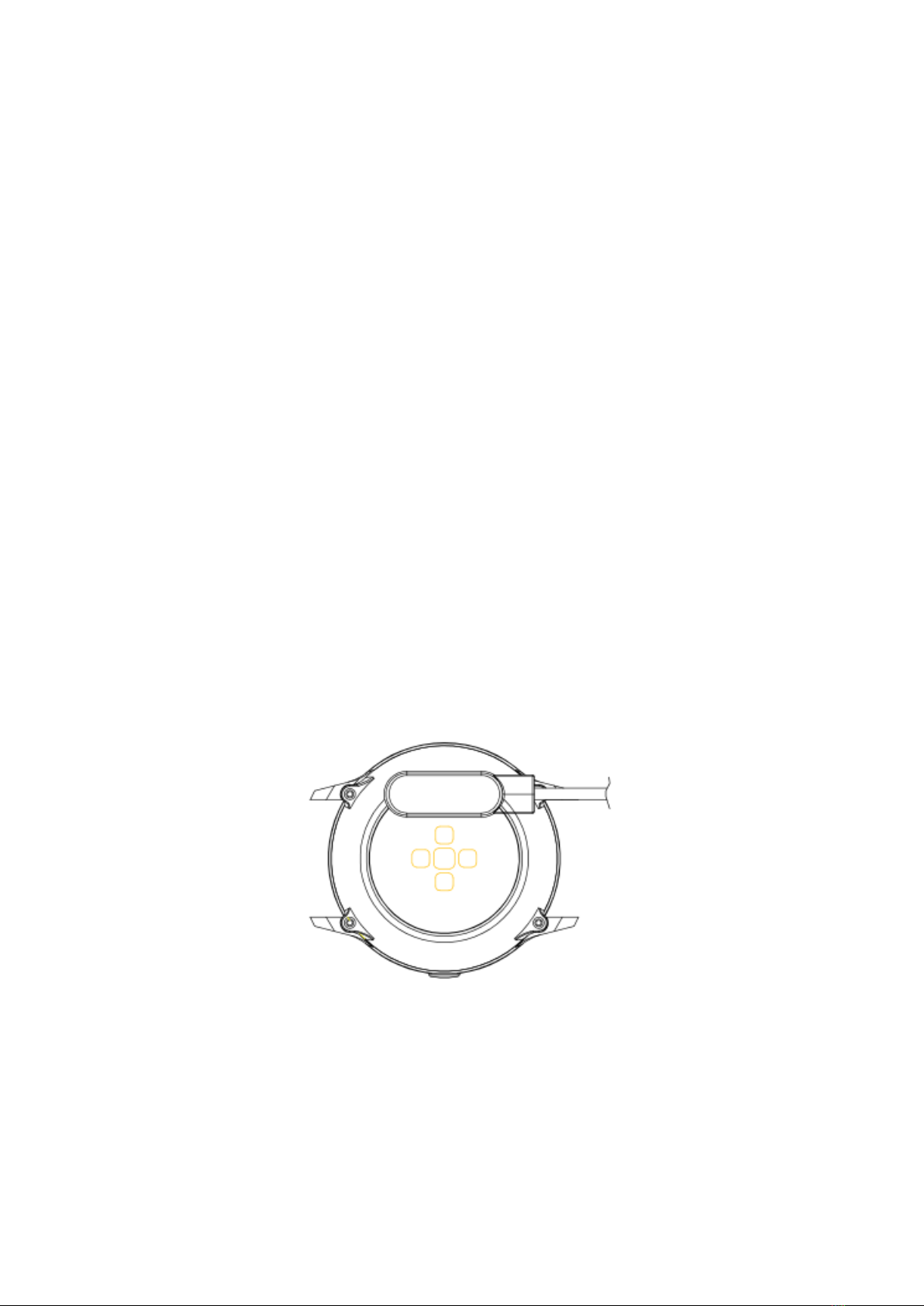
Charger
When charging, the charger must contact the charge port
on the back of the case’s watch as shown:
Button and screen operation
From the home screen on the smart watch:
Swipe down to see the status bar. It shows the
connection status and battery, and includes quick
access to some functions (shutdown, about,
stopwatch, brightness control, and settings).
Swipe up to enter the main menu.
Swipe right to enter the message interface.
Swipe left to enter the step counter interface, swipe
down to see the number of steps, distance, and calorie
consumption of the day. Swipe left again to enter the
heart rate test and sleep record.
Return
From any function, short press the side button to return to
the home screen.
Home screen selection
Long press the home screen to enter the selection
interface, swipe to see all available options. Click on the
desired screen to make it your home screen.
Main functions in Smart watch
Message
Shows the last messages / notifications. The phone and the
watch must be linked and within the Bluetooth range.
Slide to the bottom and press the delete icon to clear all
message records. The last notification received will replace
the oldest one. On the app you can select what type of
notifications you want to receive on the smart watch.
Data
Shows the steps taken, the distance traveled and the
calories consumed on the current day. The data is cleared
at 00:00 every day.
Sports
Includes different sport modes: walking, running, cycling,
skipping rope, badminton, basketball, football.
Select the corresponding exercise mode, click on the start
button to begin the recording and the pause icon to pause
the exercise. Click on the end button to end the exercise
and save the data. The exercise data can be saved when the
exercise time is longer than 1 minute (if not, it will prompt
"Too little data to save"). On the app you can check the
historical data.
Blood Pressure
Wait for about 10-20 seconds for the measurement to
finish and the result will be displayed.
Blood Oxygen
Wait for about 10-20 seconds for the measurement to finish
and the result will be displayed.
Heart Rate
Wait for about 10-20 seconds for the measurement to
finish and the result will be displayed.
ECG
Enter the ECG menu on the app and then enter the ECG
function on the smart watch. Wait for about 10-20 seconds
for the measurement to finish and the data will be saved on
the app. The phone and the watch must be linked and
within the Bluetooth range.
Notes on health functions:
The heart rate, blood pressure, and blood oxygen
functions require the watch and arm to be in contact,
and the watch should not be too tight or too loose. The
test can be inaccurate if it is too tight because it will
affect blood flow, and if it is too loose because it will
affect the monitoring of the heart rate sensor.
The results of the smart watch measurements are only
indicative and cannot substitute in any case for any
medical test. Please follow your doctor's instructions
and do not rely solely on these results for an
evaluation.
Music remote control
Displays buttons to play / pause and skip to previous or
next song, to remotely control the music playing on the
paired phone. The phone and the watch must be linked and
within the Bluetooth range.
Sleep Monitor
If you have worn the watch during the previous night, it
shows the total sleep time of last night, as well as light and
deep sleep times. You can check the historical data on the
app. Sleep monitoring time period: from 18:00 to 10:00 the
next day.
Stopwatch
Click on the start icon to start the count.
Weather
Displays the current weather and temperature. The phone
and the watch must be linked so the watch can receive the
weather and location info from the phone.When the app is
downloaded, the local weather data may be updated after
00:00 that day. Make sure that the geographic location is
enable for the app.
Settings
Languages: Select the language for the smart watch
interface.
Home screen selection: Click on the desired screen to
make it your home screen.
Screen on time: Select the time that the screen is on
before entering the standby mode.
Vibration intensity: Select the intensity of the vibration