manuals.online logo
Brands
  1. Home
  2. •
  3. Brands
  4. •
  5. Mitel
  6. •
  7. Telephone
  8. •
  9. Mitel 8568 User manual

Mitel 8568 User manual

Other manuals for 8568

7

Other Mitel Telephone manuals

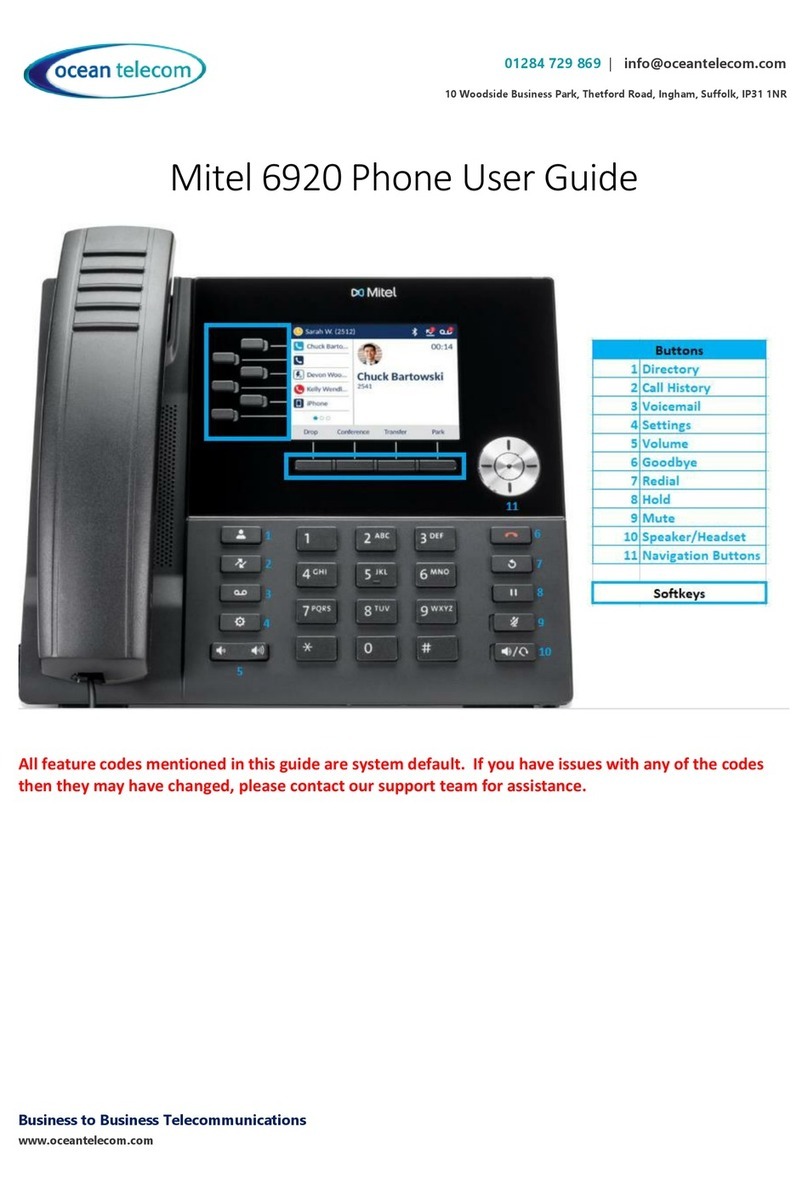
Mitel MiVOICE 6920 User manual

Mitel

Mitel MiVOICE 6920 User manual

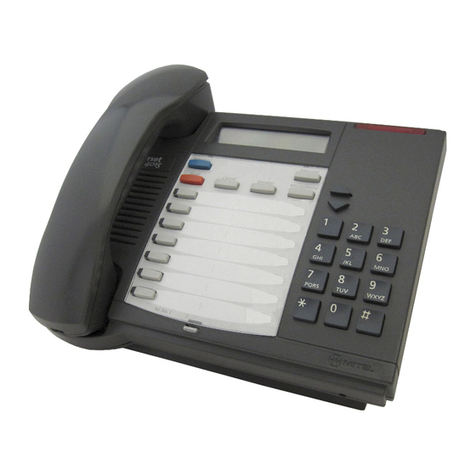
Mitel M7310 User manual

Mitel

Mitel M7310 User manual

Mitel MiVoice 6940 User manual

Mitel

Mitel MiVoice 6940 User manual

Mitel Superset 4025 User manual

Mitel

Mitel Superset 4025 User manual

Mitel 6710 User manual

Mitel

Mitel 6710 User manual

Mitel MiVoice 6940 User manual

Mitel

Mitel MiVoice 6940 User manual

Mitel SX-200 Operation manual

Mitel

Mitel SX-200 Operation manual

Mitel 6863i User manual

Mitel

Mitel 6863i User manual

Mitel 6730 User manual

Mitel

Mitel 6730 User manual

Mitel SX-2000 Light Configuration guide

Mitel

Mitel SX-2000 Light Configuration guide

Mitel OfficeSuite UC 6920 User manual

Mitel

Mitel OfficeSuite UC 6920 User manual

Mitel Superset 4015 User manual

Mitel

Mitel Superset 4015 User manual

Mitel MiVOICE 6930 User manual

Mitel

Mitel MiVOICE 6930 User manual

Mitel M2006 User manual

Mitel

Mitel M2006 User manual

Mitel M7100 User manual

Mitel

Mitel M7100 User manual

Mitel 6940 SIP User manual

Mitel

Mitel 6940 SIP User manual

Mitel MiVoice 5361 IP Instruction manual

Mitel

Mitel MiVoice 5361 IP Instruction manual

Mitel 6392 User manual

Mitel

Mitel 6392 User manual

Mitel MIVOICE OFFICE 250 User manual

Mitel

Mitel MIVOICE OFFICE 250 User manual

Mitel Deskphone 6867 User manual

Mitel

Mitel Deskphone 6867 User manual

Mitel MIVOICE OFFICE 400 6920 SIP User manual

Mitel

Mitel MIVOICE OFFICE 400 6920 SIP User manual

Mitel Navigator 3300 ICP User manual

Mitel

Mitel Navigator 3300 ICP User manual

Mitel SUPERSET 4001 User manual

Mitel

Mitel SUPERSET 4001 User manual

Mitel sx-100 User manual

Mitel

Mitel sx-100 User manual

Popular Telephone manuals by other brands

Philips BaseLine Pro manual

Philips

Philips BaseLine Pro manual

V-tech i6772 user guide

V-tech

V-tech i6772 user guide

BT FREELANCE XD 5100 quick start guide

BT

BT FREELANCE XD 5100 quick start guide

Uniden 1360 user guide

Uniden

Uniden 1360 user guide

Fanvil D800 user manual

Fanvil

Fanvil D800 user manual

Avaya IP500 user guide

Avaya

Avaya IP500 user guide

NEC Univerge SV9100 installation manual

NEC

NEC Univerge SV9100 installation manual

Amanda MiniSOHO Installation and programming manual

Amanda

Amanda MiniSOHO Installation and programming manual

Hitachi SelecSet 900 Series user guide

Hitachi

Hitachi SelecSet 900 Series user guide

mPTech HAMMER BS21 quick start guide

mPTech

mPTech HAMMER BS21 quick start guide

NEC 2000IVX user guide

NEC

NEC 2000IVX user guide

ooma Phone Genie quick start guide

ooma

ooma Phone Genie quick start guide

Siemens Gigaset S450 user guide

Siemens

Siemens Gigaset S450 user guide

Clarity RC100 operating instructions

Clarity

Clarity RC100 operating instructions

GE 2-9480 user guide

GE

GE 2-9480 user guide

Geemarc PHOTOPHONE 155 user guide

Geemarc

Geemarc PHOTOPHONE 155 user guide

Interquartz Gemini IQ333 operating instructions

Interquartz

Interquartz Gemini IQ333 operating instructions

SSS Siedle HT 840-0 operating instructions

SSS Siedle

SSS Siedle HT 840-0 operating instructions

manuals.online logo
manuals.online logoBrands
  • About & Mission
  • Contact us
  • Privacy Policy
  • Terms and Conditions

Copyright 2025 Manuals.Online. All Rights Reserved.

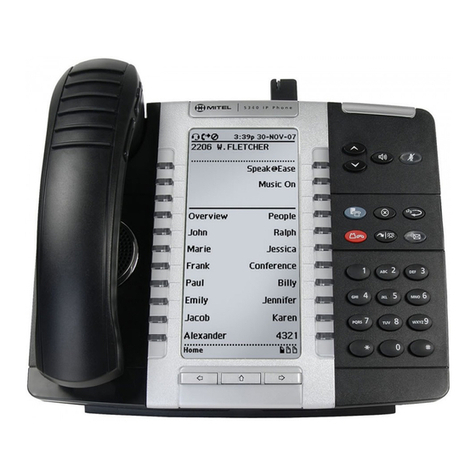
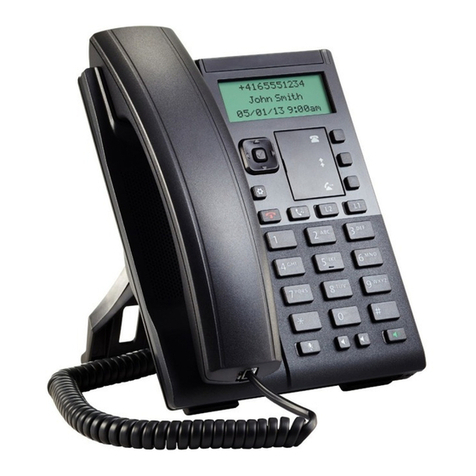
Mitel 8568 Telephone Quick Reference Guide
This guide provides information for frequently used
features. For more information about these and
other features, refer to the user guide. For voice mail
information, refer to the voice mail user guide for
your system.
Feature Buttons
Most of the following feature codes work when your
telephone is idle. However, if you are on an active
call or if the telephone is off-hook, you may need to
press (Special) to activate the feature before
you enter the feature code.
If you make a mistake when entering numbers or
characters, you can press (Hold) to move the
cursor to the left and delete the characters entered,
or you can press * to cancel the feature.
Commonly Used Feature Codes
Contact your system administrator for more
information about system features.
Feature
Code
ACD Agent –Log In/Out
328
Automatic IC Call Access –On/Off
361
Automatic Trunk Call Access –On/Off
360
Background Music –On/Off
313
Call Forward –All Calls
355
Call Logging
333
Conference
5
Default Station
394
Directory
307
Display Time and Date
300
Do-Not-Disturb –On/Off
372
Dynamic Extension Express –On/Off
364
Dynamic Extension Express Handoff
388
Handsfree –On/Off
319
Headset –On/Off
317
Hold - Individual
336
Hold - System
335
Hunt Group –Remove/Replace
324
Message –Cancel Left Message
366
Message –Delete Message
368
Message –Leave Message
367
Message –View Messages Menu
365
Microphone Mute –On/Off
314
Page Receive –On/Off
325
Program Buttons
397
Program Station Password
392
Programmable Buttons - Default
395
Queue (Callback) Request
6
Record-A-Call
385
Reverse Transfer (Call Pick-Up)
4
Ring Tone Selection
398
Station Speed Dial
382
Station Speed Dial - Programming
383
Switch Keymap
399
System Forward –On/Off
354
System Speed Dial
381
View Button Assignments
396
Answering Calls
Lift the handset, or press (Speaker) to answer a call
while using a headset or to answer a call in Handsfree
Mode.
Placing Emergency Calls
Dial the emergency number (911 U.S. or 999/112 Europe).
The system immediately places the emergency call as soon
as you dial the number, even if you do not select an
outside line.
Placing Internal (Intercom) Calls
With or without the handset lifted, dial the extension
number. If you enter incorrect digits, you can press
(Hold) to move the cursor backward, deleting the
last digits entered. If you are using Handsfree Mode, listen
for the double tone, and then begin to speak.
Placing External Calls
Press the Outgoing button, an unlit Call button, or enter
the Outgoing Call access code (8 is the default code), and
then dial the number.
Redialing External Numbers
With or without the handset lifted, press the
(Redial). The system automatically selects a line and dials
the number.
Transferring Calls to Other Extensions
1. While on the call, press (Transfer), and then enter the
extension number.
2. Do one of the following:
Wait for an answer, announce the call, and then
hang up. If the extension is unavailable, press
the flashing IC or Call button to return to the
caller.
Hang up to transfer the call and disconnect the
call from your telephone.
Forwarding Calls
1. Press the Fwd button, and then enter the feature code,
if applicable. ENTER FORWARD DEST appears.
2. Enter the extension number, or press the Outgoing
button or enter the Outgoing Call access code (8 is the
default code), and then dial the phone number.
Placing Conference Calls
1. While on the first call, press the Conf button to place
the call on hold. CALL NEXT PARTY TO CNF appears.
2. Place a call to the next conference party. For external
calls, press the Outgoing button or enter the Outgoing Call
access code (8 is the default code), and then dial the
number.
3. After the party answers, announce the conference, and
then press the Conf button to place the call on hold. If
necessary, repeat this step to add the remaining
conference party.
4. Press the Conf button again to start the conference. CNF
IN PROGRESS appears.
Viewing and Responding to Messages
1. With the handset on-hook, press (Message)
Messages are displayed as first in/first out. If there is more
than one message, you can repeatedly press
(Message) to scroll through the messages.
2. When the desired message is displayed, press #, or lift
the handset for privacy, and then press # to respond. (If
your handset is off-hook and you press (Message),
you automatically place a call to the party or message
center who left the message.)
Using Do-Not-Disturb
1. Press the DND button, and then do one of the following:
Press (Up) or (Down) to scroll
through the messages.
Enter the two-digit number for the DND
message.
2. After selecting the message, enter the additional text
for the DND description, if applicable.
3. Press (Speaker) lift and replace the handset.
Placing a Page Announcement
1. Press 7.
2. Enter the page-zone number (0 to 9).
3. After the tone, make your announcement, and then
hang up.