Instruction Manual for
Instruction Manual forInstruction Manual for
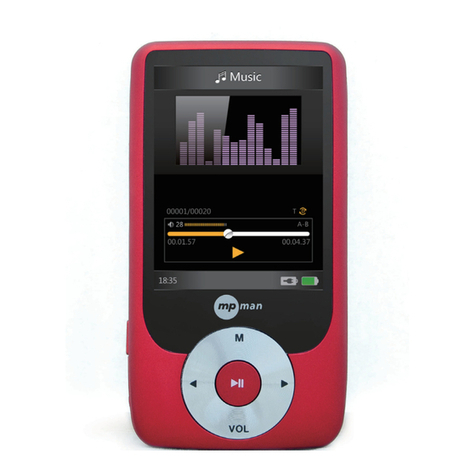
Instruction Manual for MP-CL2 digital player
8
Random: This mode plays all the files on the player or in a directory at random. In this mode
a indicator is displayed,as shown in figure 10.
Random repeat: This repeats all the files stored on the player or in a directory at random. In
this mode a indicator is displayed, as shown in figure 11.
Lyrics synchronization: Use the and buttons to select the“playing interface”option
and press the button to confirm. There are “normal”and“lyric synchronization”options
for you to choose from. If you select“normal”the system stays in the normal playing mode,
without displaying lyrics, as shown in figure 11. If you choose the “lyrics synchronization”
option the system will go into lyric synchronization mode. This synchronizes the MP3/WMA
and LRC files, which share the same name in a selected directory, as shown in figure 12.
2. How to use A-B repeat or timed repeat mode.
A-B repeat: In play mode, click this button once to set a start point – A. A- will then be
displayed on the screen. Click this button again to set the end point – B. A-B will now be
displayed, and the player will repeat between these two points. Pressing the button a third
time will cancel your selection and return you to normal play mode.
Timed repeat: Select the “length of time setting” from the online menu and press the
button. Use the + or – buttons to set the length of time you wish to repeat. The maximum
length of time you can set is 99 seconds, and the shortest is 3 seconds. After setting the repeat
time click the button to confirm,then click the ESC button to exit the online menu. If you
press the A-B button and hold it down,the system will use the current point as the start of
your repeat time and return to that point once it has played the set amount of time. The screen
will display a indicator. When you wish to return to normal play mode and stop the timed
repeat, just click the A-B button again.
3. How to delete files and check the attributes of files.
Delete files: In the song directory, as shown in figure 3, press the or buttons to select
the files you wish to delete. Click the M/ button and an interface will pop up, as shown in
figure 13. Press the or buttons to select “delete”. Click the button and a dialogue
box “are you sure you want to delete this file?” will pop up. Click the button to confirm.
The song will then be deleted and the player will return to the screen shown in figure 3. To
cancel the deletion you can use the ESC button.
Note: Read-only files cannot be deleted. The system will display a “Read-only files. Cannot
be deleted.” message if you try to do this.
Checking the attributes of files: In the screen shown in figure 13, press the or buttons
to select attribute and press the button. The screen shown in figure 14 will now appear.
This shows the size of the file.
ii. Setting up recording
This player allows you to make high quality recordings, such as FM line-in recordings,
external recording via a MIC (with its built-in microphone), Line in (via Line in) etc. The
length of time available for your recordings depends upon the quality and the capacity of the
NAND FLASH.
1. Starting to record
Use the and buttons to select the “record”option,as shown in figure 15. Press the
button to select and the screen shown in figure 16 will appear. Here there are four