manuals.online logo
Brands
  1. Home
  2. •
  3. Brands
  4. •
  5. OBERON
  6. •
  7. Wireless Access Point
  8. •
  9. OBERON 1006-CCOAP User manual

OBERON 1006-CCOAP User manual

Other OBERON Wireless Access Point manuals

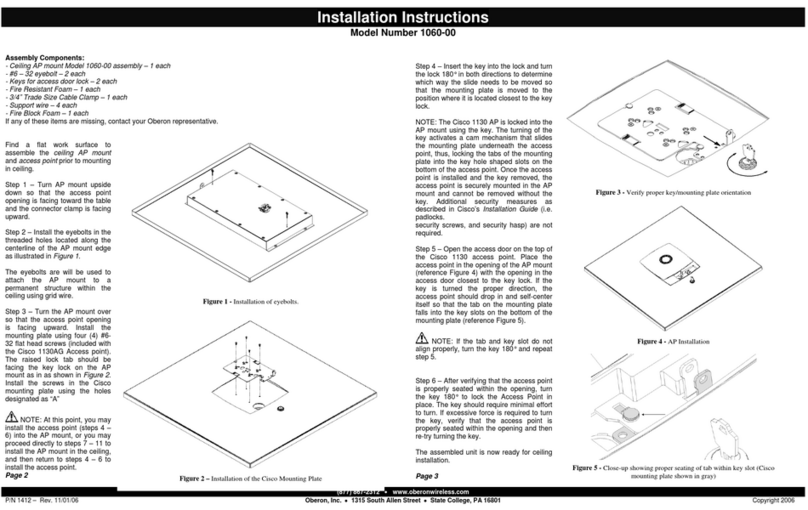
OBERON 1045-00 User manual

OBERON

OBERON 1045-00 User manual

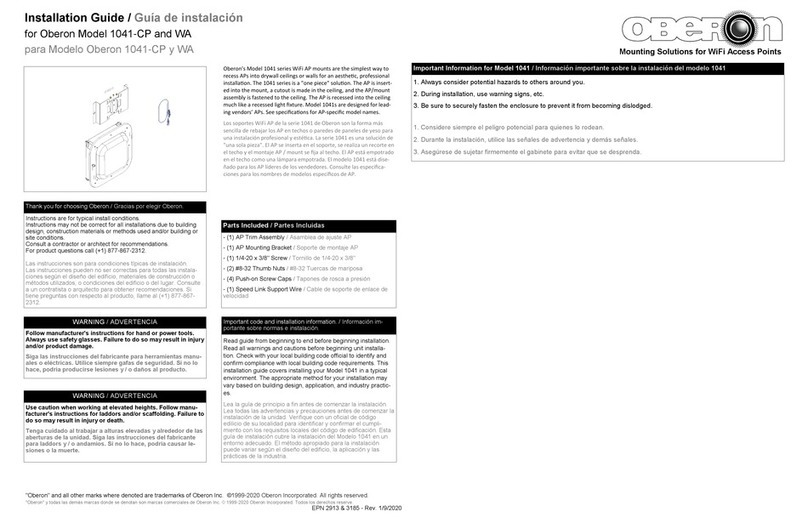
OBERON 1041 User manual

OBERON

OBERON 1041 User manual

OBERON 900-00 User manual

OBERON

OBERON 900-00 User manual

OBERON 1020 Assembly instructions

OBERON

OBERON 1020 Assembly instructions

OBERON 3030 Series User manual

OBERON

OBERON 3030 Series User manual

OBERON 1060-00 User manual

OBERON

OBERON 1060-00 User manual

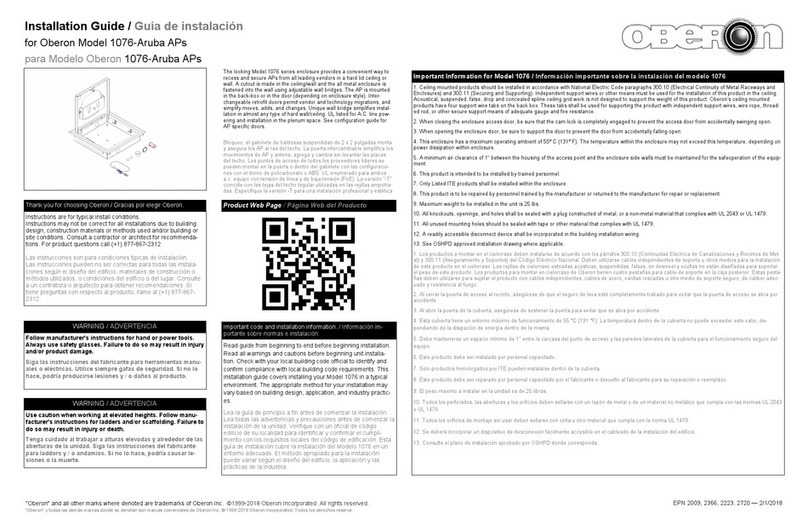
OBERON 1076-Aruba User manual

OBERON

OBERON 1076-Aruba User manual

OBERON 1041-CP User manual

OBERON

OBERON 1041-CP User manual

OBERON 33-1021-PMB-CVR User manual

OBERON

OBERON 33-1021-PMB-CVR User manual

OBERON 1022-00 User manual

OBERON

OBERON 1022-00 User manual

OBERON 1052-Aruba User manual

OBERON

OBERON 1052-Aruba User manual

OBERON 1015-00 User manual

OBERON

OBERON 1015-00 User manual

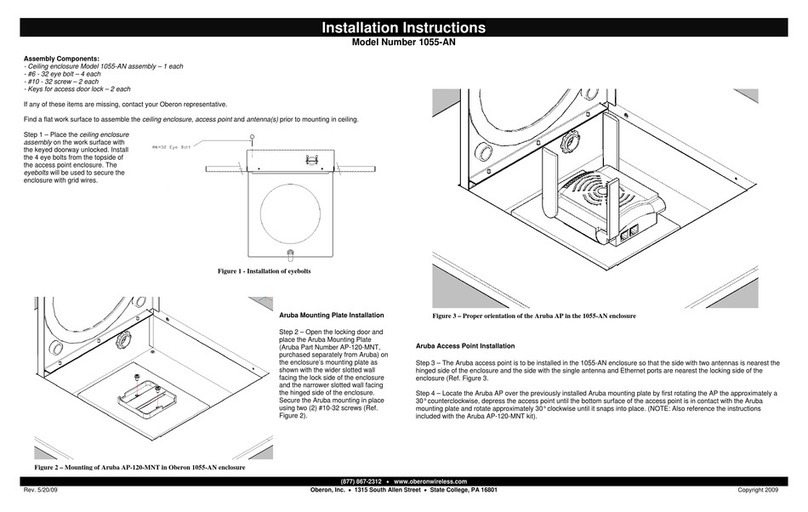
OBERON 1055-AN User manual

OBERON

OBERON 1055-AN User manual

Popular Wireless Access Point manuals by other brands

TRENDnet TPL-410AP user guide

TRENDnet

TRENDnet TPL-410AP user guide

EnGenius EWS377-FIT quick start guide

EnGenius

EnGenius EWS377-FIT quick start guide

D-Link DWL-6700AP Quick installation guide

D-Link

D-Link DWL-6700AP Quick installation guide

Aerohive Networks Aerohive AP121 Hardware reference guide

Aerohive Networks

Aerohive Networks Aerohive AP121 Hardware reference guide

Vonets VAP11G Step-by-step guide

Vonets

Vonets VAP11G Step-by-step guide

Ubiquiti UniFi AP AC Outdoor quick start guide

Ubiquiti

Ubiquiti UniFi AP AC Outdoor quick start guide

Monoprice MW301A user guide

Monoprice

Monoprice MW301A user guide

D-Link DWL-2700AP - AirPremier Outdoor Wireless Access... user manual

D-Link

D-Link DWL-2700AP - AirPremier Outdoor Wireless Access... user manual

D-Link DWL-2100AP - AirPlus Xtreme G Quick installation guide

D-Link

D-Link DWL-2100AP - AirPlus Xtreme G Quick installation guide

TP-Link Auranet EAP225 Quick installation guide

TP-Link

TP-Link Auranet EAP225 Quick installation guide

D-Link DWL-2100AP - AirPlus Xtreme G Quick installation guide

D-Link

D-Link DWL-2100AP - AirPlus Xtreme G Quick installation guide

Ubiquiti NanoStation NSM2 quick start guide

Ubiquiti

Ubiquiti NanoStation NSM2 quick start guide

Aruba IAP-335 user guide

Aruba

Aruba IAP-335 user guide

Advantek Networks AWN-AP-54MR user manual

Advantek Networks

Advantek Networks AWN-AP-54MR user manual

IP-COM AP355 user guide

IP-COM

IP-COM AP355 user guide

Buffalo AirStation WLA-L11G user manual

Buffalo

Buffalo AirStation WLA-L11G user manual

EnGenius EnStationACv2 user manual

EnGenius

EnGenius EnStationACv2 user manual

D-Link DAP-3662 Quick installation guide

D-Link

D-Link DAP-3662 Quick installation guide

manuals.online logo
manuals.online logoBrands
  • About & Mission
  • Contact us
  • Privacy Policy
  • Terms and Conditions

Copyright 2025 Manuals.Online. All Rights Reserved.

Installation Instructions
Model Number 1006-CCOAP
(877) 867-2312 •www.oberonwireless.com
P/N 2593 – Rev. 1 12/22/2015 Oberon, Inc. •
••
•1315 South Allen Street •
••
•State College, PA 16801 Copyright 2015
Assembly Components:
- Right angle wall mount – 1 each
- Access point mounting bracket – 1 each
- Acorn nuts - 2 Each
- #8 - 32 screws (for attaching access point mounting plate) – 4 each
- Installation Instructions – 1 each
If any of these items are missing, contact your Oberon representative.
Step 1 - Determine the location where the Cisco access
point will be installed. Ideally, the location should be in an
area where the mounted access point will be free of
obstructions and high up on the wall.
Step 2 - If feasible, an Ethernet wall outlet should be pre-
installed where the Oberon Model 1006-CCOAP right angle
wall mount and Cisco access point will be placed. This will
allow for the most aesthetic installation, free of distracting
cables. If a wall plate cannot be installed due to the wall
construction, alternatively, a race way can be installed to
bring the Ethernet cable to the mounting location.
Step 3 - Install the Oberon right angle wall mount to the wall
using proper mounting screws based on the construction of
the wall surface (customer supplied). The Oberon right angle
wall mount should ideally be placed so that the open area of
the wall mount is located directly over top of the wall plate
(Ref. figure 1).
**IMPORTANT** - It is important that the right angle
mount is securely fastened to the wall to prevent human
injury or damage to the access point.
Page 2
Once the Oberon right angle wall mount has been
secured to the wall, find a flat work surface to
assemble the Cisco access point to the Oberon
access point mounting bracket prior to mounting on
wall.
Step 4 – Place the Oberon access point mounting
bracket on the work surface.
Step 5 - Attach the Cisco mounting plate to the
Oberon access point mounting bracket using the
four (4) #8-32 screws provided. The Cisco mounting
plate should be aligned with the Oberon access
point mounting bracket so that the cable entry on the
Cisco mounting plate is positioned toward the cutout
of the Oberon access point mounting bracket (Ref.
Figure 2).
Step 6 - Determine the required length Ethernet jumper (the jumper should be as short as possible to minimize the amount of
cable visible after installation) and attach one end of the cable to the Cisco access point.
Step 7 – After the Ethernet cable has been attached to
the Cisco access point, attach the Cisco access point to
the Oberon access point mounting bracket/Cisco
mounting bracket assembly (Ref. figure 3).
The access point assembly is now ready to be attached
to the Oberon right angle wall mount.
Page 3
Figure 2
Figure 1
Figure 3

Figure 4
Step 8 – Align the Oberon access point mounting
bracket/Cisco access point assembly so that the
Ethernet cable is facing the wall. Attach the access point
assembly to the Oberon right angle wall mount that was
previously installed by placing the holes on the access
point assembly over the threaded studs of the Oberon
right angle wall mount (Ref. figure 4).
Step 9 – Secure the access point assembly to the
Oberon right angle wall mount using two (2) acorn nuts.
Step 10 – Complete the installation by attaching the
opposite end of the previously installed Ethernet
jumper the wall outlet (Ref. Figure 5).
Page 4
MODEL 1006-CCOAP
Installation Instructions
**** WARNING ****
Please thoroughly read the product warning
below before installation to provide for a safe
work environment.
1. Always consider the hazard to other people:
a. During installation, use warning signs, etc.
b. Don’t work with people directly below the work area as equipment
could fall and cause an injury
2. Be sure to securely fasten the mount to the wall to prevent the mount
from becoming dislodged.
Page 1
Figure 5