Oki Okipage 8p User manual

User’s Guide

2
OKIPAGE 8p/8w
Notice
Every effort has been made to ensure that the information in this
document is complete, accurate, and up-to-date. Oki assumes no
responsibility for the results of errors beyond its control. Oki also
cannot guarantee that changes in software and equipment made by other
manufacturersandreferredtointhisguidewillnotaffecttheapplicability
of the information in it. Mention of software products manufactured by
other companies does not necessarily constitute endorsement by Oki.
First edition March 1998
Copyright
© Copyright 1998 by Oki.All rights reserved.
Written and produced by the Oki Documentation Dept.
Trademarks
Oki is a registered trademark of
Oki Electric Industry Company, Ltd.
ENERGY STAR is a trademark of the
United States Environmental Protection Agency
Microsoft, MS-DOS and Windows are registered trademarks of
Microsoft Corporation.
HP and HP LaserJet are registered trademarks of
Hewlett Packard.
TrueType is a registered trademark of
Apple Computer.
IBM is a registered trademark of
International Business Machines Corp.

User’s Guide 3
English
Contents
Safety Instructions .................................................................. 4
Important Wiring Instructions ................................................ 6
Choosing Print Media............................................................. 7
Paper ...................................................................................7
Transparencies/Adhesive Labels .......................................7
Envelopes ........................................................................... 7
Paper Sizes .............................................................................. 8
Paper Weight ........................................................................... 8
Loading Paper .........................................................................8
Manual feed........................................................................9
Paper Exit ........................................................................... 9
Toner Cartridge .....................................................................10
Toner Cartridge Life .........................................................10
When to Replace the Toner Cartridge .............................10
Replacing the Toner Cartridge ........................................10
Cleaning the LEDArray ...................................................11
Image drum Cartridge ...........................................................12
Image Drum Cartridge Life ..............................................12
When to Replace the Image Drum Cartridge...................12
Replacing the Image Drum Cartridge ..............................12
Resetting the Drum Counter ............................................13
Fonts ......................................................................................14
What is a Font?.................................................................14
Using Fonts ......................................................................14
OKIPAGE 8p Fonts ...........................................................14
Front Panel Indication (OKIPAGE 8p) ..................................15
LED Indication.................................................................15
Front Panel Switch Functions ..........................................16
Viewing and using the menus...............................................16
Printer Maintenance..............................................................17
Transporting Your Printer.................................................17
Generating a Cleaning Page ............................................17
Cleaning the Printer .........................................................17
Basic Troubleshooting..........................................................18
Paper Jams ........................................................................18
Print Quality Problems .....................................................19
Software Problems ............................................................20
Hardware Problems ...........................................................21
Specifications........................................................................23
Index ......................................................................................26

4
OKIPAGE 8p/8w
SafetyInstructions
Your Oki printer has been carefully designed to give you years
of safe, reliable performance. As with all electrical equipment,
however, there are a few basic precautions you should take to
avoid hurting yourself or damaging the printer:
• Read the set up instructions in this handbook carefully. Be
sure to save it for future reference.
• Read and follow all warning and instruction labels on the
printer itself.
• Unplug the printer before you clean it. Use only a damp
cloth; do not use liquid or aerosol cleaners.
• Place your printer on a firm, solid surface. If you put it on
something unsteady, it may fall and be damaged; if you
place it on a soft surface, such as a rug, sofa, or bed, the
vents may become blocked, causing the printer to overheat.
• To protect your printer from overheating, make sure all
openings on the printer are not blocked. Do not put the
printer on or near a heat source, such as a radiator or heat
register. Keep it out of direct sunlight. Allow enough room
around the printer for adequate ventilation and easy access
to the paper trays.
• Do not use your printer near water, or spill liquid of any
kind into it.
• Be certain that your power source matches the rating
listed on the back of the printer. If you are not sure, check
with your dealer or with your local power company.
• Your printer has an earthed, 3-pin plug as a safety
feature, and it will only fit into an earthed outlet. If you
can not plug it in, chances are you have an older, non-
earthed outlet; contact an electrician to have the outlet
replaced. Do not use an adapter to defeat the earthing.
• To avoid damaging the power cable, do not put anything
on it or place it where it will be walked on. If the cable
becomes damaged or frayed, replace it immediately.
• If you are using an extension cable or power strip with the
printer, make sure that the total of the amperes required by
all the equipment on the extension is less than the
extension’s rating. The total ratings of all equipment
plugged into the outlet should not exceed 13 amperes.
• The power outlet into which you plug your printer must
remain accessible at all times.
• Lifting the top cover exposes hot surfaces. These are clearly
labelled. Do NOT touch them.
• Do not poke anything into the ventilation slots on the
printer; you could get a shock or cause a fire.

User’s Guide 5
English
• Aside from the routine maintenance described in this
handbook, do not try to service the printer yourself;
opening the cover may expose you to shocks or other
hazards. Always contact your local dealer.
• Do not make any adjustments other than those outlined in
the handbook. You may cause damage requiring extensive
repair work.
• It is recommended that the printer be switched off prior to
opening or removing covers.
If anything happens that indicates that your printer is not
working properly or has been damaged, unplug it immediately
and contact your dealer.
These are some of the things to look for:
• The power cable or plug is frayed or damaged.
• Liquid has been spilled into the printer, or it has been
exposed to water.
• The printer has been dropped, or the cabinet is damaged.
• The printer does not function normally when you are
following the operating instructions.
EMC/Low Voltage Directive
This product complies with the requirements of the
CouncilDirectives 89/336/EECand 73/23/EECon the
approximationofthe lawsofthe memberstatesrelating
toelectromagneticcompatibilityandlowvoltage.
Conventions
This symbol marks a ‘note’. Notes are hints or tips which
offer additional information to help you.
This symbol marks a ‘caution’. Cautions are special
notices which you should read and follow carefully to
avoid possible damage to your equipment.
This symbol marks a ‘warning’. Warnings are special
notices which you should read and follow carefully to
avoid potential danger to yourself or others.
Energy Star
AsanENERGYSTAR Partner,Okihasdeterminedthatthisproduct
meetstheENERGYSTAR guidelinesforenergyefficiency.

6
OKIPAGE 8p/8w
Important Wiring Instructions
The wires in the power cable are coloured in accordance
with the following code:
Green andYellow — Earth
Blue — Neutral
Brown — Live
If the colours of the wires in the power cable of this printer do
not correspond with the markings of the terminals of your plug,
proceed as follows:
Green and Yellow
Must be connected to the terminal marked with the letter
E(or the safety earth symbol) or the terminal coloured
green or green and yellow.
Blue
Must be connected to the terminal marked with the letter
Nor coloured blue or black.
Brown
Must be connected to the terminal marked with the letter
Lor coloured red.
This printer must be earthed!
If you are in any doubt regarding the wiring, please contact
a qualified electrician.

User’s Guide 7
English
Choosing Print Media
Paper
• For best results, use paper that is smooth and of high quality,
like copier type paper or paper with a Sheffield rating of
100-250.
• Store paper in its ream wrapper until you are ready to use it.
Keep it away from moisture or other conditions that can
cause it to wrinkle or curl.
• Preprinted forms must not scorch, melt, offset, or release
hazardous emissions when heated to 200ºC (392ºF) for
0.1 second.
• Avoid printing on both sides of the paper or preprinted
documents that have been in a photocopier.
• Try paper before you buy it in quantity.
Transparencies/Adhesive Labels
• Use manual feed.
• Should be specifically made for laser printers or
photocopiers.
• Must be able to withstand 200ºC for 0.1 second.
• Labels should cover entire carrier sheet.
• Carrier sheet or adhesive must not be exposed to any part
of the printer.
Envelopes
• Use manual feed.
• No windows or metal clasps.
• Paper no heavier than 105g/m².
• Smooth, even surface.
• No self-sealing flaps.
• Seams down the side, not across the middle.
• Squared-off flaps that do not cover the print area.

8
OKIPAGE 8p/8w
Paper Sizes
Paper format Width × Length
Letter 8½" × 11"
Legal 13 8½" × 13"
Legal 14 8½" × 14"
Executive 7¼" × 10½"
A4 210mm × 297mm
A5 148mm × 210mm
B5 176mm × 250mm
A6 105mm × 148mm
Free size (min) 76.2mm × 216.0mm
(max) 127.0mm × 355.6mm
Paper Weight
Minimum – Maximum
Automatic feed 60 – 105 g/m²
Manual feed 60 – 120 g/m²
Envelopes 75 – 90 g/m²
MediaType (default) Minimum – Maximum
Light (60) 60 – 66 g/m²
Medium light (68) 67 – 73 g/m²
Medium (75) 74 – 88 g/m²
Medium Heavy (90) 89 – 104 g/m²
Heavy (105) 105 – 120 g/m²
Loading Paper
The paper feeder handles up to 100 sheets of 75g/m² (20lb.)
paper.
1Set the left paper guide to the marker for the required
paper size and move the right guide to a position slightly
wider than your paper width.
2Insert the paper so that it is up against the left paper guide
and check that it is not skewed.

User’s Guide 9
English
3Adjust the right paper guide to fit against the edge of the
paper. Do not move the left guide again as this may cause
the paper to skew as it is fed in.
Manual feed
Use manual feed for printing envelopes, transparencies,
heavyweight and odd size paper.
Insert envelopes with flap side down and to the left.
1Adjust guides.
4Lift the paper out of the tray again slightly (about 1 cm)
and re-insert it gently, allowing it to drop under its own
weight – do not force it down.
Insert letterhead paper face-down, top of page first.
2Insert paper squarely into the guides.
Insert letterhead paper face-up, top of page first.
Paper Exit
• Up to 30 sheets of 75g/m² (20lb) paper can be stacked.
• Printed pages exit face up.
10
OKIPAGE 8p/8w
Toner Cartridge
Toner Cartridge Life
Toner cartridge life depends on the page density, the percentage
of each page that is printed black. The higher the print density,
the more toner is used. On average, a toner cartridge will produce
approximately 1500 sheets at 5% print density.
The first cartridge you place in your printer will produce
between 500 and 700 sheets. This is normal, as the new image
drum reservoir and developing roller must saturate with toner.
When to Replace the Toner Cartridge
Replace the toner cartridge when you see the TONER LOW
message displayed on your screen. You can continue printing
using the toner in the printer reservoir. However, you should
replace the toner cartridge as soon as possible to maintain
print quality and avoid possible damage to the imaging
system.
Replacing the Toner Cartridge
Do not remove the new cartridge from its packaging.
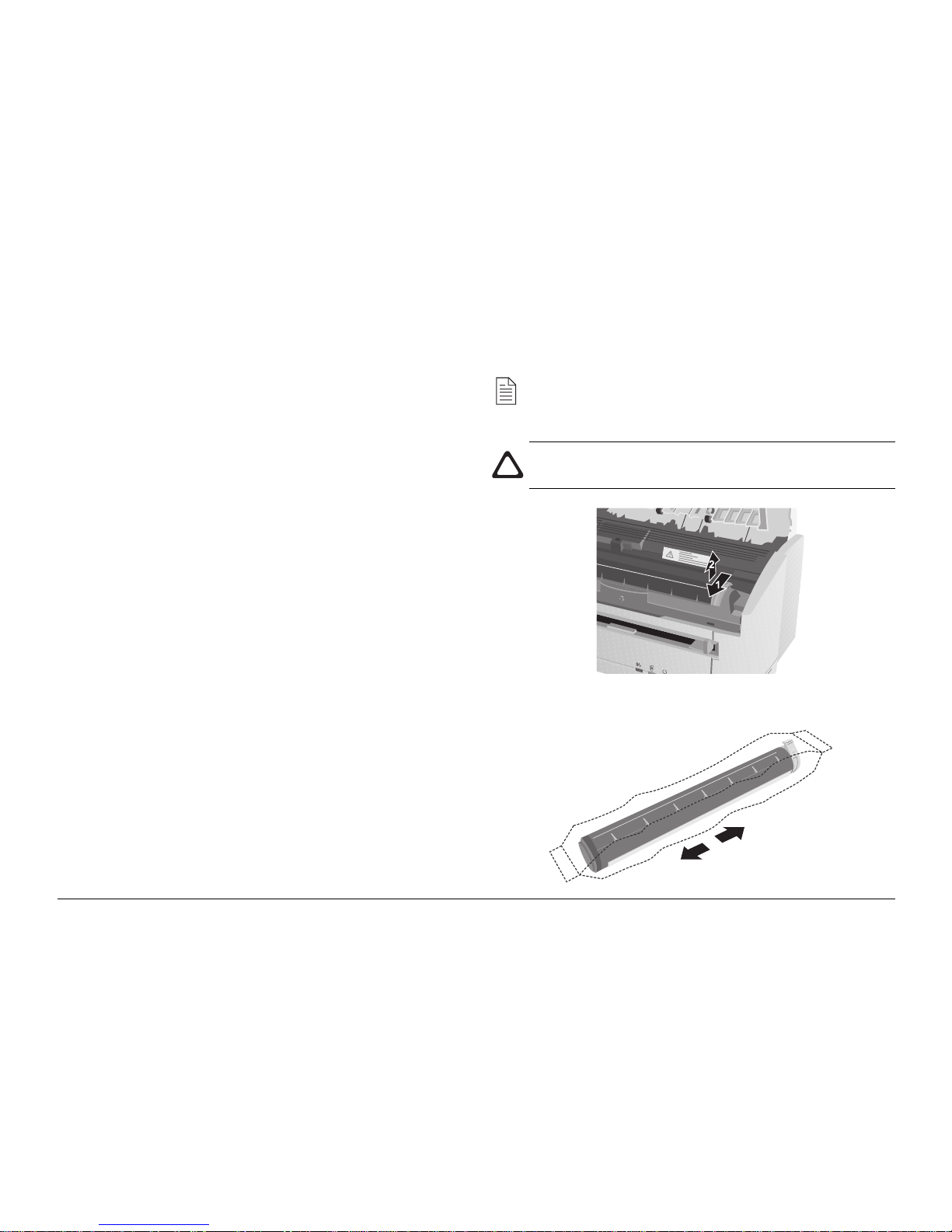
1Open the cover and remove the used toner cartridge.
Opening the cover exposes hot surfaces which are clearly
labelled. Do NOT touch them.
2Shake the new toner cartridge gently to distribute toner
evenly.
Other manuals for Okipage 8p
1
This manual suits for next models
1
Table of contents
Other Oki Printer manuals





Oki
Oki ML490 Series User manual
Oki
Oki Pacemark PM4410 Training manual

Oki
Oki OKICOLOR 8 User manual
Oki
Oki LE810DT User manual

Oki
Oki B6200 Series User manual
Oki
Oki DP-5000 Metallic and Colour Desktop Printer User manual
Oki
Oki C5450 User manual
Oki
Oki 10i User manual
Oki
Oki C711dtn Service manual

Oki
Oki C5800 User manual