manuals.online logo
Brands
  1. Home
  2. •
  3. Brands
  4. •
  5. Optoma
  6. •
  7. Projector Accessories
  8. •
  9. Optoma 3D-RF System User manual

Optoma 3D-RF System User manual

Other manuals for 3D-RF System

2

Other Optoma Projector Accessories manuals

Optoma ALR100 Installation guide

Optoma

Optoma ALR100 Installation guide

Optoma EP731 User manual

Optoma

Optoma EP731 User manual

Optoma ZF2100 Glasses User manual

Optoma

Optoma ZF2100 Glasses User manual

Optoma PCT-101 User manual

Optoma

Optoma PCT-101 User manual

Optoma BX-AL133B User manual

Optoma

Optoma BX-AL133B User manual

Optoma BM-3300ST User manual

Optoma

Optoma BM-3300ST User manual

Optoma AKPro User manual

Optoma

Optoma AKPro User manual

Optoma OWM3000 User manual

Optoma

Optoma OWM3000 User manual

Optoma BM-5001U Guide

Optoma

Optoma BM-5001U Guide

Optoma A16 User manual

Optoma

Optoma A16 User manual

Optoma DS-9106MGA Manual

Optoma

Optoma DS-9106MGA Manual

Optoma OWM855 User manual

Optoma

Optoma OWM855 User manual

Optoma 3D-XL User manual

Optoma

Optoma 3D-XL User manual

Optoma A16 UST Series User manual

Optoma

Optoma A16 UST Series User manual

Optoma 3D-XL Technical manual

Optoma

Optoma 3D-XL Technical manual

Optoma Projector User manual

Optoma

Optoma Projector User manual

Optoma TX778W User manual

Optoma

Optoma TX778W User manual

Optoma 3D-RF System User manual

Optoma

Optoma 3D-RF System User manual

Optoma BX-AL133B User manual

Optoma

Optoma BX-AL133B User manual

Optoma UHDCast Pro Quick manual

Optoma

Optoma UHDCast Pro Quick manual

Optoma WPS User manual

Optoma

Optoma WPS User manual

Optoma OWM1000 User manual

Optoma

Optoma OWM1000 User manual

Optoma WS-9211G User manual

Optoma

Optoma WS-9211G User manual

Optoma BX-AL133 User manual

Optoma

Optoma BX-AL133 User manual

Popular Projector Accessories manuals by other brands

PEERLESS PE 1120 Installation and assembly

PEERLESS

PEERLESS PE 1120 Installation and assembly

Osram SIRIUS HRI Series Directions for use

Osram

Osram SIRIUS HRI Series Directions for use

Presentation Switchers PS111 quick start

Presentation Switchers

Presentation Switchers PS111 quick start

Kramer VIA GO user manual

Kramer

Kramer VIA GO user manual

Yamaha PJL-112 Replacement guide

Yamaha

Yamaha PJL-112 Replacement guide

Mitsubishi Electric 236CB Features

Mitsubishi Electric

Mitsubishi Electric 236CB Features

Epson BrightLink 475Wi user guide

Epson

Epson BrightLink 475Wi user guide

Acer WP100 quick guide

Acer

Acer WP100 quick guide

Biamp Modena Hub Network administrator's guide

Biamp

Biamp Modena Hub Network administrator's guide

Panamorph DCR-S3 installation guide

Panamorph

Panamorph DCR-S3 installation guide

Exact solutions FRAME-EVO-P10 manual

Exact solutions

Exact solutions FRAME-EVO-P10 manual

i3 i3board user manual

i3

i3 i3board user manual

CHIEF VCM103S installation instructions

CHIEF

CHIEF VCM103S installation instructions

InFocus LP70+ Replacement instructions

InFocus

InFocus LP70+ Replacement instructions

Sharp AN-PH20EZ Operation manual

Sharp

Sharp AN-PH20EZ Operation manual

PDR UPM51 product manual

PDR

PDR UPM51 product manual

CHIEF HB-43E installation instructions

CHIEF

CHIEF HB-43E installation instructions

Sony LMP-F250 operating instructions

Sony

Sony LMP-F250 operating instructions

manuals.online logo
manuals.online logoBrands
  • About & Mission
  • Contact us
  • Privacy Policy
  • Terms and Conditions

Copyright 2025 Manuals.Online. All Rights Reserved.

Copyright 2011 Bit Cauldron Corporation Page 1 of 24
User’s Manual – Optoma 3D-RF System: Optoma 3D-RF Glasses and Optoma 3D-
RF Emitter for Optoma 3D-X Converter Box
Contains Patent Pending software and technology from Bit Cauldron
Contient les logitiels de brevet en instance et la technologie de la compagnie Bit Cauldron
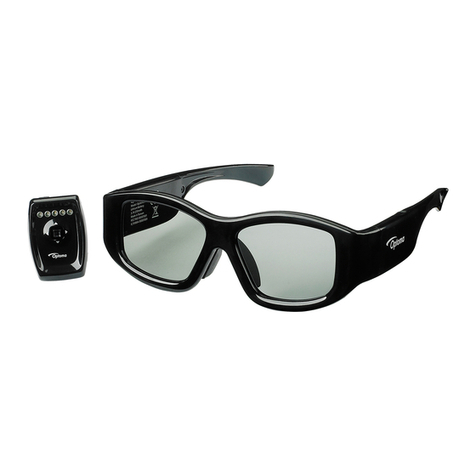
Optoma 3D-RF Emitter Manual
The Optoma 3D-RF mitter connects Optoma 3D-XL converter box to the Optoma 3D-RF LCD Shutter
Glasses for the ultimate in 3D stereoscopic viewing. This document describes the features, connection,
setup, and operation of the Optoma 3D-RF mitter with Optoma 3D-XL converter box.
Features
•RF synchronization for uninterruptable 3D glasses performance
•Ready to watch compatibility with 3D Ready Optoma projectors with Optoma 3D-XL converter box
•L D indicators assist with IR Sensor placement
•Management Software enables Upgrade functionality for compatibility with future 3D TVs
•Manual performance adjustment capability
[This manual is intended to be repurposed by O M’s in the creation of their manual.
Insert your product shot or quick-start image here.]
Copyright 2011 Bit Cauldron Corporation Page 2 of 24
Connections
Optoma 3D-X converter box with 3D Emitter Port
1: Connect the Optoma 3D-RF emitter to the Optoma 3D-XL converter box using the IR mitter Port as
shown below.
Copyright 2011 Bit Cauldron Corporation Page 3 of 24
Basic Features
RF Communication of Synchronization Signal
RF communications enables the Optoma 3D-RF System to provide an awesome and uninterruptable 3D
viewing experience. Line of sight obstructions, emitter placement and viewer seating arrangements
have no impact on the performance of the emitter to glasses synchronization. Optimal seating distance
and viewing angle is determined by the capabilities of the 3D Ready Projector coupled to the Optoma
3D-XL converter box and 3D-RF System.
Copyright 2011 Bit Cauldron Corporation Page 4 of 24
ED Indicators
The Optoma 3D-RF mitter uses 5 multicolored L Ds
to indicate modes of operation or other information.
The L Ds are located on the top of the emitter close
to the joystick and display red, green, or orange.
Joystick
The Optoma 3D-RF mitter uses a joystick to allow
the user to enable various modes and change
settings. The joystick has two axes and a center
button function. Function of the axes and buttons
are dependent on the operating mode as described
in following sections.
Modes of Operation
The Optoma 3D-RF mitter has 5 modes of operation.
•Normal
•Sync Signal Status (Strength)
•Manual Tuning of Glasses Performance
•Pairing the Optoma 3D-RF mitter with Optoma 3D-RF Glasses
•Set Polarity
Accessing Modes
During normal operation, the joystick is used to
access different modes of operation. Press and
hold the joystick to cycle through the available
modes. Release the joystick to select a mode. In
any mode, the normal mode of operation
resumes after 60 seconds of inactivity with the
exception of Set Polarity mode. Set Polarity mode
will time out in 10 seconds.
Copyright 2011 Bit Cauldron Corporation Page 5 of 24
Normal Operation Mode
During normal operating mode, the Optoma 3D-RF mitter interprets 3D signals from the 3D-XL
converter box and controls the Optoma 3D-RF Series LCD Shutter Glasses through RF. No L Ds are
active.
Signal Status (Strength) Indicator Mode
The signal status (strength) indicator provides a visual signal status measurement. The number of lit
green L Ds indicates the quality of the sync signal, with more green L Ds equating to better Sync signal.
The L Ds will display a red moving pattern while the emitter is attempting to acquire a 3D signal and
until a signal is found.
Manual Performance Tuning Mode
The Optoma 3D-RF mitter and Optoma 3D-RF LCD Shutter Glasses are preprogrammed to work with a
wide variety of TVs and 3D content. The manual performance tuning mode enables the 3D system
performance to be fine tuned. Warning, use of this feature can result in improper or undesirable
operation.
3D Emitter & Glasses Pairing Mode
In environments where more than one Optoma 3D-RF mitter is present, Optoma 3D-RF Glasses should
be paired with the emitter to ensure proper operation. This mode also involves the Optoma 3D-RF
Glasses and is described in greater detail in a subsequent section.
Set Polarity Mode
This mode allows manual setting of lens polarity. During normal operation left lens will open when
rising sync edge is detected. Polarity can be reversed so that right lens will open when rising sync edge
is detected.
Factory Defaults Mode
In the event that the Optoma 3D-RF mitter is not working properly and other troubleshooting methods
have failed, use the Reset to Factory Defaults mode to attempt recovery of proper operation. Warning:
Any tuning done using Manual Performance Tuning will be erased.
Copyright 2011 Bit Cauldron Corporation Page 6 of 24
Connecting the Optoma 3D-RF Emitter to Optoma 3D-X converter box
Use the guide in Connections: Optoma 3D-XL converter
box with 3D mitter Port to properly connect the Optoma
3D-RF mitter. When the Optoma 3D-XL converter box is
turned on, the Optoma 3D-RF mitter will turn on as well.
The L Ds will display a red moving pattern while the
emitter is attempting to acquire a 3D signal and until a
signal is found. If the emitter searches for a signal for
longer than 60 seconds, a signal is not found. nsure that
the 3D ready projector is in 3D mode. In addition to
setting the 3D ready projector in 3D mode, you must also have 3D content playing in order to find 3D
signal (L D’s turn green.)
Upon finding a 3D signal, all L Ds will turn green for
approximately 60 seconds and then turn off. Once the L Ds
indicate a 3D signal, the Optoma 3D-RF Glasses can be used
to experience 3D. If the image when viewed through the
Optoma 3D-RF Glasses is fuzzy, has ghosting, or is out of
polarity, see Manual Performance Tuning Mode: Using the
Joystick to Manually Tune Performance.
Copyright 2011 Bit Cauldron Corporation Page 7 of 24
Manual Performance Tuning Mode: Using the Joystick to Manually Tune Performance
Mode
During performance tuning, the Optoma 3D-RF mitter continues to provide 3D sync to the Optoma 3D-
RF Glasses. The joystick modifies parameters, while the L Ds display the current value of the parameter
being adjusted. While wearing the Optoma 3D-RF Glasses and viewing 3D content on the projector,
hold the Optoma 3D-RF mitter and adjust the parameters to the desired settings.
WARNING: TH MANUAL P RFORMANC TUNING MOD NABL S TH US R TO PLAC TH GLASS S IN
A MOD IN WHICH ON Y S S A DOUBL IMAG CONSISTING OF PARTS OF BOTH TH L FT AND
RIGHT IMAG . THIS CAN CAUS Y STRAIN. IF YOU XP RI NC Y STRAIN, PL AS DISCONTINU US
OF TH PRODUCT IMM DIAT LY. TO MINIMIZ TH CHANC S OF XP RI NCING Y STRAIN DURING
MANUAL P RFORMANC TUNING, PL AS OP N ONLY ON Y AT A TIM . THIS M THOD ALSO MAK S
IT ASI R TO P RFORM P RFORMANC TUNING. AFT R ACH Y S S A UNIQU IMAG , OP N BOTH
Y S AT TH SAM TIM TO CH CK TH POLARITY.
ED Display During Performance Tuning
When the device enters manual performance tuning mode, the display will change from two green L D’s
to some number of red L D’s indicating the current delay. [Note: if the delay has previously been tuned
to the minimum value, the displayed value will correspond to zero and all L D’s will appear dark.]
To provide adequate time for adjustment and observation of the current settings, performance tuning
mode stays active for two minutes after the user stops operating the joystick. Following the inactivity
period, the performance tuning settings will be saved and the Optoma 3D-RF mitter will return to
normal operating mode.
See the appendix About Performance Tuning for a detailed explanation of shutter glass function and
performance tuning.
Delay Tuning
Moving the joystick up and down will change the delay between when
the “Open Left” signal is received by the emitter and when the left lens
opens. (The delay of the right lens will also be changed in lockstep, as will
the lens closing times.)
UP = INCR AS D LAY, GAUG GO S UP
DOWN = D CR AS D LAY, GAUG GO S DOWN
Copyright 2011 Bit Cauldron Corporation Page 8 of 24
As the delay is changed, a bar of red L D’s will move up and down to form a gauge of the delay. ach of
the five L D’s will march through four visibly different brightness levels, resulting in 20 possible visible
values for delay. With a small tap the transmitter will actually change delay by a small amount not
visible on the L D display. If up or down is pressed and held, the gauge will move quickly through the
values. If up or down is pressed and released, the delay will change by a unit one quarter the size of a
visible change in lighting. It takes four taps in the same direction to make a visible change in the gauge.
ens Duty Cycle Tuning
Moving the joystick left and right will change the total time the glasses
open each lens.
L FT = CLOS L NS S MOR , BRIGHTN SS GO S DOWN, GHOSTING
MAY GO DOWN
RIGHT = OP N L NS S MOR , BRIGHTN SS GO S UP, GHOSTING MAY
GO UP
As the duty cycle is changed, a bar of orange L D’s will move up and down to form a gauge of the delay.
(Other than color, the delay gauge and the duty cycle gauge have the same appearance; which gauge is
displayed is determined by which direction has been pressed last.) ach of the five L D’s will march
through four visibly different brightness levels (resulting in 20 possible visible values for duty cycle.)
With a small tap the transmitter will actually change duty cycle by a small amount not visible on the L D
display. If left or right is pressed and held, the gauge will move quickly through the values. If left or right
is pressed and released, the delay will change by a unit one quarter the size of a visible change in lighting.
It takes four taps in the same direction to make a visible change in the gauge; in certain lighting
conditions a single tap may be visible as a change in brightness viewed through the glasses.
Set Polarity
It is possible that the 3D image, although perfectly clear and free of ghosting, looks incorrect or shows
no depth. The polarity could be reversed, which means the left lens is open when the right eye image is
being displayed – the left eye is getting the right image and vice versa. Simply place the glasses upside
down over your eyes to check if the image is now corrected. If the 3D image is better, the polarity is
reversed. Reversal of polarity can be caused by the source, the content or the projector. The source
equipment or the 3D ready projector may have an option to correct this. If not, the Optoma 3D-RF
mitter can be used to reverse polarity.
•Select the Manual Tuning Performance Mode, see the Accessing Modes section
•Press and release the joystick
•If the polarity changes to standard, two red L Ds will be lit
•If the polarity changes to reverse, three red L Ds will be lit

Copyright 2011 Bit Cauldron Corporation Page 9 of 24
•While wearing 3D glasses, view 3D content to ensure proper polarity
•Repeat until correct polarity is selected
PR SS JOYSTICK DIR CTLY INTO MITT R = SWITCH POLARITY
STANDARD POLARITY R V RS POLARITY
Once the correct polarity is achieved, stop pressing the joystick. After 120 seconds, the L Ds will turn
off, indicating that the new polarity setting has been saved. This polarity setting will be saved and used
until it is adjusted again or a factory reset is performed. The Optoma 3D-RF mitter will return to Normal
Operation Mode.
More information about Performance Tuning is found in the section About Performance Tuning.
Polarity can also be changed in “Set Polarity mode”, see Accessing Modes section on page 4 to set this
mode. Description of “Set Polarity mode” is on page 11.
PR SS
Copyright 2011 Bit Cauldron Corporation Page 10 of 24
3D Emitter & Glasses Pairing Mode: Pairing the Optoma 3D-RF Emitter with Optoma
3D-RF Glasses
The emitter may operate an unlimited number of glasses at any given time. However, the emitter may
choose to uniquely pair with a maximum of eight glasses.
After placing the Optoma 3D-RF mitter in pairing mode, you will see the red “in-search-of-a-pair light
sequence” heartbeat.
The Optoma 3D-RF mitter will remain in pairing mode for one minute. During that time, multiple
glasses may be paired with the Optoma 3D-RF mitter. The only indication that pairing is successful will
occur at the glasses. When the Optoma 3D-RF mitter cannot pair to any more devices, it will display the
“all available pairs already memorized” signal indicated by five red L D’s blinking all-on and all-off for
ten seconds. The emitter will then return to normal operation. The device must be reset to factory
defaults to clear the memorized pair list.