Connect and pair
Pair to mobile device
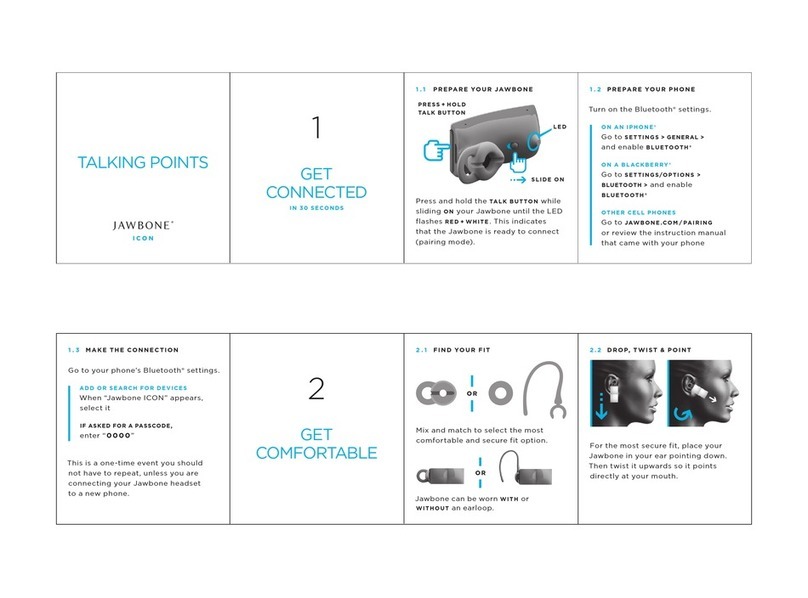
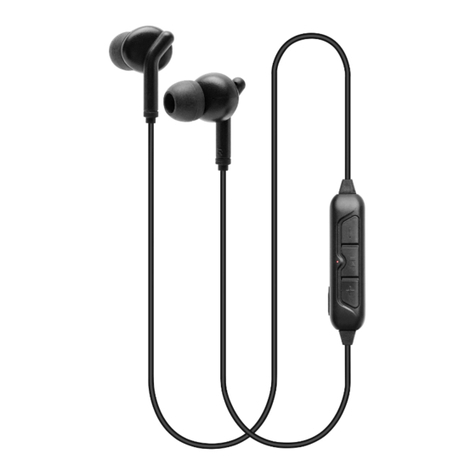
1To put your headset in pair mode, press the Call button until you hear "pairing" and
the headset LEDs flash blue and red.
2Activate Bluetooth on your phone and set it to search for new devices.
•iPhone Settings > Bluetooth > On*
•Android Settings > Bluetooth On > Scan for devices*
Note: *Menus may vary by device.
3Select “Poly V5200 Series.”
Once successfully paired, you hear “pairing successful” and the headset LEDs stop
flashing.
Note: Your headset can pair with up to 8 devices but only maintain 2 connections
simultaneously; this includes the Bluetooth adapter.
Connect to PC
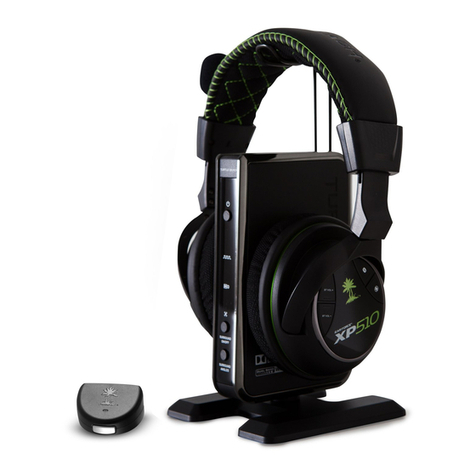
Your Bluetooth USB adapter comes pre-paired to your headset.
1Turn on your headset and insert the Bluetooth USB adapter into your laptop or PC.
2The USB adapter LED flashes and then turns solid to indicate the headset is
connected to the USB adapter. If you are wearing your headset you hear “PC
connected” to indicate the connection has been established. When on a call, the LED
on the USB adapter flashes blue. When not on a call the LED is solid.
3Load Poly Lens Desktop App by visiting poly.com/software. This allows you to
customize your headset behavior through advanced settings and options.
Configure USB adapter for streaming media
Your high-fidelity Bluetooth USB adapter comes ready to take calls. To streaming media,
configure your Bluetooth USB adapter.
Windows
1To configure your Bluetooth USB adapter for streaming media in your PC, go to Start
menu > Control Panel > Sound > Playback tab. Select Poly BT700 set it as the
Default Device and click OK.
2To pause music when you place or receive calls, go to Start menu > Control Panel >
Sound > Communications tab and select the desired parameter.
10