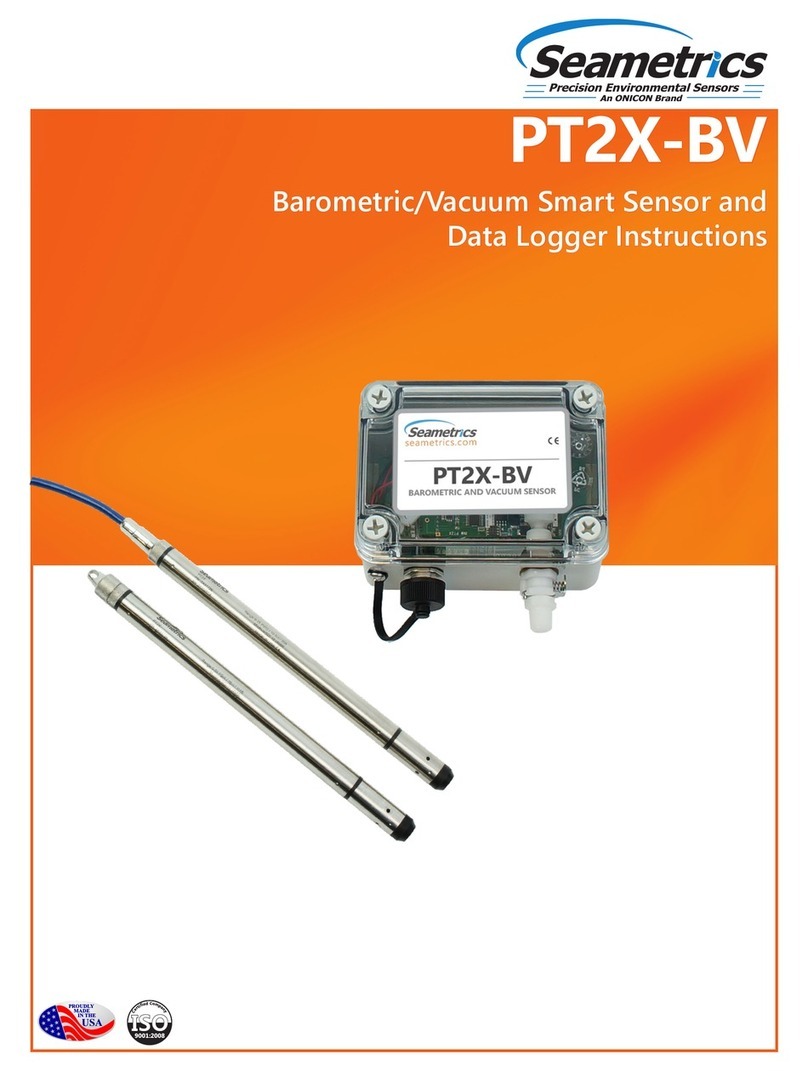
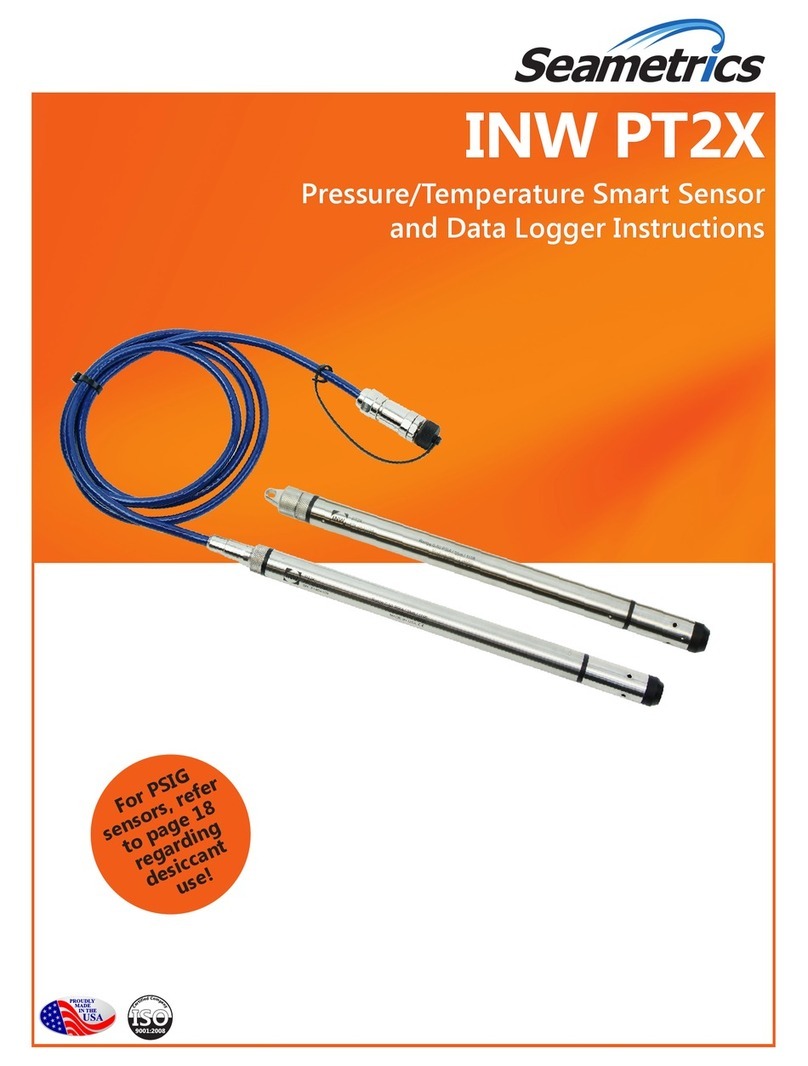
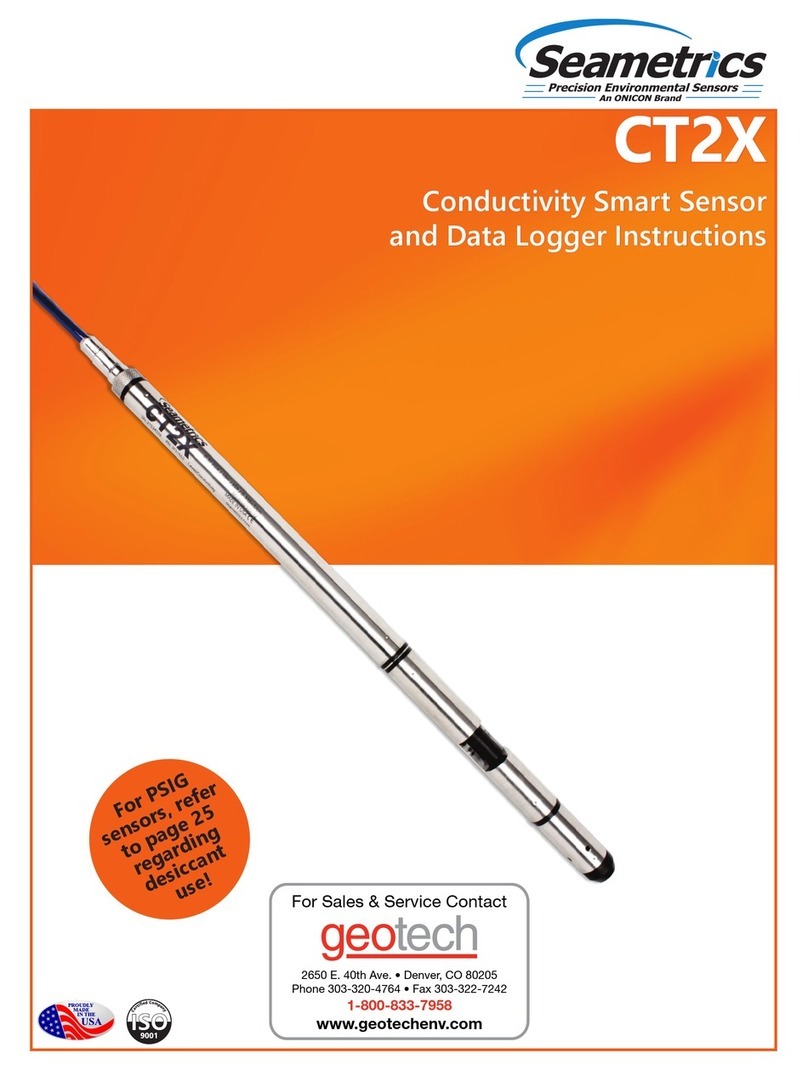
Seametrics Multi-Parameter Smart Sensor User manual

PROUDLY
MADE
IN THE
USA
C
e
r
t
i
f
i
e
d
C
o
m
p
a
n
y
ISO
9001
Precision Environmental Sensors
An ON
I
CON Brand
Multi-Parameter
Smart Sensor and Datalogger

MULTI-PARAMETER INSTR
Seametrics • 253.872.0284 Page 2 seametrics.com
Introduction .........................................................................................................4
What is the Multi-Parameter Smart Sensor?.................................................................................4
Features .......................................................................................................................................................4
Initial Inspection and Handling ..........................................................................................................4
Do’s and Don’ts........................................................................................................................................5
Installation and Operation ..................................................................................5
Connecting to External Power and a Computer..........................................................................5
Installing the Aqua4Plus Software.....................................................................5
Calibration ............................................................................................................6
Field Deployment.................................................................................................6
Real-time Data......................................................................................................7
Data Logging ........................................................................................................8
Reports ..................................................................................................................9
Storing Sensor ................................................................................................... 12
Appendix A: Technical Specications ............................................................. 12
Wiring Information........................................................................................... 12
Dimensions and Specications........................................................................................................ 13
Appendix B: Reading the Multi-Parameter via Direct Read........................ 15
Limited Warranty/Disclaimer........................................................................... 16
TABLE OF CONTENTS

MULTI-PARAMETER INSTR
Seametrics • 253.872.0284 Page 3 seametrics.com
©1997 - 2016 Seametrics. All rights reserved.
Registered trademarks and trademarks belong to their respective owners.
About this Manual
This manual covers basic use of the Multi-Parameter Smart Sensor. Further details about
each connected probe, including calibration information, can be found in their respective
manuals. Be sure to refer to these manuals for important information on care and
maintenance of your probe. Detailed software information can be found in the Aqua4Plus
Software Manual. Information on using these with other Modbus equipment, such as panel
meters or RTU/PLC applications, refer to the application note available on our website at
www.seametrics.com.

MULTI-PARAMETER INSTR
Seametrics • 253.872.0284 Page 4 seametrics.com
What is the Multi-Parameter Smart Sensor?
The Seametrics Multi-Parameter Smart Sensor combines up to three Seametrics Smart
Sensor probes in a single, easy-to-deploy, unit. Depending on conguration the Multi-
Parameter Sensor can measure pH, ORP, temperature, conductivity, salinity, TDS, pressure,
level, and dissolved oxygen or turbidity, depending on conguration.
The Multi-Parameter Smart Sensor is powered from a 12 VDC power supply and can be
networked with other Seametrics Smart Sensors, either directly from a single computer or
via a third party System.
Features
Initial Inspection and Handling
Upon receipt of your smart sensor, inspect the shipping package for damage. After
opening the carton, look for concealed damage, such as a cut cable. If damage is found,
immediately le a claim with the carrier. Check the label attached to the cable at the
connector end for the proper cable length.
Do’s and Don’ts
Do handle the device with care.
Don’t install the device so that the connector end is submerged.
Don’t support the device with the connector or with the connectors of an extension
cable. Use a strain relief device to take the tension o the connectors.
Don’t allow the device to free-fall down a well as impact damage can occur.
Don’t bang or drop the device on hard objects.
• Measures pH, ORP, temperature,
conductivity, salinity, TDS, pressure
level, and dissolved oxygen or turbidity
(depending on conguration)
• Modbus®and SDI-12 interface for
greater exibility
• Non-volatile memory
• RS485 network — connect with other
Seametrics Smart Sensors
• Modular design — accommodate
changes to parameter and data needs
• Flexible, Windows®-based
programming
• Real time viewing
• Easy export to spreadsheets and
databases
• Direct read option — use with panel
meters or RTU/PLC applications
• Fits in 2” (5.1 cm) well
INTRODUCTION

MULTI-PARAMETER INSTR
Seametrics • 253.872.0284 Page 5 seametrics.com
Connecting to External Power and a Computer
The Multi-Parameter sensor normally comes with Seametrics’ 12VDC power supply. Simply
connect the sensor cable to the female connector on the power box. (Note: the individual
probe units do not have internal batteries.)
Connect the Seametrics USB communication cable to the male connector on the power
box. (For alternate connection options, see Appendix B.)
Installing the Aqua4Plus Software
The Multi-Parameter Sensor comes with the Aqua4Plus host software to be installed on
your PC or laptop. Use this software to calibrate the sensor, to program the datalogger,
to retrieve data from the logger, to view collected data, and to export data to external
les for use with spreadsheets or databases. Refer to the Aqua4Plus software manual for
details on installing and using Aqua4Plus.
NOTE: When using Aqua4Plus (or any other Modbus software), each probe will appear on
a separate Modbus address—two to three addresses, depending on conguration.
INSTALLATION AND OPERATION
Connect the sensor to an auxiliary power supply
then to your PC using USB to RS485 adapter.
Cap
Sensor
Cableless
Configuration
PC or Laptop
USB Port
USB to RS485
Adapter
Sensor
Aux. Box
Sensor Cable

MULTI-PARAMETER INSTR
Seametrics • 253.872.0284 Page 6 seametrics.com
Calibration
All active channels can be calibrated in the eld. Temperature and Pressure channels rarely
need calibrating, however the pH, ORP, and Conductivity channels should be calibrated
before rst use and periodically thereafter. Refer to the specic probe manuals for details.
Environmental conditions of turbulence and temperature swings, as well as local likelihood
for bio-fouling or mineral deposition, can vary considerably from site to site. Therefore,
where the sensor is to be used for long-term monitoring, it is recommended that the
calibration be initially checked frequently until a performance history is established.
Field Deployment
The black reference reservoir at the lower end of the TempHionTM Smart Sensor is
shipped lled with Seametrics reference solution. (If your reference reservoir is not lled,
see the Maintenance section of the TempHion manual.) The black reference assembly
has two grooves. The upper groove contains a small hole that forms the liquid junction
port. During shipping and storage, an o-ring is located in the upper groove, preventing
reference solution leakage and contamination. Be sure to move the o-ring to the lower
groove before deploying, thus exposing the liquid junction port. If the o-ring continues to
cover the opening, readings will not be representative or accurate.
Be sure to move the o-ring to the lower groove before
deploying, thus exposing the liquid junction port.
Lower the sensor to the desired depth. Fasten the cable to the well head using the
strain-relief system. (Note that for shallow installations the liquid in which the sensor is
submerged must, at all times, reach high enough to cover all sensing elements.)
Do not install such that the connector at the top of the connector might become
submerged with changing weather conditions. The box and connectors can withstand
incidental splashing but is are not designed to be submerged.
INSTALLATION AND OPERATION

MULTI-PARAMETER INSTR
Seametrics • 253.872.0284 Page 7 seametrics.com
INSTALLATION AND OPERATION
Real-time Data
Connect to sensor and select the Real-time data tab
To start real-time readings click Start, readings default to table view. To switch to Real-time
graphing view click the graph icon
Real-time readings default to a 1 second interval for 1 minute, to adjust enter your desired
settings here:
To save this data to the Reports section click the button located next to the Single
button in the Real-Time tab. This will permanently save this real-time data set to your
Reports database.

MULTI-PARAMETER INSTR
Seametrics • 253.872.0284 Page 8 seametrics.com
INSTALLATION AND OPERATION
Data Logging
Select Set Up Logging from the sensor screen. If there are no les currently on the sensor
you’ll see the Set Up Logging button active under the Data Files tab as well as in the upper
menu. Once les have been started/logged on the sensor they will be displayed under the
Data Files tab.
Set Up Logging Window
Here you will name your data le and set up the recording interval and duration of
each logging phase. Select your desired recording interval and duration for each phase,
Aqua4Plus 2.0 will display the available memory at the bottom of the window.

MULTI-PARAMETER INSTR
Seametrics • 253.872.0284 Page 9 seametrics.com
INSTALLATION AND OPERATION
Reports
Data downloaded from your sensor is stored in the Reports section of Aqua4Plus 2.0 for
viewing and editing. The les will be saved to default data folder on your PC as well. See
Program Settings for default data folder location.
In the main view you’ll see a list of reports sorted by date, size, or le name as selected
here:
You can also search reports by keyword using the search box
Click on a report to bring up the report details.
Reports are displayed in graphing view by default. You can zoom to specic sections by
selecting a section with you mouse or by adjusting the slider below the graph.

MULTI-PARAMETER INSTR
Seametrics • 253.872.0284 Page 10 seametrics.com
INSTALLATION AND OPERATION
Click to view data as a table
Click to view data statistics
Click to switch to full screen graphing view
Graph saving and export options are available here:
You may change the display units within the graph view by selecting the appropriate
channel here:
Table of contents
Other Seametrics Accessories manuals
Seametrics
Seametrics EX80 Series User manual
Seametrics
Seametrics INW LevelSCOUT User manual
Seametrics
Seametrics LevelSCOUT User manual

Seametrics
Seametrics PT2X User manual
Seametrics
Seametrics IP800 Series User manual
Seametrics
Seametrics INW CT2X User manual
Seametrics
Seametrics DO2 User manual
Seametrics
Seametrics TX81 Series User manual
Seametrics
Seametrics TempHion User manual
Seametrics
Seametrics TX800 Series User manual