Sena SmartFlex SR305 User manual

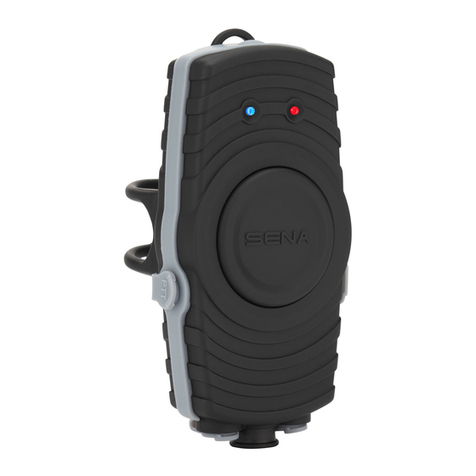
SR10
Bluetooth®Two-way Radio Adapter
SENA www.senabluetooth.com Users Guide

| SR10
2
CONTENTS
INTRODUCTION......................................................................................................................3
PACKAGE CONTENTS............................................................................................................4
INSTALLING THE SR10...........................................................................................................5
POWERING ON/OFF AND CHARGING ..................................................................................6
Powering On .....................................................................................................................6
Powering Off......................................................................................................................6
Charging............................................................................................................................6
Low Battery Warning.........................................................................................................6
PAIRING THE SR10 WITH BLUETOOTH DEVICES ...............................................................7
Bluetooth Headset Pairing.................................................................................................7
Mobile Phone Pairing........................................................................................................7
USING THE SR10....................................................................................................................8
Using 2-way Radio Devices ..............................................................................................8
Installing Wired PTT Button...............................................................................................8
Auxiliary Devices...............................................................................................................8
Using Mobile Phone..........................................................................................................8
Reset to Factory Default Settings......................................................................................9
Fault Reset........................................................................................................................9
OPTIONALACCESSORIES...................................................................................................10
QUICK REFERENCE............................................................................................................. 11
BATTERY INFORMATION .....................................................................................................12
MAINTENANCE AND CARE..................................................................................................13
DISPOSAL .............................................................................................................................14
CERTIFICATION AND SAFETY APPROVALS.......................................................................15
FCC Compliance Statement............................................................................................15
FCC RF Exposure Statement..........................................................................................15
FCC Caution ...................................................................................................................15
CE Declaration of Conformity..........................................................................................16
Bluetooth License............................................................................................................16
WAIVER AND GENERAL RELEASE......................................................................................17
Two-Year Limited Warranty .............................................................................................19
Limitation of Liability........................................................................................................19
Return for Full Refund.....................................................................................................20
WARNING..............................................................................................................................21

| SR10
3
INTRODUCTION
Thank you for choosing the SENA SR10, Bluetooth Two-way Radio adapter. The SR10 is a
Class 1 Bluetooth Two-way Radio adapter based on Bluetooth 2.1+EDR technology. You can
connect various 2-way radios that are in the market today with the SR10 and connect
wirelessly to a variety of Bluetooth communication headsets.
The SR10 has two AUX ports that enable you to connect non-Bluetooth devices such as
mobile phones, radar detector or GPS navigation. Along with the SR10, you can talk by phone
or by two-way radio at the same time, listen to the radar detector alarm or GPS Navigation
guidance.
The SR10 can cover such a variety of applications including motorcycle CB communications,
outdoor sports activities, event security, hunting, motorsports pit crew and other forms of
intercom communications.
Please read this user’s guide carefully before using the Adapter. Also refer to
www.senabluetooth.com for the latest version of the user’s guide and additional information
related to SENA Bluetooth products.
SR10 features:
Bluetooth hands-free for Bluetooth mobile phones
Bluetooth audio gateway for various Bluetooth stereo headset & intercom systems.
TwoAUX audio ports for mobile phone, radar detector or GPS navigation
Water resistant for use in inclement weather
Up to 12 hours talk time, 10 days stand-by time
International 2-year warranty
Key Specifications:
Bluetooth v2.1+EDR, Class1
Supporting profiles: Headset Profile, Hand-Free Profile (HFP)

| SR10
4
PACKAGE CONTENTS
Main Unit
DC 5V Adapter
USB Cable
3.5mm Stereo Cable
Wired PTT Cable
Main Unit Mounting Clip
Main Unit Mounting Kit (Clip, Rubber gripper, assembly plate)
AUX1
GPS Navigation or Radar Detector
DC Power Charging Port
Pairing Button
Bluetooth Headset Pairing Mode
Mobile Phone Pairing Mode
Mini-DIN port for 2-way radio devices
2.5mm jack for wired PTT Button
PTT Button
2-way Radio Activation
Power On/Off Button
AUX2
Mobile Phone, GPS Navigation, Radar Detector

| SR10
5
INSTALLING THE SR10
Installing on the Handle Bar
1. Place the rubber on the back of the main unit.
2. Put the joint pad on top of the rubber, and tighten the screw.
3. Place the main unit on the handle bar, wind the rubber band, and hang it on the
hook.
Placing on the Belt / Pocket
1. Place the belt-clip on the back of the main unit, and tighten the screw.
2. Place the main unit on the belt with belt-clip.

| SR10
6
POWERING ON/OFF AND CHARGING
To power on and off the adapter, you don’t need to press and hold any button for several
seconds. Just short press the Pairing Button and the PTT Button simultaneously, and you will
get quick on-and-off convenience.
Powering On
Press and hold the Pairing and the PTT button at the same time for about 1 second to turn the
power on. When the power is on, the blue LED light turns on.
Powering Off
Press Pairing Button and PTT button at the same time for about 1 second to turn the power
off. The Red LED light turns on for about 3 seconds. The SR10 is now powered off.
Charging
The red LED light is visible while charging. It takes about 3.5 hours to be completely charged.
Low Battery Warning
When the battery is running low, the red LED light will flash.

| SR10
7
PAIRING THE SR10 WITH BLUETOOTH DEVICES
Before pairing with Bluetooth devices, SR10 must be in Pairing mode. SR10 can be switched
to pairing mode by pressing the pairing button for 3 seconds. When SR10 is in pairing mode,
the blue LED light will flash, and SR10 is now ready to pair with other devices.
Bluetooth Headset Pairing
1. Turn on the Bluetooth Headset and enter pairing mode, following your Bluetooth
Headset manual.
2. Turn on the Bluetooth Adapter and press the pairing button for 3 seconds until the LED
flashes red and blue alternatively.
3. When the pairing is successful, the blue LED light on the SR10 flashes slowly (Please
refer to the Quick Reference Guide).
Mobile Phone Pairing
1. Turn on the Bluetooth Adapter and press and hold the pairing button for 6 seconds until
the red LED is rapidly flashing. Search for Bluetooth devices on your mobile phone. The
Bluetooth Adapter will be listed on your mobile phone as SR10.
2. Enter 0000 for the PIN. (Some mobile phone may not ask for the PIN number)
3. The Bluetooth Adapter will be paired as Headset. This profile is normally recommended
for most mobile phones.
4. When the pairing is done, the RED LED light flashes slowly. (Please refer to the Quick
Reference)

| SR10
8
USING THE SR10
Using 2-way Radio Devices
1. When SR10 is turned on and connected with the 2-way radio device, the audio from the
2-way radio will be directly sent to your Bluetooth Headset.
2. To talk using the 2-way radio through SR10, press and hold the PTT button or wired PTT
button until you finish talking.
Installing Wired PTT Button
1. Installing on handlebar: Place the PTT button on the handlebar where you can easily
reach it; wind up the rubber on handlebar and hang it on the hook.
2. Installing on your hand: Place the PTT button on your finger; wind up the rubber on your
finger and hang it on the hook.
Auxiliary Devices
The SR10 has three input ports for wired connection with other devices. Below is a list of
connectable devices:
Main: Mini-DIN, 2-way radio devices
AUX1: 3.5mm 3-pole audio jack, MP3 players, GPS navigations, Radar detectors
AUX2: 3.5mm 4-pole audio jack, Mobile phones, GPS navigations, Radar detectors
Using Mobile Phone
For Bluetooth Wireless Connection
Once your Bluetooth Headset is paired with the SR10, you will be able to hear a ring from
incoming calls. To answer the call, refer to your Bluetooth Headset’s Users Guide.

| SR10
9
For Wired Connection
1. Mobile phones must be connected to the AUX2 port for wired connection.
2. Other instructions are the same as for the wireless connection.
Reset to Factory Default Settings
1. To restore the SR10 to factory default settings, press and hold the Pairing Button for 12
seconds until the LED shows solid red and blue.
2. Within 5 seconds, press the Pairing Button again to confirm reset. The SR10 will be
restored to factory settings and switched off automatically.
3. If you don't press the Pairing Button within 5 seconds, the reset attempt is canceled and
the SR10 returns to stand-by-mode.
Fault Reset
IF the SR10 is not working properly or is in a faulty status for any reason, you may reset by
pushing the pin-hole reset button at the top of the SR10 main unit. Insert a paper clip into the
reset pin-hole and press the reset button for 1 second with light pressure. The SR10 will be
switched off. Turn the SR10 back on and try to use it again. However, this will not restore the
SR10 to factory default settings.

| SR10
10
OPTIONAL ACCESSORIES
To connect with two-way radio devices, device-specific optional accessory cables are required.
The SR10 does not include these optional cables in its package; you need to purchase them
separately.
Two-way Radio Cables (6 types)
Kenwood with twin-pin connector
Midland G7 with twin-pin connector
Motorola with single-pin connector
Motorola with twin-pin connector
Icom with twin-pin connector
YAESU with 1-pin connector
Mobile Phone cables (2 types)
iPhone
Nokia
Table of contents
Other Sena Adapter manuals
Sena
Sena Parani UD100 User manual
Sena
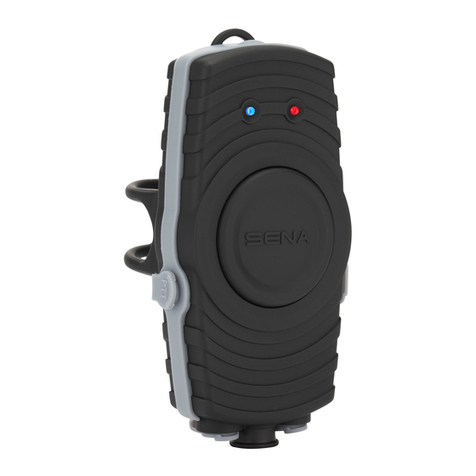
Sena SR10 User manual
Sena
Sena Parani-UD100 User manual

Sena
Sena Parani-SD100 User manual

Sena
Sena Parani-SD1000 User manual

Sena
Sena Parani-SD1000 User manual
Sena
Sena ProBee-ZU10 User manual
Sena
Sena Parani-UD100 User manual
Sena
Sena MESHPORT RED User manual

Sena
Sena Promi-SD 101 User manual
Sena
Sena ProBee-ZS10 User manual
Sena
Sena +MESH User manual

Sena
Sena Parani-SD1000 User manual

Sena
Sena FREEWIRE User manual
Sena
Sena ProBee-ZU10 User manual
Sena
Sena ProBee-ZS10 User manual

Sena
Sena Rhio232 User manual

Sena
Sena Parani-ESD1000 User manual
Sena
Sena SR10 User manual
Sena
Sena Bluetooth Audio Pack for GoPro User manual