manuals.online logo
Brands
  1. Home
  2. •
  3. Brands
  4. •
  5. Toshiba
  6. •
  7. Control Unit
  8. •
  9. Toshiba B-8204-QM-R User manual

Toshiba B-8204-QM-R User manual

Other Toshiba Control Unit manuals

Toshiba IK-TU61 User manual

Toshiba

Toshiba IK-TU61 User manual

Toshiba 3 axis TB6560 User manual

Toshiba

Toshiba 3 axis TB6560 User manual

Toshiba IK-CT1C User manual

Toshiba

Toshiba IK-CT1C User manual

Toshiba TCB-PCIN2E User manual

Toshiba

Toshiba TCB-PCIN2E User manual

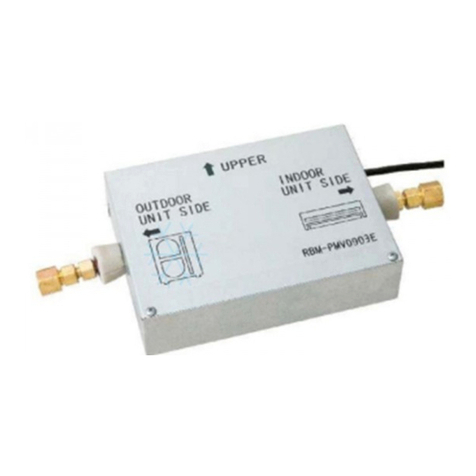
Toshiba RBM-PMV0363E, RBM-PMV0903E User manual

Toshiba

Toshiba RBM-PMV0363E, RBM-PMV0903E User manual

Toshiba TOSVERT VF-MB1 User manual

Toshiba

Toshiba TOSVERT VF-MB1 User manual

Toshiba B-EP700-BLTH-QM-R User manual

Toshiba

Toshiba B-EP700-BLTH-QM-R User manual

Toshiba TECRA S1 Series Parts list manual

Toshiba

Toshiba TECRA S1 Series Parts list manual

Toshiba G3 Plus Pack User manual

Toshiba

Toshiba G3 Plus Pack User manual

Toshiba BMS-SM1280HTLE User manual

Toshiba

Toshiba BMS-SM1280HTLE User manual

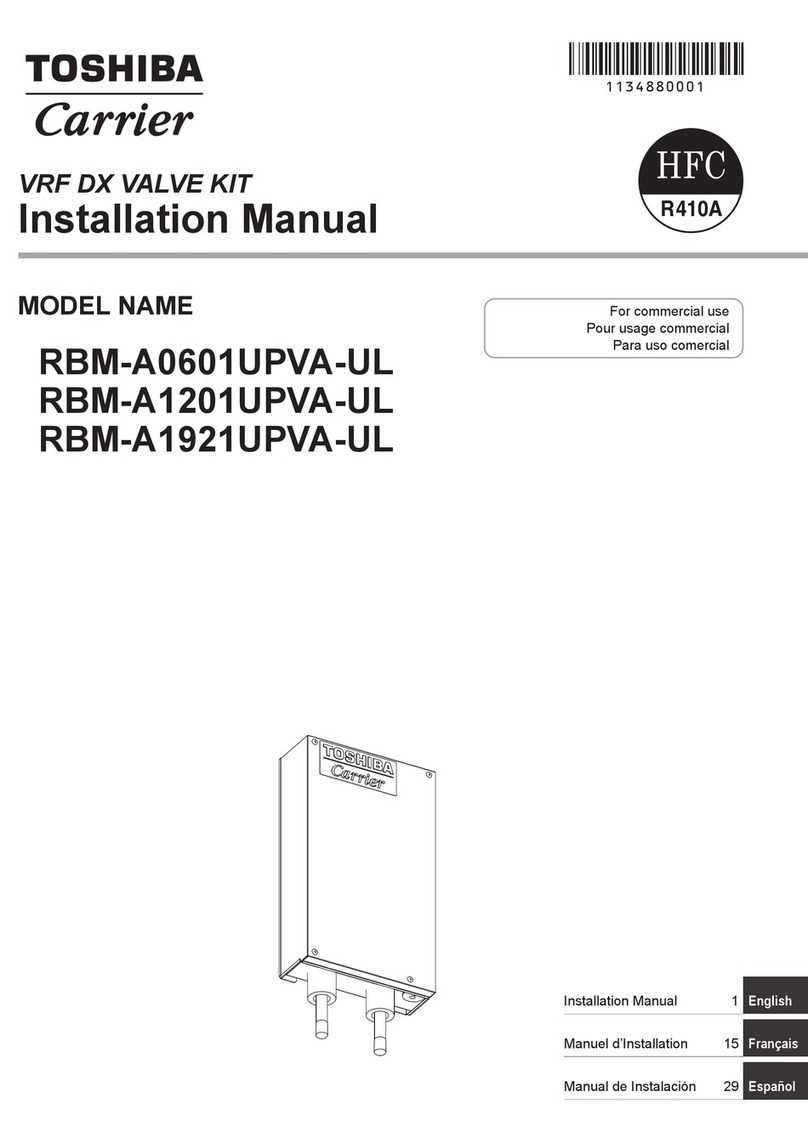
Toshiba Carrier RBM-A0601UPVA-UL User manual

Toshiba

Toshiba Carrier RBM-A0601UPVA-UL User manual

Toshiba nv Series User manual

Toshiba

Toshiba nv Series User manual

Toshiba BMS-SM1280HTLE User manual

Toshiba

Toshiba BMS-SM1280HTLE User manual

Toshiba IK-CU44A User manual

Toshiba

Toshiba IK-CU44A User manual

Toshiba RBM-A101VAE User manual

Toshiba

Toshiba RBM-A101VAE User manual

Toshiba GN2020 User manual

Toshiba

Toshiba GN2020 User manual

Toshiba TCB-CC163TLE User manual

Toshiba

Toshiba TCB-CC163TLE User manual

Toshiba IK-TF9U User manual

Toshiba

Toshiba IK-TF9U User manual

Toshiba IK-HD2C User manual

Toshiba

Toshiba IK-HD2C User manual

Toshiba e-STUDIO 810 User manual

Toshiba

Toshiba e-STUDIO 810 User manual

Toshiba AJ65VBTCU-68ADVN User manual

Toshiba

Toshiba AJ65VBTCU-68ADVN User manual

Toshiba B-EX906-FF-QM-R User manual

Toshiba

Toshiba B-EX906-FF-QM-R User manual

Toshiba GN-4030 User manual

Toshiba

Toshiba GN-4030 User manual
Toshiba IK-HR1CD User manual

Toshiba

Toshiba IK-HR1CD User manual

Popular Control Unit manuals by other brands
Seitz 14A80 user manual

Seitz

Seitz 14A80 user manual

Wilo RS485 Installation and operating instructions

Wilo

Wilo RS485 Installation and operating instructions

Becker CentralControl CC41 Commissioning Instruction

Becker

Becker CentralControl CC41 Commissioning Instruction

SICK CDB650 operating instructions

SICK

SICK CDB650 operating instructions

Panduit NetKey NKP5E88M Series installation instructions

Panduit

Panduit NetKey NKP5E88M Series installation instructions

MX Options Concentric Petite Fitting instructions

MX

MX Options Concentric Petite Fitting instructions

Clean Water Systems Fleck 2510 Installation & start?up guide

Clean Water Systems

Clean Water Systems Fleck 2510 Installation & start?up guide

Fairchild FSB44104A user guide

Fairchild

Fairchild FSB44104A user guide

LEGRAND Wattstopper LMIN-104 installation instructions

LEGRAND

LEGRAND Wattstopper LMIN-104 installation instructions

PMK ATT10BNCS instruction manual

PMK

PMK ATT10BNCS instruction manual

Tektronix TDS3FFT user manual

Tektronix

Tektronix TDS3FFT user manual

Woodward easYgen Technical manual

Woodward

Woodward easYgen Technical manual

Balluff BNI EIP-502-105-R015 user guide

Balluff

Balluff BNI EIP-502-105-R015 user guide

NXP Semiconductors TWR-LS1021A Getting started

NXP Semiconductors

NXP Semiconductors TWR-LS1021A Getting started

Advantech PCM-3117 Startup manual

Advantech

Advantech PCM-3117 Startup manual

Danfoss MCO 101 manual

Danfoss

Danfoss MCO 101 manual

Moons' Lin Engineering R701P user manual

Moons'

Moons' Lin Engineering R701P user manual

Aventics RV1 operating instructions

Aventics

Aventics RV1 operating instructions

manuals.online logo
manuals.online logoBrands
  • About & Mission
  • Contact us
  • Privacy Policy
  • Terms and Conditions

Copyright 2025 Manuals.Online. All Rights Reserved.

- 1 -
Rotary Cutter Module
B-8204-QM-R Installation Manual
1. APPLICABLE MODEL
This optional kit is the rotary cutter module, which is intended for the following models:
B-SX4T Series, B-SX5T Series
NOTE: When using the Rotary Cutter to the B-SX4T Series, be sure to install the Ribbon Saving Module
(B-9904-R/R2-QM). Failure to do this may cause a paper jam or ribbon error.
2. PACKING LIST
All the following parts are supplied with the kit. Make sure you have all items shown below.
Cutter Unit (1 pc.)
Cutter Cover (1 pc.) Cutter Drive Unit (1 pc.) Harness Ass’y
(2-pin & 9-pin) (1 pc.)
Cord Bush (1 pc.)
(For B-SX4 only)
Print Head Cleaner (1 pc.)
(P/No.: FMQB0051601)
• Installation Manual (1 copy)
• SM-4x8 Screw (6 pcs.)
3. INSTALLATION PROCEDURE
3.1 Installing the Rotary Cutter Unit on the B-SX4T Series
1) Turn the power off and disconnect the power cord.
2) Remove the two black screws to detach the front plate.
NOTE: Retain the two black screws and front plate.
WARNING
!
1. Follow all manual instructions. Failure to do so could create safety hazards such as fire or
electrocution.
• Manual instructions must be followed when installing option kits or adding cables to avoid
system failures and to insure proper performance and operation
• Failure to follow manual instructions or any unauthorized modifications, substitution or change
to this product will void the limited product warranty.
2. Turn the power off and disconnect the power cord before installing the rotary cutter module.
3. Be careful not to injure your fingers when installing the swing cutter module.
4. Be careful not to pinch your fingers or hands with the covers.
Front Plate
Black Screws
Get other manuals https://www.bkmanuals.com
- 2 -
3) Remove the four B-4x5 screws from the side panel (L).
4) Open the top cover and remove the three P-4x8 screws that secure the side panel (L).
5) Lift the side panel (L) and put it aside.
6) Disconnect the fan motor harness from CN19 on the Main PC board, and then separate the side
panel (L).
7) Fix the cutter drive unit to the printer with the three SM-4x8 screws.
B-4x5 Screw P-4x8 Screw
Top Cover
B-4x5 Screw
Side Panel (L)
SM-4x8 Screw
Cutter Drive Unit
Side Panel (L) Fan Motor Harness
Fan Motor
CN19
Main PC Board
SM-4x8 Screw
Get other manuals https://www.bkmanuals.com
- 3 -
8) Connect the 9-pin connector of the harness ass’y to CN7 and 2-pin connector to CN9 on the cutter
driver unit, respectively.
9) Fit the bush to the harness ass’y in the orientation as shown below.
10) Insert the harness ass’y into the hole in the main frame. Fit the bush into the hole.
CN7 (9 pins)
CN9 (2 pins)
Harness Ass’y
Bush
Harness Ass’y
Hole
Main Frame
Harness Ass’y
Get other manuals https://www.bkmanuals.com
- 4 -
11) Fix the harness ass’y with the clamp.
12) Connect the 9-pin connector of the harness ass’y to CN15, and 2-pin connector to CN18 on the
Main PC board, respectively.
13) Turn the head lever counterclockwise to Free position.
14) Open the ribbon shaft holder plate.
15) Raise the print head block until it stops.
Main PC Board
Clamp
Ribbon Shaft Holder Plate
Print Head Block
CN18 (2 pins)
CN15 (9 pins)
Harness Ass’y
Head Leve
r
Free position
Lock position
(Label)
Lock position
(Tag)
Stoppe
r
Get other manuals https://www.bkmanuals.com
- 5 -
16) Connect the four harnesses of the cutter unit to CN8, CN10, CN11 and CN12 on the cutter drive
unit.
17) Fit the two tabs of the cutter drive unit into the notches, and then fix the cutter unit with the three
SM-4x8 screws.
Cutter Unit
Cutter Drive Unit
Print Head Block
Cutter Unit
CN8 CN12 CN10
CN11
SM-4 x 8 Screw
Notch
Tab
Notch Tab
SM-4 x 8 Screw
Get other manuals https://www.bkmanuals.com
- 6 -
18) Attach the cutter cover to the cutter unit with the two screws so that the tab of the cutter cover turns
on the cutter cover open switch.
NOTES: 1. Be careful not to pinch the cutter harness by the cutter cover.
2. Make sure that the anti-static brush is protruding from the media outlet.
19) Close the print head block and ribbon shaft holder plate.
NOTE: DO NOT excessively push down the print head block to close it. Doing so may cause a
failure of the print head block or damage to the print head.
20) Reassemble the side panel (L) and close the top cover. Finally check the cutter operation.
Screw
Cutter Cover
Anti-static
Brush
Media Outlet
Cutter Cover
Open Switch
Tab
Cutter Cover
Get other manuals https://www.bkmanuals.com
- 7 -
3.2 Installing the Rotary Cutter Unit on the B-SX5T Series
Since the strip module is standard on the B-SX5T series, it is necessary to remove the rewinder guide plate,
strip sensor, etc. before installing the cutter module.
1) Turn the power off and disconnect the power cord.
2) When the printer is used in the batch or strip mode:
Remove the two black screws to detach the front plate.
NOTE: Retain the two black screws and front plate.
When the printer is used in the built-in rewinder mode:
Open the top cover, remove the two SMW-4x8 screws, and detach the rewinder guide plate from the
printer.
3) Remove the four B-4x5 screws from the side panel (L).
4) Open the top cover and remove the three P-4x8 screws that secure the side panel (L).
Front Plate
Black Screws
B-4x5 Screw P-4x8 Screw
Top Cover
B-4x5 Screw
Side Panel (L)
Rewinder Guide Plate
SMW-4x8B Screw
SMW-4x8B Screw
Get other manuals https://www.bkmanuals.com
- 8 -
5) Lift the side panel (L) and put it aside.
6) Disconnect the fan motor harness from CN19 on the Main PC board, and then separate the side panel
(L).
7) Remove the SM-4x8 screw that secures the operation panel ass’y.
8) Half open the top cover, otherwise the operation panel ass’y cannot be removed from the printer.
9) Lift the operation panel ass’y to release the hook, and then remove the operation panel ass’y by
moving it forward.
Operation Panel Ass’
y
Top Cover
SM-4x8 Screw
Side Panel (L) Fan Motor Harness
Fan Motor
CN19
Main PC Board
Get other manuals https://www.bkmanuals.com
- 9 -
10) Disconnect the operation panel harness from the operation panel ass’y.
11) Turn the head lever clockwise to Free position.
12) Open the ribbon shaft holder plate.
Operation Panel Ass’y
Ribbon Shaft Holder Plate
Operation Panel Harness
Hook
Head Leve
r
Free position
Lock position
(Label)
Lock position
(Tag)
Get other manuals https://www.bkmanuals.com
- 10 -
13) Raise the print head block until it stops.
14) Remove the two SMW-4x8 screws that secure the strip sensors (TR) and (LED).
15) Release the strip sensor (LED) harness from the cable clamp, and disconnect it from the shorter harness
of the strip sensor harness (TR).
Print Head Block
Stoppe
r
SMW-4x8B Screw
Strip Sensor (Tr)
SMW-4x8B Screw
Strip Sensor (LED)
Cable Clamp
Strip Sensor Harness
(for LED)
Shorter Harness of the Strip
Sensor Harness (for Tr)
Get other manuals https://www.bkmanuals.com