9
6. Initial Operation
6.1. Initial Operation
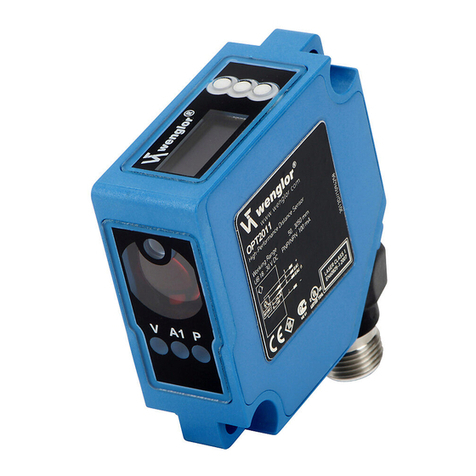
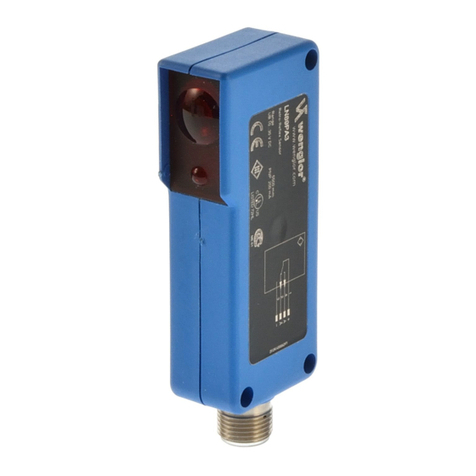
Each Ethernet device has a unique MAC address. With wenglor you can find the MAC address on the type
plate of the device.
In the default settings, the device has the following IP-Address 192.168.100.1. You can access the website of
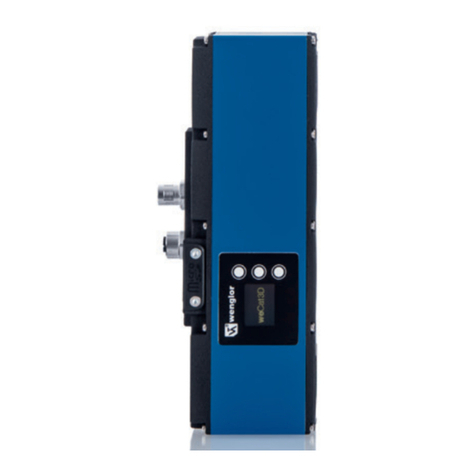
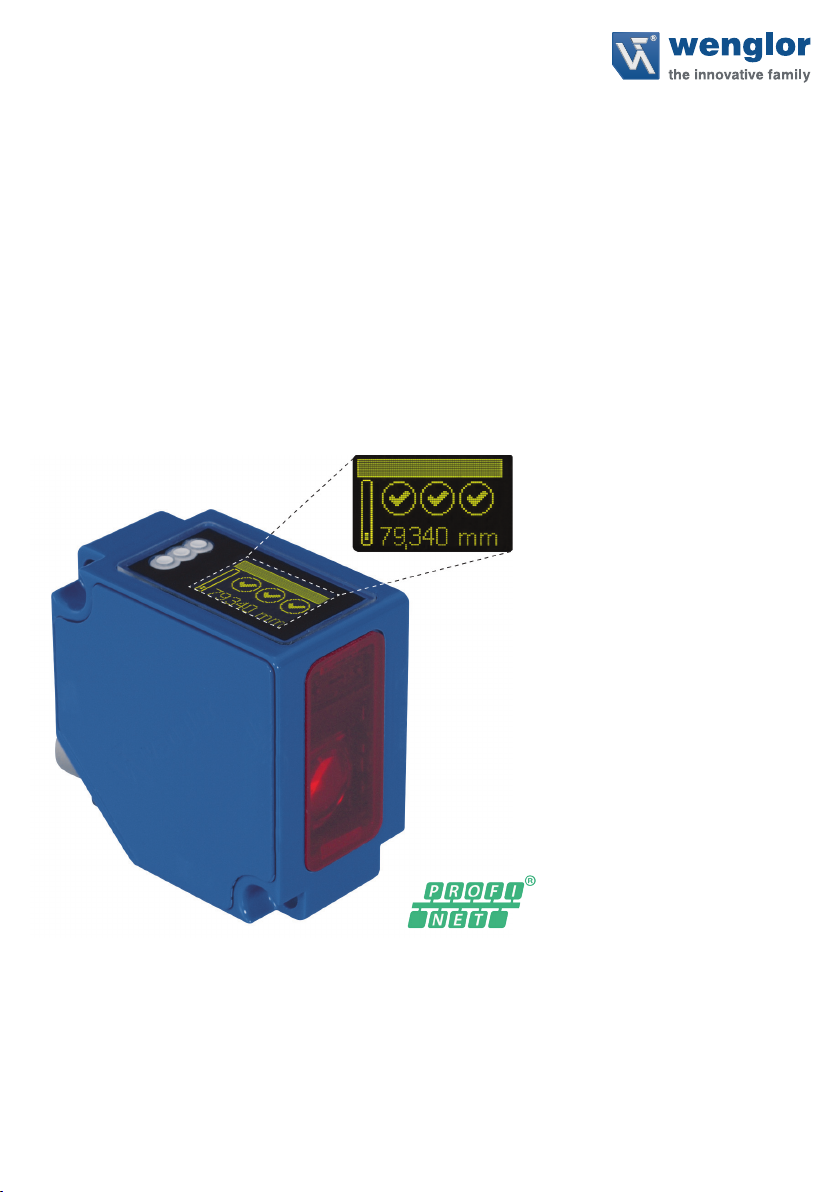
the device via the IP-Address. You can change settings on the device on the website or using the OLED display
in order to test applications.
Caution: In the case of operation on a control unit, settings that were changed on the website or using the
OLED display will be overwritten by the control unit.
If you want to start up the device on a control unit, please perform the following steps:
• Connect the Sensor to a switch with PoE using an appropriate cable M12×1; 8-pin. In the case of a switch
without PoE, please use the Midspan Adapter (Z0029) for the appropriate voltage supply. When the voltage
supply is present, the display on the Sensor starts.
• Install the associated device-specific electronic description file (e.g. for PROFINET, the GSDML file) in the
hardware manager. You can find the file you require for download at www.wenglor.com →Products →
Product search (order number). Explanations regarding the electronic description file and its structure can
be found in the detailed operating instructions in PDF format.
• Help on installing the file in the control and design of the network can be found in the help files of the relevant
control. wenglor provides a description for the download at: www.wenglor.com →Products →Product
search (order number).
6.2. Default Settings
OCPxxxP0150P
Display Mode Process
Intensity Screensaver
Offset Default Offset 0 mm
Filter 1
Resolution High
Exposure DCM
Output Rate Normal
Laser ON
Network
IP-Address 192.168.100.1
Subnet Mask 255.255.255.0
DHCP DHCP OFF
Std Gateway 192.168.100.254
MAC Address (See type plate on the product)
Language English
Password Activate Off
Change 0