manuals.online logo
Brands
  1. Home
  2. •
  3. Brands
  4. •
  5. ZENEC
  6. •
  7. Car Video System
  8. •
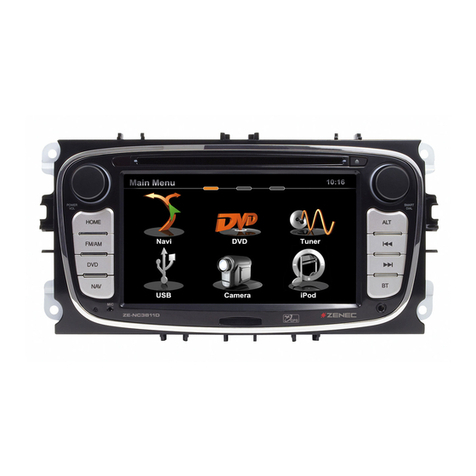
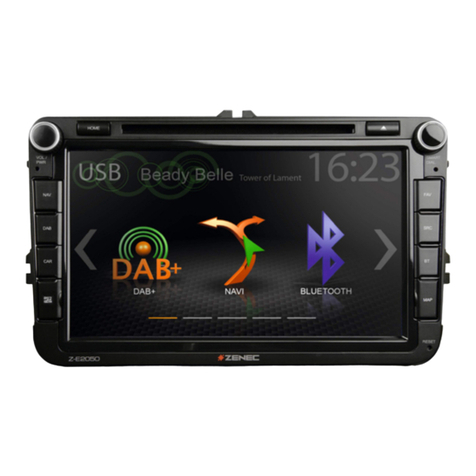
  9. ZENEC Z-E2055 User manual

ZENEC Z-E2055 User manual

Other ZENEC Car Video System manuals

ZENEC E3776 Manual

ZENEC

ZENEC E3776 Manual

ZENEC Z-E2026 Instruction sheet

ZENEC

ZENEC Z-E2026 Instruction sheet

ZENEC Z-E3726 Instruction manual

ZENEC

ZENEC Z-E3726 Instruction manual

ZENEC ZE-NC510 User manual

ZENEC

ZENEC ZE-NC510 User manual

ZENEC ZE-NC3810 User manual

ZENEC

ZENEC ZE-NC3810 User manual

ZENEC Z-N626 Instruction manual

ZENEC

ZENEC Z-N626 Instruction manual

ZENEC ZE-NC2010 User manual

ZENEC

ZENEC ZE-NC2010 User manual

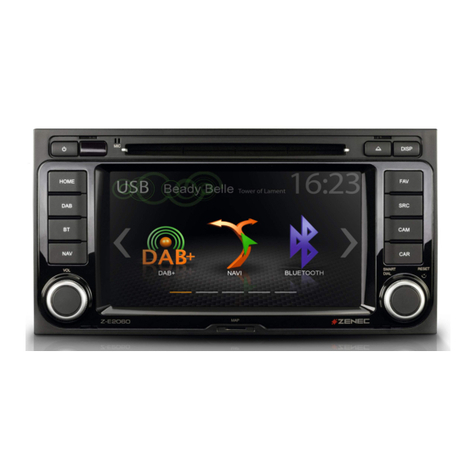
ZENEC Z-E2060 User manual

ZENEC

ZENEC Z-E2060 User manual

ZENEC ZE-NC2040 User manual

ZENEC

ZENEC ZE-NC2040 User manual

ZENEC Z-R1030 User manual

ZENEC

ZENEC Z-R1030 User manual

ZENEC ZE-RVC85WA User manual

ZENEC

ZENEC ZE-RVC85WA User manual

ZENEC ZE-NC5011D User manual

ZENEC

ZENEC ZE-NC5011D User manual

ZENEC ZE-NC4121D User manual

ZENEC

ZENEC ZE-NC4121D User manual

ZENEC Z-N326 User manual

ZENEC

ZENEC Z-N326 User manual

ZENEC ZE-NC510 Mounting instructions

ZENEC

ZENEC ZE-NC510 Mounting instructions

ZENEC INFOTAINER Z-N328 User manual

ZENEC

ZENEC INFOTAINER Z-N328 User manual

ZENEC Z-E4626/H Quick start guide

ZENEC

ZENEC Z-E4626/H Quick start guide

ZENEC ZEM-W600DDMM User manual

ZENEC

ZENEC ZEM-W600DDMM User manual

ZENEC Z-E2050 User manual

ZENEC

ZENEC Z-E2050 User manual

ZENEC Z-E3776 User guide

ZENEC

ZENEC Z-E3776 User guide

ZENEC ZE-NC4110 - MOUNTING INSTRUCTIONS FOR SANTA... User manual

ZENEC

ZENEC ZE-NC4110 - MOUNTING INSTRUCTIONS FOR SANTA... User manual

ZENEC ZE-NC520 Mounting instructions

ZENEC

ZENEC ZE-NC520 Mounting instructions

ZENEC Z-E2050 User manual

ZENEC

ZENEC Z-E2050 User manual

ZENEC ZE-NC5010 User manual

ZENEC

ZENEC ZE-NC5010 User manual

Popular Car Video System manuals by other brands

Farenheit MD-1510CM instruction manual

Farenheit

Farenheit MD-1510CM instruction manual

Mazda Connect manual

Mazda

Mazda Connect manual

RCA DRC97983 Manual de usuario

RCA

RCA DRC97983 Manual de usuario

Panasonic CY-VHD9401U Service manual

Panasonic

Panasonic CY-VHD9401U Service manual

Stinger HEIGH10 RB10RAM13B installation manual

Stinger

Stinger HEIGH10 RB10RAM13B installation manual

Alpine IVA-W203 - 6.5" Touch Screen 2-DIN DVD In-Dash... owner's manual

Alpine

Alpine IVA-W203 - 6.5" Touch Screen 2-DIN DVD In-Dash... owner's manual

Eonon E1057 instructions

Eonon

Eonon E1057 instructions

Milion D2223 user manual

Milion

Milion D2223 user manual

Metra Electronics 99-8153 installation instructions

Metra Electronics

Metra Electronics 99-8153 installation instructions

Voxx Electronics HR8MA1 owner's manual

Voxx Electronics

Voxx Electronics HR8MA1 owner's manual

Axxera AV604Bi quick start guide

Axxera

Axxera AV604Bi quick start guide

Clarion NX706E owner's manual

Clarion

Clarion NX706E owner's manual

Pyle view PLDN74BTi owner's manual

Pyle view

Pyle view PLDN74BTi owner's manual

Clarion NX602 quick start guide

Clarion

Clarion NX602 quick start guide

RCA DRC6296 - Twin 9" Mobile DVD System Manual Del Usuario

RCA

RCA DRC6296 - Twin 9" Mobile DVD System Manual Del Usuario

Fiat Uconnect 5.0 manual

Fiat

Fiat Uconnect 5.0 manual

Lanzar SVDVD5 owner's manual

Lanzar

Lanzar SVDVD5 owner's manual

Eonon E1060 instructions

Eonon

Eonon E1060 instructions

manuals.online logo
manuals.online logoBrands
  • About & Mission
  • Contact us
  • Privacy Policy
  • Terms and Conditions

Copyright 2025 Manuals.Online. All Rights Reserved.

Z-E2055
Z-E2055
INFOTAINER
USER MANUAL
EN
2 Rev.C 3 Rev.C
CONTENTS
Device user manual for ZENEC media system
We are delighted that you have chosen a product from ZENEC.
Please read this operating manual before you start your new ZENEC system. In this device user
manual you will find important instructions and information for the safe operation of the ZENEC
system, and to help you make the most of its technical advantages.
All the information in this manual corresponds to the state at the time of going to press, and applies
only to ZENEC systems in original condition. On account of possible updates to device software, the
illustrations and features shown in this operating manual may be different from your ZENEC system.
Differences in the information, illustrations or features cannot form a basis for any claims.
If you sell your vehicle with the ZENEC system still fitted, please ensure that this operating manual
stays with the vehicle, and that any personal data like a phonebook stored in the device is deleted.
SAFETY INSTRUCTIONS ..................................................................................................................04
TURN DEVICE ON AND OFF ............................................................................................................05
ANTI-THEFT PROTECTION ...............................................................................................................05
MULTIFUNCTION STEERING WHEEL CONTROLS ........................................................................06
Z-E2055 (FRONT PANEL) ..................................................................................................................07
MAIN MENU ICONS................................................................................................................................08
MEDIA AUDIO SOURCES .................................................................................................................09
INPUT SOURCES................................................................................................................................ 10
STATUS BAR....................................................................................................................................... 11
SEARCH AND INPUT FUNCTION ..................................................................................................... 12
UKW (FM) RADIO ............................................................................................................................... 13
FM BAR GRAPH MODE ..................................................................................................................... 14
MANUAL FM STATION SEARCH ...................................................................................................... 15
UKW SETUP (FM)............................................................................................................................... 16
DAB+ RADIO SETUP ...................................................................................................................... ...17
DAB+ ENSEMBLE AND STATION LIST........................................................................................... 18
DAB+ SETUP ...................................................................................................................................... 19
DAB+ STATIONS-PRESETS..............................................................................................................20
USB / BT A2DP / IPOD (AUDIO) MEDIA ...........................................................................................21
USB / BT A2DP / IPOD (AUDIO) MEDIA CONTROL AND OPERATION BAR ...............................22
BT-MUSIC (A2DP) .............................................................................................................................23
iPOD (AUDIO) .....................................................................................................................................24
PLAYLIST (AUDIO) ............................................................................................................................25
SMART PLAYLIST (AUDIO)...............................................................................................................26
FAV PLAYLIST (AUDIO).....................................................................................................................27
VIDEO MEDIA: HARDDISK ...............................................................................................................28
PLAYLIST (VIDEO) .............................................................................................................................29
HDMI ....................................................................................................................................................30
CAMERA ............................................................................................................................................. 31
ANDROID AUTO ............................................................................................................................32-33
APPLE CARPLAY...............................................................................................................................34
APPLE CARPLAY OPERATION ........................................................................................................35
BLUETOOTH (HANDS-FREE SYSTEM) ...........................................................................................36
CONTROL AND OPERATION BAR (RIGHT)....................................................................................37
DEVICE MANAGER............................................................................................................................38
PAIRING ..............................................................................................................................................39
BLUETOOTH SETUP..........................................................................................................................40
BLUETOOTH STATUS BAR...............................................................................................................40
ACCEPTING/ENDING INCOMING CALLS (VIA DEVICE)............................................................... 41
OUTGOING CALL VIA NUMERIC PAD ............................................................................................. 41
OUTGOING CALL VIA PHONEBOOK............................................................................................... 41
BLUETOOTH MENU ...........................................................................................................................42
PHONEBOOK......................................................................................................................................43
CALL LISTS ........................................................................................................................................44
FAVORITES .........................................................................................................................................45
SETUP OPERATIONS ........................................................................................................................46
DISPLAY ICON (BRIGHTNESS) ........................................................................................................ 47
SETUP OF SOURCES ........................................................................................................................48
MISC SETUP .......................................................................................................................................49
AUDIO SETUP.....................................................................................................................................50
VOLUME SETUP................................................................................................................................. 51
QUICK AUDIO SETUP (BAL/FAD/SUBWOOFER/LOUDNESS/BASS BOOST) ............................52
AUDIO SETUP: EXPERT MODE........................................................................................................53
AUDIO VOLUME – BASE LEVEL SETUP .........................................................................................54
BALANCE / FADER ............................................................................................................................55
EQUALIZER ........................................................................................................................................56
X-OVER SETUP ..................................................................................................................................57
SUBWOOFER SETUP ........................................................................................................................58
TIME ALIGNMENT..............................................................................................................................59
TFT DISPLAY CONFIGURATIONS....................................................................................................60
CAR (VEHICLE) SETUP ..................................................................................................................... 61
AIR CONDITIONING (AC INFO) ........................................................................................................62
DYNAMIC INDICATION OF THE SEAT HEAT ..................................................................................63
INPUT SETUP .....................................................................................................................................64
SYSTEM SETUP .................................................................................................................................65
CAR INFORMATION (VEHICLE STATUS) .................................................................................. 66-67
CLOCK TIME.......................................................................................................................................68
SOFTWARE VERSION ......................................................................................................................69
PASSWORD ........................................................................................................................................ 70
INSTALLATION NOTES ..................................................................................................................... 71
REMOVAL WORK AND PREPARATION .......................................................................................... 71
OVERVIEW ACCESSORIES ..............................................................................................................72
COMMISSIONING................................................................................................................................72
CONNECTION DIAGRAM Z-E2055..............................................................................................73-74
ABBREVIATIONS / GENERAL .......................................................................................................... 75
STATUTORY RIGHTS AND WARRANTY ....................................................................................76-77

4 Rev.C 5 Rev.C
TURN ON / OFF
Manual On / Off Z-E2055
Press the power button (fig. S/7 ), to turn the ZENEC system on, press and hold the power
button to switch off the device.
NOTE
Use of the multifunction steering wheel and other vehicle functions will require a vehicle-specific
CAN/Stalk interface. Further information may be obtained from an authorized ZENEC dealer.
The ZENEC system is equipped with an anti-theft protection function. If this is active, on restarting
the ZENEC system after interruption of the power supply you will be asked to enter your password.
To change the password:
Device User Manual → Setup → Device Setup → Password
Z-E3726 5
GERÄTEBEDIENUNG –Z-E3726
GRUNDSÄTZLICHE BEDIENUNG
EIN-/AUSSCHALTEN
Manuelle Ein-/Ausschaltung
Drehregler links gedrückt halten, bis sich das ZENEC-System ein- oder ausschaltet
(Abb. S/01 )
Automatische Ein-/Ausschaltung
Fahrzeuge mit CAN-Bus Anbindung: Bei Einschalten der Zündung wird das ZENEC-System
aktiviert. Der Bootvorgang kann max. 1,5 Minuten in Anspruch nehmen. Dies kann zur Folge
haben, dass das System nur mit Verzögerung einsatzbereit ist. Das Ausschalten des ZENEC-
Systems wird durch das Ausschalten der Zündung oder Abziehen des Zündschlüssels aktiviert.
HINWEIS
Für eine Nutzung des Multifunktionslenkrads sowie weiterer Fahrzeugfunktionen wird ein
fahrzeugspezifisches CAN/Stalk Interface benötigt. Weitere Informationen erhalten Sie bei einem
autorisierten ZENEC-Fachhändler.
DIEBSTAHLSICHERUNG
Das ZENEC-System ist mit einer Diebstahlschutzfunktion ausgestattet. Ist diese aktiv, werden Sie nach
Trennung der Stromversorgung bei erneutem Einschalten des ZENEC-Systems aufgefordert, das von
Ihnen hinterlegte Password einzugeben.
Um das Passwort zu ändern:
Bedienungsanleitung

Einstellungen

Geräte Konfiguration

Help

Passwort
HINWEIS
Bewahren Sie das
Passwort sorgfältig auf.
Bei einem Verlust des
Passworts muss das
ZENEC-System ausgebaut
und zur Freischaltung des
Diebstahlschutzes an den
ZENEC-Service
eingesendet werden.
Dieser Dienst ist
kostenpflichtig!
ANTI-THEFT PROTECTION
NOTE
Keep your password safe. If the password is
lost the ZENEC system must be uninstalled,
and sent back in to ZENEC Service to
unblock the anti-theft protection. This service
is not free!
Automatic On / Off
Vehicles without CAN bus:
The device automatically switches on/off by ignition signal.
Vehicles with CAN/Stalk interface:
Switching on the ignition will activate the ZENEC system. The boot process can take up to 1.5
minutes. This may result in some delay until the system is ready. The ZENEC system is shut down by
switching off the ignition, or removing the ignition key.
SAFETY INSTRUCTIONS
CAUTION
If the driver of the vehicle is distracted, this may lead to an accident or injury. Operating the
ZENEC system can distract attention from the general traffic situation! Equally, connecting,
changing or inserting data media can distract the driver from the general traffic situation.
CAUTION
Always choose loudspeaker settings such that acoustic signals coming from outside can always
be heard in the vehicle (e.g. signal horns or sirens).
CAUTION
Incorrect installation or commissioning of the ZENEC system may cause damage to the ZENEC
system or to the vehicle electronics. Only let qualified specialists authorized by ZENEC install the
device.
CAUTION
This ZENEC system is intended solely for operation at an on-board voltage of 12 V DC. Operating
the ZENEC system at any other voltage can cause damage to the ZENEC system or to the vehicle
electrical system.
CAUTION
Taking apart or modifying the ZENEC system can result in damage to the device or the vehicle.
Opening the device or modification by a person not authorized by ZENEC will render warranty
claims null and void.
In the event of a malfunction or defect please contact an authorized ZENEC dealer. Unauthorized
repairs will render warranty claims null and void.
CAUTION
The connection and charging leads of external mobile devices can get in the way of the driver.
Please run these so that the driver's freedom of movement is not hindered.
See detailed information at page 70
6 Rev.C 7 Rev.C
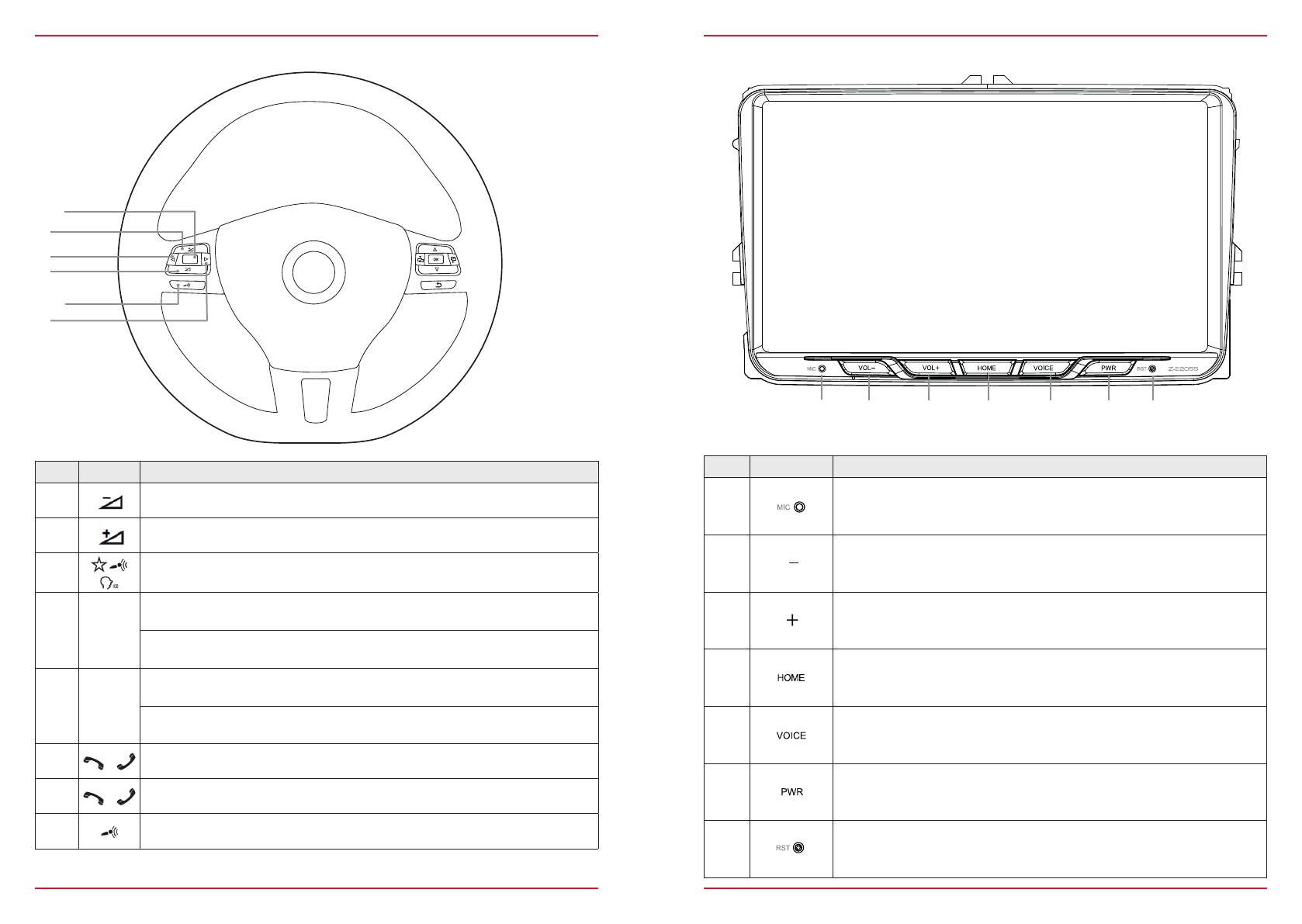
Z-E2055 (FRONT PANEL)
Device Front Panel Control Options
Item Icon Function
1Internal Bluetooth microphone
2Press, or press and hold to decrease the playback volume
3Press, or press and hold to increase the playback volume
4Tap to jump back to main menu
Press and hold jump to audio settings
5Tap to start the Android and CarPlay voice control. Tap once more to
cancel the voice control.Tap and hold to restart the voice input.
6Press to mute device, press and hold to turn device ON or OFF
7Reset pin to perform hardware reset
    
MULTIFUNCTION STEERING WHEEL
Item Icon Function
1Reduce volume
2Increase volume
3Mute
4
|
Radio source Press to choose the next radio station.
Media
source
Press to choose the next track/title.
Press and hold to fast forward.
5
|

Radio source Press to choose the previous radio station.
Media
source
Press to choose the previous next track/title.
Press and hold to fast rewind.
6Accept call
7Reject / End call
8Voice (not supported)








8 Rev.C 9 Rev.C
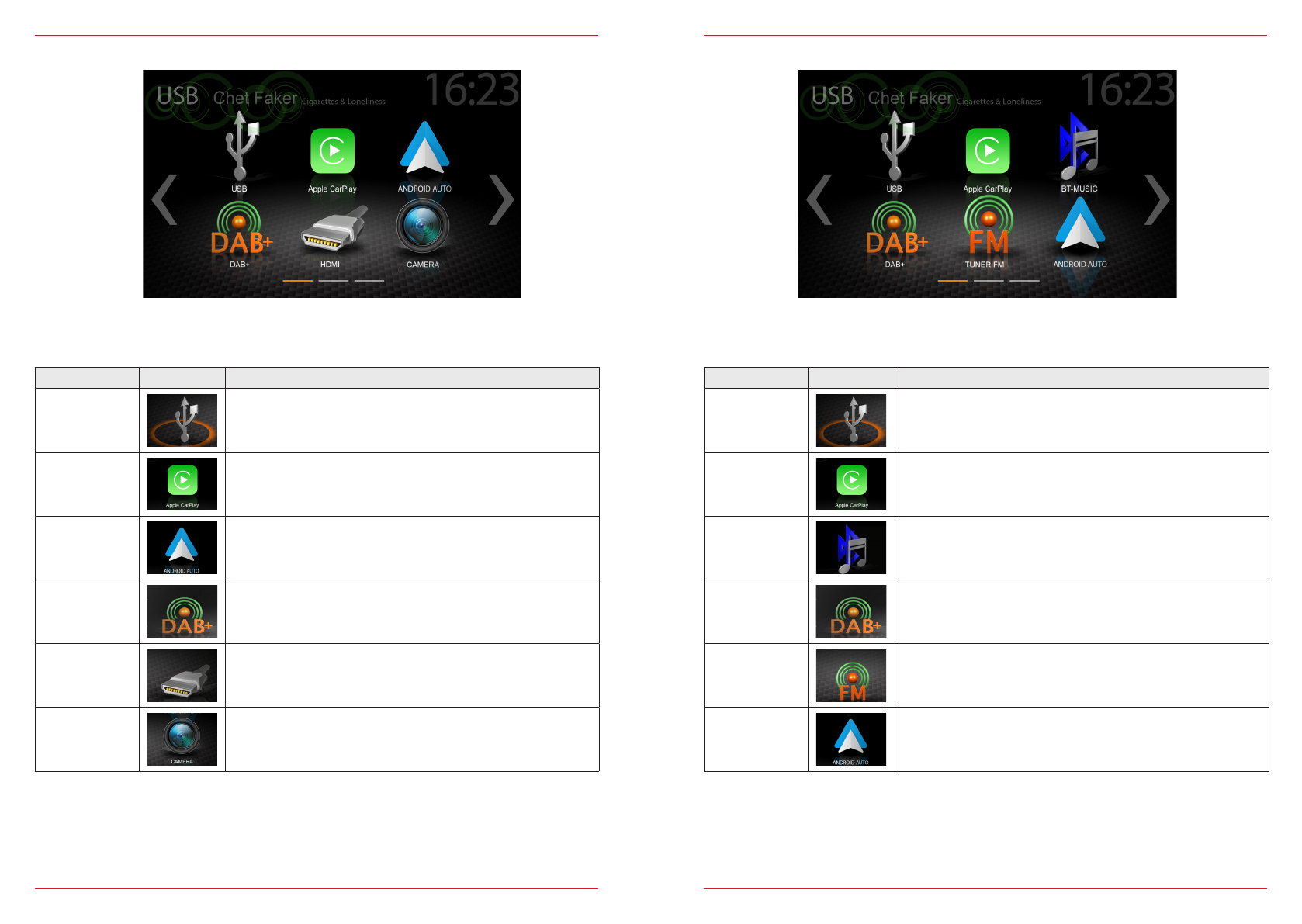
MEDIA AUDIO SOURCES
Function Icon Operation
USB Tap to enter USB source
CarPlay Tap to start Apple CarPlay
BT-Music Tap to open BT-Music source
DAB+ Tap to open DAB+ radio source
Tuner FM Tap to open FM radio source
Android Auto Tap to start Android Auto
You can access / enter connected internal or external sources by tapping on the main icon according
to the following list.
Function Icon Operation
USB Tap to enter USB source
CarPlay Tap to start Apple CarPlay
Android Auto Tap to start Android Auto
DAB+ Tap to open DAB+ radio source
HDMI Tap to open HDMI source
CAMERA Tap to open the camera source
MAIN MENU ICONS
You can navigate through main menu pages by swiping or tapping on the orange page markers in
the bottom area of each page.
10 Rev.C 11 Rev.C
INPUT SOURCES
Function Icon Operation
HDMI Tap to open HDMI source
Camera Tap to enter camera source
Android Auto Tap to start Android Auto
CarPlay Tap to start Apple CarPlay
AV/IN Tap to open AV/IN source
Input Sources
NOTE
Icons in the main menu remain greyed out for sources not connected to device.
To select and open external sources like HDMI, Camera, AV/IN, CarPlay or Android Auto, they need
to be paired or physically connected to the device.
Function Icon Operation
Back Tap to jump one level up or back
Clock Time Display of time (no interaction possible)
Traffic
Announcement Traffic announcement (if function is set to active)
Volume Shows the current playback volume
ALT Tap to select / start a previously assigned function
Settings → Misc → ALT Software button
Screenshot fehlt
STATUS BAR (”INFO BAR”)
The „info bar in the upper hand screen area shows TA, volume and time but also contains two
important controls for device operation: BACK (left side) and ALT (right side).
12 Rev.C 13 Rev.C
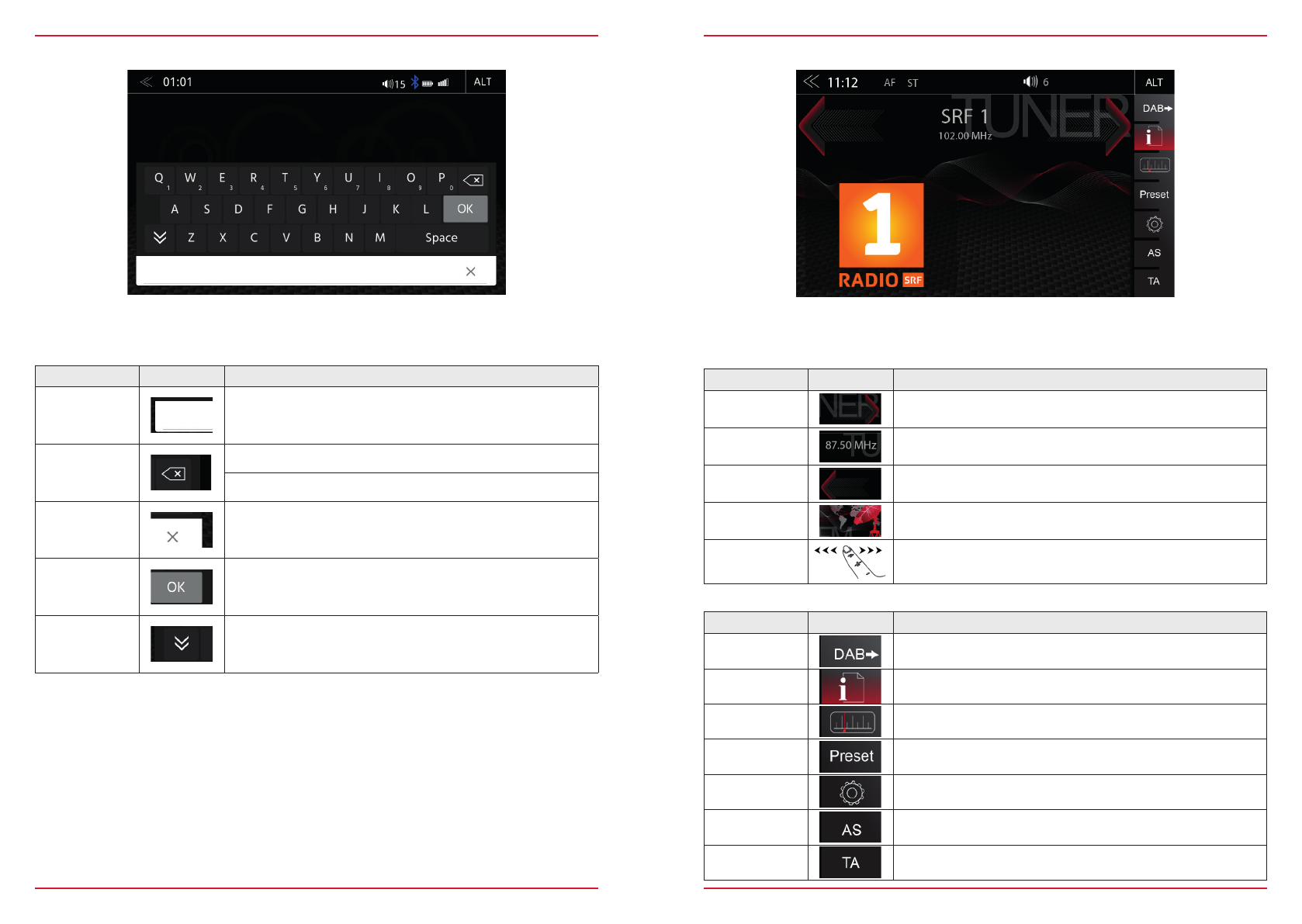
SEARCH AND INPUT FUNCTION
The keyboard for search and input is based on the Linux OS system layout. The system language
selection will automatically assign QUERTY or QWERTZ layout.
Function Icon Operation
Search input
area
Input box
Tap to reopen the keyboard
Delete
Tap to delete a number, letter or sign
Press and hold to delete the full string
Back Tap to end the search or the input
List view Tap to show all search results/- full list
Close Tap to close the keyboard
UKW (FM) RADIO
The FM RDS source menu offers a control-/operating section on the right hand side, for fast and
convenient adjustments during the FM radio playback.
Function Icon Operation
Station forward Tap to start the auto FM station search, running up in the
frequency band
Station Station Name / Station Frequency
Station back Tap to start auto FM station search, running down in the
frequency band
Cover Shows radio station graphics or cover picture of artist
Info display
area
Finger swiping left and right to access stored FM stations
previous / next
Function Icon Operation
FM / DAB
Switch Tap to switch to DAB
Info Tap to show station information
Frequency
Scale Tap to open FM station frequency bar
Preset Tap to show the stored FM station list
Tuner Setup Tuner settings
AS Tap to start FM auto station search
TA Tap to activate or de-activate the auto switching of RDS traffic
announcements
Control- and Operating Section
Center Section of Display
14 Rev.C 15 Rev.C
FM BAR GRAPH MODE
The FM setup mode (press gear icon) allows to assign two different operation modes to both station
frequency arrows: manual steps in 100kHz, or auto scan (stopping at next station). See page 18.
Function Icon Operation
Station Frequency
UP
Tap to start manual 100kHz jump, or FM station auto search
up
Station
Frequency Tap to open the direct frequency input mode keyboard
Station Frequency
DOWN
Tap to start manual 100kHz jump, or FM station auto search
down
Bar Graph Scale
Press and hold to slide the frequency pointer of the bar graph
into any position. Tap to set a desired frequency value on the
scale
MANUAL FM STATION SEARCH
Function Icon Operation
Station
Frequency UP Tap to auto seek / manual seek up, depending on setting
Station
Frequency Tap to open and close direct station frequency input via keypad
Station Frequency
DOWN Tap to auto seek / manual seek down, depending on setting
Scale Radio frequency scale display
Delete Tap to delete a number
Press and hold to delete the full text string
Keypad Direct frequency input option
OK Touch to confirm frequency
FM / DAB
Switch Tap to switch to DAB
Information Tap to show station information
Frequency
Scale Tap to open FM station frequency bar
Preset Tap to show the stored FM station list
Tuner Setup Tap to change settings for Tuner FM
TA Tap to activate or de-activate the auto switching of RDS traffic
announcements
Control- and Operating Section
When you tap to the frequency display area, the numeric input keyboard opens for a direct station
frequency input.
16 Rev.C 17 Rev.C
UKW SETUP (FM)
Function Icon Operation
AF Alternative Frequency ON / OFF
REG Setting to keep AF in the regional (local) station tuning mode.
SCAN Setting to choose the automatic or manual station frequency
search.
TA Tap to activate or de-activate the auto switching of RDS traffic
announcements
FM
antenna socket
phantom power
Tap to turn the 12V phantom power supply of the FM antenna
socket on the device backside ON or OFF
Here you can set important FM RDS based settings such are AF and REG.
DAB+ RADIO SETUP
Function Icon Operation
UKW / DAB+
Switch Tap to switch between FM / DAB +
Info Tap to show station information - main display
List Tap to open the station list (showing all currently receivable
radio stations in the environment)
Preset Tap to show the stored DAB station list
Setup Tap to change settings for DAB+ functions
Scan Scan Tap to start full station search.
Press and hold to delete the station list and start station search
Function Icon Operation
Station up Tap to jump to next station
Press and hold to jump to next Ensemble
Station Station Name / Ensemble info
Station down Tap to jump to previous station
Press and hold to jump to previous Ensemble
Slideshow Radio station artwork / artist display (”MOT Slideshow”)
Info Display
Area Finger swiping left and right to switch between Preset stations
The DAB+ source menu offers a control- + operating section on the right side of the display, allowing
for simple and convenient direct adjustments in the playback menu.
Control- and Operating Section
18 Rev.C 19 Rev.C
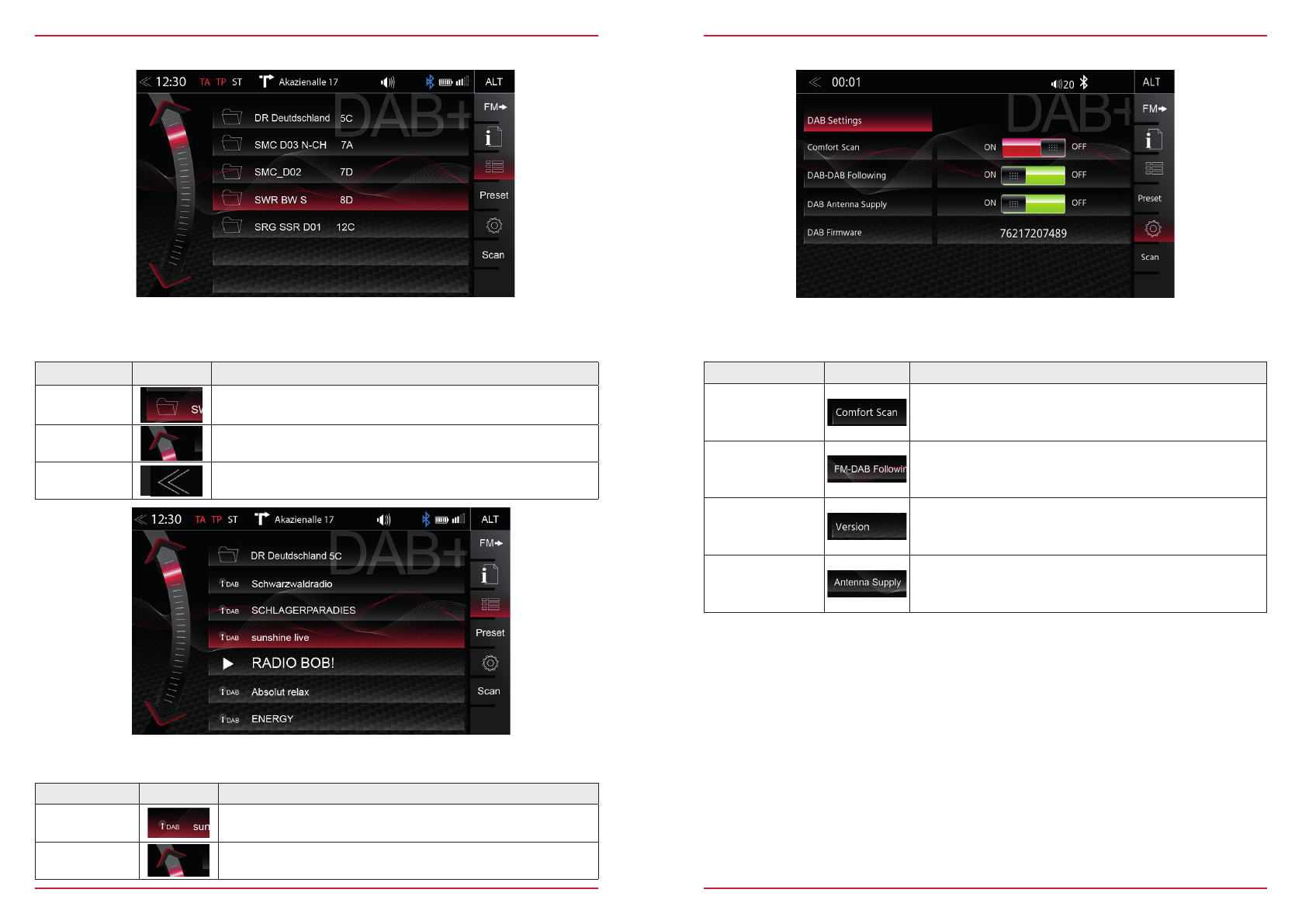
DAB+ ENSEMBLE AND STATION LIST DAB+ SETUP
A tap on each Ensemble opens the related DAB+ station list of the respective Ensemble. The station
list content follows exactly the original Ensemble display format and list sequence.
Function Icon Operation
Radio station
selection Tap to select one particular radio station out of the list
List scrolling Press and hold to move the slider of the station list up and down
Function Icon Operation
Comfort Scan Tap to turn the comfort scan ON or OFF
DAB-DAB
Service
Following
Tap to turn DAB-DAB station following ON or OFF
DAB
Firmware Displays the current DAB Firmware version
DAB
antenna socket
phantom power
Tap to turn the 12V phantom power supply of the DAB
antenna socket on the device backside ON or OFF
The setup page for the DAB+ tuner allows to define important functions such as DAB<>DAB service
following. Or to activate the phantom power supply voltage of the DAB antenna socket.
Once the first DAB+ band scan has completed, device will show all DAB+ Ensembles and radio
stations of sufficient signal strength. The ensemble list and content can be updated via using the scan
button.
Function Icon Operation
Ensemble list
selection
Tap to open an Ensemble, showing the assigned DAB+ radio
station list
List scrolling Press and hold to move the slider of the Ensemble list up and
down
Back Tap to jump one level back or up