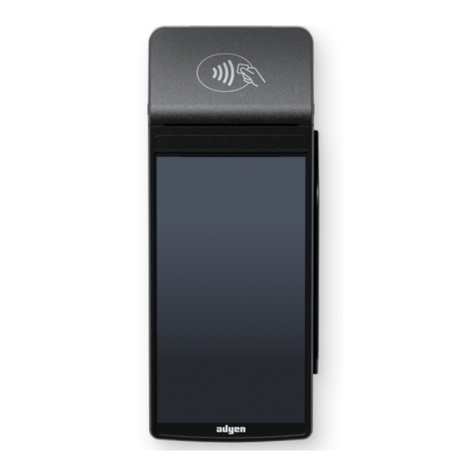
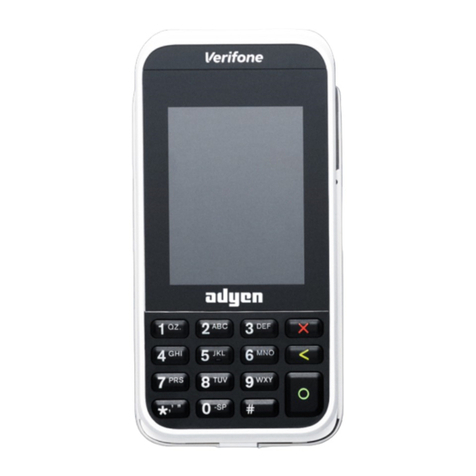
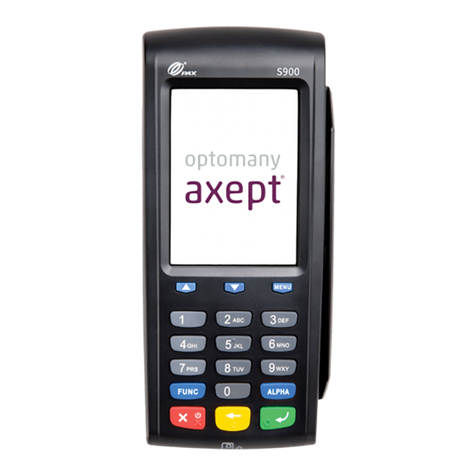
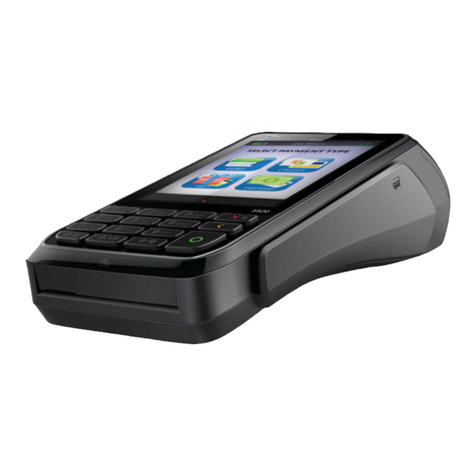
These are the steps to get your new S1E payment terminal up and running. Some steps include a link to more detailed instructions.
1. Inspect the terminal.
2. Turn on the terminal: Connect the terminal to a power supply, then press and hold the power button until the display turns on.
Let the battery charge for at least four hours while you continue with the next steps.
3. On the Welcome screen, select your language.
4. Connect the terminal to your network.
5. On the Conrm store screen, assign the terminal to your store by selecting the check mark button. If the store shown is not your store, use the
edit button to change it.
When you have completed these steps, you are ready to process payments!
Because payment terminals process sensitive card data, you must verify that the terminal you received is the correct one, supplied by Adyen, and hasn't
been tampered with.
1. Verify that the box containing the terminal hasn't been opened and that the security seal is intact.
The security seal is a red label with a bar code and a number, stuck across the lid of the box.
2. If you have access to the Adyen Customer Area, log in and under Point of sale > Orders and returns nd the order for your terminal. Then:
Verify that the serial number (S/N) on the box is the same as in the Customer Area.
Verify that the security seal number on the box is the same as in the Customer Area.
Using the track & trace link, track the order with the carrier to verify that they conrm having delivered the payment terminal.
3. Break the security seal, take the terminal out of the box, and verify that the serial number (S/N) on the terminal is the same as the serial
number on the box.
4. Inspect the terminal for tampering. Check for missing seals or screws, additional wires or labels, holes in the device, and anything inserted in
or attached to any part of the terminal.
Connect your terminal to the internet so that it can communicate with the Adyen payments platform and your own back-end systems.
Connect to Wi-Fi
1. Aer selecting your language on the Welcome screen, select the arrow button:
2. On the Setup Wi-Fi screen, select the + sign.
3. Turn on the WLAN toggle switch.
4. Select a Wi-Fi network from the list, or select the + sign and add the name (SSID) of the Wi-Fi network.
5. Enter the Wi-Fi password.
6. Select OK.
The terminal sets the network as default automatically, and connects to it.
You'll now see a Wi-Fi icon at the top of the display.
Updating the connection settings
If you need to change Wi-Fi usage later:
1. Select Settings > Network.
There are two S1E versions:
Standard version
Version with a built-in barcode scanner and an extended battery life
Get started
If the store screen doesn't show, wait until the next synchronization with the Adyen platform (on average three hours) and try
again.
Inspect the terminal
If any of the above checks fails, contact our POS Support Team immediately.
Connect to your network