manuals.online logo
Brands
  1. Home
  2. •
  3. Brands
  4. •
  5. Crestron
  6. •
  7. Keypad
  8. •
  9. Crestron CLWI-KPLEX User manual

Crestron CLWI-KPLEX User manual

Other Crestron Keypad manuals

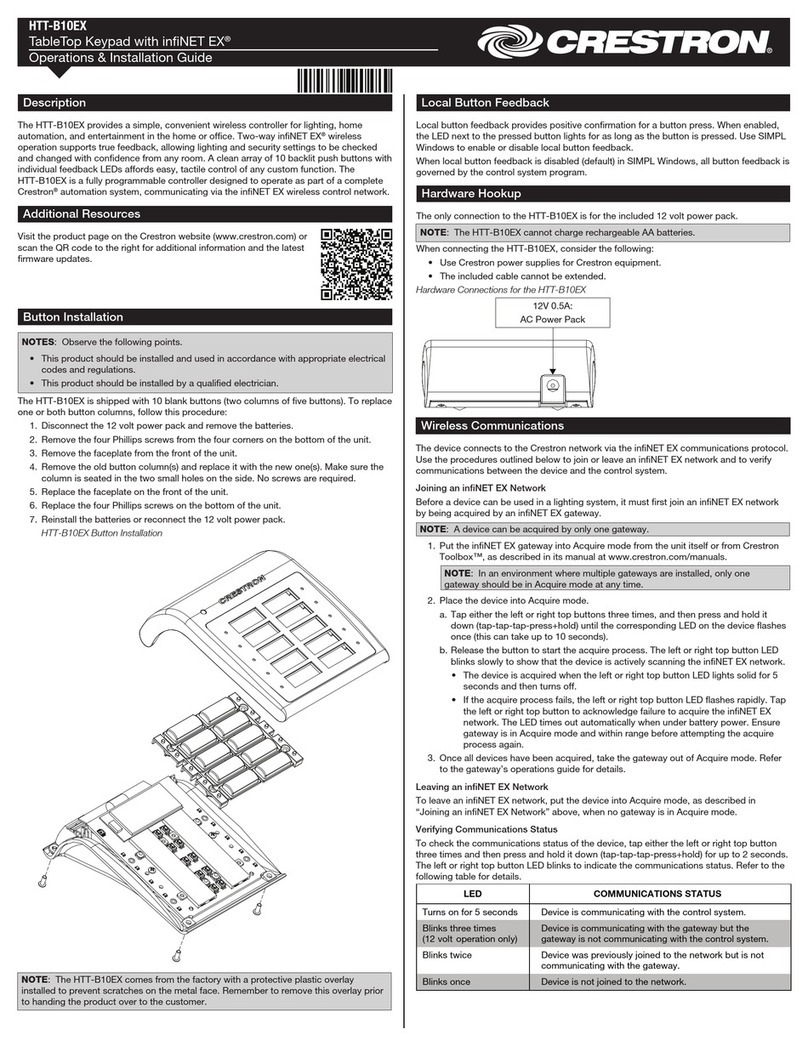
Crestron HTT-B10EX How to use

Crestron

Crestron HTT-B10EX How to use

Crestron Cameo C2NI-CB Series User manual

Crestron

Crestron Cameo C2NI-CB Series User manual

Crestron Horizon infiNET EX HZ-KPEX User manual

Crestron

Crestron Horizon infiNET EX HZ-KPEX User manual

Crestron C2N-LCDB3 Dimensional drawing

Crestron

Crestron C2N-LCDB3 Dimensional drawing

Crestron Cameo C2N-CBD-P Quick start guide

Crestron

Crestron Cameo C2N-CBD-P Quick start guide

Crestron HZ-BTN User manual

Crestron

Crestron HZ-BTN User manual

Crestron HTT-B10EX How to use

Crestron

Crestron HTT-B10EX How to use

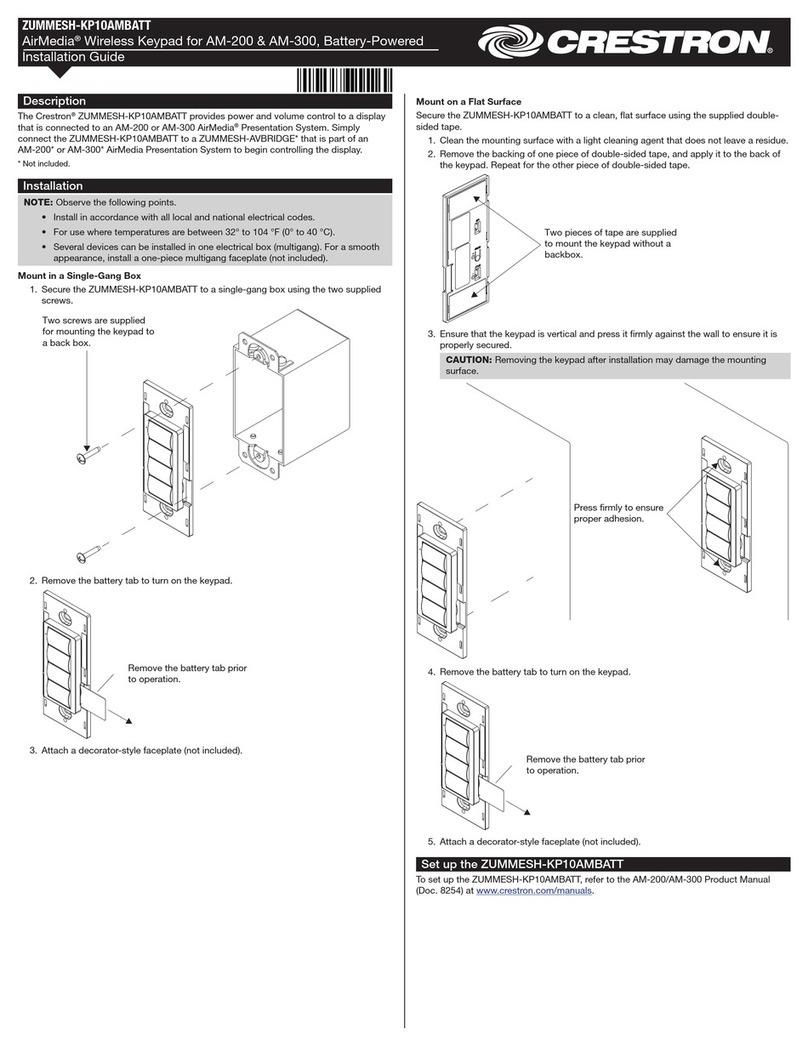
Crestron ZUM  ZUMMESH-KP User manual

Crestron

Crestron ZUM ZUMMESH-KP User manual

Crestron CNX-B12 How to use

Crestron

Crestron CNX-B12 How to use

Crestron INET-CBDEX-E Original operating instructions

Crestron

Crestron INET-CBDEX-E Original operating instructions

Crestron Lutron CNWM-LU12 How to use

Crestron

Crestron Lutron CNWM-LU12 How to use

Crestron Zum Series User manual

Crestron

Crestron Zum Series User manual

Crestron Cameo C2N-CBD How to use

Crestron

Crestron Cameo C2N-CBD How to use

Crestron Cameo INET-CBDEX Series How to use

Crestron

Crestron Cameo INET-CBDEX Series How to use

Crestron Cameo C2NI-CB Series How to use

Crestron

Crestron Cameo C2NI-CB Series How to use

Crestron C2N-DB12 How to use

Crestron

Crestron C2N-DB12 How to use

Crestron CNWM-10A User manual

Crestron

Crestron CNWM-10A User manual

Crestron C2NI-AG Creslight II How to use

Crestron

Crestron C2NI-AG Creslight II How to use

Crestron GLPPA-KP User manual

Crestron

Crestron GLPPA-KP User manual

Crestron black nova AXES Series User manual

Crestron

Crestron black nova AXES Series User manual

Crestron CNX-BF12 How to use

Crestron

Crestron CNX-BF12 How to use

Crestron CN-WP12FW User manual

Crestron

Crestron CN-WP12FW User manual

Crestron C2N-DBF12 How to use

Crestron

Crestron C2N-DBF12 How to use

Crestron HTT-B2EX-BATT User manual

Crestron

Crestron HTT-B2EX-BATT User manual

Popular Keypad manuals by other brands

AAA 6150RFAAA Installation and setup guide

AAA

AAA 6150RFAAA Installation and setup guide

Fermax MDS Installation and programming manual

Fermax

Fermax MDS Installation and programming manual

ACT ACT PRO 1030 manual

ACT

ACT ACT PRO 1030 manual

Cardin SSB Series manual

Cardin

Cardin SSB Series manual

Harman Kardon KP 1 Specifications

Harman Kardon

Harman Kardon KP 1 Specifications

CYP CR-KP1 Operation manual

CYP

CYP CR-KP1 Operation manual

Aeware k-35 Series Quick reference card

Aeware

Aeware k-35 Series Quick reference card

Aritech CS-175 Series user guide

Aritech

Aritech CS-175 Series user guide

Lenze AC Tech MC SERIES installation instructions

Lenze AC Tech

Lenze AC Tech MC SERIES installation instructions

Burg Wächter secuENTRY 7711 operating instructions

Burg Wächter

Burg Wächter secuENTRY 7711 operating instructions

Aeware in.k450 Tech book

Aeware

Aeware in.k450 Tech book

Lenze EPM-H410 operating instructions

Lenze

Lenze EPM-H410 operating instructions

Toshiba RKP007Z user manual

Toshiba

Toshiba RKP007Z user manual

Elmes Electronic KB1 quick start guide

Elmes Electronic

Elmes Electronic KB1 quick start guide

Clare Controls ClareOne CLR-C1-PNC Installation sheet

Clare Controls

Clare Controls ClareOne CLR-C1-PNC Installation sheet

FM Electronics 4180 quick start guide

FM Electronics

FM Electronics 4180 quick start guide

AMX MIO-PRESTIGE-S Dimensional drawing

AMX

AMX MIO-PRESTIGE-S Dimensional drawing

why pro WHY-KP user manual

why pro

why pro WHY-KP user manual

manuals.online logo
manuals.online logoBrands
  • About & Mission
  • Contact us
  • Privacy Policy
  • Terms and Conditions

Copyright 2025 Manuals.Online. All Rights Reserved.

CLWI-KPLEX
In-Wall Wireless Lighting Keypad, 230 Vac
Installation Guide
Description
The Crestron®CLWI-KPLEX is a companion keypad for CLWI- line of dimmers and
switches. It provides lighting and audio control from multiple locations around the home or
ofce. It is designed to recall scenes, dim loads up and down, and adjust the volume using
the customizable button layout.
The CLWI-KPLEX is shipped with a six-button conguration preinstalled on the keypad.
The button conguration can be replaced with the included large rocker switch or any
combination of up to two adjacent half-size rocker buttons or triple-button pads. All
buttons are congurable for up to three discrete functions via single-press, double-press,
and press-and-hold functionality.
The specications for the CLWI-KPLEX are listed below.
SPECIFICATION DETAILS
Power Requirements 220-240 Vac, 50/60 Hz, line power
Environmental
Temperature
Humidity
0° to 40 °C (32° to 104 °F)
10% to 90% RH (non-condensing)
Enclosure Mountable in a 1-gang UK (BS 4662) electrical box or
1-gang European (DIN 49073) electrical box that is
35 mm (1.38 in) or deeper;
Requires a FP-INTENSE or FP-PURE style faceplate (both
not included)
Dimensions
Height
Width
Depth
72 mm (2.80 in)
72 mm (2.80 in)
32 mm (1.24 in) including front face with buttons
Weight 80 g (3 oz)
The dimensions of the CLWI-KPLEX are shown below.
72 mm
(2.80 in)
72 mm
(2.80 in)
32 mm
(1.24 in)
51 mm
(2.00 in)
51 mm
(2.00 in)
21 mm
(0.82 in)
Additional Resources
Visit the product page on the Crestron website (www.crestron.com)
for additional information and the latest rmware updates. Use a QR
reader application on your mobile device to scan the QR image.
Installation
To install the CLWI-KPLEX, do the following.
CAUTION: Use on 10 A branch circuits only.
CAUTION: Use 1 x 1.5 - 2.5 mm² wire that complies with BS6004:2000/IEC 60245 and
local electrical codes.
NOTE: Use only copper wire rated for at least 75° C.
1. Turn the power off at the circuit breaker.
2. Wire the device as shown in the following diagram. Use 1 x 1.5-2.5 mm²
(14-12 AWG) wire. Secure the connections to the CLWI-KPLEX by inserting the wires
into the back of the unit and tightening the screws on the top of the unit with a small
at-head screwdriver.
Neutral
Earth
Live
Line
230 Vac
Tighten the screws
with a small flat-head
screwdriver.
3. Push all power wires back into the electrical box and fasten the device to the
electrical box with the provided screws.
NOTE: Use care when placing the device in the electrical box. Pinched wires
may cause a short circuit.
4. Attach the faceplate (not supplied).
5. Ensure that all buttons, including the program button, actuate without sticking.
6. Restore power at the circuit breaker.
Multigang Installation
In multigang installations, several devices are grouped horizontally or vertically in one
electrical box. When ganging vertically the devices snap together by sliding the bottom of
the upper device into the top of the lower device. This allows the devices to be mounted

closer together.
For a smooth appearance, one-piece multigang faceplates (not included) can be installed.
NOTE: When devices are ganged in a horizontal position, the devices do not interlock.
NOTE: When installing into a multigang box, do not fully tighten devices to box until
the faceplate has been aligned.
Change the Button Assembly
To change or replace the button assembly, follow the procedure below.
1. Squeeze the sides of the button assembly and carefully pull the button assembly off
of the device.
NOTE: When there are two button assemblies installed on a device, press on
one side of the button assembly and carefully remove the button assembly. The
second button assembly can be removed in the manner described above.
2. Insert the new button assemblies onto the device by pressing them into the device.

It might be necessary to squeeze the sides of the button assembly to allow for easier
assembly.
Operation
NOTE: Before using the CLWI-KPLEX, ensure the device is using the latest rmware.
Check for the latest rmware for the CLWI-KPLEX at www.crestron.com/rmware. Load
the rmware onto the device using Crestron Toolbox™ software.
Button Functions
The functionality of the CLWI-KPLEX is based on the control system program.
Device Reboot
To reboot the CLWI-KPLEX, press and hold the setup button for 15 seconds. All LEDs
on the front of the device ash once to indicate that the device is rebooting. Reboot is
completed when the LEDs come back on to normal operating mode.
Wireless Communications
The device connects to the Crestron network via the inNET EX®communications
protocol. Use the procedures outlined below to join or leave an inNET EX network and to
verify communications between the device and the control system.
Joining an inNET EX Network
Before a device can be used in a lighting system, it must rst join an inNET EX network
by being acquired by an inNET EX gateway.
NOTE: A device can be acquired by only one gateway.
1. Put the inNET EX gateway into Acquire mode from the unit itself or from Crestron
Toolbox, as described in its manual at www.crestron.com/manuals.
NOTE: In an environment where multiple gateways are installed, only one
gateway should be in Acquire mode at any time.
2. Place the device into Acquire mode.
a. Tap the setup button three times, and then press and hold it down (tap-tap-
tap-press+hold) until all LEDs on the device ash once (this can take up to 10
seconds).
b. Release the button to start the acquire process. The top two LEDs ash slowly to
show that the device is actively scanning the inNET EX network.
• The top two LEDs turn on for 5 seconds to show that the device has been
successfully acquired to the inNET EX network.
• The top LED ashes quickly to indicate that the device was not successfully
acquired by the inNET EX network. Press the setup button to acknowledge
failure to acquire the inNET EX network. Ensure the gateway is in Acquire
mode and within range before attempting the acquire process again.
3. Once all devices have been acquired, take the gateway out of Acquire mode. Refer
to the gateway’s manual for details.
Leaving an inNET EX Network
To leave an inNET EX network:
1. Verify that the device is not within range of an inNET EX gateway that is in Acquire
mode.
2. Tap the setup button three times, and then press and hold it down (tap-tap-tap-
press+hold) until all LEDs on the device ash once (this can take up to 10 seconds),
then release the button. The top two LEDs ash slowly.
3. The top two LEDs then ash quickly to indicate that the device has left the
inNET EX network.
4. Press the setup button to conrm that the device has left the inNET EX network.
Verifying Communications Status
To check the communications status of the device, tap the setup button three times and
then press and hold it down (tap-tap-tap-press+hold) for up to 2 seconds. The top two
LEDs ash to indicate the communications status. Refer to the following table for details.
LEDS COMMUNICATIONS STATUS
Turn on for 5 seconds The device is communicating with the control system.
Flash three times The device is communicating with the gateway, but the
gateway is not communicating with the control system.
Flash twice The device was previously joined to the network but is not
communicating with the gateway.
Flash once The device is not joined to the network.
As of the date of manufacture, the product has been tested and found to comply with specications
for CE marking.
The product warranty can be found at www.crestron.com/warranty.
The specic patents that cover Crestron products are listed at www.crestron.com/legal/patents.
Certain Crestron products contain open source software. For specic information, please visit
www.crestron.com/opensource.
Crestron, the Crestron logo, Crestron Toolbox, and inNET EX are either trademarks or registered
trademarks of Crestron Electronics, Inc. in the United States and/or other countries. Other trademarks,
registered trademarks, and trade names may be used in this document to refer to either the entities
claiming the marks and names or their products. Crestron disclaims any proprietary interest in the
marks and names of others. Crestron is not responsible for errors in typography or photography.
This document was written by the Technical Publications department at Crestron.
©2018 Crestron Electronics, Inc.
Crestron Electronics, Inc. Installation Guide - DOC. 7243B
15 Volvo Drive, Rockleigh, NJ 07647 (2031640)
Tel: 888.CRESTRON 03.18
Fax: 201.767.7576 Specications subject to
www.crestron.com change without notice.