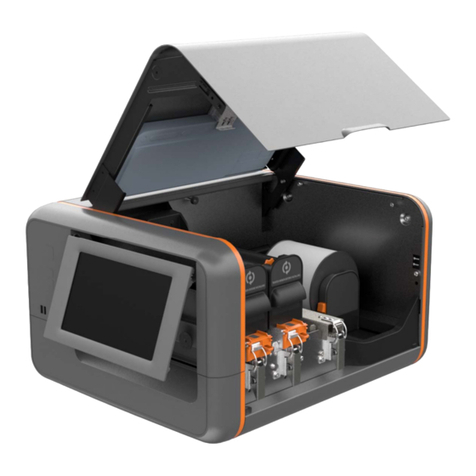
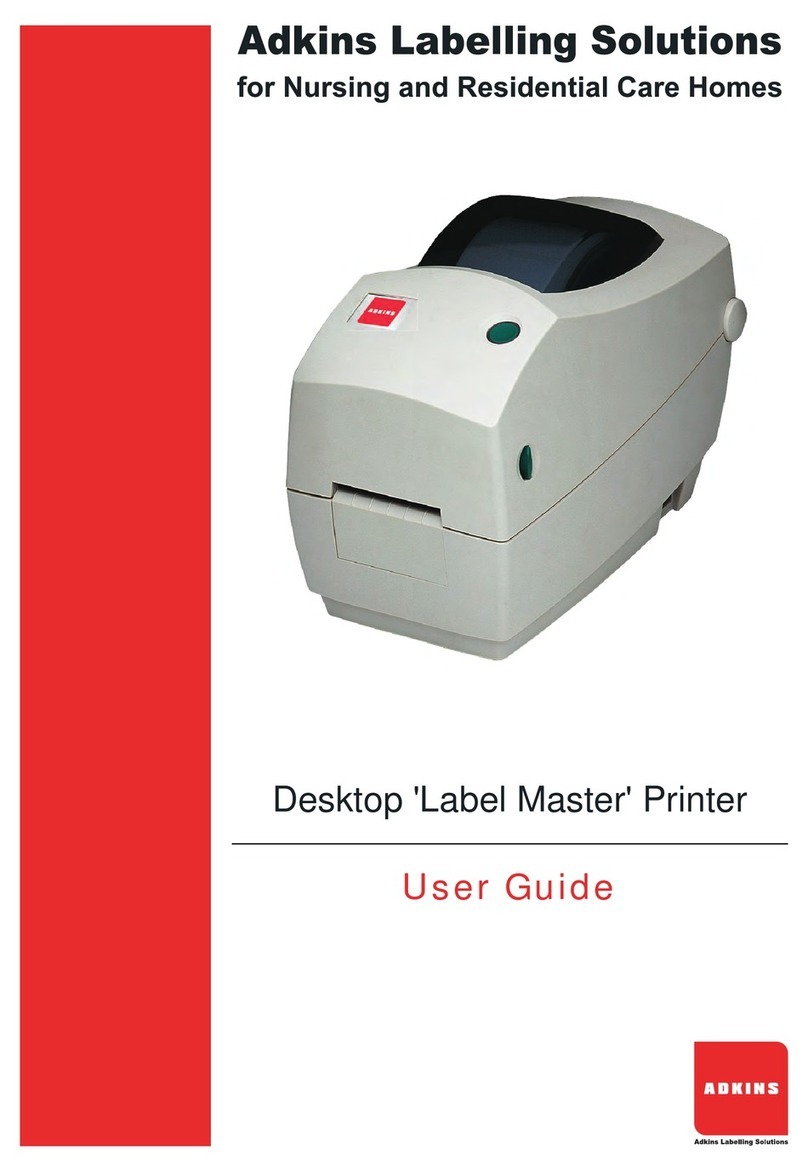
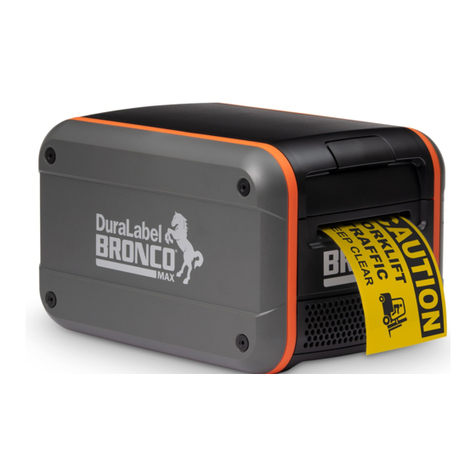
DuraLabel Bronco User manual

USER GUIDE
800.788.5572
GraphicProducts.com

Graphic Products®
, DuraLabel®
, PathFinder®
, Toro®and Lobo®are Registered Trademarks of Graphic Products, Inc.
© 2015 Graphic Products, Inc.

DuraLabel.com | 800.788.5572 Before You Begin | 3
Before You Begin
Safety Warnings
Before connecting Bronco to a power outlet, check the voltage of the power source, and
ensure that the power switch on the printer is in the OFF position.
Only use the included power supply with the Bronco (rated for 24V/2.5A output,
model WDS060240). If a replacement is needed, please contact your DuraLabel
representative.
To avoid electrical shock, DO NOT pour any liquid onto the printer or printer parts.
Only qualified service personnel should attempt to repair the printer.
System Requirements
•Operating System: Windows XP Service Pack 2 (or later), Windows Vista, Windows
7, or Windows 8 or 8.1. Both 32-bit (x86) and 64-bit (x64) systems are supported.
•Memory: 128MB RAM
•Hard Drive Space: 100MB
•IT / Administrator Privileges for installation
Your label design software may have other requirements.
What’s in the Box
•Bronco Printer
•USB Cord
•AC Power Adapter
•Bronco Software CD
•Ribbon Take-Up Core
•Supply Spindle
If any of these items are missing, please contact your DuraLabel representative.

4| Contents DuraLabel.com | 800.788.5572
Contents
1. Getting Started 5
1.1 Know Your Bronco 5
1.1.1 Exterior 5
1.1.2 Connection Panel 5
1.1.3 Interior – Print Head Carriage Locked 6
1.1.4 Interior – Print Head Carriage Released 6
1.2 Loading Supplies 7
1.2.1 Loading Ribbon 7
1.2.2 Loading Label Stock 8
1.3 Initial Setup 8
1.3.1 Physical Connections 8
1.3.2 Installing Driver Software 8
2. Using Your Bronco 9
2.1 Printing and Pausing 9
2.2 Driver Settings 9
2.2.1 Size and Orientation 9
2.2.2 Settings for Pre-Printed or Die-Cut Material 10
2.2.3 Cutting 10
2.2.4 Darkness 11
2.2.5 Adjusting Default Settings 11
3. Warranty and Compliance Statements 12
3.1 5-Year DuraLabel Printer Warranty 12
3.1.1 Repairs 12
3.1.2 Warranty Details 12
3.2 FCC Compliance Statement for Users in the United States 13
4. Contact Us 14

GraphicProducts.com | 800.788.5572 1.1 Know Your Bronco | 5
1. Getting Started
1.1 Know Your Bronco
1.1.1 EXTERIOR
1.1.2 CONNECTION PANEL
Lid Release Tabs
Pause/Feed Button
and Indicator Light
Cutter Module
Power Switch Power Supply Connection USB Connection

6| 1.1 Know Your Bronco GraphicProducts.com | 800.788.5572
GETTING STARTED
1.1.3 INTERIOR – PRINT HEAD CARRIAGE LOCKED
Ribbon Take-Up Holders
Carriage Release Tabs
Print Head Carriage
Print Head
Ribbon Supply Holders
Adjustable Supply Guides
1.1.4 INTERIOR – PRINT HEAD CARRIAGE RELEASED

GraphicProducts.com | 800.788.5572 1.2 Loading Supplies | 7
GETTING STARTED
1.2 Loading Supplies
To load your Bronco with supplies, turn the system off using the power switch at the
back, near the power cord. Then, press inward at the textured areas on both sides of
the system, and raise the hinged cover. The cover will rest at the fully-opened position,
requiring about 12 inches of vertical clearance.
You need two supplies to print: the printing ribbon, or “ink,” and the label stock, or “vinyl.”
1.2.1 LOADING RIBBON
Ribbon comes in a roll, which fits underneath the print carriage. When printing, Bronco
will transfer colored resin from the ribbon onto your label stock, with the used ribbon
collecting on a take-up core above the print carriage for later disposal.
1. Start with a new ribbon take-up core. Fit one end of the core onto the green spring-
loaded holder on the top of the print head carriage. Then, fit the other end of the
ribbon core onto the wheeled holder. Turn the take-up core or holder by hand, until
the tab on the holder locks into the notch in the core.
2. Then, press the two green carriage release tabs. The print head carriage will spring
upward.
3. Hold the new roll of ribbon so the loose end falls to the rear of the printer. Fit one
end of the ribbon core onto the green spring-loaded holder on the underside of
the print head carriage. Then, fit the other end of the ribbon core onto the geared
holder. Turn the ribbon core by hand until the tab on the holder locks into the notch
in the core.
4. Pull the loose end of the ribbon up and around the print head carriage and use a
small piece of label stock or tape to secure the end of the ribbon to the top of the
empty rewind core.
5. Pull the ribbon snug by turning the green take-up wheel.

8| 1.3 Initial Setup GraphicProducts.com | 800.788.5572
GETTING STARTED
1.2.2 LOADING LABEL STOCK
Fresh label stock comes in a roll with plastic end caps on each side. The material
typically has a glossy print surface on one side, and a disposable paper backing on the
other side. When printing, Bronco will feed some of the label stock from its roll and cut
off the printed label.
1. If you haven’t already done so, raise the print head carriage by pressing the two
green carriage release tabs.
2. Place the roll of label supply onto the supply spindle. With the label supply unrolling
from the top of the roll and feeding toward the print head carriage, rest the supply
spindle into its slots in your Bronco.
3. Feed the end of the label supply under the print carriage, threading it between and
beneath the green adjustable label guides, and over the top of the rubber roller
near the cutter module.
4. Slide the green adjustable label guides together to keep the label stock centered,
but not so tight as to bend or wrinkle the label stock.
5. Close the print head carriage by pressing it down into place, and then close the
hinged cover.
1.3 Initial Setup
When setting up your Bronco for the first time, you’ll need to connect the printer to
your computer and a power supply. You’ll also need to install the printer driver on your
computer, which will require Administrator Privileges on that computer. (You may need
help from your IT team.)
1.3.1 PHYSICAL CONNECTIONS
Make sure the power switch at the back of the printer is set to the OFF position. Connect
Bronco to your computer with the included USB cord. Then, plug the Bronco AC Power
Adapter into an ordinary 120V wall outlet, and connect its other end to your Bronco.
Once these connections have been made, turn Bronco on, using the switch in the back.
1.3.2 INSTALLING DRIVER SOFTWARE
Depending on your computer’s settings, you may see a notification from Windows about
new hardware. If so, you can close that message. Instead, insert the Bronco Software
CD into your computer, and follow the prompts that appear to install the printer driver.
If no prompts appear when you insert the CD, you can use the “My Computer” or
“Computer” browsing system to view the files on the CD. Run the program called
“DriverWizard.exe” and follow the prompts to install the Bronco driver on your computer.
Once the printer driver has been installed, you will be able to send print jobs to Bronco.

GraphicProducts.com | 800.788.5572 2.2 Driver Settings | 9
2. Using Your Bronco
2.1 Printing and Pausing
To print a label, open or create a label design in your preferred label design program.
(For help with the DuraSuite software, see the documentation for that program.) Use the
program’s File menu to select Print. In the Print window, select the DuraLabel Bronco as
the printer, choose appropriate settings with the Properties or Preferences button, and
click Print.
While Bronco is printing, you can pause the system by pressing the Pause/Feed button
on the top of the printer. If the green light there is blinking, the printer is currently
paused, and you can press the button again to resume printing.
2.2 Driver Settings
The different driver settings should always match the kind of label you want to print.
You can check the driver settings for a given print job with the Properties or Preferences
button in the Print window.
2.2.1 SIZE AND ORIENTATION
Many programs have their own settings for a document’s page size; for instance,
Microsoft Word is typically set to use 8.5”x11” pages, in a Portrait orientation. Your
Bronco has similar settings, and these need to match your label design for the label to
be printed correctly.
Your Bronco’s settings for label dimensions and orientation are located on the Page
Setup tab of the Printing Preferences window. When adjusting these settings, Width
refers to the width of your roll of label stock, and Height refers to the amount of material
that feeds out of the printer; the Width in this window will never be more than 4 inches,
but the Height may range from a fraction of an inch to several feet.

10 | 2.2 Driver Settings GraphicProducts.com | 800.788.5572
USING YOUR BRONCO
2.2.2 SETTINGS FOR PRE-PRINTED OR DIE-CUT MATERIAL
When using supplies that are pre-printed or die-cut, the printer will need to be properly
set and calibrated to line up the print on the label stock. There are two parts to this
process: setting the driver settings, and calibrating the printer’s sensors.
Your Bronco’s driver settings for these types of material are located on the Stock tab of
the Printing Preferences window. The Media Type can be set to one of the following:
•Continuous: an uninterrupted, continuous roll of label stock (the most common
supply type)
•Labels With Gaps: a roll of pre-cut labels, usually pre-printed with some elements,
with small gaps between labels
•Labels With Marks: a roll of partially pre-printed labels, with black marks on the
backing to distinguish one label from the next
When you change from one Media Type to another, Bronco may need to have its internal
sensors calibrated. Turn off the printer using the switch in the back, near the black
power cord. Press and hold the Pause/Feed button on top of the printer, and (while still
holding the button) turn the printer back on. The indicator light will blink green, change
to solid red, and then blink red. Once the light is blinking red, release the Pause/Feed
button. Bronco will feed out some supply and recalibrate its internal sensors; once the
printer stops, and the light returns to solid green, you can open the printer and roll the
supply back in. The beginning of your next label should be aligned with the top of the
gray rubber roller near the front of the printer.
2.2.3 CUTTING
You can choose whether Bronco automatically cuts each label as it is printed, or leaves
the labels on a continuous roll. This option can be changed on the Stock tab of the
Printing Preferences. The Post-Print Action can be set to either of these settings:
•None: no automatic cutting, leaving labels connected on their roll
•Cut: activate the automatic cutting mechanism as described next
If you select Cut, you’ll also need to choose an Occurrence, deciding when Bronco will
cut the label stock. The two most common options are:
•After Every Label: automatically cut each label separately, or each page of a multi-
page document
•After Job: automatically cut after all labels or pages of your print job, leaving that
batch of labels connected as a strip
Other manuals for Bronco
4
Table of contents
Other DuraLabel Label Maker manuals
DuraLabel
DuraLabel Bronco User manual
DuraLabel
DuraLabel 2000 PLUS User manual
DuraLabel
DuraLabel Kodiak User manual
DuraLabel
DuraLabel Bronco User manual

DuraLabel
DuraLabel Toro User manual

DuraLabel
DuraLabel 4000 User manual
DuraLabel
DuraLabel PRO 300 User manual
DuraLabel
DuraLabel Bronco User manual
DuraLabel
DuraLabel Toro User manual
DuraLabel
DuraLabel 7000 User manual