1.
2.
3.
4.
If the display is blank press a key to wake the keypad.
Press the Down key.
Press the Down key again.
- The keypad displays a list of open zones.
Use the Down/Up keys to navigate through the list.
OK toggle the setting between On and Off
On activating the menu item using the OK key the keypad displays an edit
window. You can edit the value using the following keys.
1enter punctuation characters using multi-tap text entry or press
and hold to enter digit 1
2 - 9 enter characters using multi-tap text entry or press and hold to
enter digits 2 - 9
0 enter digit zero
* cycle character entry between ALL UPPER CASE, First Upper
Case and all lower case
# enter a space
Delete delete one character to the right of the cursor or press and hold
to delete several characters
Left move the cursor one character left or press and hold to move
the cursor several characters
Right move the cursor one character right or press and hold to move
the cursor several characters
Cancel cancel the change and revert to the unchanged text
OK store the new text
Changing an On/Off setting
Changing a name
Viewing open zones
6 Operation Instructions 7
Operation Instructions
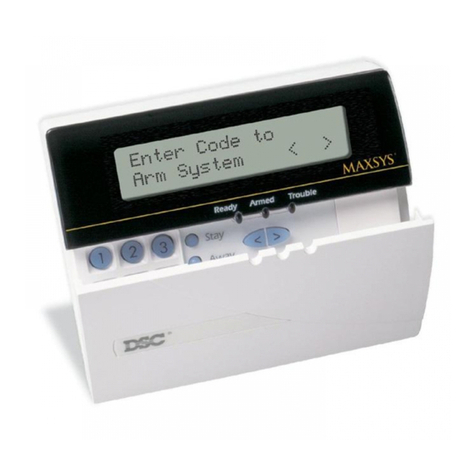
Starting the user menu
The user menu gives access to a wide range of functions for users that are
required for more advanced alarm system operation.If the display is blank
press a key to wake the keypad.
1.
2.
Navigation
Enter the user code.
- If the keypad displays faults, see section Faults
- The keypad displays current state.
- If the right soft key is not Menu the installer must first enable the menu
option for your user code.
Press the right soft key, Menu.
- The keypad starts the user menu.
These navigation keys can be used in the user menu, the faults display
and any other similar displays.
Up/Down move in the current menu
OK or Right activate the current menu item, e.g. enter a sub-menu,
change a value
Back or Left back up one menu level
Info display help for the current menu item
Menu operation