9
help.hygiena.com
Create a Basic Plan. Touch the Plan Locations button to choose any number of
locations you would like to add to the plan. The Locations in Plan field will show you
the total number of locations you have included in this plan.
Create a Random Plan. Touch the Plan Locations button to choose any number
of locations you would like to add to the plan. The Locations in Plan field will show
you the total number of locations you have included in this plan. Enter a number into
the Location Quota to Test field and that will be the minimum number of locations
randomly chosen to be tested. Any locations you have designated as required
will show up in the Required Locations * field. You may toggle Do Not Repeat
Locations to ON if you want each location randomly chosen to only be chosen once.
Create a Quote Plan. Touch the Plan Locations button to choose any number of
locations you would like to add to the plan. The Locations in Plan field will show
you the total number of locations you have included in this plan. Enter a number into
the Location Quota to Test field and that will be the minimum number of locations
randomly chosen to be tested.
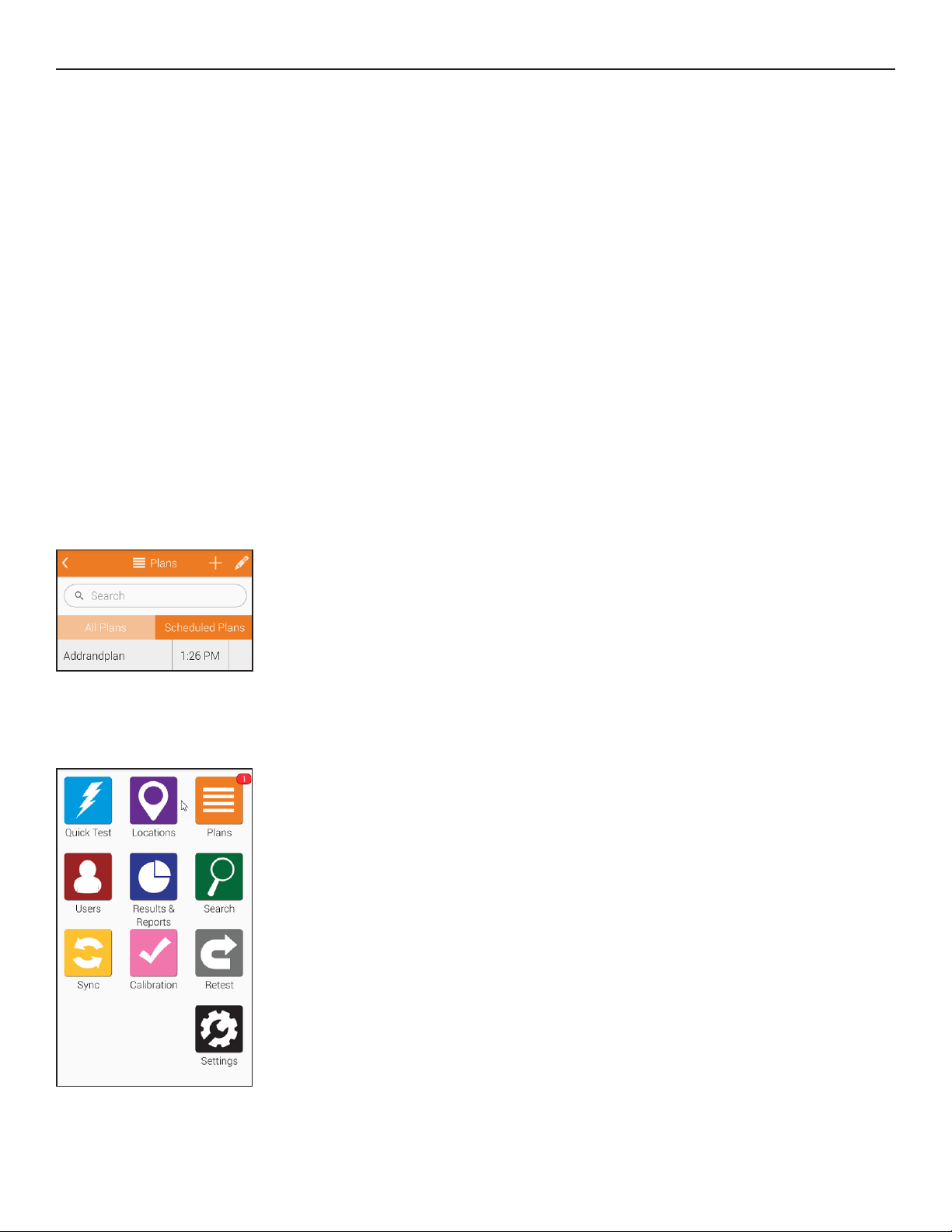
Schedule a Plan. Touch Schedule Plan to schedule when
you would like to conduct tests for certain plans. You will be
able choose whether a plan gets tested weekly or daily and
choose the time when testing will occur.
When it is time to run a scheduled
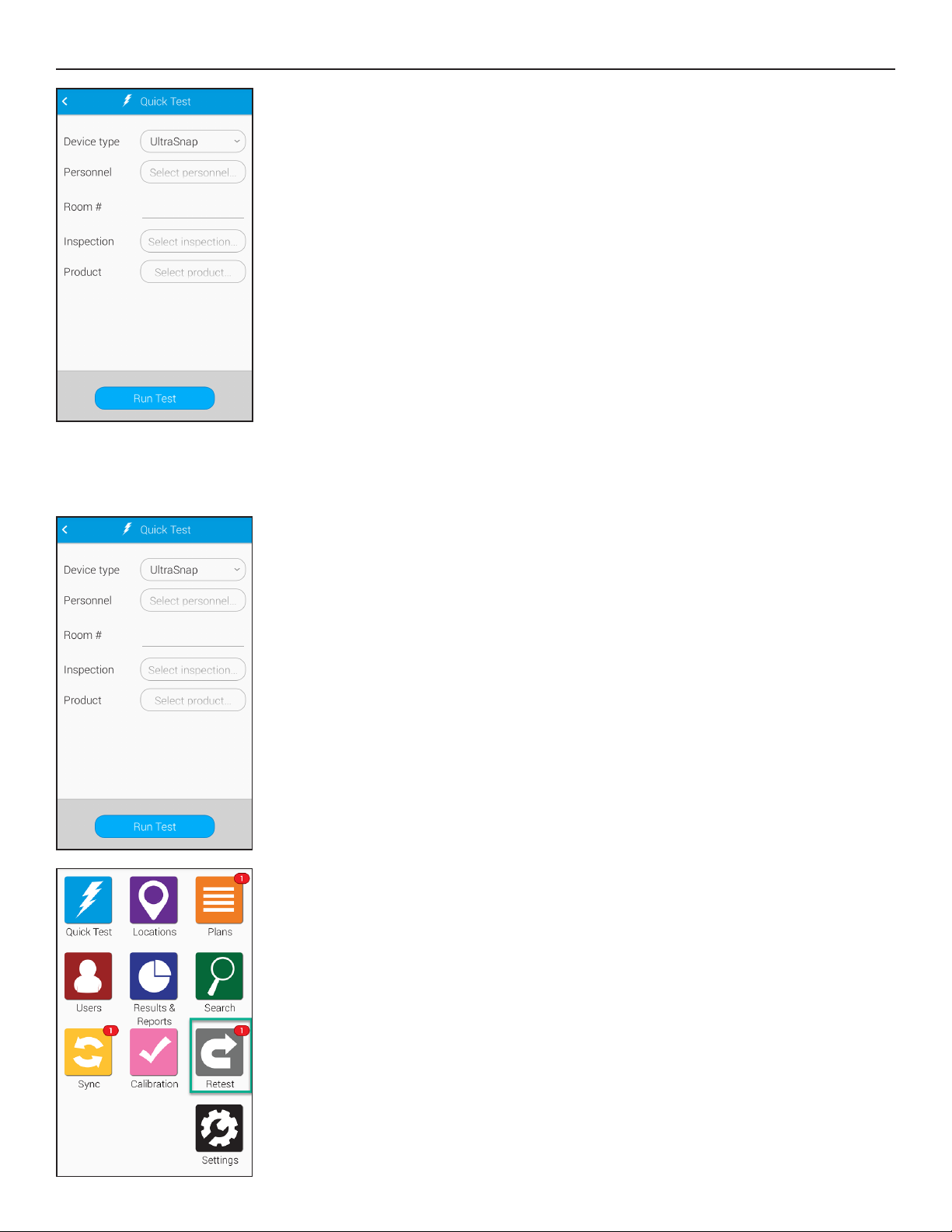
Plan, you’ll see a red notification icon
appear above the orange Plans icon
on the home screen.
Ch. 3