manuals.online logo
Brands
  1. Home
  2. •
  3. Brands
  4. •
  5. Iridium
  6. •
  7. Marine GPS System
  8. •
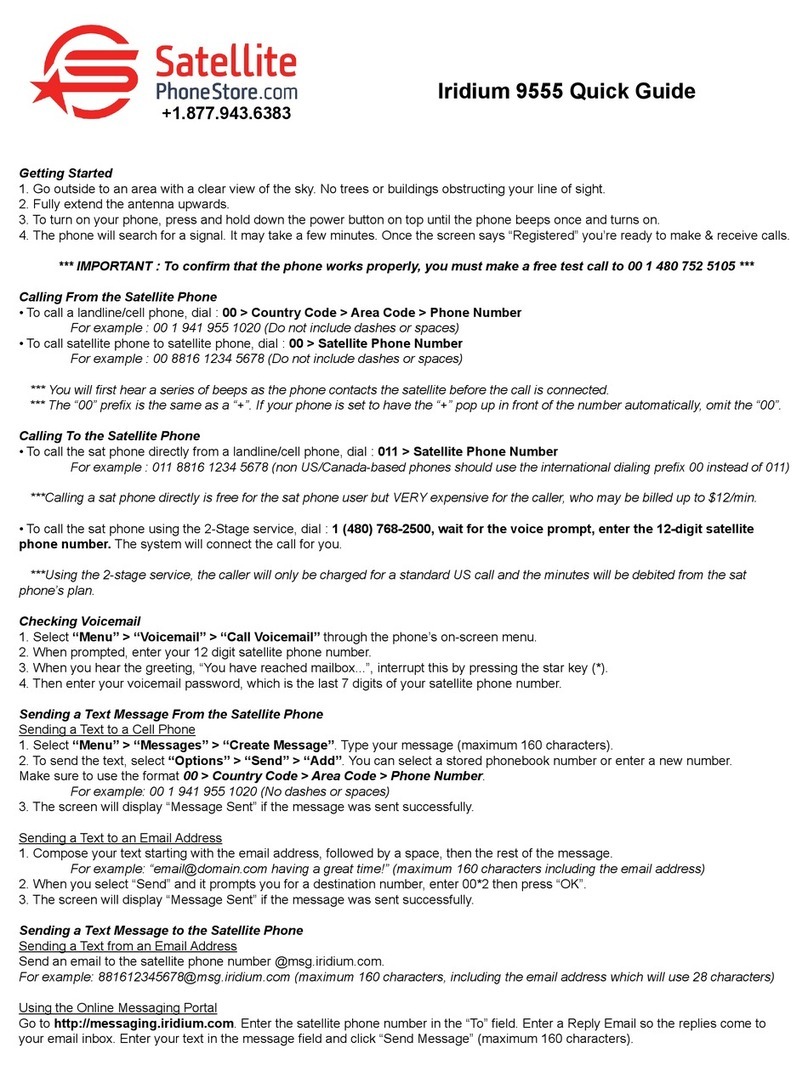
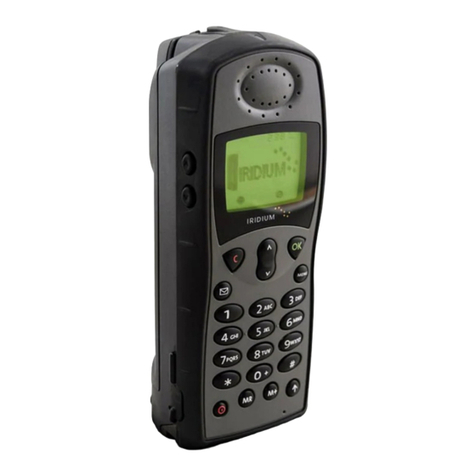
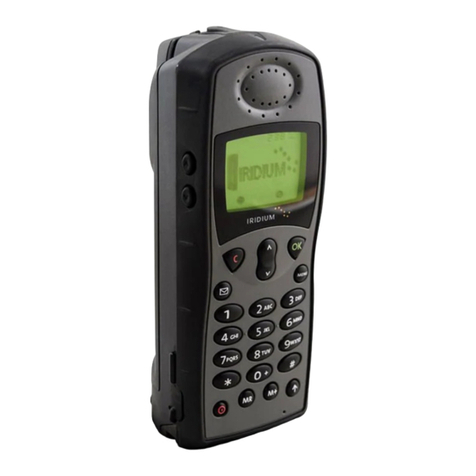
  9. Iridium 9555 User manual

Iridium 9555 User manual

Other manuals for 9555

19

This manual suits for next models

1

Other Iridium Marine GPS System manuals

Iridium EDGE User manual

Iridium

Iridium EDGE User manual

Iridium EXTREME User manual

Iridium

Iridium EXTREME User manual

Iridium 9505 User manual

Iridium

Iridium 9505 User manual

Iridium 9575 User manual

Iridium

Iridium 9575 User manual

Iridium 9505A User manual

Iridium

Iridium 9505A User manual

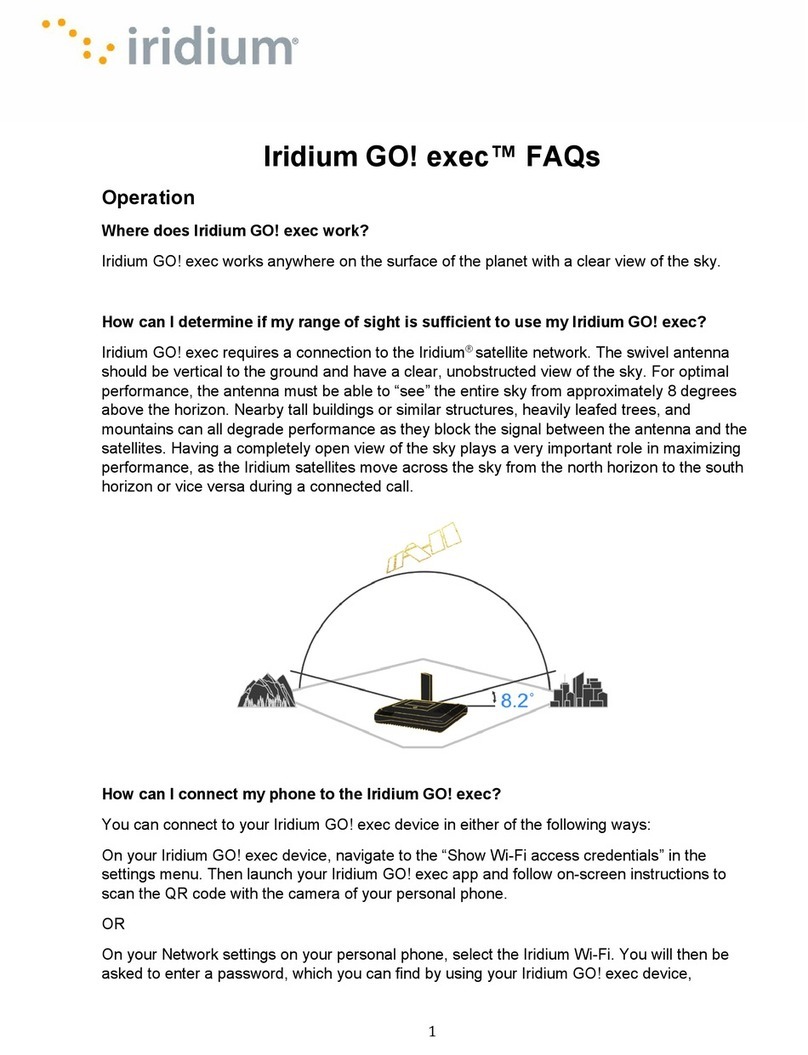
Iridium GO! exec Dimensions

Iridium

Iridium GO! exec Dimensions

Iridium extreme 9575 User manual

Iridium

Iridium extreme 9575 User manual

Iridium 9505 User manual

Iridium

Iridium 9505 User manual

Iridium 9555 User manual

Iridium

Iridium 9555 User manual

Iridium 9505A User manual

Iridium

Iridium 9505A User manual

Iridium Pilot User manual

Iridium

Iridium Pilot User manual

Iridium Go! WVMTKT2001 User manual
Iridium

Iridium Go! WVMTKT2001 User manual
Iridium 9505A User manual

Iridium

Iridium 9505A User manual

Iridium 9555 User manual

Iridium

Iridium 9555 User manual

Iridium EDGE User manual

Iridium

Iridium EDGE User manual

Iridium EXTREME User manual

Iridium

Iridium EXTREME User manual

Iridium 9500 User manual

Iridium

Iridium 9500 User manual

Iridium 9500 User manual

Iridium

Iridium 9500 User manual

Iridium 9555 Instruction manual

Iridium

Iridium 9555 Instruction manual

Iridium 9505A Assembly instructions

Iridium

Iridium 9505A Assembly instructions

Iridium Pilot User manual

Iridium

Iridium Pilot User manual

Iridium GO! User manual

Iridium

Iridium GO! User manual

Iridium 9555 User manual

Iridium

Iridium 9555 User manual

Iridium 9555 User manual

Iridium

Iridium 9555 User manual

Popular Marine GPS System manuals by other brands

Airmar Technology Corporation GH2183 Owner's guide and installation instructions

Airmar Technology Corporation

Airmar Technology Corporation GH2183 Owner's guide and installation instructions

JRC JHS-183 installation manual

JRC

JRC JHS-183 installation manual

Thuraya IP Voyager user guide

Thuraya

Thuraya IP Voyager user guide

Furuno GP-1610CF Operator's manual

Furuno

Furuno GP-1610CF Operator's manual

Raytheon NautoPilot NP 5100 Operator's manual

Raytheon

Raytheon NautoPilot NP 5100 Operator's manual

Furuno GP-1650WDF Operator's manual

Furuno

Furuno GP-1650WDF Operator's manual

TracPhone V7 user guide

TracPhone

TracPhone V7 user guide

Nera WorldSet Pro user guide

Nera

Nera WorldSet Pro user guide

Hughes Thuraya IP Voyager user guide

Hughes

Hughes Thuraya IP Voyager user guide

Satcube Ku quick start guide

Satcube

Satcube Ku quick start guide

Furuno FELCOM 12 Operator's manual

Furuno

Furuno FELCOM 12 Operator's manual

Thuraya ATLAS IP+ user manual

Thuraya

Thuraya ATLAS IP+ user manual

Raymarine G-Series system Installation & commissioning instructions

Raymarine

Raymarine G-Series system Installation & commissioning instructions

Radio Zeeland DMP Sigma 120 manual

Radio Zeeland DMP

Radio Zeeland DMP Sigma 120 manual

Addvalue Innovation wideye SABRE RANGER 5000 quick start guide

Addvalue Innovation

Addvalue Innovation wideye SABRE RANGER 5000 quick start guide

Garmin GPSMAP 190-01120-00 owner's manual

Garmin

Garmin GPSMAP 190-01120-00 owner's manual

Humminbird 532162-1_B installation guide

Humminbird

Humminbird 532162-1_B installation guide

Garmin GWS 10 Marine Wind Sensor Declaration of conformity

Garmin

Garmin GWS 10 Marine Wind Sensor Declaration of conformity

manuals.online logo
manuals.online logoBrands
  • About & Mission
  • Contact us
  • Privacy Policy
  • Terms and Conditions

Copyright 2025 Manuals.Online. All Rights Reserved.

2. Charge the Phone and Power On
• Plug the power adapter into the port on the left side of the phone.
• The battery symbol on the LCD display flashes while charging. When fully
charged, the battery symbol will go solid.
• Turn the phone on by pressing and holding the On/Off button on the top
of the phone for 5 seconds.
• If prompted for a SIM PIN, enter the four to eight digit SIM card PIN code
provided by your service provider and press OK to proceed. The default
SIM PIN is 1111 and may be modified. Pressing the incorrect code multiple

times will lock the phone, requiring an unlock code.
4
8
5
10
13
14
1
2
11 12
1. On/Off Button
2. Earpiece
3. Status Indicator LED
4. Display
5. Volume Keys
6. Convenience Key
7. 2-way Navi-key
8. Left Soft Key
9. Right Soft Key
10. Green Key
11. Red Key
12. Headset Jack
13. DC Power
14. USB Port
15. Keypad
16. Microphone
9
16
15
7
6
3
Quick Start Guide
Iridium 9555 Satellite Phone
3. Set up Voicemail
• From the main menu, select ‘Voicemail,’ ‘Voicemail Settings’ and finally ‘Number.’
• Enter +881662990000 then select ‘Save’ by pressing the left soft key. To enter
the + sign, press and hold 0 key.
• To place a voicemail set-up call, go to an outdoor area with a clear view of the
sky, extend the antenna, and select ‘Voicemail’ from the main menu and then
‘Call Voicemail.’ Ensure that the antenna is articulated left or right so it is
pointing up during the phone call for optimal use.
• When prompted, enter your Iridium phone number followed by the star (*) key,
then enter your password (default is the last seven digits of your phone number).
• Follow the audio prompts to set your new password, record your greeting and
configure your account settings.
• End the call by pressing the red button and follow the same ‘Call Voicemail’
steps to check voicemail notifications in the future.
1. Insert the SIM Card
• Remove the battery from the phone.
• Slide the SIM Card into the slot, following the orientation shown on the decal.
• Re-install the battery.
4. Set up Text Messaging (SMS)
• By programming your Messaging ‘Service Center’ you ensure that your phone
is able to send and receive text messages.
• From the main menu, select ‘Messages,’ ‘Settings,’ and finally
‘Service Center.’
• Enter +881662900005 then select ‘OK’ by pressing the left soft key.
5. Make a Call
• The phone must be used outside, away from trees and tall buildings.
• Power-on by pressing black button on the top of the phone.
• Phone will display ‘searching for network’ and then ‘Registered.’ If phone has
been left on when inside of a building, it will take longer to find and register
with the network in order to save power. To accelerate network registration,
turn phone off and on once outside.
• Prior to making a call, extend the antenna completely and rotate so it points
directly upwards. Ensure that the antenna is articulated left or right so it is
oriented directly up when held to your ear during use.
• To make a call, enter the full dialing sequence:
00 or + [Country Code] [Phone Number]
• Press the green key to initiate the call and press the red key to end the call.
When the call is complete, return the antenna to the center position, then
retract the antenna for storage when the phone is not in use.
• To store contacts, select ‘Menu,’ ‘My Phonebook,’ ‘Options,’ and then ‘New’
to create and save a New Entry.
6. Send a Text Message (SMS)
• You can send and receive text messages and short emails using your Iridium 9555
phone. Prior to sending short emails, it is helpful to store email addresses in your
phonebook to automate delivery.
• To enable the predictive text software on your phone, select ‘Setup’ from the main
menu, then ‘Language,’ then ‘Text entry,’ and change the setting from ‘Multi-tap’ to
‘English,’ ‘French,’ or ‘Spanish’ predictive text.
• To send a text message select ‘Messages’ from the main menu, then ‘Create message.’
If you wish to send to an email address that is not stored in your phonebook, type
the email address, add a space, and then type your message.
• To type using predictive text entry, you may choose several different modes
including word (ww), letter (lw), punctuation(#?@), and digits (123) by tapping the
side convenience key.
• Once your message is completed, select ‘Options,’ then ‘Send,’ then ‘Add’, and then
you can either select a stored phonebook entry or manually enter a number. If you
typed an email address in your message to send to an email address not stored in
your phonebook, you must manually enter the number “+*2” in order to send to an
email not stored in your phonebook.
• Your contacts may send you a message by visiting www.iridium.com and selecting
‘Send a Satellite Message’ by using your Iridium phone number or send an email
to 8816[number]@msg.iridium.com.
7. Additional Tips
• Keeping the phone’s battery charged ensures that the phone is ready for use
when needed. For maximum battery performance, try to allow the phone’s battery
to discharge completely before fully recharging.
• Protect the antenna by stowing it in the down position when not in use.
• Your phone can be programmed to automatically add the international access
code (00 or +) to each number you dial.
From the main menu, select ‘Setup’ and then ‘Number Entry.’
Only one communications company connects the entire globe
Iridium is the world’s only truly global mobile communications company, with coverage of the entire Earth, including oceans, airways
and Polar Regions. Iridium voice and data products provide communications solutions that allow global companies, government
agencies and individuals to stay connected, everywhere. The unique Iridium constellation of 66 Low Earth Orbiting (LEO) cross-linked
satellites routes communications traffic through space and around the world, creating highly efficient and reliable connections.
www.iridium.com
My Customer Care
Phone Number
My Customer Care
Email Address
My Iridium
Phone Number
05/10
© Copyright 2010 Iridium Communications Inc. All rights reserved. Iridium and the logo are registered marks of Iridium Communications Inc.
All other registered marks, trademarks, service marks and logos are the property of their respective holders. Information is subject to change without notice.
H2QEN1001