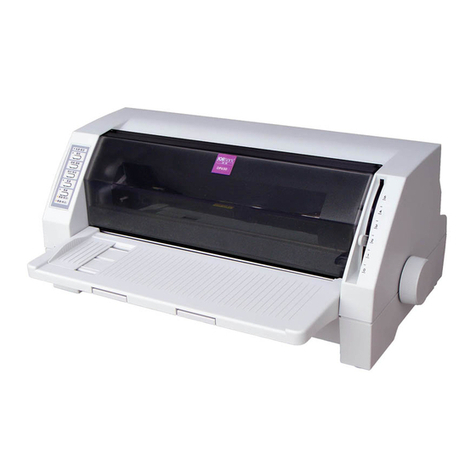
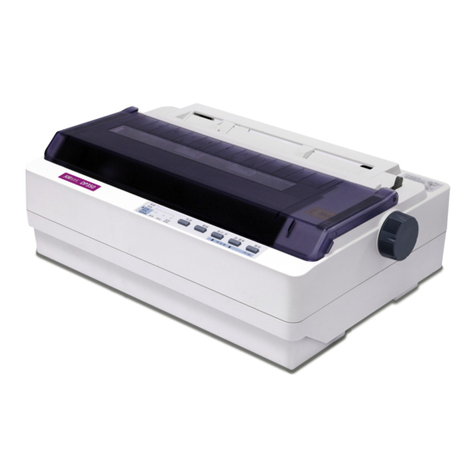
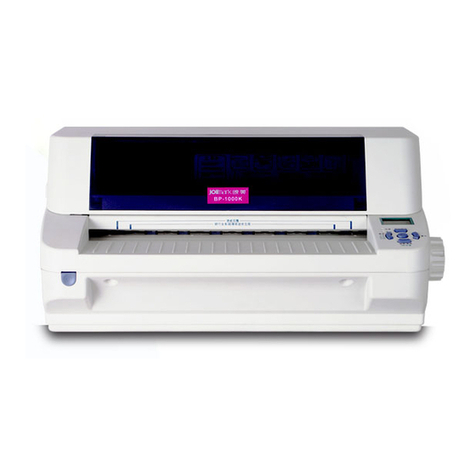
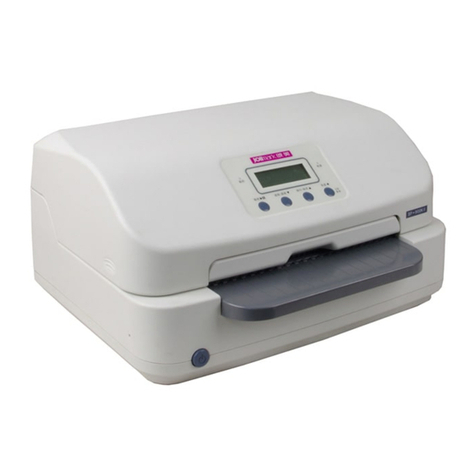
BP-1000K User’s Manual
Table of Contents
Important Safety Instructions .....................................................................................................................i
Chapter 1 Product Features....................................................................................................................... 1
Chapter 2 Checking and Installing ............................................................................................................3
2.1 Unpacking and Checking ....................................................................................................................3
2.2 Unpacking the Protective Materials.....................................................................................................3
2.3 Main Parts of the Printer......................................................................................................................4
2.4 Installing the Printer ............................................................................................................................4
2.4.1 Choose Proper Installing Place ....................................................................................................4
2.4.2 Installing the Paper Feed Knob ....................................................................................................4
2.4.3 Installing the Ribbon Cartridge .....................................................................................................5
2.5 Connecting to Your Computer .............................................................................................................7
2.5.1 Connecting the Parallel Interface..................................................................................................7
2.5.2 Connecting the USB Interface......................................................................................................8
2.6 Connect the Power Core.....................................................................................................................8
2.7 Installing the Driver .............................................................................................................................9
Chapter 3 Paper Process .........................................................................................................................12
3.1 Paper Switch.....................................................................................................................................12
3.2 Feeding the Cut Sheet ......................................................................................................................12
3.3 Feeding the Passbook ......................................................................................................................13
3.4 Feeding the Vertical Passbook.......................................................................................................... 13
3.5 Feeding the Passbook ......................................................................................................................14
3.5 Installing Continuous Paper (Applicable only for specific versions)...................................................14
3.6 Tearing the Tractor Paper..................................................................................................................15
Chapter 4 Control Panel...........................................................................................................................17
4.1 Key, Indicator Light and LCD Display on the Control Panel ..............................................................17
4.2 Basic Operation of the Control Panel ................................................................................................17
4.3 The information on the LCD Display When at Stand by State ...........................................................18
4.4 Use of the Menu Setting System.......................................................................................................19
4.4.1 Change the Current Setting in the Menu of the Printer...............................................................19
4.4.2 Printing the Current Setting Report.............................................................................................20
4.4.3 Menu Item Description................................................................................................................22
4.4.4 Online Aptitude Parameter Setting .............................................................................................23
4.4.5 Restoring Factory Printer Settings..............................................................................................23
4.4.6 Head Pin Test.............................................................................................................................23
4.5 TOF Adjustment ................................................................................................................................24
4.6 Tear Position Adjustment...................................................................................................................24
4.7 The Self Test Functions.....................................................................................................................24
4.7.1 ASCII Self-Test ...........................................................................................................................24
4.7.2 Chinese Self Test Mode..............................................................................................................24
4.7.3 Maintenance Printing Test (H pattern) ........................................................................................25
4.7.4 Hex Mode...................................................................................................................................25
4.7.5 Dot Alignment Mode...................................................................................................................25
Chapter 5 Maintenance and Troubleshooting ........................................................................................27
- ii -