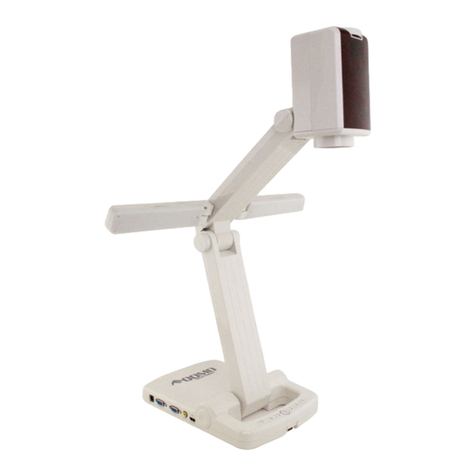
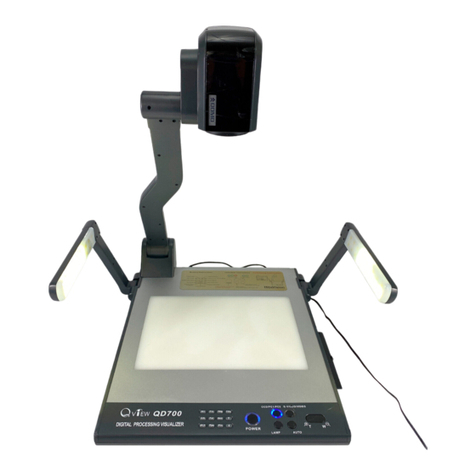
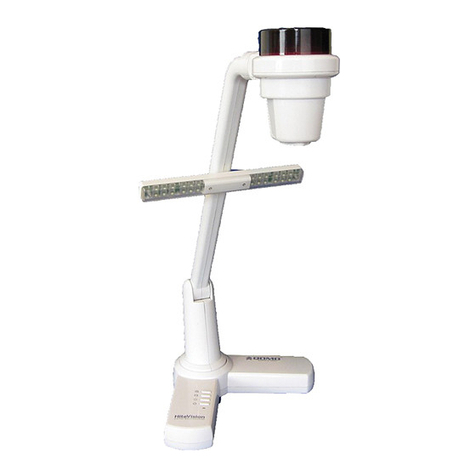
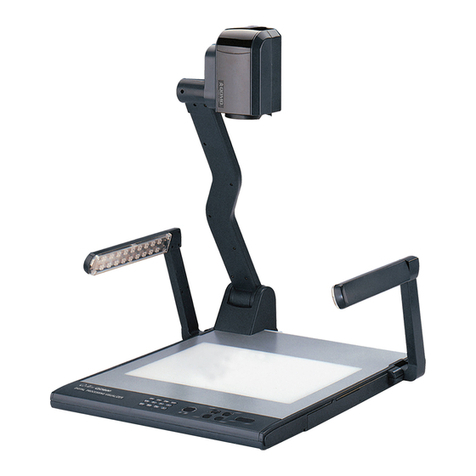
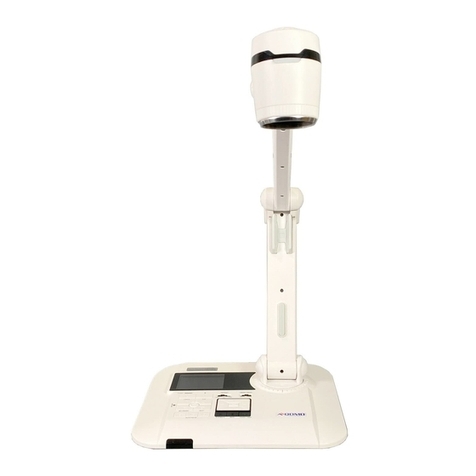
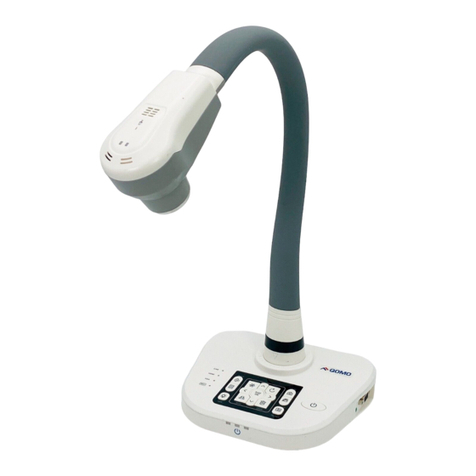
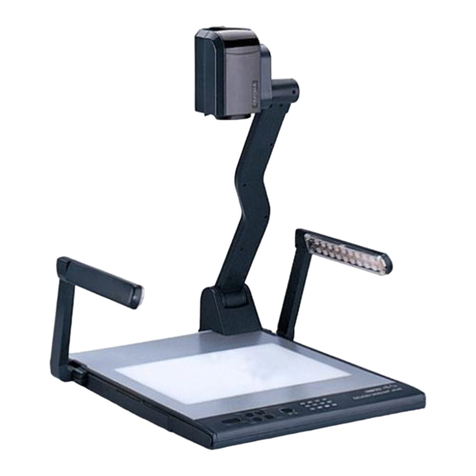
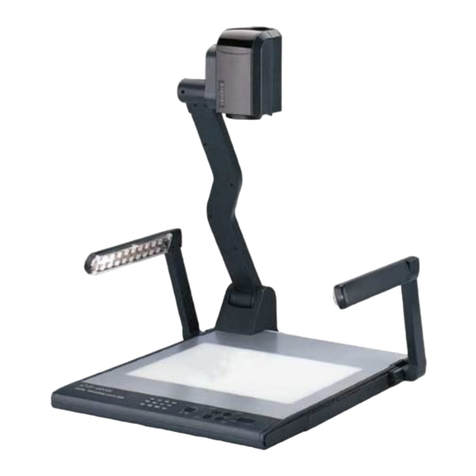
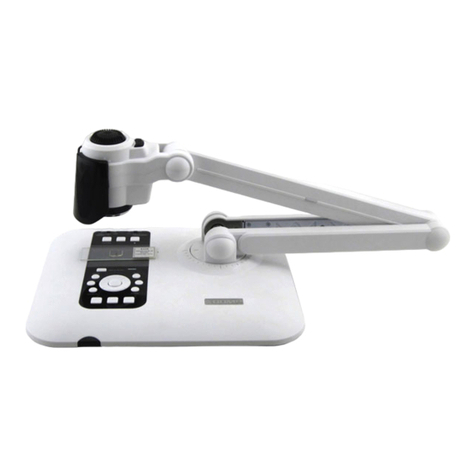
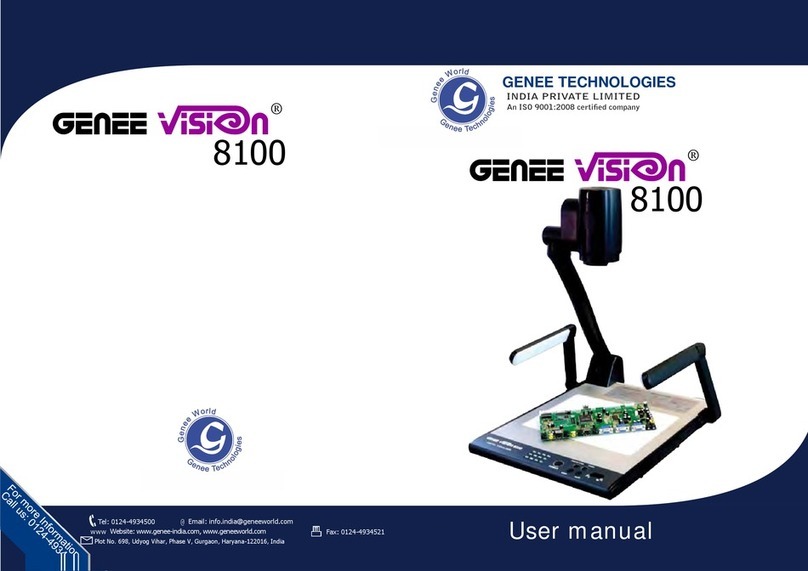
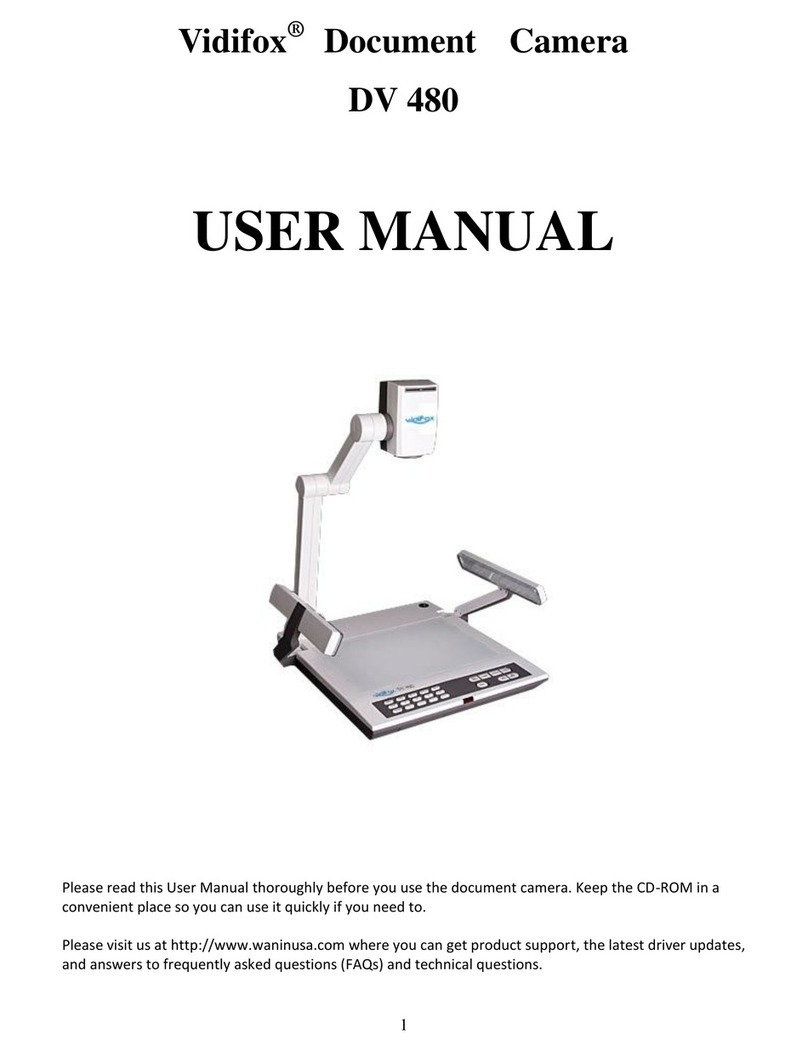
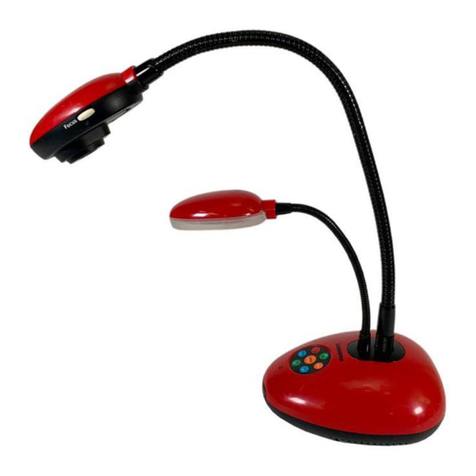
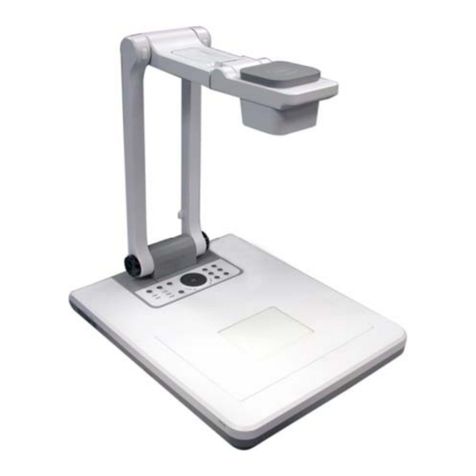
Qomo QD8000 User manual

PRECAUTIONS
Please follow these precautions:
To prevent fire or shock hazard, do not expose the unit to rain or moisture.
To prevent electrical shock, do not open the cabinet. Refer to qualified
personnel for service only.
Do not use the unit continuously for more than 24 hours with camera auto
focus on. It may cause damage to the camera lens.
Be careful not to spill water or other liquids onto the unit, or allow
combustible
or metallic objects to get inside the cabinet.
Unplug the visualizer from the wall outlet when it is not in use for
an extended period of time.
Clean cabinet with a soft cloth lightly moistened with a mild detergent.
Clean lens carefully with an air spray or soft dry cloth to avoid scratching.
When lamps flash or become dark, they should be replaced with new ones.
Avoid interchanging arm lights and back light frequently.
CONTENTS:
The table of contents is empty because none of the paragraph styles selected in the
Document Inspector are used in the document.
1

PARTS IDENTIFICATION
1: LCD Monitor
2: Stage
3: Operation Panel
4: Camera Stand I
5: Camera Stand II
6: Camera Cover
Switch
7: Camera Stand
Button
8: Remote Control
Receiver
9: Camera Head
10: Camera Cover
11: Arm Light
12: Arm Light Stand
CONTROL PANEL
ROTATE (Rotate the image)
2

Neg (Display film negatives)
SPLIT (Image Split function)
FREEZE (Freeze the image)
TEXT (Switch between image/text mode)
FAR/NEAR (Focus far or near)
TELE/ IDE (Zoom in and out)
BRIGHT+/- (Increase or decrease the brightness)
CAM/PC1/PC2 (Camera/RGB input signal selection)
S-VIDEO/VIDEO (S-Video/ Video input signal selection)
LAMP (Control the arm lights and back light)
AUTO (To auto adjust brightness, auto white balance and auto focus)
POWER (Control the visualizer On/Off)(When indicator is flashing, it can
unlock the operation panel)
REMOTE CONTROL
Remarks: the following buttons are not available: SCREEN / , SET,
RUN, MIRROR, NUBERICAL KEY, 2 DIV.
POWER (Control the visualizer On/Off)
ROTATE (Rotate the image)
FREEZE (Freeze the image)
LAMP (Control the arm lights and back light)
SAVE (Save captured images)
NEGA (Display film negatives)
3

XGA (Switch between SXGA mode and XGA mode)
DIV. (Multiple Screen Display)
TEXT (Switch between image/text mode)
B&W (Switch between Color mode and Black & White mode)
PROJECTOR POWER (Control the projector On/Standby)
PROJECTOR INPUT (Projector input signal selection)
EXIT (Exit selected function)
TELE/ IDE (Increase and decrease magnification)
FAR/NEAR (Focus far or near)
AUTO (To auto adjust brightness, auto white balance and auto focus)
PC INPUT (Camera/RGB input signal selection)
AV INPUT (VIDEO input signal selection)
VOLUME+/- (Increase or decrease the volume)
BRIGHT+/- (Increase or decrease the brightness)
SCROLL /(Move the image up/down)
BASIC PREPARATIONS
Hold and pull the camera stand I up to setup camera stand I.
Rotate the camera stand back forwards to make camera stand II out
automatically.
4

Setup arm light to proper position.
Setup camera head to proper position
5

Press down camera cover button to open camera cover.
3. Making connections:
Before making any connections, turn off all the power. Please ensure that
the visualiVer along with all other equipment to be connected are turned off.
Step 1: Connect power source.
First connect the power cord to the 12V IN connector.
Step 2: Connect to the projector.
6

Connect the PROJECTOR port to the projector’s RGB IN port using the RGB
cable. You can also control a projector using the controls on the visualiVer by
connecting the projector to the visualiVer using a 6-pin to 9-pin RS232 cable.
Some projector models may require a converter cable in addition to this
standard RS232 cable to connect to the projector control port, for the pin
locations and shape of some projectors’ control port connector may be
different from the connector of a standard RS232 cable. Once the visualiVer is
connected to the projector, you can control the projector’s power on, standby
and input selection E\ using the visualiVer. (Aside from Hitachi projectors, the
Code Writing program that comes with the visualiVer is required to access this
function.)
Step 3: Connect to a desktop computer.
Note: You can connect a laptop computer to the RGB IN port using a RGB
cable. Use the computer RS232 cable (9-pin to 9-pin) to make the
connections displayed below to control the visualiVer from an external
computer. A USB connection enables the computer to capture still images
and/or video streams from the visualiVer. Special software is required for this
operation.
Step 4: Connect to the first video equipment with S-Video input.
7

In the step 2, the connection between the S-video and C-Video output signals
to the projector was established, where the RGB cable runs from the
visualiVer and goes to the projector. Once the connections have been made
as detailed in the steps 2, 3, 4, input signals from the computer、visualiVer
CCD, C-Video and S-Video are going to the RGB1 input on the projector and
will be displayed on the projector screen as RGB1. These signals can be seen
in turn when pressing “CCD/PC1/PC2” and “S-VIDEO/VIDEO” on the control
panel of the visualiser.
Step 5: Connect to the second video equipment with video input.
4. Turn on the power by pressing the “POWER” button.
PAL/NTSC VIDEO OUTPUTS
The S-Video and composite video outputs are set to PAL (NTSC) during
manufacturing.
WORKING ON THE STAGE
1. Place your material on the platform.
2. Select the enlargement required using the “ T” and “ ” buttons.
3. Adjust the focus using the “Near” and “Far” buttons or “AUTO” button.
LIGHT
The arm lights are powered on when the power is turned on. Each time you
press the “LAMP” buttons, the lighting changes occur as demonstrated.
8

The arm lights turn on
The back light turns on
All the lights turn off
ADJUSTING IMAGE SIZE
To reduce or enlarge the image size displayed on the screen, press the “
T” (Zoom in) or “ ” (Zoom out) button.
WORKING WITH NEGATIVES
The visualiser is automatically set to display normal materials on the screen
when the power is on. To display negatives, turn on the backlight by pressing
the “LAMP” key, and then press the “Neg” button to display the film negatives.
Press the “Neg” button again to display normal materials in the color mode.
FOCUSING
When the visualiser is turned on the focus automatically adjusts to the stage,
only 3D objects require a focus adjustment.
Press the “AUTO” button to auto focus.
Press the “FAR” or “NEAR” button to focus manually.
FREEZING IMAGE
To show a still image on the screen, when the output signal is RGB, press the
“FREEZE” button. The frozen image cannot be adjusted (Zoom in/out, color
adjustment, etc.).
BRIGHTNESS ADJUSTMENT
If the image effect is not satisfactory, you can adjust the brightness to get a
better image effect. Use the “BRIGHT +” or “BRIGHT -” button to adjust the
9

brightness. To increase the brightness, press the “BRIGHT +” button. To
decrease it, press the “BRIGHT -” button. To return to the initial brightness
press the “AUTO” button.
WHITE BALANCE ADJUSTMENT
Each time the lighting condition changes, the user should adjust the white
balance of the CCD.
Press the “AUTO” button to adjust the white balance automatically.
AUTO ADJUSTMENT
One of the visualizer’s special functions is auto adjustment. Press the
“AUTO” button to auto adjust the brightness, the white balance and the focus.
TEXT/IMAGE MODE
Press the “TEXT” button to switch between image/text modes. To display a
text file, switch to the text mode to get a clearer text effect.
COLOR AND B&W MODE SWITCH
Press “B&W” once to enter the Black & White mode; press again to return to
the Color mode. (On the remote control)
VIDEO INPUTS
Press the “S-VIDEO/VIDEO” button to switch between S-Video and composite
video signals.
RGB INPUTS
Use the “CAM/PC1/PC2” button to switch between Camera and different RGB
signals. Each time the “CAM/PC1/PC2” button is pressed, it provides
seamless transitions among different sources such as Camera, COMPUTER
(IN), and RGB (IN).
Notes: COMPUTER OUT always outputs COMPUTER IN signals.
PROJECTOR ON/STANDBY
Press the “POWER” button to turn on the visualizer’s power and press the
“PROJECTOR POWER” button on the remote to turn the projector power on.
To place the projector on standby after use, press the “PROJECTOR
POWER” button and hold for more than 2 seconds.
PROJECTOR INPUTS SELECTION
When the projector is connected to several input sources, use the
“PROJECTOR INPUT” button on the remote to switch between projector
signal inputs.
IMAGE ROTATION
In order to rotate the image, press the “ROTATE” button once, the displayed
image will be rotated clockwise. .
IMAGE REVERSION
To display a vertically mirrored image, press the “MIRROR” button. Press the
“MIRROR” button again to exit.
10
Table of contents
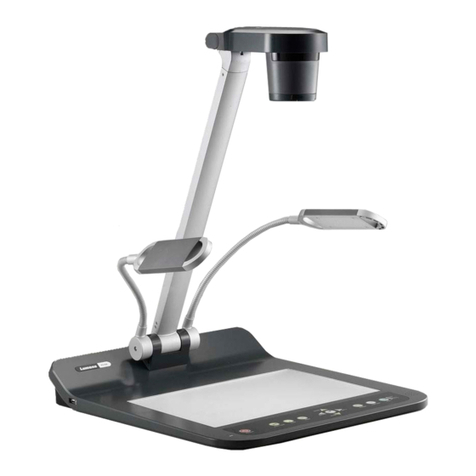
Other Qomo Document Camera manuals