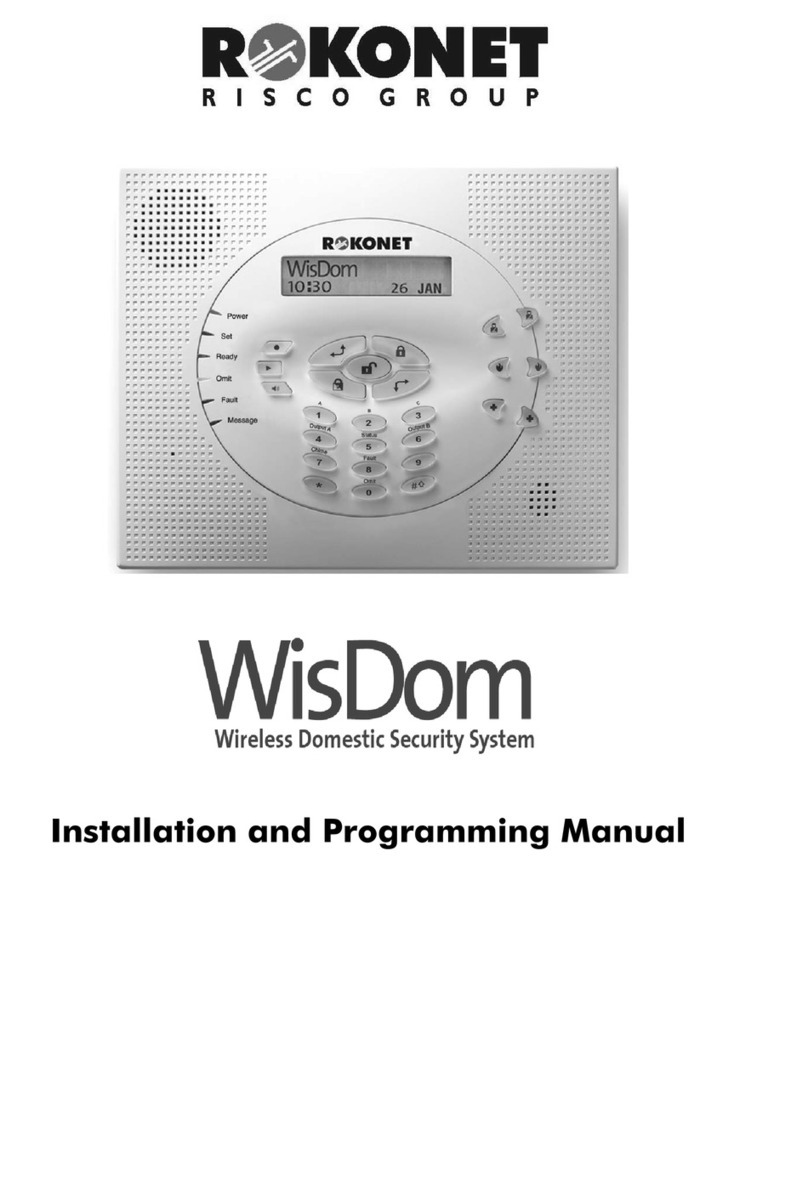
Rokonet WisDom User manual

User Manual
All rights reserved. No part of this document may be reproduced in any
form without prior written permission from the publisher.
5INWSAUM
© 8/2004 ROKONET Electronics Ltd.
www.rokonet.com
WisDom Wireless Accessories:
Pendant Panic
Transmitters
4 Button Keyfobs
Additional
Wireless Keypad
Magnetic Contacts
for doors/windows
Smoke Detectors
PET Detectors
PIR Detectors
WisDom
Wireless Domestic Security System

2 WisDom User Manual
Important Notice
This manual is delivered subject to the following conditions and
restrictions:
This manual contains proprietary information belonging to
Rokonet Electronics Ltd. Such information is supplied solely
for the purpose of assisting explicitly and properly
authorized users of the system.
No part of its contents may be used for any other purpose,
disclosed to any person or firm or reproduced by any
means, electronic or mechanical, without the express prior
written permission of Rokonet Electronics Ltd.
The text and graphics are for the purpose of illustration and
reference only. The specifications on which they are based
are subject to change without notice.
Information in this document is subject to change without
notice. Corporate and individual names and data used in
examples herein are fictitious unless otherwise noted.
Copyright 2004 Rokonet Electronics Ltd. All rights reserved.
Customer Information
RTTE Compliance Statement
Hereby, Rokonet Electronics Ltd, declares that this control panel
(RWSAL086800A, RWSALV86800A, RWSAL043300A,
RWSALV43300A), with wired accessories (including cables) and
wireless accessories, is in compliance with the essential
requirements and other relevant provisions of Directive
1999/5/EC.
The part numbers RWSAL086800A, RWSALV86800A are
restricted from use in SLOVAK REPUBLIC
The part numbers RWSAL043300A, RWSALV43300A are
not restricted for use in any of the European community
countries

WisDom User Manual 3
User Manual

4 WisDom User Manual
Summary of User Commands 7
CHAPTER 1: INTRODUCTION............................................... 10
WisDom Main Features ................................................. 11
WisDom Architecture ..................................................... 12
CHAPTER 2: OPERATING THE WISDOM............................... 13
Operating Tools............................................................. 13
Voice Messaging ........................................................... 14
LED Indicators................................................................ 15
POWER LED ..................................................................15
ARM LED.......................................................................15
READY LED ...................................................................16
BYPASS LED ..................................................................16
TROUBLE LED................................................................17
MESSAGE LED...............................................................17
Keys Functionality.......................................................... 17
Numerical Keys.............................................................17
Control Keys .................................................................18
Emergency Keys ............................................................19
Voice Keys ....................................................................19
Quick Key Operation ....................................................20
LCD Status Display......................................................... 20
CHAPTER 3: LOCAL ARMING AND DISARMING OF THE
SYSTEM ................................................................................ 21
Arming........................................................................... 21
Away Arming ................................................................22
Stay Arming ..................................................................23

WisDom User Manual 5
Partition Arming............................................................24
Disarming...................................................................... 26
Disarming the System ...................................................26
Partition Disarming .......................................................27
Duress Disarming..........................................................27
Silencing an Alarm........................................................28
CHAPTER 4: REMOTE PHONE SYSTEM OPERATION ............. 29
Remotely Accessing the System..................................... 29
Operations Menu .......................................................... 30
Two Way Communication..............................................32
Family Message Center .................................................33
Receiving Calls from the System ................................... 34
Receiving an Event Call .................................................34
Acknowledge Menu.......................................................35
CHAPTER 5: USER CODES .................................................... 36
Setting / Changing User Codes ..................................... 36
Deleting User Codes...................................................... 37
CHAPTER 6: MAIN USER SETTINGS...................................... 38
Defining System Time and Date.................................... 38
Setting Follow-Me Numbers.......................................... 39
Scheduling Weekly Programs ....................................... 41
Automatic Arming/Disarming ........................................41
Defining a UO Activation Program ................................42
Defining a User Limitation Program...............................43
Setting Local Announcement Messages........................ 43

6 WisDom User Manual
Premises Operation of the Family Message Center...... 45
Programming Macro Keys............................................. 45
CHAPTER 7: BACKUP BATTERIES.......................................... 48
CHAPTER 8: COMPLETE MENU OF USER FUNCTIONS.......... 50
APPENDIX A: SYSTEM TROUBLES ........................................ 57
APPENDIX B: SYSTEM SOUNDS........................................... 60
APPENDIX C: TERMS AND DEFINITIONS ............................. 61
APPENDIX D: SCHEDULING TABLE...................................... 63

WisDom User Manual 7
Summary of User Commands
Away Arm Code >
Stay (Home) Arm Code>
Partition [1/2/3] Away
Arming > [1/2/3]>Code>
Partition [1/2/3] Stay
Arming > [1/2/3]>Code>
System Disarm Code>
Partition [1/2/3] Disarm > [1/2/3]>Code>
Duress Disarm Duress Code >
Silence an Alarm Code>
Activate Output [A] > [4]>Code >
View Partition Status > [5]>Code >
Activate Output [B] > [6]>Code >
Chime On/Off > [7]>Code >
View Trouble > [8]>Code >
Zones Bypass [0]>Code > >[Zone No.] >
Define Follow-Me Phone >[2]>[2]>[1]>[Code] >
View Alarm Memory >[3]>[2]>[Code]>
View Event Memory >[3]>[5]>[Code]>

8 WisDom User Manual
Battery Test >[4]>[Code]> >[1]>[5]
Edit User Code >[5]>[Code]> >[1] >[1]
Set Time >[6]>[Grand Master Code]> >[1]
Set Date >[6]>[Grand Master Code]> >[2]
Automatic Arm/Disarm >[6]>[Grand Master Code]> >[5]
>[Schedule No]>[1]
Macro A activation for 2 seconds
Macro B activation for 2 seconds
Macro C activation for 2 seconds
Zone Testing (Walk
Test)
>[4]>[Grand Master Code]> >[2]

WisDom User Manual 9

10 WisDom User Manual
Chapter 1: Introduction
Congratulations on your purchase of the WisDom - Rokonet's
Wireless Security System. The WisDom has been specifically
designed to meet a wide range of security needs for many
residential and small commercial applications.
Your WisDom controls and monitors a variety of sensors,
detectors, and contacts placed throughout the premises, which
provide perimeter and interior burglary protection.
The WisDom is designed to recognize abnormal conditions and
inform the system of the status of any protected door, window,
hallway, room, or area. Status information is presented visually
or verbally. It supports the capabilities of communicating with a
central monitoring station or to your mobile phone using friendly
and easy to understand verbal messages
You can place a household appliance or premises lighting under
the control of the WisDom , where it can be conveniently turned
on and off automatically or by user command from the system
keys, wireless key fobs or remote phone.
The WisDom contains multiple programming features. Ask your
installer, who should be responsible for the installation of the
Wisdom, which features have been programmed for your
system.
This manual describes how to operate your system. It will guide
you through programming instructions for main system features
as well as basic arming and disarming commands for the
system.
NOTE:
All the voice capabilities described in this manual are applicable only to
WisDom models that have integrated voice capabilities.

WisDom User Manual 11
WisDom Main Features
The following table lists the main features of the WisDom:
Feature Maximum
Capability
Total Wireless Zones 32
Wired Zones 1
Partitions / Areas 3
User Codes 32
Utility Outputs 4
Total Key fobs 8
Wireless Keypads 2
Follow Me Numbers 4
Scheduling Weekly Programs 16

12 WisDom User Manual
WisDom Architecture
Your WisDom controls and monitors a variety of sensors,
detectors, and contacts placed throughout the premises, which
provide perimeter and interior burglary protection The system is
supervised, meaning that the panel checks the status of each
sensor to detect problems. If the panel detects trouble it will
notify you with beeps and indicator lights on the panel itself. The
following diagram shows the components that make up the
system:
X-10
TELEPHONE LINE
ONE
WIRED
ZONE
INTERFACE
MODULE
EXTERNAL
BELL
BUILT-IN
SIREN
ROLLING CODE
4 BUTTONS
KEYFOBS
UP TO TWO
WIRELESS
KEYPADS
PANIC
TRANSMITTER
SMOKE
DETECTOR PIR or PET
DETECTOR
UNIVERSAL
TRANSMITTER
MAGNETIC
CONTACT
CENTRAL
MONITORING
STATION
REMOTE
UPLOAD/DOWNLOAD
PRIVATE
PHONE
(4 FM NUMBERS)
UP TO 32 WIRELESS DETECTORS
UP TO 8
KEYFOBS
DISTRIBUTED
TO SYSTEM
USERS
HARD WIRED
DETECTOR

WisDom User Manual 13
Chapter 2: Operating the WisDom
The WisDom can easily be operated locally or remotely, with
guidance of voice prompts to help you use your system. You can
issue commands to the system and in turn, the system will
communicate information to you via its display, indicators,
messages and by the sounds it makes.
NOTE:
Voice messages can be deactivated , See page 43.
Operating Tools
The WisDom can be operated in the following ways:
Local operation using the WisDom Keys.
Local operation using a wireless keypad. Up to 2 wireless
keypads can be added to the system.
Local or remote operation using Rokonet’s upload/Download
(UD) software. The UD enables the installer to program the
system, and enables the user to operate the system and to
view system status.
Local operation using wireless key fobs or panic pendants.
Using the key fobs you can arm, disarm, send panic alarm
or activate outputs.
Remote operation using any remote, touch-tone (DTMF)
telephone to act as a keypad for the system. The remote
operation includes: Arming or disarming the system,
activating home appliances, perform listening and talking
into the premises and more. In addition, the system can
provide you with audible information about system status,
and upon event occurrence such as alarm activation, the
WisDom informs you of a security situation by calling you
and playing a prerecorded event announcement message.

14 WisDom User Manual
Voice Messaging
Three types of spoken messages are heard when using the
WisDom, locally in the premises or remotely to your mobile:
Event messages: Upon event occurrence, the WisDom
initiates a call to a remote Follow Me (FM) telephone
number, informing you of a security situation by playing a
pre-recorded Event announcement message.
Status messages: Upon remote access of the system by
initiating a call from a remote telephone or receiving a call
from the system, the WisDom announces the current
system status by playing a pre-recorded Status message.
Local Announcement messages: Upon event occurrence
or user’s keypad operations, the WisDom can announce
various local messages to occupants.
The number of voice messages that can be announced by the
WisDom is large. This manual mentions only several of them
while others are self-explanatory and will be announced while
operating the system.
NOTE:
Voice messages can be enabled or disabled according to user requirements.
For more information refer to page 43 or advise your installer .
In addition to the 3 mentioned voice messages you can
customize a voice message for each of the zones, partitions and
outputs of the system, and also for the opening message when
receiving a call from the system. For more information regarding
this customization please refer to your installer.

WisDom User Manual 15
LED Indicators
The six LED indicators found at the upper left provide typical
system indications, as discussed below. Some indicators have
additional functions, which are explained later on.
POWER LED
The Power LED indicates system operation.
Condition Description
ON The system is operating properly from
commercial (AC) power and its backup
battery is in good condition.
OFF No power to the system (AC or Battery)
RAPID FLASH Indicates AC trouble.
SLOW FLASH Indicates User menu or Battery trouble.
NOTE:
If a trouble condition exists, the Power LED will flash only when the system is in
disarmed state. Once the system is armed, a previously flashing Power LED
will light steadily.
ARM LED
The Arm LED indicates whether or not the system is armed.
Condition Description
ON The system is fully or partially armed.
OFF The system is fully disarmed.
SLOW FLASH The system is in its Exit Delay time period.
RAPID FLASH Indicates an alarm condition or after
disarming an alarmed system while the
display is in Alarm Memory mode. To
restore the display to Normal Operation
mode, press .

16 WisDom User Manual
READY LED
The Ready LED indicates whether or not the system's intrusion
zones are secured and ready to be armed.
Condition Description
ON All intrusion zones are secure; the system
is ready to be armed.
OFF One or more intrusion zones are not
secure, and the system is not ready to be
armed. Before the system can be armed,
the condition must be addressed.
-OR-
During several system troubles, for
example: For 3 minutes after power is
restored to the system (if defined by your
installer).
SLOW FLASH Indicates the system is ready to be armed
while a specially designated entry/exit door
remains open.
BYPASS LED
The Bypass LED indicates if there are bypassed zones in the
system.
Condition Description
ON At least one intrusion zone is bypassed, or
Stay mode is selected.
OFF There are no bypassed zones in Disarm
mode or the system is in Arm mode
(Although there are bypassed zones).

WisDom User Manual 17
TROUBLE LED
The Trouble LED indicates troubles in the system.
Condition Description
RAPID FLASH There is at least one trouble in the system.
OFF No troubles in the system.
MESSAGE LED
The Message LED indicates a newly recorded message in the
system.
Condition Description
Slow Flash Listen-in mode during 2-way
communication.
Rapid Flash There is a new message or when talking
during 2-way communication.
OFF There is no new message.
Keys Functionality
The keys on the WisDom can be used for a variety of functions.
Each key is explained below.
Numerical Keys
Numerical keys are used to input the numeric codes that may be
required for arming, disarming, or used to activate special
functions

18 WisDom User Manual
Control Keys
The functions of the control keys vary according to the mode
being used. The following table lists the functions of the keys in
Normal Operation mode and when using the User Functions
menu:
Key Normal Operation User Functions
Activates the User
Functions mode. Exits from the current
menu and returns to
Normal Operation
mode.
Activates Away mode
arming (System or
partition).
Changes data.
Activates the Stay mode
arming. Changes data.
Disarms the system after
the user code is entered. -
Activates functions when
used with the numerical
keys. Refer to table on
page 7 for the options
activated by this key.
Terminates commands
and confirms data to be
stored
- Scrolls up a list or
moves the cursor to the
left.
- Scrolls down a list or
moves the cursor to the
right.

WisDom User Manual 19
Emergency Keys
The WisDom has three dedicated sets of emergency keys.
Each set of keys must be pressed simultaneously for at least 2
seconds in order to be activated. The following table describes
the Emergency keys and their optional corresponding
messages. The system sounds that results during these
emergency alarms are described in Appendix B, on page 60.
Key Description Message
Police emergency
alarm “Panic Alarm”
Fire alarm “Fire Alarm”
Medical Alarm /
Auxiliary
Emergency alarm.
“Emergency Alarm”
NOTE:
If your system has been programmed to do so, it will communicate these alarms
to the Central Station monitoring your premises. System programming also
determines whether these emergency alarms will be audible.
Voice Keys
The voice keys are used to record a memo message and to
control the volume of the sound.
Key User Functions
Use this key to record a memo message. For
more information refer to page 45, “Using the
Family Message Center”
Use this key to listen to the memo message.
Pressing this button continuously and holding it
enables you to adjust the volume level of the

20 WisDom User Manual
Key User Functions
announced messages from the internal speaker.
The following speaker levels are available:
“Speaker off”
“Speaker Level 1”
“Speaker Level 2”
“Speaker Level 3”
“Speaker Level 4”
Quick Key Operation
The Quick Key Operation is a short effective way that helps you
to easily operate your system and quickly activate user
functions, skipping the user code. For example, to arm the
system, simply press the key.
NOTE:
For quick key operation your installer has to define quick key operation.
LCD Status Display
The LCD status display will vary depending on the number of
partitions in your system.
If your system is defined with only one partition, the LCD
displays the partition name, time and date.
If your system has 2 or 3 partitions, the LCD displays the system
name, date, time and the status of each partition. A status letter
represents the partition’s status, as follows:
A: Partition Armed N: Partition Not Ready
S: Partition Armed at Stay R: Partition Ready
a: Partition in Alarm
Other manuals for WisDom
4
Table of contents
Other Rokonet Security System manuals

Rokonet
Rokonet ORBIT-PRO RP296MUD User manual

Rokonet
Rokonet WAVESYS Programming manual

Rokonet
Rokonet WisDom Assembly instructions

Rokonet
Rokonet Rokonet ORBIT-6 RP-206 User guide

Rokonet
Rokonet ORBiT-14 User manual

Rokonet
Rokonet Rokonet ORBIT-6 RP-206 User manual

Rokonet
Rokonet WisDom User manual

Rokonet
Rokonet Rokonet ORBIT-6 RP-206 User manual
Rokonet
Rokonet Orbit Pro Operation instructions
Rokonet
Rokonet WisDom User manual