C H A P T E R 1
Introducing your SMART Board M600 series interactive whiteboard
3 smarttech.com/kb/170410
How does your SMARTBoard interactive
whiteboard work?
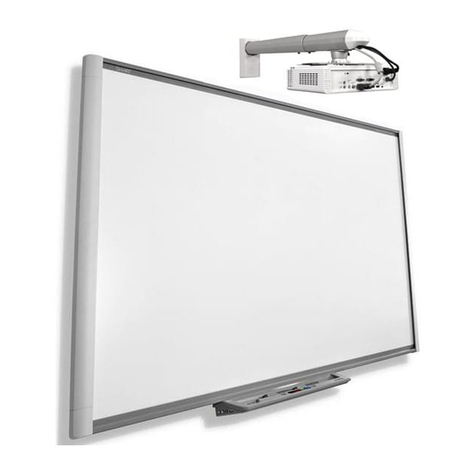
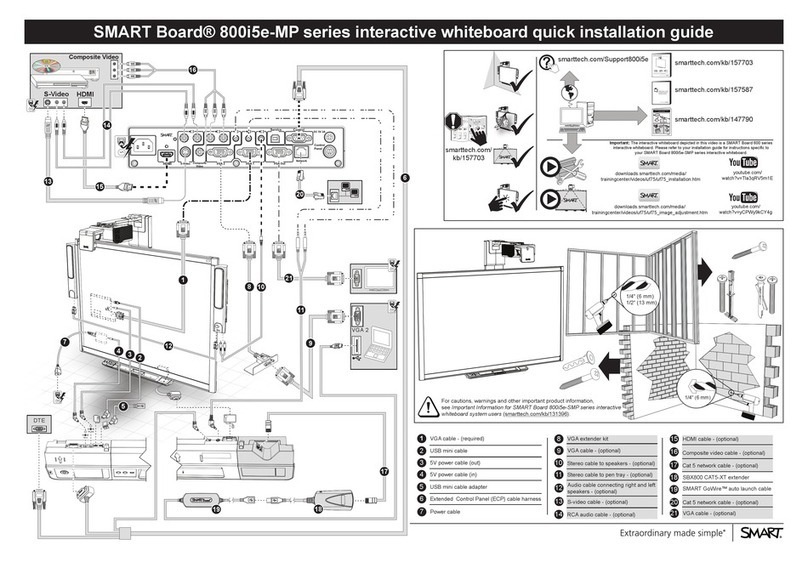
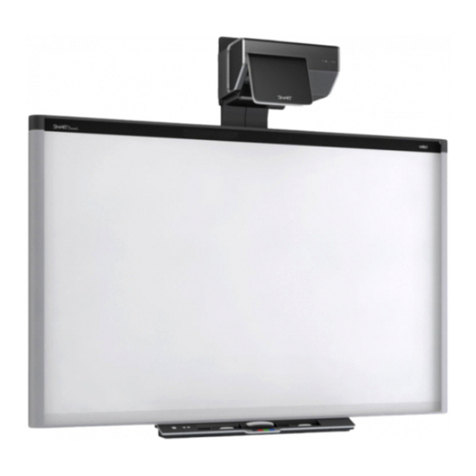
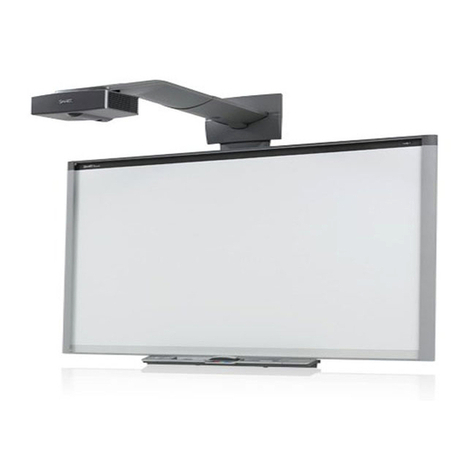
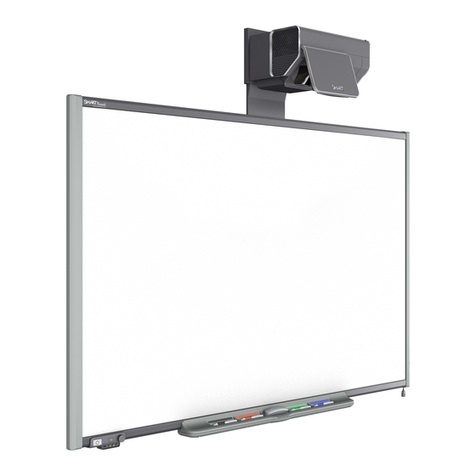
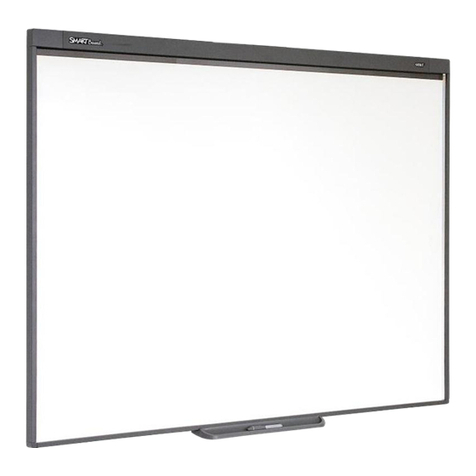
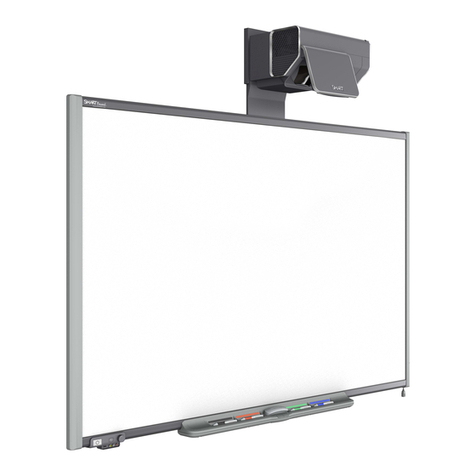
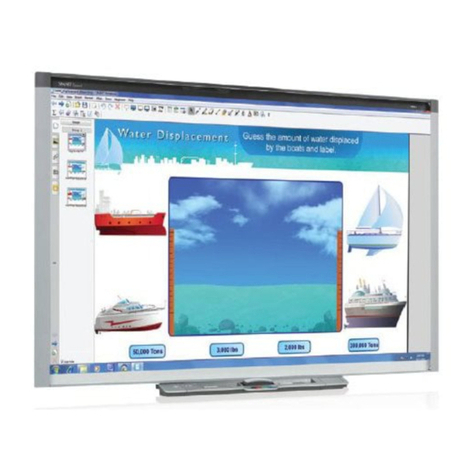
Your interactive whiteboard functions as an input device for your computer, enabling you to work in
any application on your connected computer. You need two additional components to use your
interactive whiteboard: a computer and a digital projector. These components work together as
follows:
lYour computer runs an application and sends the image to your projector.
lYour projector casts the image onto your interactive whiteboard.
lYour interactive whiteboard detects contact with its screen and sends each contact point to the
connected computer.
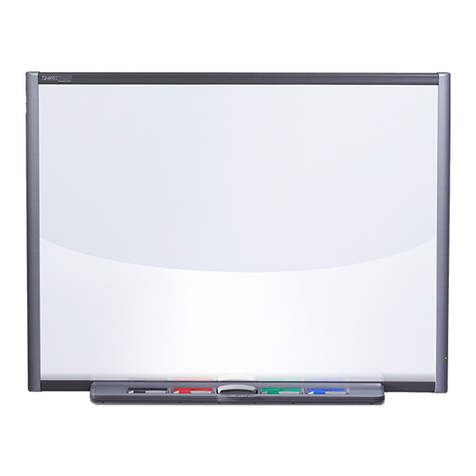
Use the pen tray buttons to select different tools. For example, press the left-click button so that
when you touch your interactive whiteboard’s surface, the touch of your finger becomes a mouse
click and you can control your computer from your interactive whiteboard. When you pick up a pen
and press one of the color buttons, digital ink appears, enabling you to write over your desktop or any
open application.
When you install SMARTProductDrivers, a Floating Tools toolbar appears on your desktop. You can
change pen settings such as the transparency, color and width of the ink. You can then save your
notes to a file in SMARTNotebook software. You can also customize other tools, such as the width
of the eraser tool you use to erase your notes.
Windows and Mac computers
SMARTNotebookcollaborative learning software includes SMARTInk™ and
SMARTProductDrivers. SMARTInk works with SMARTProductDrivers to enable you to write on
your screen in digital ink using your interactive product’s pen or your finger.
SMARTInk starts automatically when you start your computer, and the
SMARTInk toolbar appears in the title bar of each open window on your
computer.
N O T E
SMARTNotebook software doesn’t display the SMARTInk toolbar because it includes its own ink
tools that you can use to write directly in your file.
You can press SMARTInk to select ink properties and to perform common tasks such as
capturing your notes.