Ursalink Academy
Ursalink AM100 Series LoRaWAN Sensor Configuration Guide
You can update, backup and reset the sensor.
Method 2: Configuration via NFC
1. Configuration via Phone
The other method to configure the senor is via NFC. You can use a PC or
Mobile Phone to configure it.
If your Mobile phone supports NFC, you can configure the sensor via your
phone. It’s easy to use. Contact your phone manufacturer to check if your
phone supports NFC and the position of the NFC on your phone.
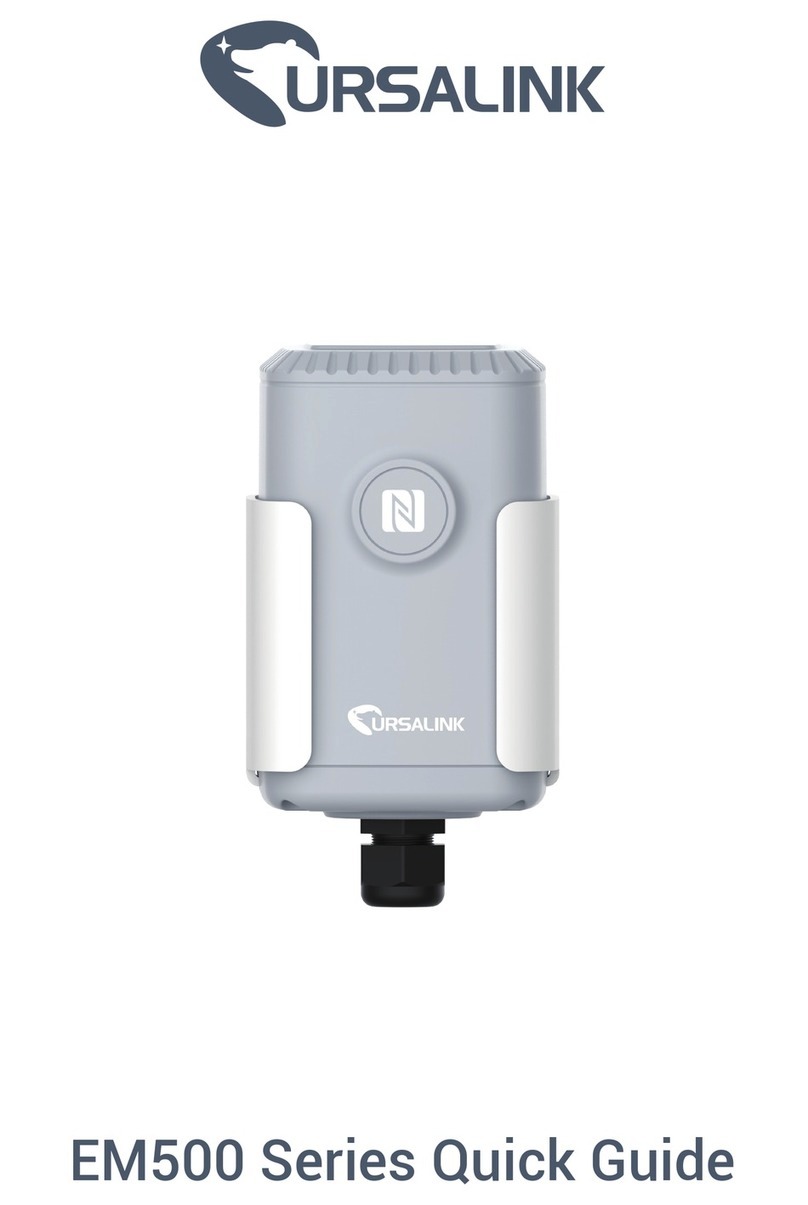
Please put the NFC antenna of the sensor close to the NFC detection area of
your phone. In the process of reading, do not move your phone away. After
reading succeed, you can view sensor info and configure it.
Open STATUS tab
To turn on/off the sensor, you need to click DEVICE STATUS.
Open SETTING tab
On LoRaWAN SETTINGS, you can change join type and frequency.
On GENERAL SETTINGS, you can change reporting internal; change
password, calibrate sensor; and set up threshold alarm.
Open UPGRADE tab
You can update, backup and reset the sensor.
After the configurations are done, you need to verify the password to continue.
Next, put your phone close to the sensor. The configuration info will be written
into the sensor via NFC.
2. Configuration via PC
To configure the sensor on a PC, you need an NFC reader and connect it to
your PC.