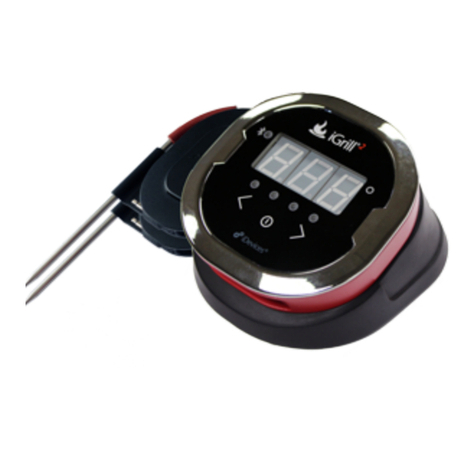
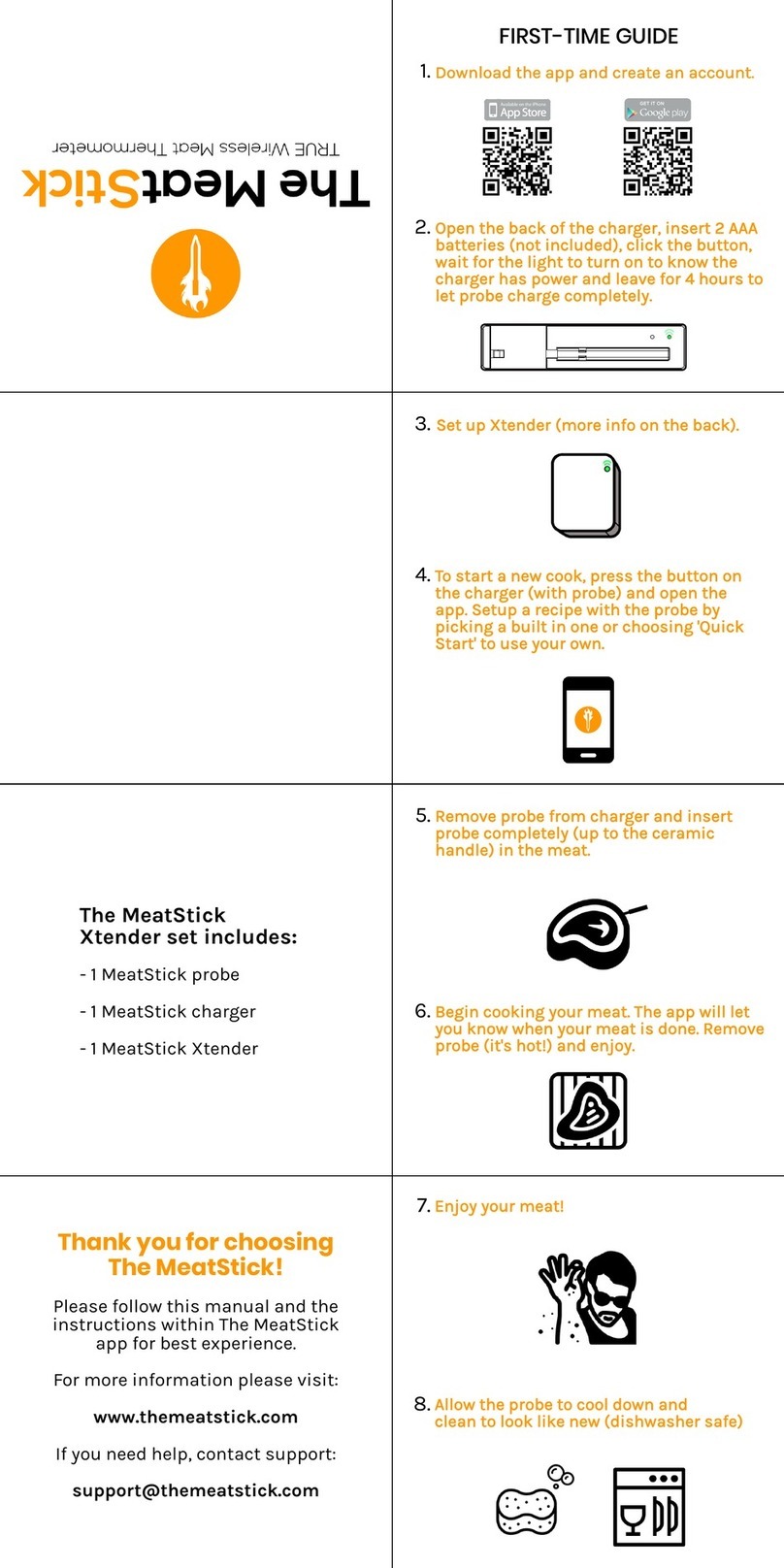
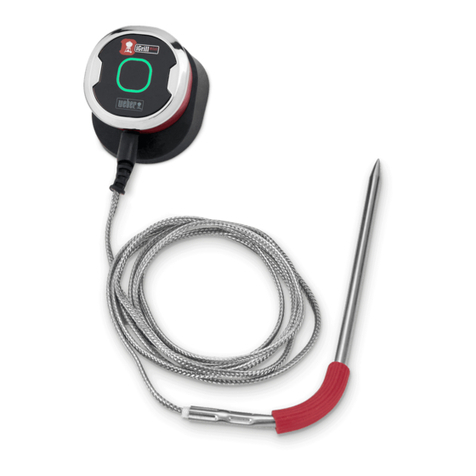
Weber iGrill Mini User manual

User Manual

Table of Contents
In the Box 3
Quick Start Instructions 3
Getting Started 4
Weber iGrill App 4
Battery Replacement 5
Powering On & Off 5
Connecting 6
Disconnecting 6
Mounting 7
Probe Use 8
Probe Wrap Use 9
Using the iGrill Mini 9
Smart LED 9
Proximity Sensor 10
Custom & Preset Alarms 10
Setting Up A Cook 11
Renaming Probes 13
Timer Tool 13
Globe Tool 13
Graph Tool 13
Problem Solving 14
Disclaimer 17
Regulations 18

3
In the Box
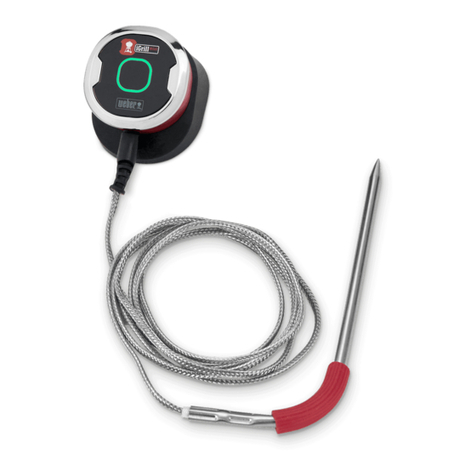
Inside your iGrill Mini box, you will nd:
• 1 iGrill Mini
• 1 Coin Cell Battery (Installed)
• 1 Meat Probe
• 1 Colored Probe Indicator (Red)
• 1 Probe Wrap
• 1 Optional Magnetic Disc
• Quick Start Guide
Quick Start Instructions
1. Download the Weber iGrill App from the App Store®or Google
Play™ Store on one of the following compatible devices:
• iPhone®(4S and later).
• iPad®(3rd generation and later).
• iPad miniTM (All generations).
• iPod touch®(5th generation and later).
• Many Android™ devices equipped with Bluetooth®4.0 and
running Android™ software version 4.3 or later.
2. Enable Bluetooth®on your smart device under ‘Settings’.
3. Separate the iGrill Mini from its base by rmly holding the base with
one hand and gently pulling the iGrill Mini top upwards with the
other hand.
4. On the underside of the iGrill Mini, remove the battery door by
twisting it counter-clockwise. Remove the battery pull tab. Ensure
the battery is in place and replace the battery door.

4
5. Clip the iGrill Mini top back into its base.
6. Plug the Pro Meat Probe into the probe port of the iGrill Mini.
7. Press the power button located at the center of the faceplate once,
quickly. The display will light up and illuminate white, indicating that
the iGrill Mini has powered on.
8. Open the Weber iGrill App to connect to your iGrill Mini. Tap on
the iGrill logo in the black toolbar at the top of the app. Select your
iGrill Mini from the device manager.
9. You are now ready to use your iGrill Mini!
Getting Started
Weber iGrill App
The Weber iGrill App provides all of the functionality and customization
you will need to get the most out of your iGrill Mini. The Weber iGrill App
is compatible with the following devices:
• iPhone®(4S and later).
• iPad®(3rd generation and later).
• iPad mini™ (All generations).
• iPod touch®(5th generation and later).
• Many Android™ devices equipped with Bluetooth®4.0 and running
Android™ software version 4.3 or later.
You must be running iOS 7+ or Android™ version 4.3 or higher on your
device to use the Weber iGrill App. Please visit the App Store®or Google
PlayTM Store and search for ‘Weber iGrill App’ to download the free Weber
iGrill App.
Once you have downloaded the app, you will have access to links
for instructional videos, step-by-step instructions and FAQs for
troubleshooting.

5
Battery Replacement
To replace your iGrill Mini battery, follow these steps:
• Separate the iGrill Mini from its base by rmly holding the base with
one hand and gently pulling the iGrill Mini top upwards with the
other hand.
• On the underside of the iGrill Mini, remove the battery door by
twisting it counter-clockwise.
• Replace the battery with a CR2032 coin cell battery, available at
local drugstores in the specialty battery section.
• Ensure the battery is in place and replace the battery door.
Powering On & Off
To turn on the iGrill Mini, follow these steps:
• Press the power button located at the center of the faceplate once,
quickly.
• The Smart LED will blink blue while waiting for pairing.
To turn off the iGrill Mini, follow these steps:
• Press and hold down the power button located in the center of the
faceplate for several seconds.
• The Smart LED will illuminate solid white and will then turn off.
Auto Shut-Off:
• The iGrill Mini will stay powered on for ve minutes before
automatically turning off if there is no probe installed and if it is not
paired to a smart device.
• The iGrill Mini will stay powered on for eight hours before
automatically turning off if not paired to a smart device and if the
probe is installed.
• The iGrill Mini will stay powered on until the battery is depleted if it
is paired with a smart device, even if there is no probe connected.

6
Connecting
To connect your iGrill Mini to your iPhone®, iPad®, iPod touch®or
Android™ device follow these steps:
• Open Settings.
• Tap Bluetooth®.
• Set Bluetooth®to On.
• While turned on, place your iGrill Mini next to your smart device
and open the Weber iGrill App. Your smart device will automatically
recognize any available iGrill products and display them in the
‘Available Products’ drop-down. You can view the ‘Available
Products’ by tapping the iGrill logo at the top of the app.
• Select your iGrill Mini from the ‘Available Products’ drop-down. You
will then be sent a pairing request. Once you accept, your smart
device will pair with the iGrill Mini and you will be ready to congure
your settings and start grilling!
To connect an additional iGrill Mini or other iGrill product to your iPhone®,
iPad®, iPod touch® or Android™ device follow these steps:
• While turned on, place your iGrill Mini or other iGrill product next to
your smart device and open the Weber iGrill App.
• Tap on the black bar located at the top of the screen to expose the
‘Available Products’ drop-down and select the product you would
like to pair with your smart device. Your smart device will display a
pairing request. Once accepted, your smart device will pair with the
additional product and you are ready to congure your settings and
start grilling!
Disconnecting
To disconnect your iGrill Mini device from your iPhone®, iPad®, iPod Touch®
or Android™ device, follow these steps:

7
• While turned on, place your iGrill Mini next to your smart device
and open the Weber iGrill App. Your smart device will automatically
recognize any available and previously connected iGrill products.
You can view them in the ‘Available Products’ drop-down by tapping
the 3 lines or dots at the top, right-hand corner of the screen.
• If your iGrill Mini is connected, it will be listed under ‘Connected
Devices.’
• You can swipe to the left on the product name, such as iGrill Mini, to
display the ‘Disconnect’ option.
• Tap ‘Disconnect.’
Mounting
• The base of the iGrill Mini is magnetic for convenient positioning on
a cool portion of your grill, smoker or other magnetic surfaces.
• The iGrill Mini can be taken out of its base, rotated 180° and set
back into its base for two different viewing angles.
• The iGrill Mini comes with an optional magnetic disc with an
adhesive on one side. This allows the iGrill Mini to magnetically
mount on a non-magnetic surface. The magnetic disc has a
protective cover on its face to protect it from being scratched.
To mount your magnetic disc, please follow these steps:
• Clean the surface thoroughly where the magnetic disc will be
adhered to ensure proper bonding.
• Remove the protective lm covering the adhesive on the
magnetic disc.
• Adhere the magnetic disc to your desired surface.
• Let the magnetic disc bond to the surface for at least 6-12 hours
before mounting your iGrill Mini to the disc.
• Place your iGrill Mini on the magnetic disc.

8
The magnetic base is not designed to withstand
high heat and it must be placed on a cool
surface. If the surface is too hot to touch, it is
too hot for the iGrill Mini base!
Probe Use
• Meat Probes should always be inserted into the center of the item
being cooked for an accurate temperature reading.
• When using the Standard Meat Probe, be sure to route the probe
wire where it will not be exposed to ames or temperatures
exceeding 572°F (300°C). Probes should avoid temperatures below
-22°F (-30°C).
• When using the Pro Meat Probe, be sure to route the probe wire
where it will not be exposed to ames or temperatures exceeding
716°F (380°C). Probes should avoid temperatures below -58°F
(-50°C).
• The Pro Ambient Probe, sold separately, should be clipped between
two grates inside your grill, smoker or oven. Ensure the tip of
the probe does not touch the grates. Also, be sure to route the
probe wire where it will not be exposed to ames or temperatures
exceeding 620°F (326°C), and avoid temperatures below -22°F
(-30°C).
• The Probe Wraps included with the iGrill Mini allow for convenient
storage of your probes and are magnetic so that they can be stored
under your iGrill Mini when not in use.
The colored probe indicator is for visual identication of the
probe within the app and cosmetic purposes only. It is not
designed for heat safety.

9
The probe should be cleaned by hand with a damp towel
or sanitary wipe. The probe is not dishwasher safe. Take
precaution not to get the wiring of the probe wet.
Be sure to avoid water exposure to the wiring of the probes
as well as the area where the wiring and crimp meet the
probe. The probe is not waterproof and damage may result
from water exposure. The probe should never be submersed
in water.
Temperatures below -22°F or above 572°F (-30ºC or above
300ºC) will not display in the Weber iGrill App and will cause
the probe to disappear from connection.
Probe Wrap Use
To wrap your probe:
• Hold the probe wrap so that the clip segment is on the bottom left
and the logo is legible in the center of the probe wrap.
• Snap the probe into the clip of the probe wrap, ensuring that the
probe’s body follows the contour of the probe wrap and leaves a
½ inch gap between the probe and the wire channel of the probe
wrap. The tip of the probe should be pointed downward.
• Wrap the wire of your probe clockwise around the probe wrap.
• When you reach the adapter end of the probe wire, it can be
inserted into the probe wrap’s wire channel to secure the wrapping.
Using the iGrill Mini
Smart LED
The Smart LED allows the iGrill Mini to display the connected probe
temperature reading through the use of color. Below is a list of all of the
light combinations you will see on the Smart LED and their associated
meanings:

10
Connection
• Solid White: Powering off or reset complete.
• Solid Blue: Conrms pairing of new device.
• Blinking Blue: Awaiting pairing or no alarm set.
Peak Preset
• Solid Green: Initial temperature.
• Solid Yellow: Target temperature is 15°F (9°C) away.
• Solid Orange: Target temperature is 5°F (3°C) away.
• Blinking Red: Target temperature reached.
• Solid Red: Target temperature reached and alarm acknowledged.
Range Preset
• Solid Green: Temperature inside range.
• Blinking Red: Temperature outside range.
Proximity Sensor
The use of Bluetooth®Smart allows the iGrill Mini to sense when a paired
smart device moves in or out of range. The iGrill Mini will automatically
wake and sleep at the below distances to conserve power:
• Sleep ~ 30 feet away.
• Wake ~ 5 feet away.
*Proximity function based on Bluetooth®signal strength. Signal strength
is inuenced by a number of factors including the smart device
and environment, such as the walls or oors of your home.
Custom & Preset Alarms
Manage iPhone®, iPad®or iPod touch®alarms:
Other manuals for iGrill Mini
5
Table of contents
Other Weber Thermometer manuals

Weber
Weber 32908 User manual
Weber
Weber Thermometer User manual
Weber
Weber 17587 User manual
Weber
Weber Style 6742 User manual

Weber
Weber Digital Pocket Thermometer User manual
Weber
Weber iGrill Mini User manual
Weber
Weber 6741 User manual

Weber
Weber SnapCheck User manual
Weber
Weber iGrill Mini User manual
Weber
Weber Style 32910 User manual