manuals.online logo
Brands
  1. Home
  2. •
  3. Brands
  4. •
  5. Grandstream Networks
  6. •
  7. IP Phone
  8. •
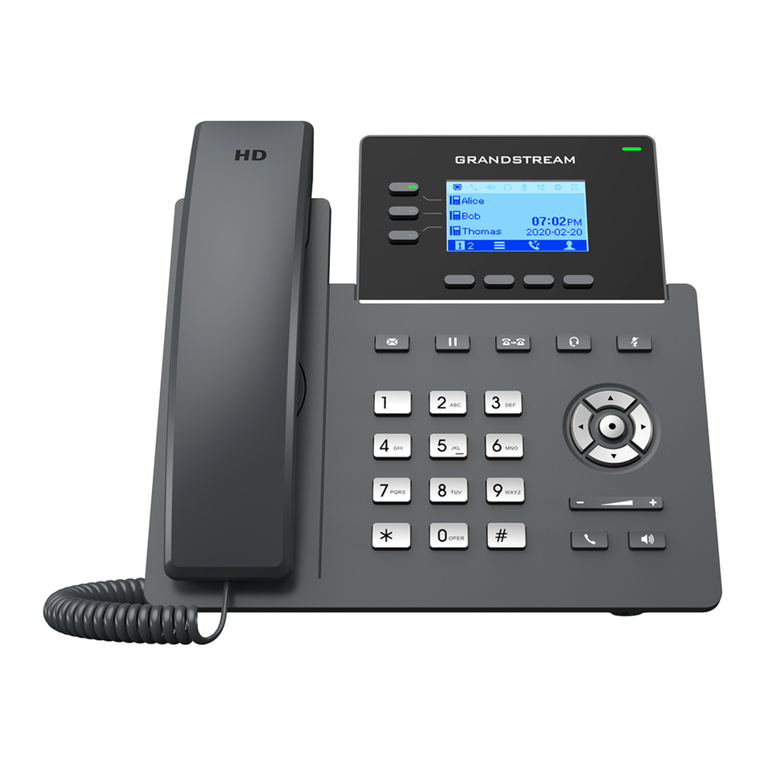
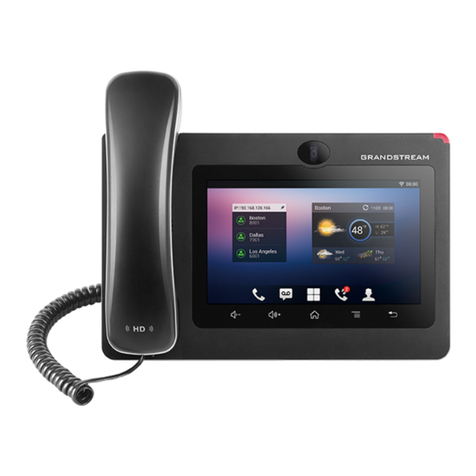
  9. Grandstream Networks GRP2602 User manual

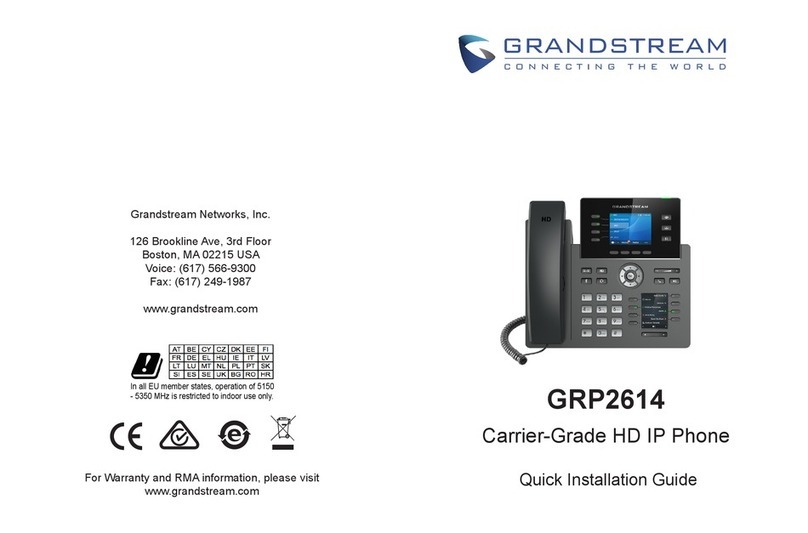
Grandstream Networks GRP2602 User manual

Other manuals for GRP2602

3

This manual suits for next models

3

Other Grandstream Networks IP Phone manuals

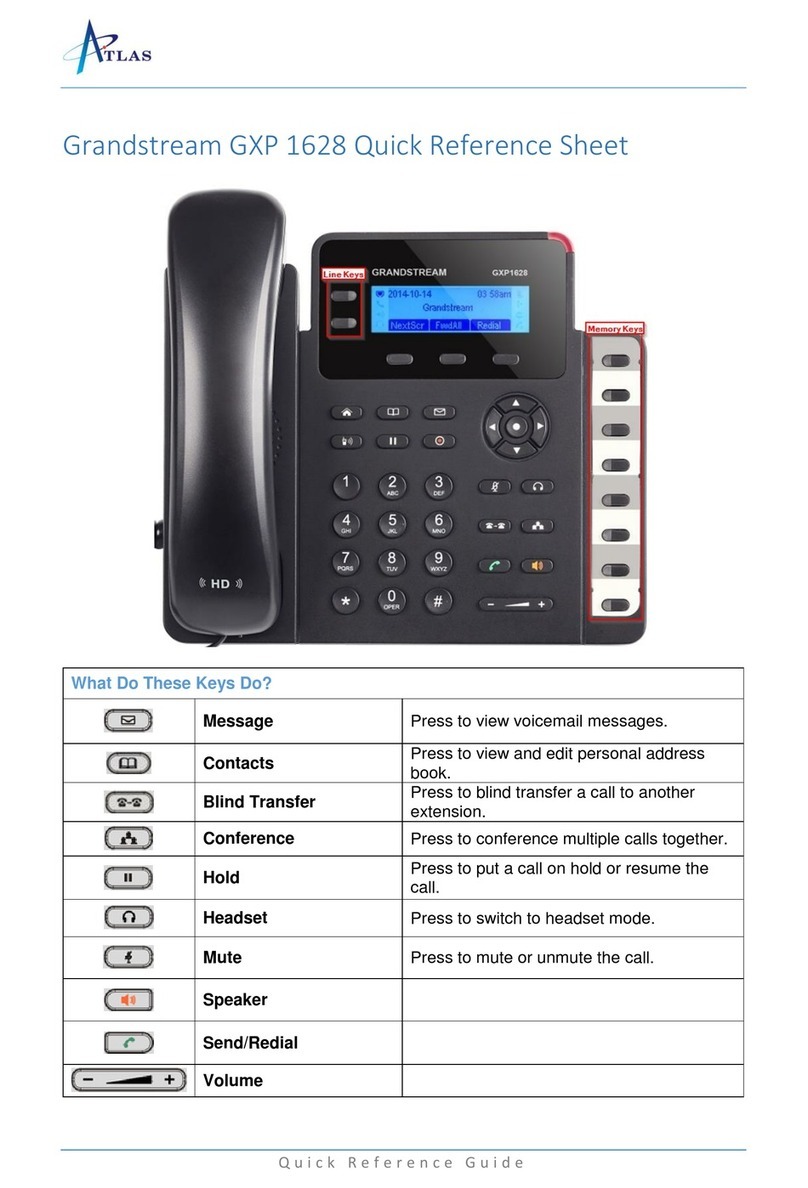
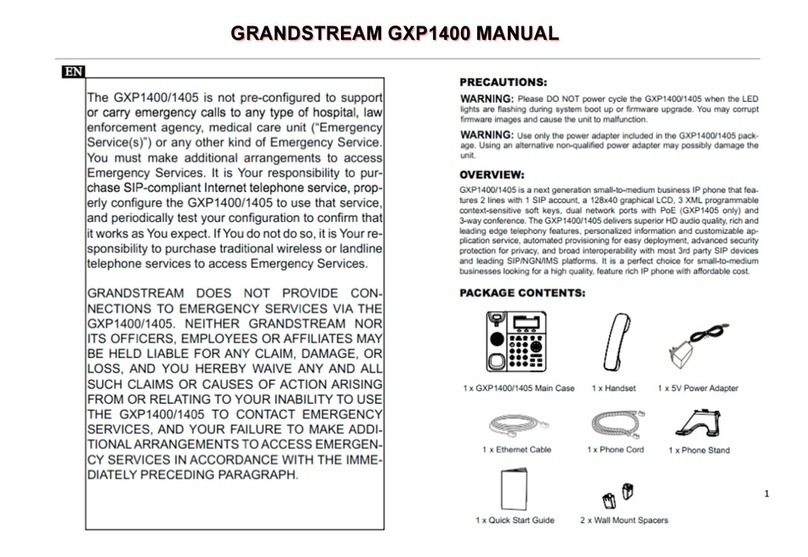
Grandstream Networks GXP1628 User manual

Grandstream Networks

Grandstream Networks GXP1628 User manual

Grandstream Networks GXP1760 User manual

Grandstream Networks

Grandstream Networks GXP1760 User manual

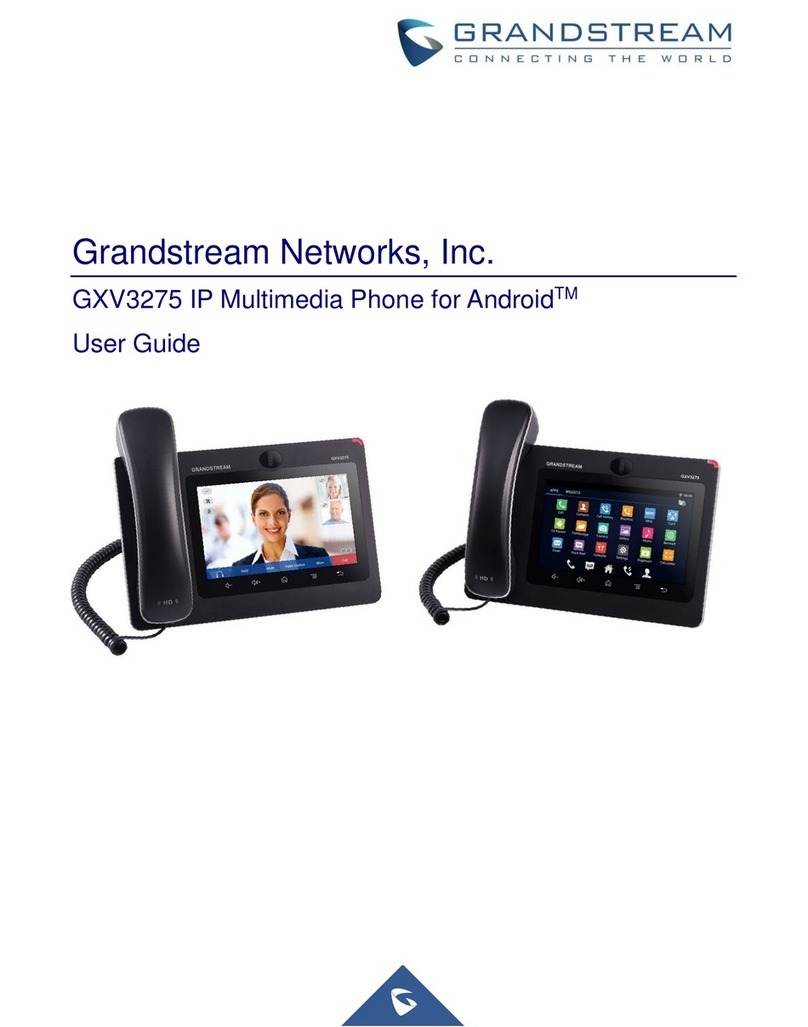
Grandstream Networks 3275 User manual

Grandstream Networks

Grandstream Networks 3275 User manual

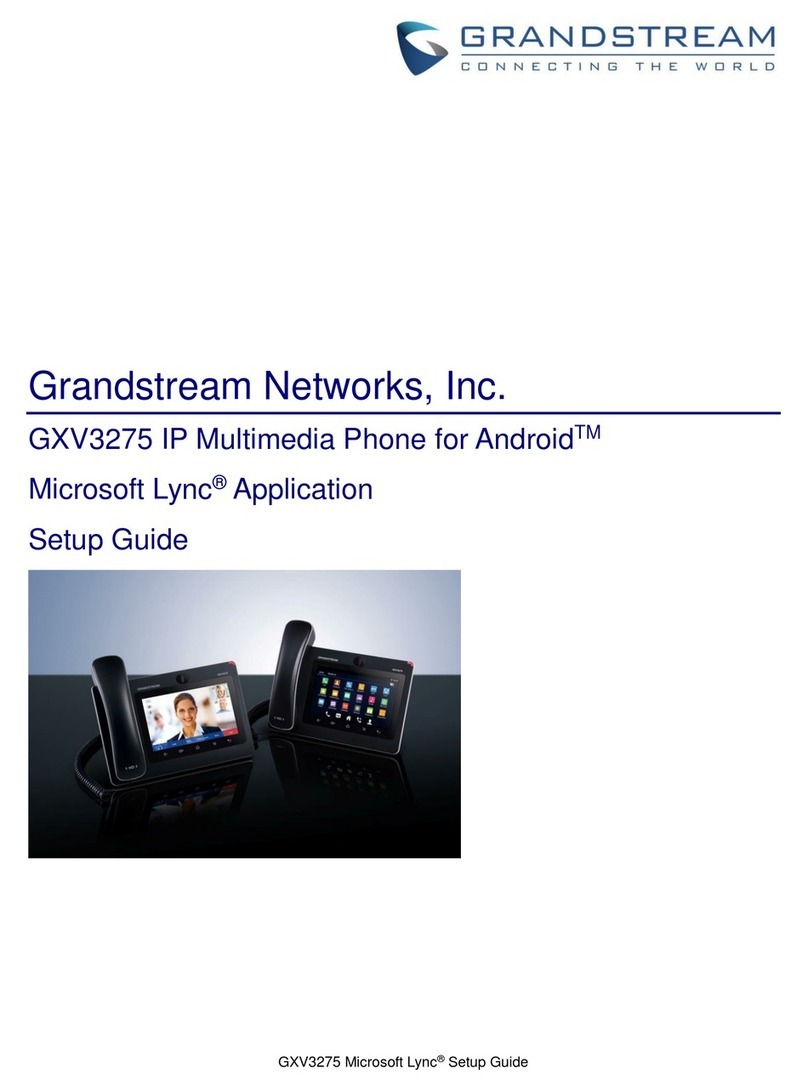
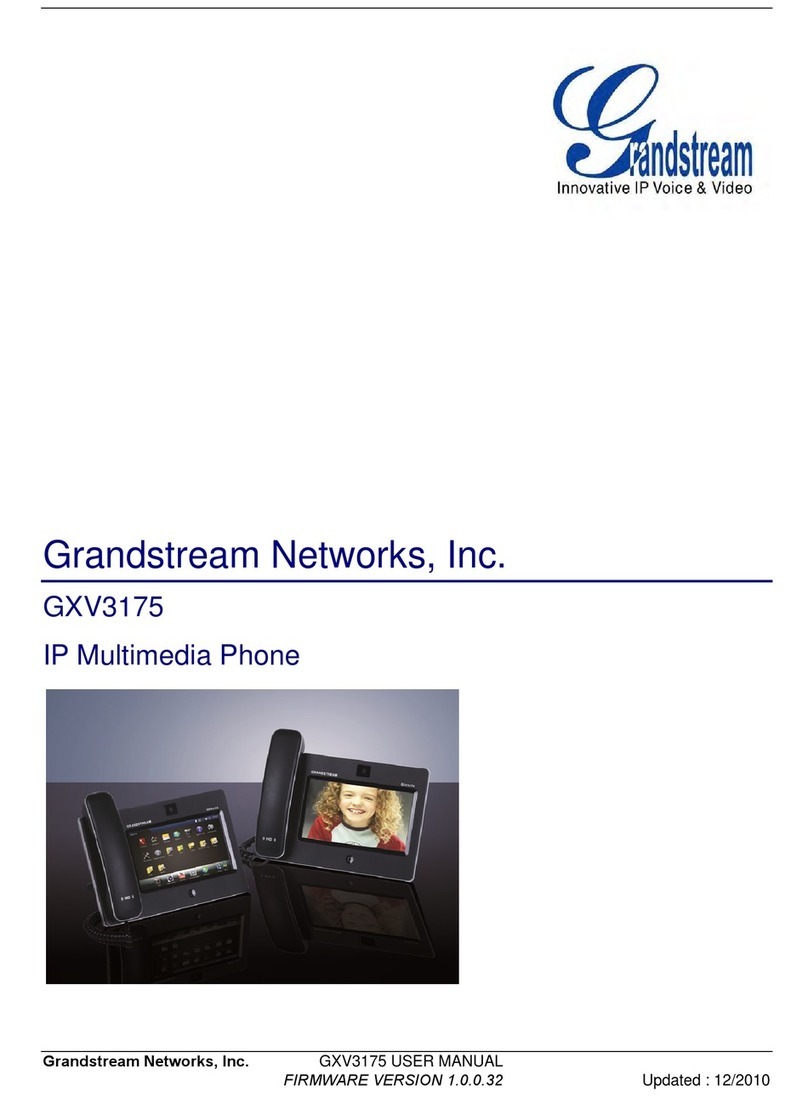
Grandstream Networks GXV3275 User manual

Grandstream Networks

Grandstream Networks GXV3275 User manual

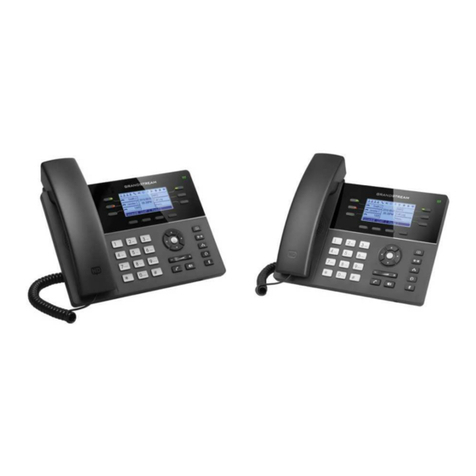
Grandstream Networks GRP2614 User manual

Grandstream Networks

Grandstream Networks GRP2614 User manual

Grandstream Networks GXP-1100 User manual

Grandstream Networks

Grandstream Networks GXP-1100 User manual

Grandstream Networks GXP2110 User manual

Grandstream Networks

Grandstream Networks GXP2110 User manual

Grandstream Networks GXV-3140 User manual

Grandstream Networks

Grandstream Networks GXV-3140 User manual

Grandstream Networks GRP2612P User manual

Grandstream Networks

Grandstream Networks GRP2612P User manual

Grandstream Networks WP810 User manual

Grandstream Networks

Grandstream Networks WP810 User manual

Grandstream Networks GRP2624 User manual

Grandstream Networks

Grandstream Networks GRP2624 User manual

Grandstream Networks GXV3275 User manual

Grandstream Networks

Grandstream Networks GXV3275 User manual

Grandstream Networks GRP2603 User manual

Grandstream Networks

Grandstream Networks GRP2603 User manual

Grandstream Networks DP750 User manual

Grandstream Networks

Grandstream Networks DP750 User manual

Grandstream Networks GXP2100 User manual

Grandstream Networks

Grandstream Networks GXP2100 User manual

Grandstream Networks GXP-280 User manual

Grandstream Networks

Grandstream Networks GXP-280 User manual

Grandstream Networks GXP-1400 User manual

Grandstream Networks

Grandstream Networks GXP-1400 User manual

Grandstream Networks GXP14XX User manual

Grandstream Networks

Grandstream Networks GXP14XX User manual

Grandstream Networks GXV3175 User manual

Grandstream Networks

Grandstream Networks GXV3175 User manual

Grandstream Networks GXV3275 Instruction Manual

Grandstream Networks

Grandstream Networks GXV3275 Instruction Manual

Grandstream Networks GXP-1400 User manual

Grandstream Networks

Grandstream Networks GXP-1400 User manual

Grandstream Networks BT100 Quick guide

Grandstream Networks

Grandstream Networks BT100 Quick guide

Grandstream Networks GXV3175 User manual

Grandstream Networks

Grandstream Networks GXV3175 User manual

Grandstream Networks UCM6200 Series User manual

Grandstream Networks

Grandstream Networks UCM6200 Series User manual

Popular IP Phone manuals by other brands

Alcatel 4028 manual

Alcatel

Alcatel 4028 manual

Polycom Polycom VVX 600 quick reference

Polycom

Polycom Polycom VVX 600 quick reference

Polycom SoundPoint IP 450 datasheet

Polycom

Polycom SoundPoint IP 450 datasheet

Cisco SPA-500 Series user guide

Cisco

Cisco SPA-500 Series user guide

Polycom SoundPoint IP 650 user guide

Polycom

Polycom SoundPoint IP 650 user guide

Proximus Maestro 3016 IP quick start guide

Proximus

Proximus Maestro 3016 IP quick start guide

Fanvil X4 user manual

Fanvil

Fanvil X4 user manual

Cisco 7962 user guide

Cisco

Cisco 7962 user guide

Snom 320 quick start guide

Snom

Snom 320 quick start guide

Yealink Yealink SIP-T46G Guide

Yealink

Yealink Yealink SIP-T46G Guide

Avaya 4625SW user guide

Avaya

Avaya 4625SW user guide

Yealink SIP-T52S quick start guide

Yealink

Yealink SIP-T52S quick start guide

Nortel 1140E Getting started

Nortel

Nortel 1140E Getting started

Nexotek NT-P500 user manual

Nexotek

Nexotek NT-P500 user manual

Avaya Integral 5 R3.0 user guide

Avaya

Avaya Integral 5 R3.0 user guide

GE 28320EE2 - Dect 6.0 InfoLink 2 user guide

GE

GE 28320EE2 - Dect 6.0 InfoLink 2 user guide

Avaya 4600 Series Administrator's guide

Avaya

Avaya 4600 Series Administrator's guide

Mitel MIVOICE OFFICE 400 6940 SIP user guide

Mitel

Mitel MIVOICE OFFICE 400 6940 SIP user guide

manuals.online logo
manuals.online logoBrands
  • About & Mission
  • Contact us
  • Privacy Policy
  • Terms and Conditions

Copyright 2025 Manuals.Online. All Rights Reserved.

Grandstream Networks, Inc.
126 Brookline Ave, 3rd Floor
Boston, MA 02215 USA
Voice: (617) 566-9300
Fax: (617) 249-1987
www.grandstream.com
For Certication, Warranty and RMA information,
please visit www.grandstream.com
GRP2602/P/G/W
Quick Installation Guide
2-Line Essential IP Phone
Content
English...............................................................................1
简体中文..........................................................................6
Español............................................................................11
Français...........................................................................16
Deutsch............................................................................21
Italiano.............................................................................26
Русскй.............................................................................31
Português....................................................................... 36
Polski............................................................................. 41
~1~ ~2~
The GRP2602/GRP2602P/GRP2602G/GRP2602W
is not pre-congured to support or carry emergency
calls to any type of hospital, law enforcement agency,
medical care unit (“Emergency Service(s)”) or any
other kind of Emergency Service. You must make
additional arrangements to access Emergency Ser-
vices. It is Your responsibility to purchase SIP-com-
pliant Internet telephone service, properly congure
the GRP2602/GRP2602P/GRP2602G/GRP2602W
to use that service, and periodically test your con-
guration to conrm that it works as You expect. If
You don’t do so, it is Your responsibility to purchase
traditional wireless or landline telephone services to
access Emergency Services.
GRANDSTREAM DOES NOT PROVIDE CON-
NECTIONS TO EMERGENCY SERVICES VIA THE
GRP2602/GRP2602P/GRP2602G/GRP2602W.
NEITHER GRANDSTREAM NOR ITS OFFICERS,
EMPLOYEES OR AFFILIATES MAY BE HELD LI-
ABLE FOR ANY CLAIM, DAMAGE, OR LOSS,
AND YOU HEREBY WAIVE ANY AND ALL SUCH
CLAIMS OR CAUSES OF ACTION ARISING FROM
OR RELATING TO YOUR INABILITY TO USE THE
GRP2602/GRP2602P/GRP2602G/GRP2602W TO
CONTACT EMERGENCY SERVICES, AND YOUR
FAILURE TO MAKE ADDITIONAL ARRANGE-
MENTS TO ACCESS EMERGENCY SERVICES IN
ACCORDANCE WITH THE IMMEDIATELY PRE-
CEDING PARAGRAPH.
EN
Part of the GRP series of Carrier-Grade IP Phones, the GRP2602 is an
essential 2-line model designed with zero touch provisioning for mass
deployment and easy management. It features a sleek design and a
suite of next generation features including Wi-Fi support (GRP2602W),
5-way voice conferencing to maximize productivity, integrated PoE
(GRP2602P/GRP2602G), full HD audio on both the speaker and hand-
set to allow users to communicate with the utmost clarity, EHS support
for Plantronics, Jabra, and Sennheiser headsets and multi-language
support. The GRP series includes carrier-grade security features to
provide enterprise-level security, including secure boot, dual rmware
images and encrypted data storage. For cloud provisioning and central-
ized management, the GRP2602 is supported by Grandstream’s Device
Management System (GDMS), which provides a centralized interface to
congure, provision, manage and monitor deployments of Grandstream
endpoints. Built for the needs of on-site or remote desktop workers and
designed for easy deployment by enterprises, service providers and oth-
er high-volume markets, the GRP2602 o󰀨ers an easy-to-use and easy-
to-deploy voice endpoint.
PACKAGE CONTENTS:
OVERVIEW:
WARNING: Please DO NOT power cycle the GRP2602/GRP2602P/
GRP2602G/GRP2602W during system boot up or rmware upgrade.
You may corrupt rmware images and cause the unit to malfunction.
1x Phone Main Case 1x Handset
1x Phone Cord
1x Ethernet Cable1x Phone Stand
1x 5V Power adapter
(With GRP2602/GRP2602G/
GRP2602W only) 1x Quick Installation Guide
PRECAUTIONS:
WARNING: Use only the power adapter included in the GRP2602 pack-
age. Using an alternative non-qualied power adapter may possibly
damage the unit.
5V

~3~ ~4~
PHONE SETUP:
Installing the phone (Wall Mount *sold separately):
1. Attach the wall mount spacers to the slot for wall mount spacers on the back
of the phone.
2. Attach the phone to the wall via the wall mount hole.
3. Pull out the tab from the handset cradle (See gure below).
4. Rotate the tab and plug it back into the slot with the extension up to hold the
handset while the phone is mounted on the wall (See gure below).
Tab with
extension up
Handset Rest
Tab with
extension down
Slot for the wall
mount spacers
and phone
stand
1. Connect the handset and main phone case with the phone cord.
2. Connect the 5V DC output plug to the power jack on the phone; plug the power
adapter into an electrical outlet. If PoE switch is used in step 3 (GRP2602P/
GRP2602G), this step could be skipped.
3. Network connection is possible via two methods which are described below.
• Using Ethernet:
- Connect the LAN port of the phone to the RJ-45 socket of a hub/switch or a
router (LAN side of the router) using the Ethernet cable.
• Using Wi-Fi (GRP2602W only):
- On LCD menu, navigate to “Settings→Wi-Fi settings” and enable Wi-Fi.
- Select “Wi-Fi Network” and GRP2602W will automatically start scanning
within the range.
- A list of Wi-Fi networks will be displayed. Select the desired network, and if
required, enter the correct password to connect.
4. The LCD will display provisioning or rmware upgrade information. Before con-
tinuing, please wait for the date/time display to show up.
5. Using the phone embedded web server or keypad conguration menu, you can
further congure the phone using either a static IP or DHCP.
Notes:
• When the GPR2602W is not connected to any network (including Ethernet
and Wi-Fi), a prompt interface will pop up to notify users about it.Users can
quickly enter “Wi-Fi Network” page by pressing on the Wi-Fi softkey.
• For easy deployment, The GRP2602W is out of the box is precongured to
connect to a default SSID named wp_master with a password (WPA/WPA2
PSK) equal to wp!987@dmin, users can adapt these settings from the web UI
as well to make it easier for deployment on customer site.
For installing the phone on the table with the phone stand, attach the phone stand
to the bottom of the phone where there is a slot for the phone stand. (Upper half,
bottom part).
Installing the phone (Phone Stand):
PC Port
Headset Port
LAN Port
Handset Port
Wall mount
Wall mount
Phone Stand
PHONE DESCRIPTION:
Kensington Lock
Power
S o f t k e y s
Mute
Send/Redial
Standard keypad
H e a d s e t
MENU/OK key
T r a n s f e r Message
Navigation keys
Speaker
Volume
Line Keys Message Waiting
Indicator
CONNECTING THE PHONE:
To setup the GRP2602/P/G/W, follow the steps below: