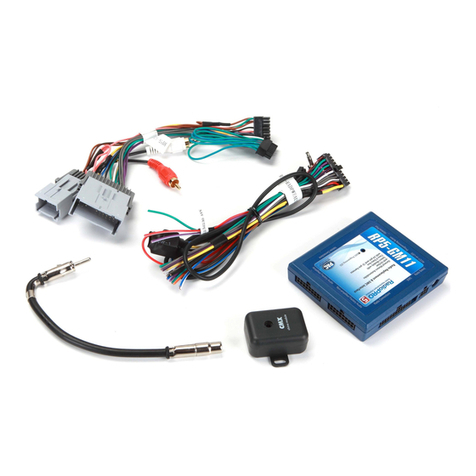
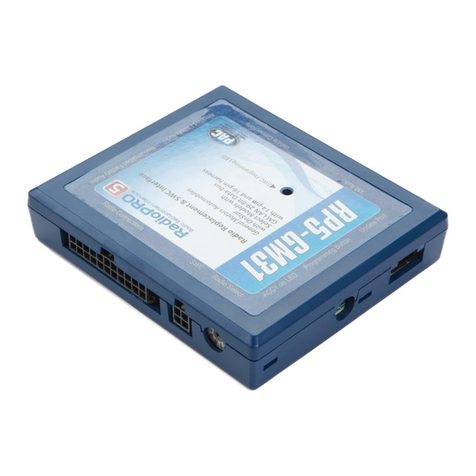
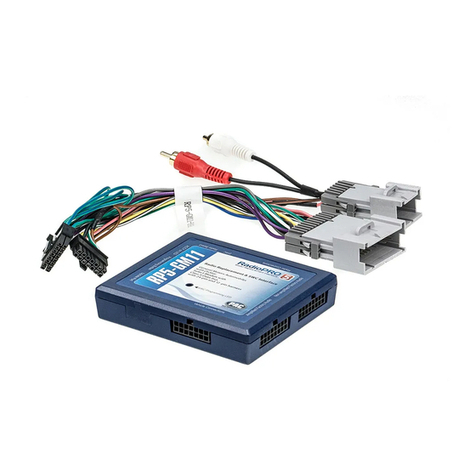
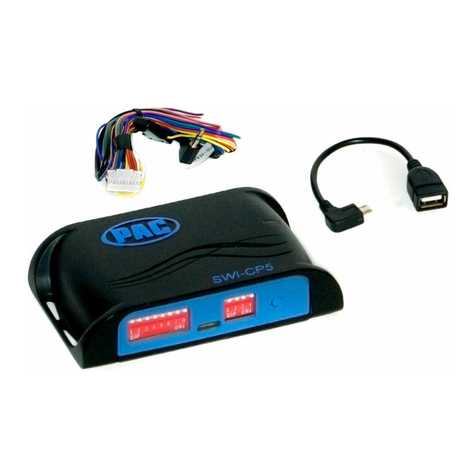
RP5-GM41
Radio Replacement & Steering Wheel Control Interface
with OnStar Retention for General Motors Vehicles
Pacic
Accessory Corporation
® | Santa
Ana, California 92705 | Ph. 866-931-8021 |
[email protected] ©2012 Pacic Accessory Corporation
www.pac-audio.com
Pacific Accessory Corporation
Rev. 022013
Page 2
Installation Steps
1.The radio select rotary switch on the side of the interface must be adjusted to the proper radio
setting before plugging the interface into the vehicle.
2. Make all connections as described in the chart on page 1.
3. Plug the CMX chime module in if necessary (If the vehicle chimes when the radio is removed the CMX is not necessary). PLEASE NOTE:
In order to get the best possible sound out of the CMX please mount it in a place free and clear of any obstructions, preferably as close as
possible to the bottom of the dash pointing down toward the oor of the vehicle.
4. The Mute loop (if not cut) will turn the accessory output off when an OnStar or Bluetooth call is made or received. If the aftermarket radio has
a mute input cut this loop and connect the outer brown wire to the mute input.
5. Connect the SWC wire according to the chart on page 1 (aftermarket radio MUST support a wired remote input).
6. If you wish to reassign functions to the SWC follow the programming instructions in the next section.
IMPORTANT! The interface comes pre-programmed for the functions listed in the chart below and does not require programming
unless you wish to re-assign the SWC functions to different buttons. The SWC can always be restored to default settings by
pressing the program button on the side of the interface once and waiting for the timeout.
The Mute/End button has two functions. Pressing this button for less than 1.5 seconds will initiate the mute command. Pressing
this button for more than 1.5 seconds will initiate the end command. This dual function button can also be reprogrammed to
whatever features the customer chooses.
If you wish to re-assign the SWC functions, the interface must be programmed in the specic order shown in the chart below. If you
come across a function in the chart that your steering wheel does not have, or you do not want to program, press and release the
program button on the side of the interface to skip that function. The LED will ash off and on conrming that you have successfully
skipped that function and are ready to proceed to the next one.
Alpine JVC Kenwood Clarion
alo
OEM Sony/Pio
Fusion Blaupunkt
olume + Volume + Volume + Volume + Volume + Volume + Volume + Volume + Volume + Volume +
olume - Volume - Volume - Volume - Volume - Volume - Volume - Volume - Volume - Volume -
Source Source Source Source Source Source Source Source Source Source
Track + Track + Track + Track + Search + Track + Next Track + Track + Track +
Track - Track - Track - Track - Search - Track - Previous Track - Track - Track -
Answer/Voice
OnStar
Activation
OnStar
Activation
OnStar
Activation
OnStar
Activation
OnStar
Activation
OnStar
Activation
OnStar
Activation
OnStar
Activation
OnStar
Activation
Mute Mute Mute Mute Mute Mute Mute Mute Mute Mute
End
Factory
Blutooth
End
Factory
Bluetooth
End
Factory
Bluetooth
End
Factory
Bluetooth
End
Factory
Bluetooth
End
Factory
Bluetooth
End
Factory
Bluetooth
End
Factory
Bluetooth
End
Factory
Bluetooth
End
Optional Steering Wheel Control Programming
Default SWC Button Assignments
Alpine Blaupunkt Clarion Fusion JVC Kenwood OEM Pioneer/Sony/Other Valor
1 8 49 2 3 6 7 5
Other = Advent, BOYO, Dual, Lightning Audio, Visteon,
SET RADIO SELECT SWITCH
Alpine Blaupunkt Clarion Fusion JVC Kenwood OEM Pioneer/Sony/Other Valor
1 8 49 2 3 6 7 5
Other = Advent, BOYO, Dual, Lightning Audio, Visteon,
SET RADIO SELECT SWITCH