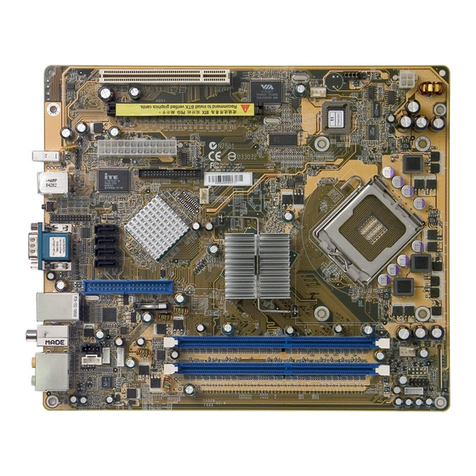
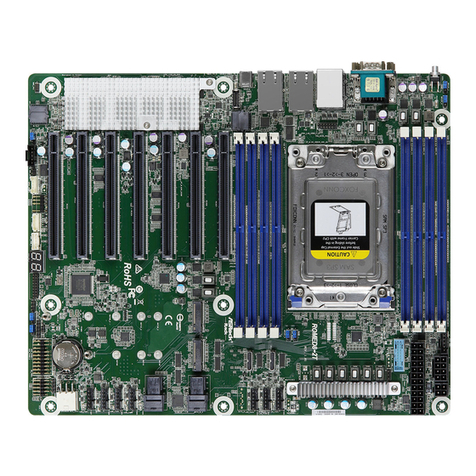
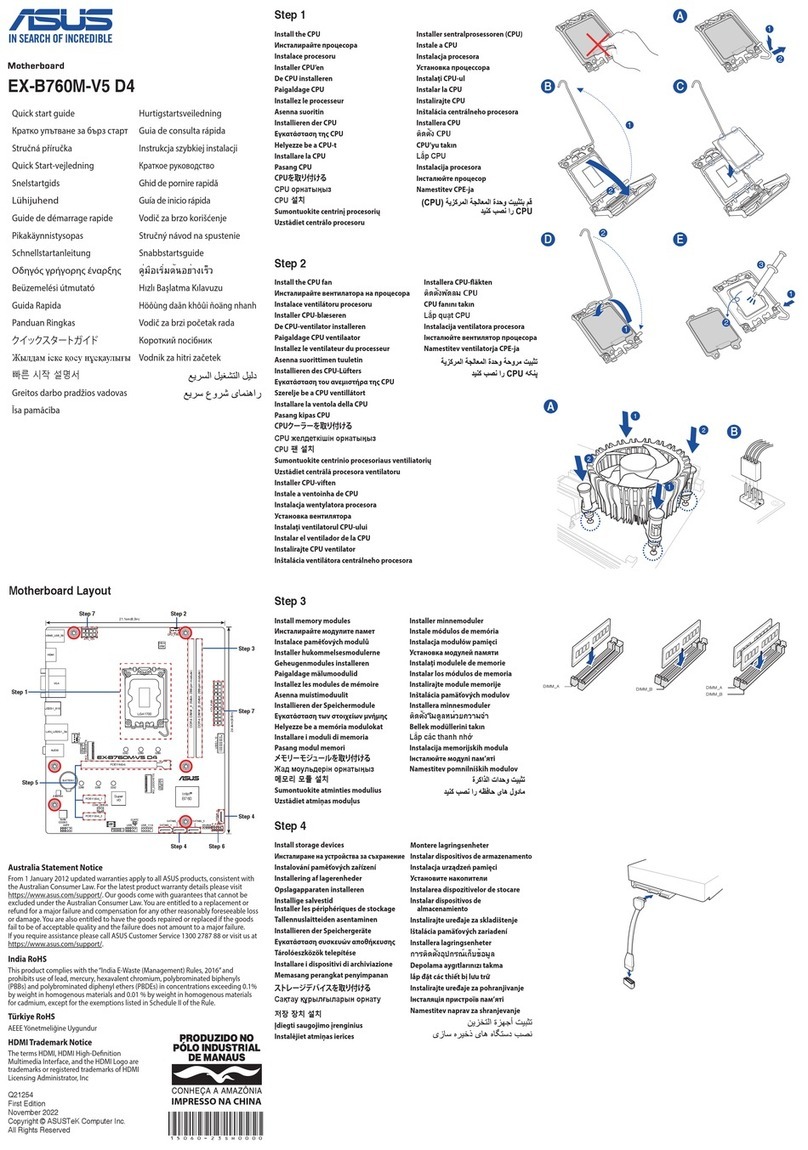
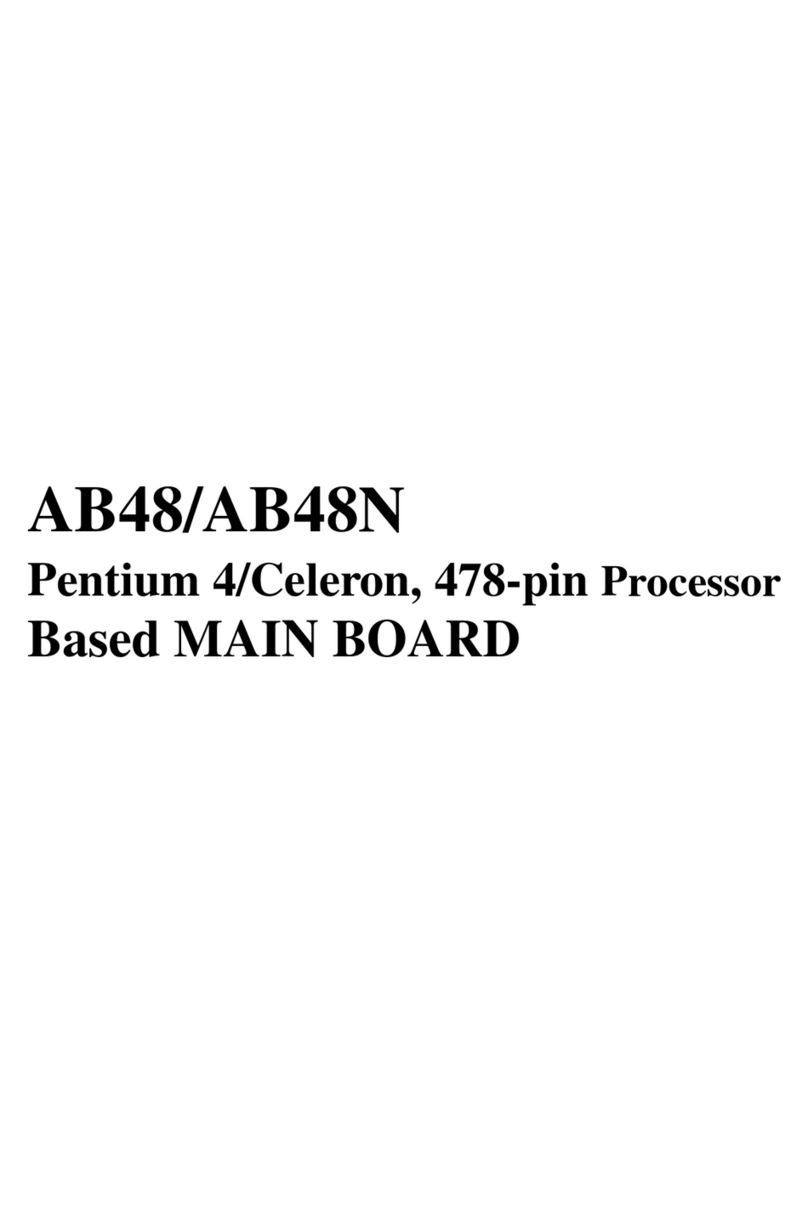
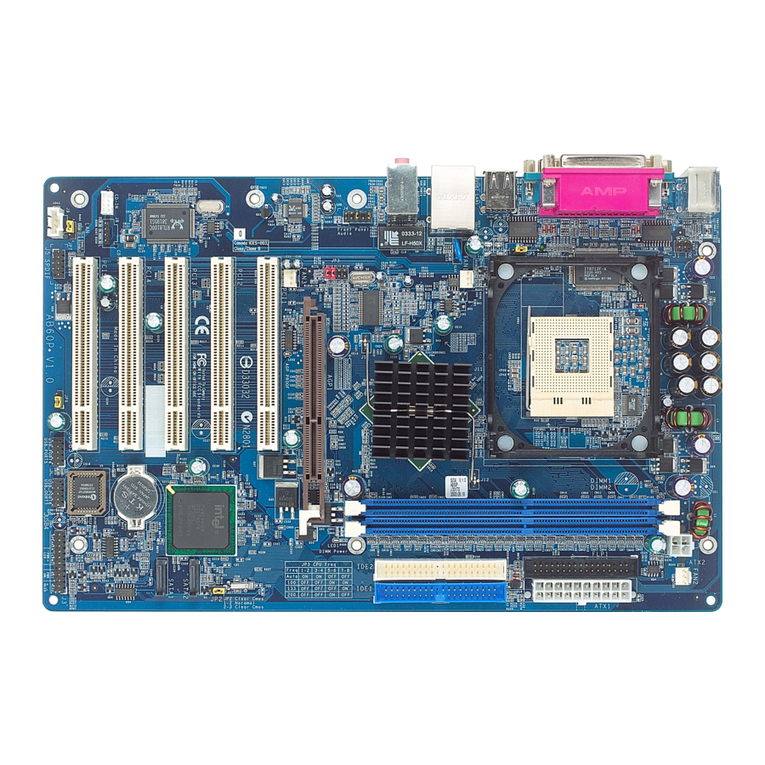
Shuttle AB49 User manual

AB49 & AB49N
Intel Pentium 4/Celeron
478-pinProcessor
with 400/533 MHz FSB
Based DDR MAINBOARD
User's Manual

M784
Shuttle®AB49 & AB49N
Intel Pentium 4/Celeron
478-pin Processor
with 400/533 MHz FSB
Based DDR Mainboard
Manual Version 1.0
Copyright
Copyright©2003 by Shuttle®Inc. All Rights Reserved.
This publication, including all photos, illustrations, and software, is protected under interna-
tional copyright laws, with all rights reserved. Reproducing any of the material contained
herein is prohibited without the consent of the publisher.
Disclaimer
Shuttle®Inc. shall not be liable for any incidental or consequential damages resulting from the
performance or use of this product.
This company makes no representations or warranties regarding the contents of this manual.
Information in this manual has been carefully checked for reliability; however, no guarantee is
given as to the correctness of the contents. In the interest of continued product improvement,
this company reserves the right to revise the manual or include changes in the specifications
of the product described within it at any time without notice and without obligation to notify any
person of such revision or changes. The information contained in this manual is provided for
general use by the customers.
Trademarks
Shuttle is a registered trademark of Shuttle Inc.
Intel, Pentium, and Celeron are registered trademarks of Intel Corporation.
PS/2 is a registered trademark of IBM Corporation.
AWARD is a registered trademark of Award Software Inc.
Microsoft and Windows are registered trademarks of Microsoft Corporation.
General Notice: Other product names used in this manual are ascribed to their respective
owners and acknowledged.

Statement of Shuttle Mainboard via the EMI Test
Shuttle mainboards have been via the EMI test in terms of series of regulations: EN55022/
CISPR22/AS/NZS3548ClassB,EN55024(1998/AS/NZS),EN4252.1(1994),EN61000,ANSI
C63.4 (1992), CFR47 Part 15 Subpart B, and CNS13438 (1997). The items tested are illus-
trated as follows:
(A)Voltage:AC110V/60HZ &AC230V/50HZ
(B) Tested Product Information:
Product Name: PC Mainboard
Status: Sample
ModelName:AB49N/AB49
S/N:N/A
CPU:
External Frequency: 100 MHz
IntelPentiumIV1.6/1.8/2.0/2.2/2.4GHz
External Frequency: 133 MHz
IntelPentiumIV2.26/2.40/2.53/2.66/2.80/3.06GHz
Mouse Port: one port with 6 pins
Keyboard Port: one port with 6 pins
Parallel Port: one port with 25 pins
Serial Port: one port with 9 pins
USB Port: four ports with 4 pins respectively
LANPort: one port with 8 pins (10Mbps/100Mbps)(AB49N Only)
Line-In & Line-Out & Mic-In Ports: one port for each
DDR Memory: 256 MB*2
All CPUs have completely been tested, and values offered by the worst EMI combination of
CPU external frequency are listed as follows:
(C) Remedy for the Tested Product & Its EMI Interference:
Remedy:N/A
EMIInterference:
Crystal:25.00MHz(X1)/24.576MHz(X2)/32.768KHz(X3)/14.318MHz(X4)
Clock Generator: CLK1
(D) Difference betweenAB49NandAB49:
To discriminate AB49N from AB49 lies in the extent that chips inAB49N support LAN, and the
combination for testing is based onAB49N.
Test Mode
1
2
3
4
External Frequency
133 MHz
133 MHz
100 MHz
100 MHz
CPU
P4 3.06 GHz
P4 3.06 GHz
P4 2.4 GHz
P4 2.4 GHz
Case Open/Closed
Closed
Open
Closed
Open
Power Supply
ENP-0730(ATX12V)
ENP-0730(ATX12V)
ENP-0730(ATX12V)
ENP-0730(ATX12V)

(E) Supported Host Peripherals:
(F) Notices for Assembling Computers:
1. Cases should be made of iron or other metal that has good electric conductivity.
2. Cylinders in a case should be made of metal, and as having a mainboard mounted
in a case, make sure screws are all utilized and fastened on a mainboard.
3. An I/O shielding should be contacted with I/O metallic parts of a mainboard.
4. Cables should appropriately be arranged and fixed in a case. Follow instructions:
Ø Leave IDE cables not crossed upon CPU and SDRAM;
Ø Leave power cables minimum in length, and not crossed upon a mainboard;
Ø Leave CPU fan cables minimum in length, and not near CPU;
Ø Leave cables on panels and other spare cables tied in a computer case.
5. Make sure an EMI shielding attached to a case has properly been installed.
6. Make sure a 5.25" or 3.5" FDD and screws are fastened to an EMI shielding.
7. Make sure a case is closely in contact with EMI connected points.
8. Make sure there is no cleft in a case which is not deformed.
9. Make sure a PCI orAGP door is bound to a case.
10. Make sure cables of other devices (fans or some others) are fixed in a case.
Host Peripheral Product Name Model Name S/N FCC ID
#1 Case KF45A N/A
#2 Power Supply (300W) ENP-0730 (ATX12V) 1000002885
#3 IBM HDD (30.7GB) 91024UB YKFY7981 3892I168
#4 MITSUMI FDD D353M
#5 SONY VCD Player CDU4811 3892A291
#6 AGP Card Winfast Geforce 2 MX 3892C520
#7 Power Cable Detachable and Shielded

- 1 -
WHAT'S IN THE MANUAL.................................................................... 5
Quick Reference............................................................................................... 5
About This Manual ........................................................................................... 5
1 INTRODUCTION................................................................................ 6
1.1 TO DIFFERENT USERS ............................................................................. 6
FIRST-TIMEDIYSYSTEMBUILDER............................................................ 6
EXPERIENCEDDIYUSER ......................................................................... 6
SYSTEMINTEGRATOR............................................................................... 6
1.2 ITEM CHECKLIST....................................................................................... 7
2 FEATURES ........................................................................................ 8
2.1 SPECIFICATIONS ....................................................................................... 8
3 HARDWARE INSTALLATION.......................................................... 11
3.1 STEP BY STEP INSTALLATION................................................................11
STEP1 Installthe CPU.......................................................................... 12
STEP 2 Set Jumpers............................................................................. 13
STEP3 InstallDDR SDRAMSystem Memory........................................ 13
STEP 4InstallInternal PeripheralsinSystem Case ................................ 14
STEP5 Mountthe Mainboardon theComputer Chassis........................ 15
STEP6 ConnectFront PanelLEDs/Switches/USB................................ 16
STEP 7 Connect IDE and Floppy Disk Drives........................................ 17
STEP8Connect OtherInternalPeripherals............................................ 18
STEP9 Connectthe PowerSupplies .................................................... 19
STEP10 InstallAdd-on Cards inExpansion Slots .................................. 19
STEP11 ConnectExternalPeripherals toBack-Panel........................... 20
STEP12 InstallDrivers &SoftwareComponents ................................... 21
TABLE OF CONTENTS

- 2 -
3.2 JUMPER SETTINGS ................................................................................. 22
JUMPERS& CONNECTORSGUIDE.................................................... 23
Jumpers
Clear CMOS Setting (JP1) ................................................................... 25
BIOSFlash ProtectionSetting (JP2) ...................................................... 25
Back-Panel Connectors
PS/2Mouse &PS/2 KeyboardConnectors............................................ 26
ParallelPortConnector.......................................................................... 26
COM1Port Connector ........................................................................... 26
USB1/2/3/4PortConnectors ................................................................. 26
LANPort Connector(AB49N Only) ........................................................ 27
Line-In(6-ChannelRear-Out)Port Connector ......................................... 27
Line-Out(6-ChannelFront-Out)Port Connector...................................... 27
Mic-In(6-ChannelCenter/Bass-Out)Port Connector .............................. 27
Front-Panel Connectors
HDD LED Connector (HDLED) ............................................................. 28
HardwareResetConnector (HWRST).................................................... 28
GreenLED Connector (GRNLED) ......................................................... 29
ATXPowerOn/Off SwitchConnector(PWRSW).................................... 29
ExtendedUSB Header (USB3).............................................................. 30
FrontPanelMicrophone andLine-OutHeader(AUDIO1) ....................... 30
Internal Peripheral Connectors
Enhanced IDEand FloppyConnectors (IDE1/IDE2& FDD1) ................. 31
Other Connectors
ATXPower SupplyConnectors (ATX1/ATX12V).................................... 32
CPU,Power, andChassis FanConnectors (CPUFAN1/PWRFAN1/
CASFAN1)............................................................................................ 33

- 3 -
AudioCD_INConnectors (CDIN1/CDIN2) ............................................. 33
IRHeader(IR1)...................................................................................... 34
3.3 SYSTEM MEMORY CONFIGURATION ..................................................... 35
1.INSTALLMEMORY ............................................................................ 35
2.UPGRADEMEMORY ........................................................................ 35
4 SOFTWARE UTILITY ......................................................................36
4.1 Mainboard CD Overview ......................................................................... 36
4.2 Install Mainboard Software ..................................................................... 37
4.2.A Install Intel Chipset Driver .................................................................... 38
4.2.B Install Intel Ultra ATADriver ................................................................. 39
4.2.C Install USB 2.0 Driver ........................................................................... 40
4.2.D Install Audio Driver ............................................................................... 41
4.2.E Install LAN Driver (AB49N Only) .......................................................... 42
4.3 View the User's Manual........................................................................... 42
5 BIOS SETUP ................................................................................... 43
5.1 ENTER BIOS ............................................................................................. 43
5.2 THE MAIN MENU ...................................................................................... 44
STANDARD CMOS FEATURES ............................................................... 46
ADVANCED BIOS FEATURES................................................................. 48
ADVANCED CHIPSET FEATURES .......................................................... 51
INTEGRATEDPERIPHERALS .................................................................. 53
POWERMANAGEMENT SETUP.............................................................. 56
PNP/PCICONFIGURATIONS .................................................................... 60
PCHEALTH STATUS................................................................................ 61
FREQUENCY/VOLTAGECONTROL......................................................... 62
LOAD FAIL-SAFE DEFAULTS .................................................................. 63

- 4 -
LOADOPTIMIZEDDEFAULTS ................................................................. 63
SETSUPERVISOR/USER PASSWORD................................................... 64
SAVE & EXIT SETUP................................................................................ 65
EXITWITHOUTSAVING ............................................................................ 65

- 5 -
Quick Reference
Hardware Installation >> Step-by-Step ................................................ Page 11
Jumper Settings >> A Closer Look.......................................................Page 22
Drivers/Software Utilities >> How to Install .........................................Page 36
BIOS Setup >> How to Configure.........................................................Page 43
About This Manual
For First-Time DIY System Builder.........................................................Page 6
For Experienced DIY User ......................................................................Page 6
For System Integrator .............................................................................Page 6
WHAT'S IN THE MANUAL

- 6 -
1INTRODUCTION
1.1 To Different Users
First-Time DIY System Builder
Welcome to the DIY world! Building your own computer system is not as diffi-
cult as you may think. To make your first computer DIY experience successful,
right from the start, we have designed the 3.1 Hardware Installation section
in a step-by-step fashion for all the first-time DIY system builders. Prior to instal-
lation, we also suggest you to read the whole manual carefully to gain a com-
plete understanding of your new Shuttle AB49/AB49N mainboard.
Experienced DIY User
Congratulate on your purchase of the Shuttle AB49/AB49N mainboard. You
will find that installing your new Shuttle AB49/AB49N mainboard is just easy.
Bundled with an array of onboard functions, the highly-integrated AB49/AB49N
mainboard provides you with a total solution to build the most stable and reli-
able system. Refer to sections 3.2 Jumper Settings and Chapter 4 Drivers/
Software Utilities to find out how to get the best out of your new mainboard.
Chapter 5 BIOS Setup also contains the relevant information on how to tune
up your system to achieve higher performance.
System Integrator
You have wisely chosen Shuttle AB49/AB49N to construct your system.
Shuttle AB49/AB49N incorporates all the state-of-the-art technology of the
845PE (GMCH) chipset from Intel. It integrates the most advanced functions
you can find to date in a compact ATX board.
This manual is all-purpose for two kinds of mainboards: AB49 and
AB49N. The main difference between them is that AB49N is equipped
with an onboard LAN. In the manual, if there are some standards, charac-
teristics, equipment, or software adopted only by AB49N, it will be high-
lighted in brackets.

- 7 -
1.2 Item Checklist:
Check all items with your AB49/AB49N mainboard to make sure nothing is
missing. The complete package should include:
-One piece of Shuttle AB49/AB49N Mainboard
-One piece of ATA 100/66 Ribbon Cable
-One piece of Floppy Ribbon Cable
-One piece of twin ports USB Cable (optional)
-AB49/AB49N User's Manual
-I/O Shielding
-One piece of Bundled CD-ROM with containing:
ØAB49/AB49N user's manual saved in PDF format
ØIntel Chipset Driver
ØIntel Ultra ATA Driver
ØLAN Driver (AB49N Only)
ØUSB 2.0 Driver
ØAudio Driver
ØAward Flashing Utility
UA330158
0307
950220AF
K
T
S
J
A
P
A
N
S
T
D
C
R
2
0
3
2
L
I
T
H
I
U
M
B
A
T
T
E
R
Y
ATX12V
PSKBM1
W
i
n
b
o
n
d
W
4
9
V
0
0
2
F
A
P
2
1
4
6
7
0
4
0
1
2
4
5
G
H
S
A
COM1
CPUFAN1
1
DIMM1DIMM2
FDD1
1
ATX1
IDE2 IDE1
1 1
1
S
I
O
M
A
R
T
@
W
8
3
6
3
7
H
F
-
A
W
PWRFAN1
1
FW82801DB
CMI9739A
LPT1
USB1394A_J1
USBLANA1
USBLAN1
BT1
CASFAN1
1
1
1
1
1
1
1

- 8 -
AB49/AB49N mainboard is carefully designed for the demanding PC user who wants
high performance and maximum intelligent features in a compact package.
2.1 Specifications
-CPU Support
Intel Pentium 4/Celeron, 478-pin processors with 400/533 MHz FSB.
-Chipset
Features Intel 845PE (GMCH) N.B. and Intel 82801DB (ICH4) S.B..
-Hyper-Threading Technology
The latest Intel application defines a high-speed calculating ability to opti-
mize your system by two CPUs supported (one virtual, one physical) in a
multi-task environment.
-CPU FSB Configuration
Soft-configuration FSB (The FSB speed is software configurable from 100MHz
to 133MHz.)
-Onboard 10/100Mb/s LAN (AB49N Only)
The Realtek RTL8100B incorporated in the chipset provides the mainboard
with integrated Fast Ethernet capabilities.
-On Board 6 Channel AC'97 Audio
Compliant with AC'97 2.2 involves SPDIF-Out function. 6 channel slot
selectable DAC Output for multi-channel applications.
-Versatile Memory Support
Two 184-pin DIMM slots to support max 2GB of PC1600/PC2100/PC2700
compliant with DDR SDRAM module.
-PCI Expansion Slots
Provides six 32-bit PCI slots.
-AGP Expansion Slot
Provides one AGP 2.0 compliant slot which supports 1X/2X/4X AGP devices.
2 FEATURES

- 9 -
-6 USB 2.0 Interface Onboard
4 * USB connectors on back-panel and 1 set of dual USB ports header on mid-
board.
-I/O Interface
Provides a variety of I/O interfaces:
Ø1* PS/2 mouse connector.
Ø1* PS/2 keyboard connector.
Ø1* DB25 parallel port.
Ø1* serial port.
Ø1* LAN port. (AB49N Only)
Ø1* Line-In port. (shared with Rear-Out port)
Ø1* Line-Out port. (shared with Front-Out port)
Ø1* Mic-In port. (shared with Center/Bass-Out port)
-PCI Bus Master IDE Controller Onboard
Two Ultra DMA 100/66/33 Bus Master Dual-channel IDE ports provide sup-
port to a maximum of four IDE devices (one Master and one Slave per channel).
The IDE Bus implements data transfer speeds of up to 100/66/33 MB/sec and
also supports Enhanced PIO Modes. 80-pin Cable Backward Compatible Legacy
ATAPI Devices, ATAPI IDE CD-ROM, CD-R, CD-RW, and LS-120 Supports.
-ATX Power Supply Connector
ATX power supply unit can be connected to the onboard 20-pin ATX power
connector, and 4-pin ATX power connector. The unit supports Suspend and
Soft-On/Off modes by the dual-function power button.
-Advanced Configuration and Power Interface
Features four power saving modes: S1 (Snoop), S3 (Suspend to RAM), S4
(Suspend to DISK), and S5 (Soft-Off). ACPI provides more efficient Energy
Saving Features controlled by your operating system that supports OS Direct
Power Management (OSPM) functionality.
-System BIOS
Provides licensed Award BIOS V6.0 PG on Intel Firmware Hub 2Mb Flash
core and supports Green PC, Desktop Management Interface (DMI).

- 10 -
-ATX Form Factor
System board conforms to ATX specification.
Board dimension: 305 mm* 244 mm.
-Advanced Features
ØLow EMI - Built in spread spectrum. Unused PCI/SDRAM slots are shut off
by the automatic clock for reducing EMI.
ØDual Function Power Button - The system can be in any of the two
states: one is Suspend mode and the other is Soft-Off mode. Pushing the
power button for less than 4 seconds places the system into Suspend
mode. When the power button is pressed for longer than 4 seconds, the
system will enter Soft-Off mode.
ØModem Ring Power-On - The system can be powered on automatically
by the activation of modem ringing.
ØCPU Host Clock Setting - This item allows users to adjust CPU Host
Clock in BIOS.
ØCPU Multiplier Setting - This item allows users to adjust CPU Multiplier
in BIOS.
-Intelligent Features
ØVoltage Monitoring - Monitors various voltages of key elements, such as
the CPU, and other critical system voltage levels to ensure a stable current
passing through mainboard components.
ØFan Status Monitoring -To prevent the CPU from overheating, the CPU
fan is monitored by RPM, with which the cooling fan is required.
ØTemperature Monitoring -This item allows users to make sure whether
the CPU or system runs under a suitable temperature.

- 11 -
Before removing/installing any of these devices: CPU, DIMMs, Add-On
Cards, and Cables, please unplug the onboard power connector.
This section outlines how to install and configure your mainboard. Referring to the follow-
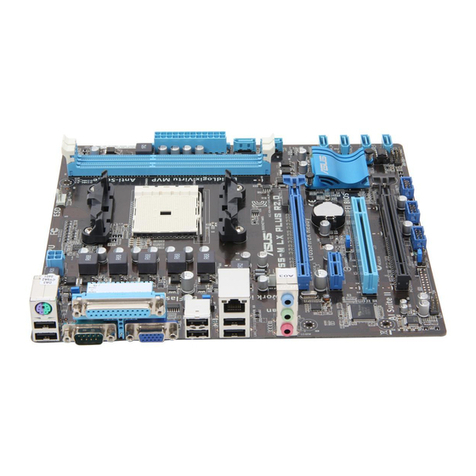
ing mainboard layout helps you identify various jumpers, connectors, slots, and ports.
Steps described herein will lead you to a quick and correct installation of your system.
3.1 Step-by-Step Installation
Accessories Of AB49/AB49N
3HARDWAREINSTALLATION
UA330158
0307
950220AF
K
T
S
J
A
P
A
N
S
T
D
C
R
2
0
3
2
L
I
T
H
I
U
M
B
A
T
T
E
R
Y
ATX12V
PSKBM1
W
i
n
b
o
n
d
W
4
9
V
0
0
2
F
A
P
2
1
4
6
7
0
4
0
1
2
4
5
G
H
S
A
COM1
CPUFAN1
1
DIMM1DIMM2
FDD1
1
ATX1
IDE2 IDE1
1 1
1
S
I
O
M
A
R
T
@
W
8
3
6
3
7
H
F
-
A
W
PWRFAN1
1
FW82801DB
CMI9739A
LPT1
USB1394A_J1
USBLANA1
USBLAN1
BT1
CASFAN1
1
1
1
1
1
1
1
PS2 Keyboard & PS/2
Mouse Port Connectors
Serial Port Connector
Parallel Port
Connector
USB Port Connectors
Socket 478
ATX12V Power
Connector - ATX12V
USB Port Connectors &
LAN Port Connector
(AB49N Only)
Mic-In/Line-Out/Line-In
Port Connectors
Front Panel Micro-
phone & Line-Out
Header - AUDIO1
Audio CD_IN
Connector - CDIN1
One AGP 4X Slot
Audio CD_IN
Connector - CDIN2
Six PCI Slots
Onboard LAN
Realtek 8100B
(AB49N Only)
BIOS Flash Protection Jumper - JP2
IR Header - IR1
FrontPanel
H
e
a
d
e
r
-
P
A
N
E
L
1
ExtendedUSB
H
e
a
d
e
r
-
U
S
B
3
C
A
S
F
A
N
1
C
e
l
a
r
C
M
O
S
J
u
m
p
e
r
-
J
P
1
O
n
e
F
l
o
p
p
y
C
o
n
n
e
c
t
o
r
T
w
o
I
D
E
C
o
n
n
e
c
t
o
r
s
A
T
X
P
o
w
e
r
C
o
n
n
e
c
t
o
r
-
A
T
X
1
Intel 845PE Chipset
Intel 82801DB
Chipset
PWRFAN1
Two DIMM Slots
CPUFAN1
I/O Controller 83637

- 12 -
Step 1
CPU Installation:
This mainboard supports Intel Pentium 4/Celeron Socket 478 series CPU.
Please follow the steps as follows to finish CPU installation.
Note the CPU orientation when you plug it into CPU socket.
1. Pull up the CPU socket lever to 90-degree angle.
2. Locate Pin 1 in the socket and look for a black dot or cut edge on the CPU
upper interface. Match Pin 1 and cut edge, and insert the CPU into the
socket.
3. Press down the CPU socket lever and finish CPU installation.
4. Intel Pentium 4/Celeron processors require a set of heatsink and fan to cool
down the processor. You need to purchase a heatsink and fan if they are not
bundled with your CPU. Required is that install the set and plug its cable
in the CPU fan power connector. Note that there are kinds of CPU fan
connectors. Normally, if your mainboard supports a hardware monitoring
function, a 3-pin fan power connector can have your system detect the
CPU fan's speed. A CPU fan with a 2-pin or 4-pin fan power connector
does not support the detection of the CPU fan's speed, and must directly
be connected to the system's power supply unit.
Note: The CPU might be
damaged if you do not match
the CPU socket Pin 1 and cut
edge well.
CPU socket lever up to
90-degree angle
CPU Pin 1 and cut edge

- 13 -
Step 2.
Set Jumpers
The default jumper settings have been set for the common usage standard of
this mainboard. Therefore, you do not need to reset the jumpers unless you
require special adjustments as any of the following cases:
1. Clear CMOS
2. BIOS Flash Protection
For first-time DIY system builders, we recommend that you do not change the
default jumper settings if you are not totally familiar with the mainboard
configuration procedures. The factory-set default settings are tuned for opti-
mum system performance. For the advanced users who wish to customize
their system, section 3.2 Jumper Settings will provide detailed information
on how to configure your mainboard manually.
Step 3
Install DDR SDRAM System Memory
To install memory, insert DDR SDRAM memory module(s) in any one or two
DIMM banks. Note that SDRAM modules are directional and will not go in
the DIMM banks if they are not properly oriented. After the module is fully
inserted into the DIMM bank, lift the clips of both sides of the DIMM bank to
lock the module in place.
DDR SDRAM

- 14 -
Step 4
Install Internal Peripherals in System Case
Before you install and connect the mainboard into your system case, we
recommend that you first assemble all the internal peripheral devices into the
computer housing, including but not limited to the hard disk drive (IDE/
HDD), floppy disk drive (FDD), CD-ROM drive, and ATX power supply unit.
This will greatly facilitate in making the connections to the mainboard de-
scribed below.
To install IDE & FDD drives, follow this procedure:
1. Set the required jumpers on each device according to the instructions
provided by the manufacturer. (IDE devices, HDD, and CD-ROM, have to
set jumpers to Master or Slave mode depending on whether you install
more than one device of each kind.)
2. Connect IDE cable and FDD cable on the back-panel of the internal
peripheral devices to the corresponding headers on board. Note that the
cable should be oriented with its colored stripe (usually red or magenta)
connected to pin#1 both on the mainboard IDE or FDD connector and on
the device as well.
3. Connect an available power cable from your system power supply unit
to the back-panel of each peripheral device. Note that the power cable is
directional and cannot fit in if not properly positioned.

- 15 -
Step 5
Mount the Mainboard on the Computer Chassis
1. You may find there are a lot of mounting holes on your computer chassis
and mainboard. To match the holes on both properly, the key point is to
make the back-panel of the mainboard in a close fit with your system case,
as shown below.
2. Position the studs between the chassis and the mainboard. The studs are
used to fix the mainboard and to keep a certain distance between the
them, for avoiding any electrical shorts in-between.
(If your computer case is already equipped with mounting studs, you need
to tighten the screws to attach the mainboard.)
Note: In most computer housings, you can find 4 or more holes to place
studs for fixing the mainboard. If there aren't enough matching holes,
screw at least 4 studs to ensure the proper attachment of the main-
board.

- 16 -
Step 6
Connect Front Panel LEDs/Switches/USB
You can find there are several different cables already existing in the system
case and originating from the computer's front-panel devices (HDD LED,
Green LED, Reset Switch, or a USB device etc.). These cables serve to con-
nect the front-panel LEDs, switches, and a USB connector to the mainboard's
front-panel connectors, PANEL1 and USB3, as shown below.
1. HDD LED (HDLED)
2. Hardware Reset Switch Button
(HWRST)
3. Green LED (GRNLED)
4. ATX Soft Power On/Off (PWRSW)
5. Extended USB Header (USB3)
4
3
2
1
PANEL1
1
-
+HDLED
HWRST
PWRSW
GRNLED -
+
1
USB3
5
5
24610
1=VREG_FP_USBPWR0
3=USB_FP_P0-
5=USB_FP_P0+
7=GND
9=KEY
2=VREG_FP_USBPWR0
4=USB_FP_P1-
6=USB_FP_P1+
8=GND
10=NC
1
3
79
8
1
USB3
PANEL1
1
-
+
HDLED
HWRST
PWRSW
GRNLED -
+
This manual suits for next models
1
Table of contents
Other Shuttle Motherboard manuals

Shuttle
Shuttle AI61 User manual

Shuttle
Shuttle FN45U User manual

Shuttle
Shuttle AB61 User manual

Shuttle
Shuttle FN45 User manual

Shuttle
Shuttle FS56 User manual

Shuttle
Shuttle AV11 User manual

Shuttle
Shuttle MK32N User manual

Shuttle
Shuttle AV14 User manual

Shuttle
Shuttle FS58 User manual

Shuttle
Shuttle FN95 User manual

Shuttle
Shuttle AK12 User manual

Shuttle
Shuttle AB60P User manual

Shuttle
Shuttle AN50R User manual

Shuttle
Shuttle Spacewalker AV30 User manual

Shuttle
Shuttle FB65 User manual

Shuttle
Shuttle HOT-687V User manual

Shuttle
Shuttle Spacewalke AK21 User manual

Shuttle
Shuttle HOT-623 User manual

Shuttle
Shuttle AE23 User manual

Shuttle
Shuttle MS11 User manual