manuals.online logo
Brands
  1. Home
  2. •
  3. Brands
  4. •
  5. Telstra
  6. •
  7. Telephone
  8. •
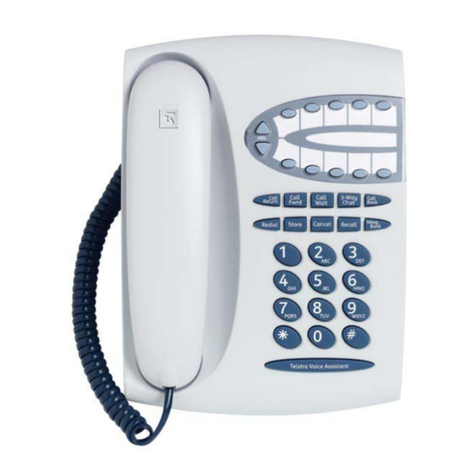
  9. Telstra T310 User manual

Telstra T310 User manual

Other manuals for T310

2

Other Telstra Telephone manuals

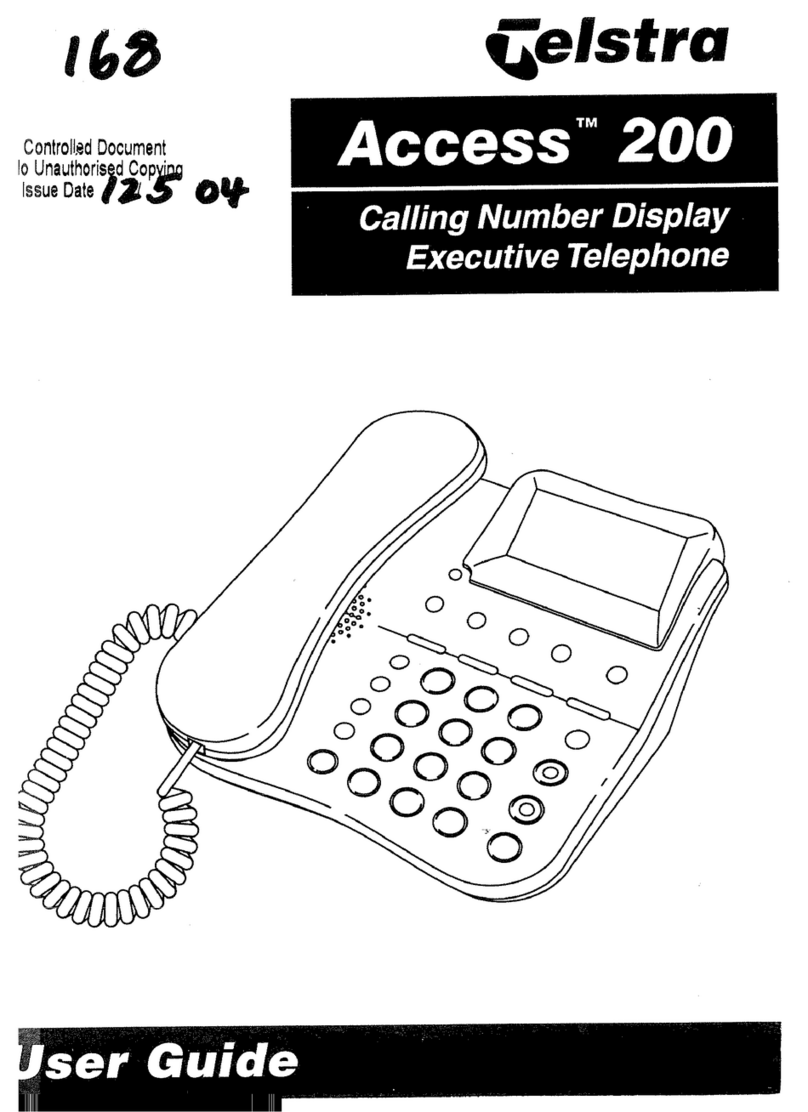
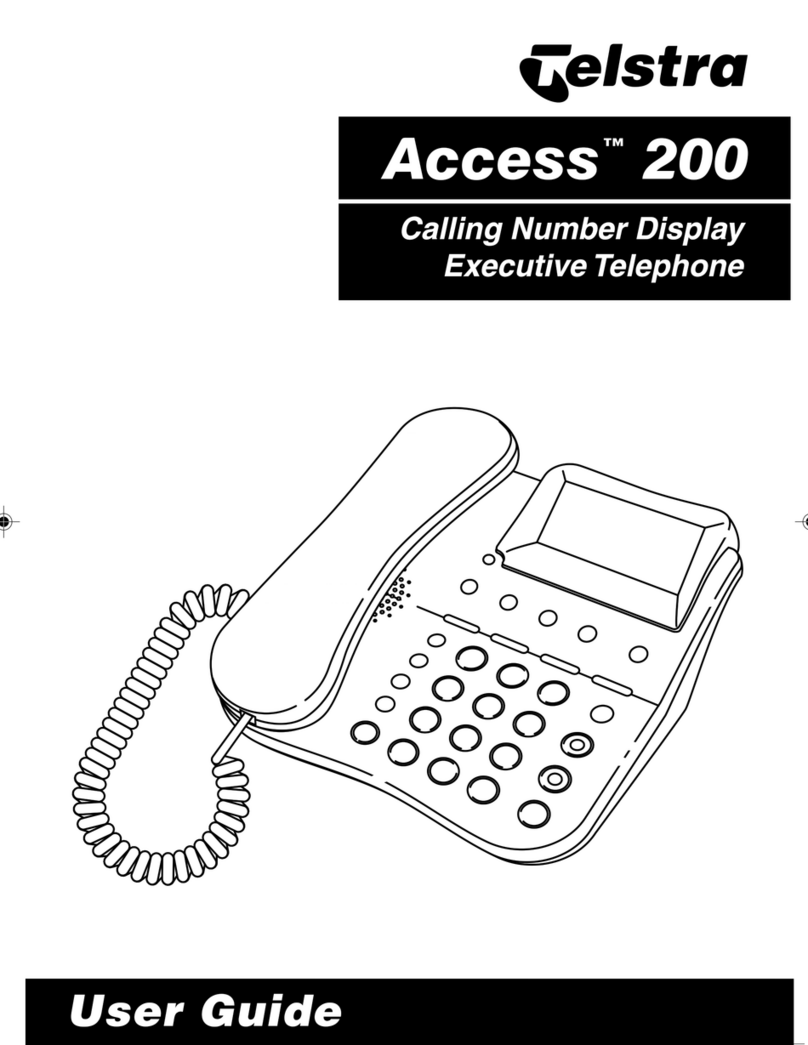
Telstra customnet User manual

Telstra

Telstra customnet User manual

Telstra T700 User manual

Telstra

Telstra T700 User manual

Telstra T1000S User manual

Telstra

Telstra T1000S User manual

Telstra VVX300 User manual

Telstra

Telstra VVX300 User manual

Telstra Touchfone 400 User manual

Telstra

Telstra Touchfone 400 User manual

Telstra T1000S User manual

Telstra

Telstra T1000S User manual

Telstra 13450 User manual

Telstra

Telstra 13450 User manual

Telstra VVX500 User manual

Telstra

Telstra VVX500 User manual

Telstra T110 User manual

Telstra

Telstra T110 User manual

Telstra T1000C SMS User manual

Telstra

Telstra T1000C SMS User manual

Telstra VVX 1500 User manual

Telstra

Telstra VVX 1500 User manual

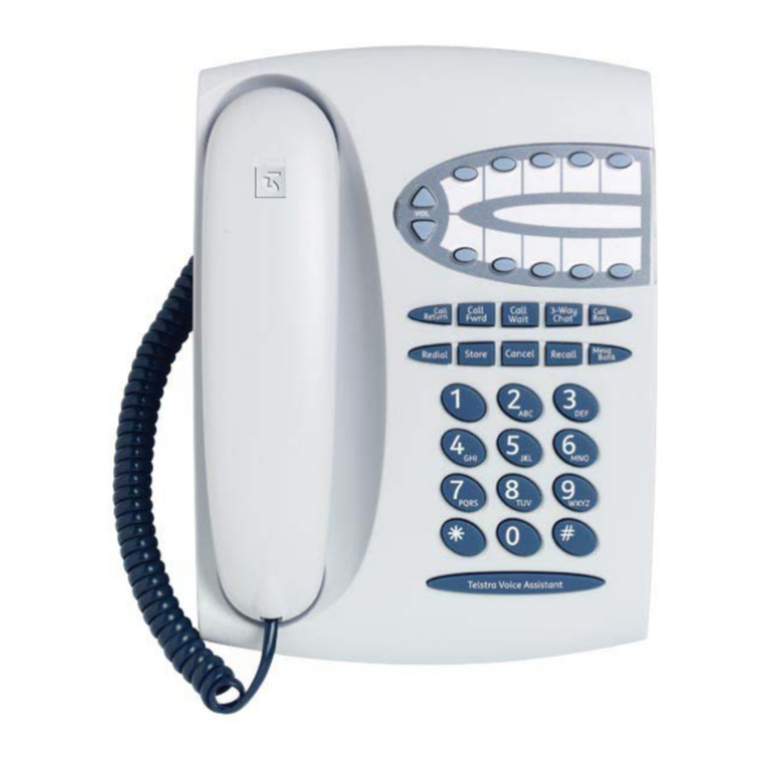
Telstra T310 User manual

Telstra

Telstra T310 User manual

Telstra T-HUB 2 User manual

Telstra

Telstra T-HUB 2 User manual

Telstra SP817BB User manual

Telstra

Telstra SP817BB User manual

Telstra Cisco 7861 MPP User manual

Telstra

Telstra Cisco 7861 MPP User manual

Telstra T1000S User manual

Telstra

Telstra T1000S User manual

Telstra 8950 User manual

Telstra

Telstra 8950 User manual

Telstra Easy Control TEC-D Assembly instructions

Telstra

Telstra Easy Control TEC-D Assembly instructions

Telstra T48G User manual

Telstra

Telstra T48G User manual

Telstra T310 User manual

Telstra

Telstra T310 User manual

Telstra SP817BB User manual

Telstra

Telstra SP817BB User manual

Telstra VVX410 User manual

Telstra

Telstra VVX410 User manual

Telstra T800 User manual

Telstra

Telstra T800 User manual

Telstra VVX500 Specification sheet

Telstra

Telstra VVX500 Specification sheet

Popular Telephone manuals by other brands

Philips BaseLine Pro manual

Philips

Philips BaseLine Pro manual

V-tech i6772 user guide

V-tech

V-tech i6772 user guide

BT FREELANCE XD 5100 quick start guide

BT

BT FREELANCE XD 5100 quick start guide

Uniden 1360 user guide

Uniden

Uniden 1360 user guide

Fanvil D800 user manual

Fanvil

Fanvil D800 user manual

Avaya IP500 user guide

Avaya

Avaya IP500 user guide

NEC Univerge SV9100 installation manual

NEC

NEC Univerge SV9100 installation manual

Amanda MiniSOHO Installation and programming manual

Amanda

Amanda MiniSOHO Installation and programming manual

Hitachi SelecSet 900 Series user guide

Hitachi

Hitachi SelecSet 900 Series user guide

mPTech HAMMER BS21 quick start guide

mPTech

mPTech HAMMER BS21 quick start guide

NEC 2000IVX user guide

NEC

NEC 2000IVX user guide

ooma Phone Genie quick start guide

ooma

ooma Phone Genie quick start guide

Siemens Gigaset S450 user guide

Siemens

Siemens Gigaset S450 user guide

Clarity RC100 operating instructions

Clarity

Clarity RC100 operating instructions

GE 2-9480 user guide

GE

GE 2-9480 user guide

Geemarc PHOTOPHONE 155 user guide

Geemarc

Geemarc PHOTOPHONE 155 user guide

Interquartz Gemini IQ333 operating instructions

Interquartz

Interquartz Gemini IQ333 operating instructions

SSS Siedle HT 840-0 operating instructions

SSS Siedle

SSS Siedle HT 840-0 operating instructions

manuals.online logo
manuals.online logoBrands
  • About & Mission
  • Contact us
  • Privacy Policy
  • Terms and Conditions

Copyright 2025 Manuals.Online. All Rights Reserved.

Telstra T310 Telephone
User Guide
If you have any problems with your phone, first refer to the
Help section of this User Guide or call the TecHelp line on
1300 36 1 3.
A
B
C
D
E
F
J
K
L
G
H
I
M
N
O
T
U
V
P
Q
R
S
W
X
Y
Z
E
n
t
e
r
E
i
t
Mute
Call Waiting
Dial
Redial
Vol Handsfree
123
456
789
*0#
Menu Calls
Telstra T310
Recall
Call Waiting
Introduction
to your Telstra T310 Telephone
Calling Number Display*
Lets you identify the caller’s telephone number (e cept for blocked calls),
enabling you to screen your calls.
Hands ree operation
You can conduct your call over the loudspeaker without lifting the
handset
Flashing message indication#
A flashing LED gives the user a visual indication when a new message is
recorded on their Telstra Message Bank service.
Name & number phonebook
Store up to 25 of your important or frequently dialled numbers in the
Phonebook. You can also store names to go with the numbers. It is then
easy to display and dial numbers from the Phonebook.
Call indicator light
Visually alerts you to an incoming call
Adjustable ringer volume & tone control
The ringer volume and pitch can be adjusted to your appropriate levels
Alarm clock
The date and time are displayed on the LCD when the phone is idle. You
can set the alarm ring at your desired time.
12 month warranty
This User Guide provides you
with all the information you
need to get the most from
your phone.
Before you make your first call
you will need to set up your
phone. Follow the simple
instructions on the ne t few
pages.
Need help?
If you have any problems
setting up or using your Telstra
T310 please contact the
TecHelp line on 1300 369 193.
Alternatively, you may find
the answer in ‘Help’ at the
back of this guide.
Got everything?
● Telstra T310 Telephone
● Telephone Line Cord
● AC Power Adaptor
● Telephone Adaptor Plug
● Wall Mounting Bracket
* Charges apply. Service
available in most areas.
# User must subscribe to
Telstra’s MessageBank
service or Telstra Home
Messages 101 service.
Contact Telstra on 13 2200.
Installing your Telstra T310 4
You can also wall mount your Telstra T310, for
more information see page 5.
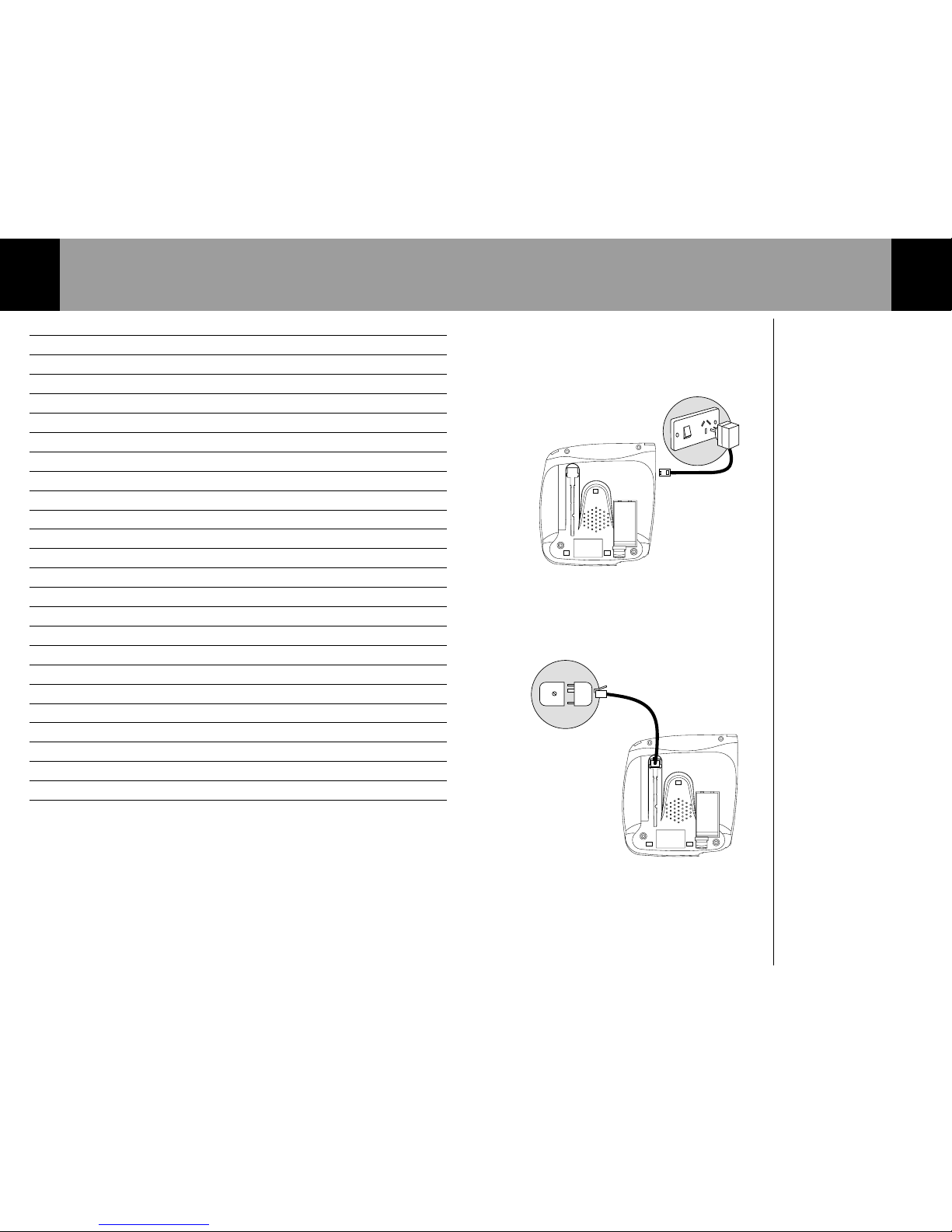
1. Connect AC Adaptor to the base and power
socket as shown.
2. Connect one end of the Telephone Line Cord
into the socket at the bottom of the base.
Connect the other end of the Telephone Line
Cord into the telephone wall socket.
Make sure all the connections are firmly in
place.
Your telephone is now ready to use.
Phone socket
In this guide
3
Depending on your wall socket,
you may need to use the
telephone adaptor plug
supplied.
Welcome to your Telstra T310 Telephone 1
In this guide 3
Installing your Telstra T310 4
Wall mounting your Telstra T310 5
Getting to know your Telstra T310 6
Using your Telstra T310 8
Making and receiving calls 8
Call Timer 8
Redial 9
Mute 9
Handsfree operation 10
Recall 11
Phonebook 11
Ringer volume and tone settings 15
Alarm clock 17
Network in ormation 20
Calls list 21
Call Waiting 24
Telstra Voice Assistant 26
Flashing Message Indication 26
Help 27
Important Safety Instructions 28
General Information 28
Product warranty & Customer service 29
Wall mounting template 30
Getting to know your Telstra T310 6
A
B
C
D
E
F
J
K
L
G
H
I
M
N
O
T
U
V
P
Q
R
S
W
X
Y
Z
E
n
t
e
r
E
i
t
Mute
Call Waiting
Dial
Redial
Vol Handsfree
123
456
789
*0#
Menu Calls
Telstra T310
Recall
Call Waiting
Phonebook/Exit button
Use to view the names and
numbers in the phonebook. Also
used to e it the menu.
Arrow buttons
Use to move through the menu
options. Also used when entering
or editing names and
numbers.
Call indicator light
Lights up to indicate an incoming
call and flashes to indicate
messages waiting on your
message service
i.e. HomeMessages 101.
Dial/Call Waiting button
Press to automatically dial a
number stored in the calls list or
directory. Also used when
preparatory dialling.
Also operates Call Waiting while on
a call (see Network Features
section of user guide on page 24).
Recall button
For use with a switchboard/PABX
and Telstra Network Services.
Redial button
Redials the last number called.
Also, used to enter a pause in a
stored number.
Hands ree indicator light
Lights up to indicate that
handsfree is in use.
Mute button
Press to mute the call so your
caller cannot hear you. When
Music On Hold is enabled in the
menu, when pressed, music will be
played to both you and your
caller. Also used as a clear button
to delete digits or characters when
entering or editing names and
numbers.
Menu/Enter button
Press to enter and select
the menu options.
Calls button
Press to enter the
Calls list.
Volume button
Use to adjust the
volume during
handsfree operation.
Hands ree button
Allows you to hold a
conversation over the
loudspeaker without
lifting the handset.
Wall mounting your Telstra T310
5
Ensure that you do not
drill into any hidden
wiring or pipes.
For mounting on a wall
plate,you may wish to
purchase a short line cord.
Your TelstraT310 can be wall mounted by
screwing directly onto a wall or can be fitted to
a standard telephone wall mount plate.
Screwing onto a wall
1. Using the template on page 30, drill 2 holes
25mm deep using a 3mm drill.
2. Insert the wall plugs and insert a screw into
each hole. Leave 2-3mm between the head of
the screw and the wall.
3. Position the product onto the screws.
4. Slide down to secure.
Mounting onto a standard telephone
wall plate
1. With the wall bracket installed, position the
product onto the mounting studs on the wall
plate.
2. Slide down to secure.
Handset Hook
This hook keeps the handset in when the T310
is wall mounted.
Revolve the handset catch on the base unit.
The handset will now be able to rest on the
hook when wall mounted.
Using your Telstra T310 8
If you enter any digits
incorrectly, use the LEFT
or RIGHT arrow button to
move to the digit and press
the button to delete.
Making and receiving calls
To make a call
1. Lift the handset and wait for the dial tone.
2. Dial the telephone number.
The will be shown on the display to
indicate that the phone is in use.
Or
Preparatory dialling.
1. Dial the telephone number without lifting
the handset. It is shown on the display but
not dialled.
2. Press the button. The number will
be dialled automatically using handsfree.
If you wish to speak to your caller
privately you can pick up the handset at
any time.
To receive a call
1. When the telephone rings, the call
indicator light will flash to indicate that
there is an incoming call. Simply pick up
the handset.
Call timer
Your T310 automatically times the duration
of all outgoing and incoming e ternal calls.
The call duration will be shown both during
the call and for a few seconds after it is
completed.
Getting to know your Telstra T310
7
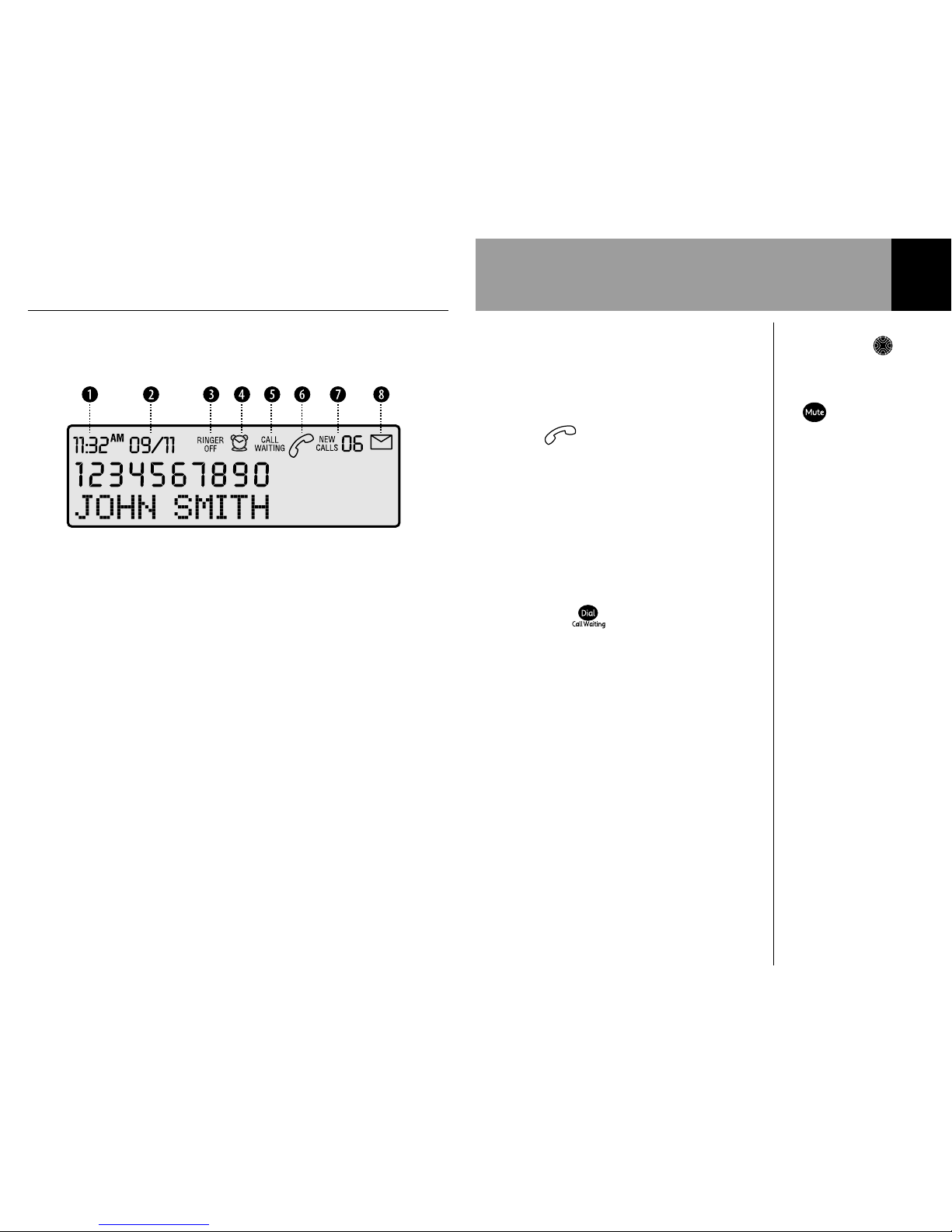
Explanation o display icons
bTime cDate
The time and date can be set
manually, see page 17.
Alternatively, if you have
subscribed to a Calling Number
Display Service, the first call you
receive will automatically update
the time and date. The time and
date will also be displayed in the
calls list to indicate when each call
was received.
dRinger O
This will be displayed to remind
you the ringer is set to off.
eAlarm set
This will be displayed when the
alarm is set to ON.
fCall Waiting
This will flash to indicate you have
a caller waiting. This will also be
displayed in the calls list to
indicate the entry was a waiting
caller.
gPhone in use/Call answered
This will be displayed when the
phone is in use. It will also be
displayed in the calls list to
indicate the call was answered.
hNew unviewed calls in
the calls list
Displays the number of new calls
received since you last viewed the
calls list. It will also display the
total number of calls stored in the
calls list.
iVoice message waiting
This will be displayed to indicate
that you have a voice message.
See page 26.
Using your Telstra T310
9
If there is no number stored in
the redial memory, the
display will show
NO REDIAL.
A redial number can be no
longer than 32 digits.
Redial
To redial the last number called
1. Lift the handset. Press the button.
The last number called is dialled
automatically.
If the button is pressed when the
handset is down, the display will show the
number and REDIAL.
Press the button and the number
will be dialed automatically using
handsfree.
Mute
When on a call you can talk to someone in
the same room, without your caller hearing.
To switch mute on and o
1. During a call press and release the
button. The call indicator light will flash to
show that mute is on.
Your caller will be put on hold and both
you and the caller will hear music until
the button is pressed again. You can
now talk to someone in the room without
your caller hearing you.
The display will flash MUTE to indicate
that mute is on.
2. Press and release the button again to
return to your caller.
Using your Telstra T310 10
You can pick up the handset
at any time if you wish to
speak to your caller privately.
There are 5 levels to choose
from.The display will show
the volume level as you
adjust it. The selected volume
level will remain until
changed.
Hands ree Operation
The handsfree feature allows you to use the
phone without picking up the handset,
giving you more freedom when you are
speaking on the phone. You can hear the
caller’s voice through the in-built speaker.
You can also switch to handsfree mode
during a call by pressing the button
and replacing the handset.
To make a hands ree call
1. Press the button.
The handsfree light will come on and
HANDSFREE will be displayed for 5
seconds. You will hear the dial tone.
2. Dial the telephone number.
3. To end your call, press the button.
To receive a call using hands ree
1. Press the button when the phone
rings.
To change the volume when using
hands ree
You can adjust the speaker volume when
you are on a handsfree call.
1. Press the button. The volume level
will be shown on the display VOLUME
HANDSFREE.
2. Press the button to move up and
down each level.
Using your Telstra T310
11
If the phonebook is full,the
display will show
MEMORY FULL.
If you enter a character or
digit incorrectly you can use
the LEFT or RIGHT arrow
button to move the cursor to
the character and delete it by
pressing the button.
To use the Recall button
You may need to use the RECALL button if
you are connected to a switchboard/PABX,
contact your PABX supplier for further
information.
The button is also used for Telstra
Network Services. For more information on
Telstra’s Network Services call 13 2200.
Phonebook
You can store up to 25 of your most
frequently used names and numbers in the
phonebook.
You can also select a group under which you
want to store the number, e.g.
NORMAL, FAMILY, FRIENDS or VIP. You can
then select a different ring tone for each
group, see ‘To set the ringer tone’, page 15.
To store a name and number in the
Phonebook
1. Press the button.
The display will show ADD ENTRY
2. Press the button again.
The display will show how many entries
are stored already, e.g. ENTRIES: 10.
The display will then show ENTER NAME,
followed by a flashing cursor.
3. Enter the name using the letters on the
keypad.
Entering names:
4. Use the keypad letters to enter names. To
move to the ne t character press the
RIGHT arrow button once. (Ma imum 15
characters.)
Using your Telstra T310 12
You can also select a different
ring tone for each group,see
‘To set the ringer tone’,
page 15.
For e ample, if you wish to store the name
TOM
To enter the letter T, press the button
once.
Press the RIGHT arrow button.
To enter the letter O, press the button
three times.
Press the RIGHT arrow button.
To enter the letter M, press the button
once.
Press the button to confirm the entry.
The display will show ENTER NUMBER
Enter the telephone number you want to
store. (Ma imum 18 digits.)
Press the button to confirm the entry.
The display will show e.g. GROUP:NORMAL
5. Use the LEFT or RIGHT arrow button to
select the ringer tone group you wish to
store your entry in (NORMAL, FAMILY,
FRIENDS or VIP.)
6. Press the button to confirm. The
display will show SAVED and you will hear a
confirmation tone.
The display will show ADD ENTRY
7. Press the button again to store another
entry in the phonebook
Or
Press the button to return to the
normal display.

Using your Telstra T310 14
If the ringer is set to OFF the
display will show RINGER
OFF.
The call indicator light will
still flash to indicate someone
is calling you.
To delete an entry rom the phonebook
1. Press the button.
2. Use the UP or DOWN arrow button to
find the entry you want to delete.
3. Press the button twice.
The display will show DELETE ENTRY?
4. Press the button again to confirm.
The display will show DELETED and you
will hear a confirmation tone.
5. Press the button to return to the
normal display.
To adjust the ringer volume
There are 3 volume levels to choose from:
HIGH, LOW or OFF. The default setting is
HIGH.
1. Press the button.
2. Use the DOWN arrow button to scroll
to RINGER LEVEL
3. Press the button. The display will
show HIGH, LOW, OFF and the current
setting will flash.
4. Use the LEFT or RIGHT arrow button to
select the required level.
5. Press the button to confirm.
The display will show SAVED and you will
hear a confirmation tone.
6. Press the button to return to the
normal display.

Using your Telstra T310
13
To search alphabetically,
press the relevant keypad
number,for e ample to find
TOM,press the button
once and scroll through the
entries under T.
The display will show
END OF LIST if you reach
the end of the phonebook.
You can e it the phonebook
and return to the normal
display by pressing the
button at any time.
To dial a number rom the phonebook
1. Press the button.
2. Use the UP or DOWN arrow button to
find the entry you want to dial.
3. Press the button to dial the number.
The number will be dialed automatically
using handsfree.
You can pick up the handset at anytime if
you wish to speak to your caller privately.
To edit phonebook names and numbers
1. Press the button.
2. Use the UP or DOWN arrow button to
find the entry you want to edit.
3. Press the button to confirm.
4. Use the UP, DOWN, LEFT or RIGHT
arrow buttons to move to the digits or
letters you want to edit. The selected digit
or character will flash.
5. Use the button to delete numbers or
letters and enter new ones using the
numbers/letters on the keypad.
6. Press the button to store the new
entry.
7. Use the LEFT or RIGHT arrow button to
select the ringer tone group, e.g. NORMAL,
FAMILY, FRIENDS or VIP.
8. Press the button.
The display will show SAVED and you will
hear a confirmation tone.
Using your Telstra T310 16
To change the name o a ringer group
You may wish to change the names of the
ringer groups, for e ample you may want to
name one of them WORK if you work from
home. (Ma imum 7 characters.)
1. Press the button.
2. Use the DOWN arrow button to scroll
to RINGER TYPE
3. Press the button.
4. Press the UP or DOWN arrow button to
select the group name you wish to
change.
5. Press and hold the button for 6
seconds. The selected group name is
deleted.
6. Enter a new name using the letters on the
keypad.
7. Press the button twice.
The display will show SAVED and you will
hear a confirmation tone.
Follow these instructions for changing
any of the other ringer group names.
Using your Telstra T310
15
To set the ringer tone
There are 4 ringer tones to choose from: TYPE
1-4. The default setting is TYPE 1.
You can select a different ring tone for each
group in your phonebook so you will have
an indication of who is calling you when the
phone rings, e.g. NORMAL, FRIEND, FAMILY or
VIP.
1. Press the button.
2. Use the DOWN arrow button to scroll
to RINGER TYPE
3. Press the button. The display will
show the ring group and tone, e.g: NORMAL
TYPE 1 You will hear a sample tone.
4. Use the LEFT or RIGHT arrow button to
select the required tone for the ringer
group displayed (TYPE 1-4). You will hear
a sample tone.
5. Press the button to confirm the tone
you want.
The display will show SAVED and you will
hear a confirmation tone.
The display will show the ne t caller
group, e.g: FRIEND TYPE 2
Repeat these instructions to set the ring
tones for the remaining caller groups.
6. Press the button at any time to
return to the normal display.
Using your Telstra T310 18
If the alarm setting is
currently ON,the alarm time
set will be displayed and ON
will flash.
13. Press the button to confirm. The
display will show SAVED and you will hear
a confirmation tone.
14. Press the button to return to the
normal display.
To set the alarm
1. Press the button.
2. Use the DOWN arrow button to scroll to
SET ALARM
3. Press the button. The display will
show ALARM ON OFF
4. Use the LEFT or RIGHT arrow button to
select either ON o OFF
If you select OFF, the display will flash OFF
5. Press the button to confirm. The
display will show SAVED
6. If you select ON, press the button.
ENTER HOUR will be displayed and the
hour digits will flash.
7. Enter the hour (12 hour clock).
8. Press the button to confirm the entry.
ENTER MINUTE will be displayed and the
minute digits will flash.
9. Enter the minutes.
10. Press the button to confirm entry.
The display will flash AM o PM
Using your Telstra T310
17
If you have subscribed to a
Calling Number Display
Service,the first call you
receive will automatically
update the time and date.
Alarm clock
You can use your Telstra T310 telephone as
an alarm clock. You must set the date and
time before the alarm will work.
To set the date and time
1. Press the button.
2. Use the DOWN arrow button to scroll
to SET DATE TIME
3. Press the button. ENTER HOUR will
be displayed and the hour digits will flash.
4. Enter the hour (12 hour clock).
5. Press the button to confirm the
entry. ENTER MINUTE will be displayed
and the minute digits will flash.
6. Enter the minutes.
7. Press the button to confirm the entry.
The display will flash AM o PM
8. Use the LEFT or RIGHT arrow button to
select either AM or PM.
9. Press the button to confirm the entry.
ENTER DAY will be displayed and the day
digits will flash.
10. Enter the day, e.g. 20 for the 20th.
11. Press the button to confirm the
entry. ENTER MONTH will be displayed
and the month digits will flash.
12. Enter the month, e.g. 12 for December.