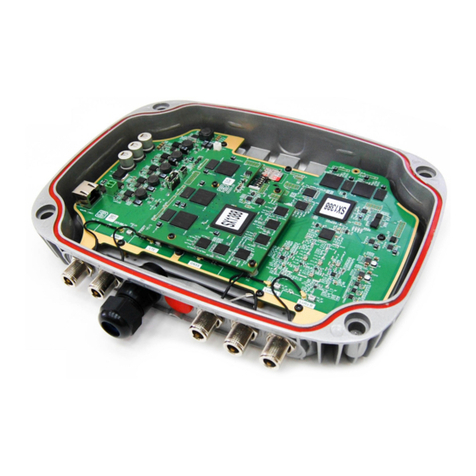
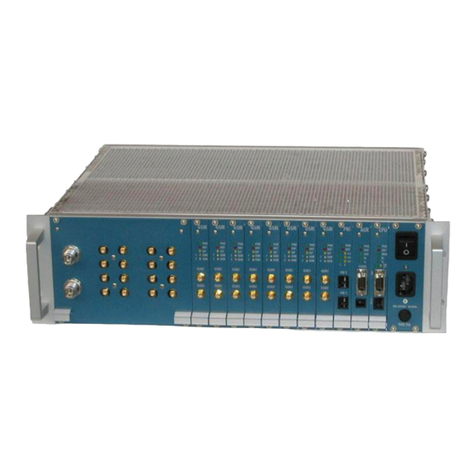
• USB - provides up to 500 mA at 5 VDC for attached devices.
For example, you could charge a cell phone. In the future, with a
firmware upgrade, the USB host functionality may be available for
other devices, such as external storage and cameras.
• Reset Button - allows you to reset your Gateway to the factory
default settings. To reset the Gateway, press and hold the Reset
button for at least three seconds.
• Ethernet LAN - connects devices to your Gateway using Ethernet
cables to join the local area network (LAN). The four Ethernet LAN
ports are 10/100/1000 Mbps auto-sensing and can be used with
either straight-through or crossover Ethernet cables.
• HAN Expansion Port - provides for future hardware upgrades to
add support for Home Area Networking capabilities.
• Ethernet WAN - connects your Gateway to the Internet using an
Ethernet cable.
• MoCA (Coax) WAN and LAN - connects your Gateway to the
Internet and/or to other MoCA devices using a coaxial cable.
Warning: The WAN Coax Port is intended for connection to Verizon FiOS
only. It must not be connected to any exterior or interior coaxial wires not
designated for Verizon FiOS.
• Power - connects your Gateway to an electrical wall outlet using the
supplied power adapter.
Warning: The included power adapter is for home use only, supporting
voltages from 100-240Vac. Do not use in environments with greater than
240Va c.
GETTING TO KNOW
THE GATEWAY
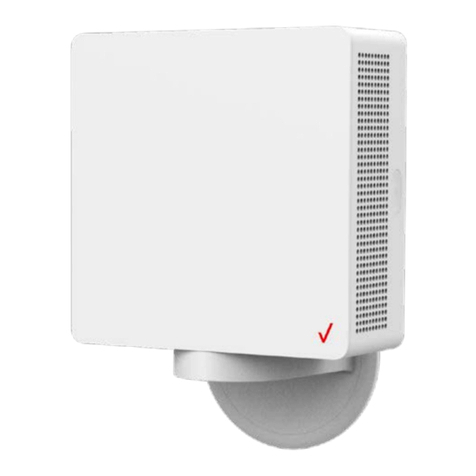
1.3d/ MOUNTING THE GATEWAY TO A WALL
For optimum performance, the FiOS Quantum Gateway is designed to
stand in a vertical upright position. Verizon does not recommend wall
mounting the FiOS Quantum Gateway. However, if you wish to mount
your Gateway, you can purchase a wall mount bracket from the Verizon
FiOS Accessories Store at verizon.com/fiosaccessories.
If you are replacing an existing Verizon wall mounted router, you do
not need to remove the mounting screws from the wall. The existing
mounting screws will fit the new bracket.
To mount your Gateway to a wall:
1. Remove the foot by turning the Gateway upside down
and removing the single screw that holds the foot to the
Gateway.
2. Slide the foot toward the front of the Gateway and pull the
foot from the holes. You may need to wiggle the foot slightly.
3. You may use the wall mount bracket as a template for
positioning the Gateway.
14
01 / INTRODUCTION
verizon.com/fios | ©2014 Verizon. All Rights Reserved.