manuals.online logo
Brands
  1. Home
  2. •
  3. Brands
  4. •
  5. Avaya
  6. •
  7. IP Phone
  8. •
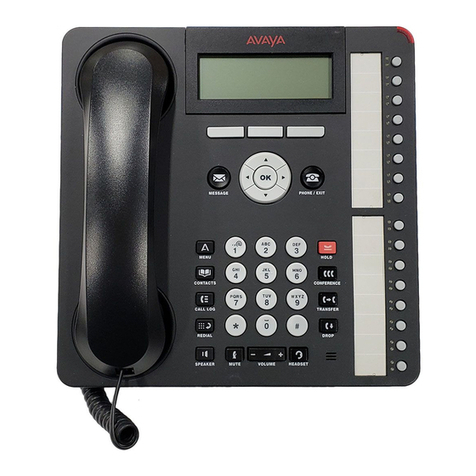
  9. Avaya 1140E User manual

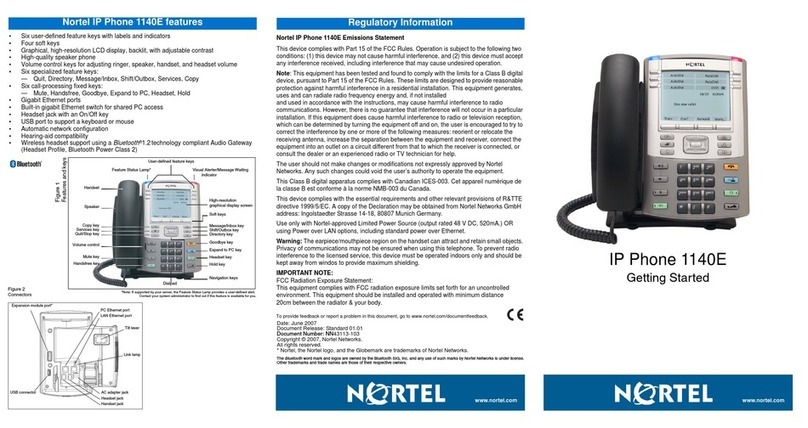
Avaya 1140E User manual

Other manuals for 1140E

10

Other Avaya IP Phone manuals

Avaya E129 Instructions for use

Avaya

Avaya E129 Instructions for use

Avaya 96x1 Series Supplement

Avaya

Avaya 96x1 Series Supplement

Avaya IP Office 9650 User manual

Avaya

Avaya IP Office 9650 User manual

Avaya 1600 Series User manual

Avaya

Avaya 1600 Series User manual

Avaya one-X 9621G User manual

Avaya

Avaya one-X 9621G User manual

Avaya IP OFFICE 2420 User manual

Avaya

Avaya IP OFFICE 2420 User manual

Avaya 4602SW User manual

Avaya

Avaya 4602SW User manual

Avaya 3616 Series Operator's manual

Avaya

Avaya 3616 Series Operator's manual

Avaya IP Office 4600 Series User manual

Avaya

Avaya IP Office 4600 Series User manual

Avaya IP Office 5420 User manual

Avaya

Avaya IP Office 5420 User manual

Avaya IP OFFICE 2410 Setup guide

Avaya

Avaya IP OFFICE 2410 Setup guide

Avaya 1600 Series Service manual

Avaya

Avaya 1600 Series Service manual

Avaya M7208 User manual

Avaya

Avaya M7208 User manual

Avaya 9640G User manual

Avaya

Avaya 9640G User manual

Avaya IP Office 4602 User manual

Avaya

Avaya IP Office 4602 User manual

Avaya 1403 User manual

Avaya

Avaya 1403 User manual

Avaya IP Office 5602 User manual

Avaya

Avaya IP Office 5602 User manual

Avaya FR-33.1 User manual

Avaya

Avaya FR-33.1 User manual

Avaya one-X 9640 User manual

Avaya

Avaya one-X 9640 User manual

Avaya Cloud Office-J159 User manual

Avaya

Avaya Cloud Office-J159 User manual

Avaya 1220 User manual

Avaya

Avaya 1220 User manual

Avaya one-X 9670G User manual

Avaya

Avaya one-X 9670G User manual

Avaya IP Office 4602 User manual

Avaya

Avaya IP Office 4602 User manual

Avaya one-X 4610SW Manual

Avaya

Avaya one-X 4610SW Manual

Popular IP Phone manuals by other brands

Cortelco C62 VoIP Phone user guide

Cortelco

Cortelco C62 VoIP Phone user guide

VanillaIP Polycom IP300 user manual

VanillaIP

VanillaIP Polycom IP300 user manual

Yealink Yealink SIP-T22P Quick installation guide

Yealink

Yealink Yealink SIP-T22P Quick installation guide

Viking SR-IP product manual

Viking

Viking SR-IP product manual

Yealink VP59 Teams user guide

Yealink

Yealink VP59 Teams user guide

Panasonic KX-UT133-B Administrator's guide

Panasonic

Panasonic KX-UT133-B Administrator's guide

AVA Enterprises B179 Installation and administration guide

AVA Enterprises

AVA Enterprises B179 Installation and administration guide

Cisco Unified 7900 Series System guide

Cisco

Cisco Unified 7900 Series System guide

Polycom SoundPoint IP 450 datasheet

Polycom

Polycom SoundPoint IP 450 datasheet

Cisco SPA-500 Series user guide

Cisco

Cisco SPA-500 Series user guide

IPitomy IP290 user manual

IPitomy

IPitomy IP290 user manual

Polycom SoundPoint IP 650 user guide

Polycom

Polycom SoundPoint IP 650 user guide

Proximus Maestro 3016 IP quick start guide

Proximus

Proximus Maestro 3016 IP quick start guide

Polycom IP 450 user guide

Polycom

Polycom IP 450 user guide

Fanvil X4 user manual

Fanvil

Fanvil X4 user manual

Snom 320 quick start guide

Snom

Snom 320 quick start guide

Yealink Yealink SIP-T46G Guide

Yealink

Yealink Yealink SIP-T46G Guide

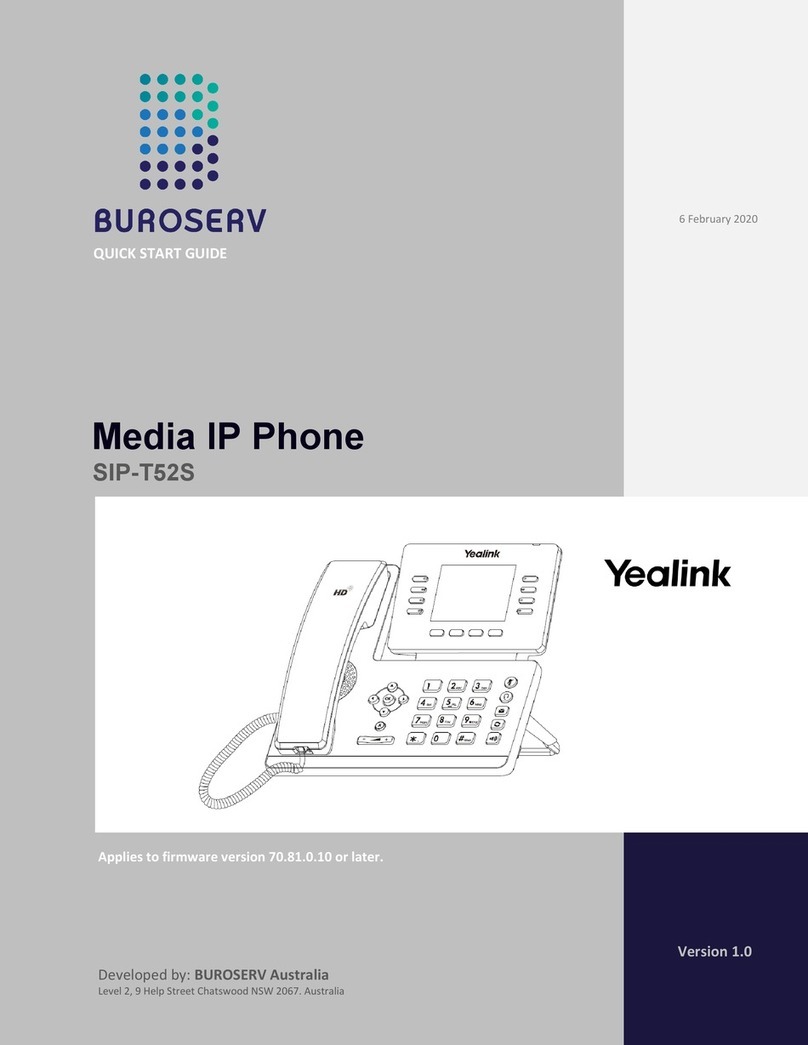
Yealink SIP-T52S quick start guide

Yealink

Yealink SIP-T52S quick start guide

manuals.online logo
manuals.online logoBrands
  • About & Mission
  • Contact us
  • Privacy Policy
  • Terms and Conditions

Copyright 2025 Manuals.Online. All Rights Reserved.

Avaya 1140E IP Deskphone features Regulatory Information
Date: May 2011
Document Release: Standard 02.02
Document Number: NN43113-103
Copyright © 2011 Avaya Inc.
All rights reserved.
The Bluetooth word mark and logos are owned by the Bluetooth SIG, Inc. and any use of such marks by Avaya is under
license.
Other trademarks and trade names are those of their respective owners.
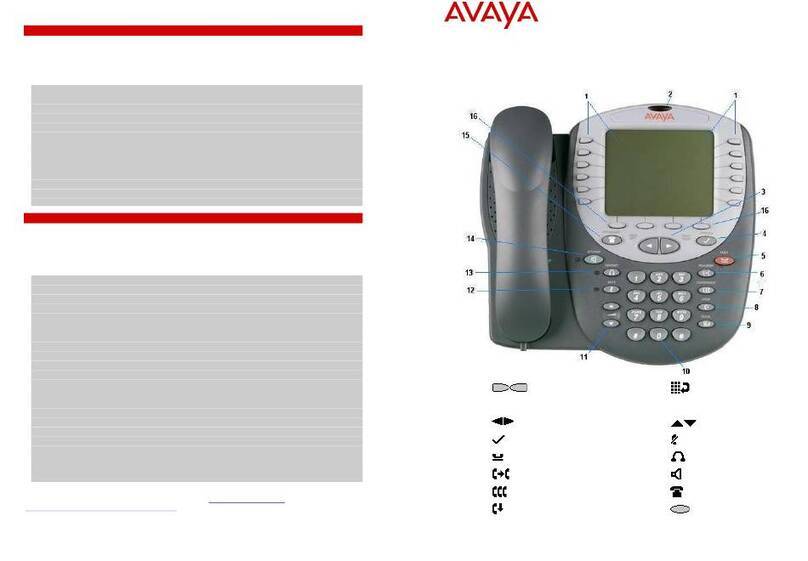
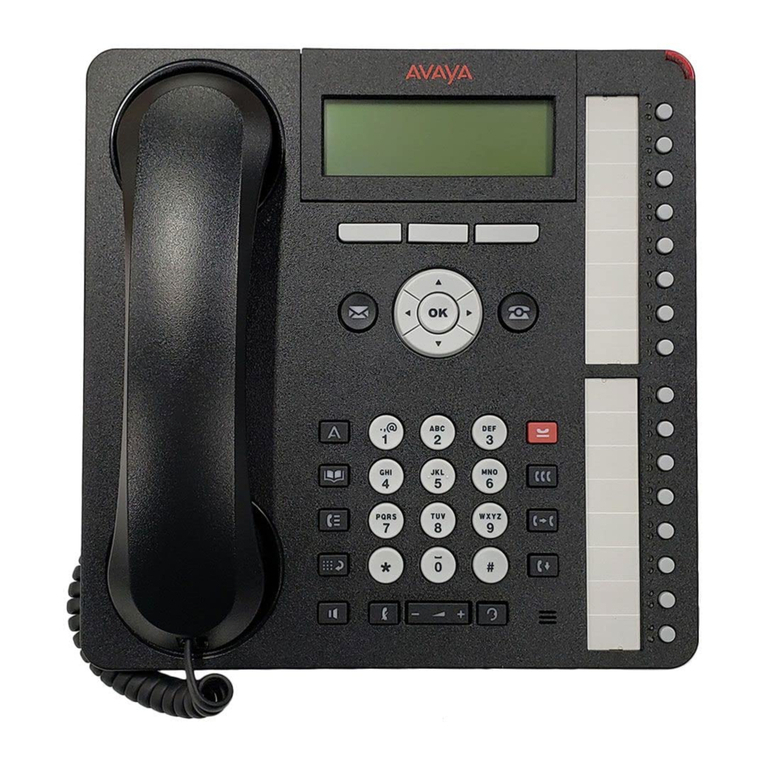
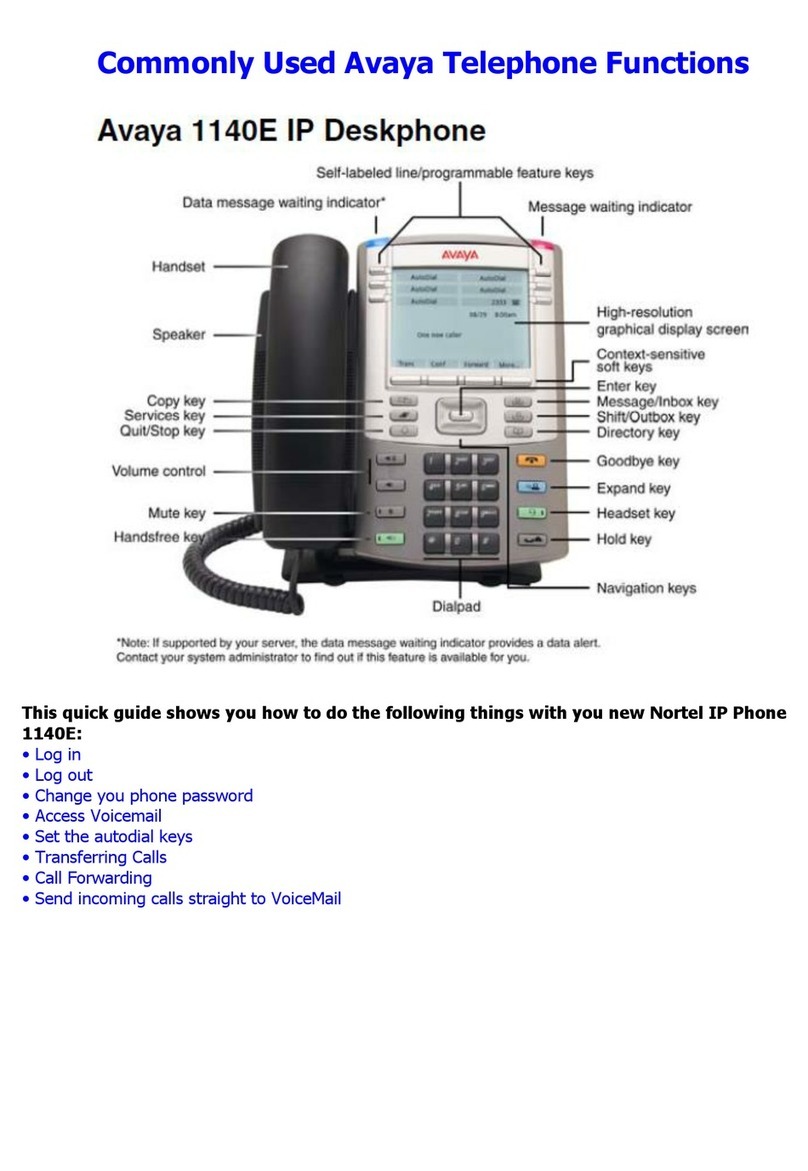
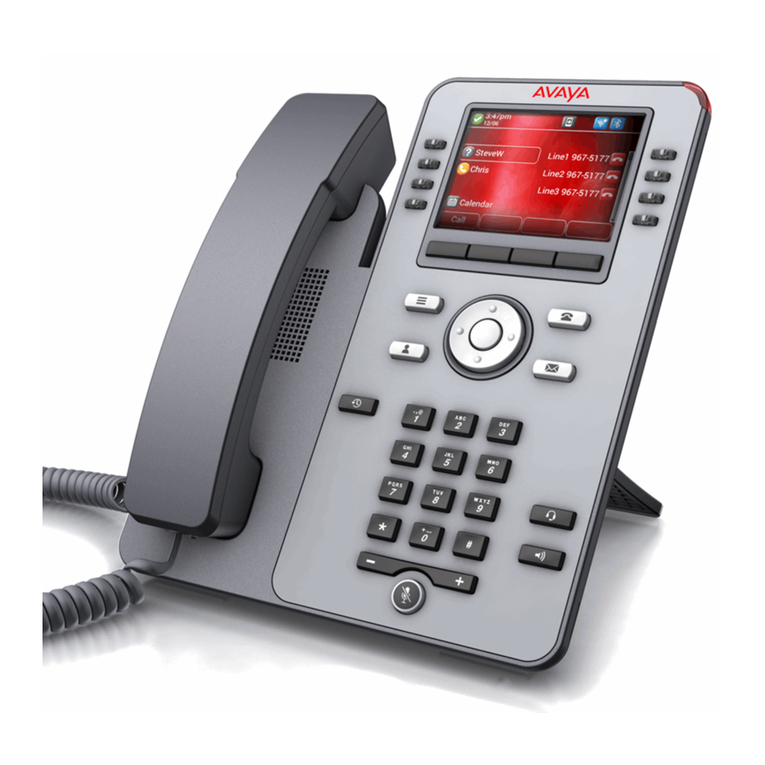
• Six user-defined feature keys with labels and indicators
• Four soft keys
• Graphical, high-resolution LCD display, backlit, with adjustable contrast
• High-quality speaker phone
• Volume control keys for adjusting ringer, speaker, handset, and headset volume
• Six specialized feature keys:
— Quit, Directory, Message/Inbox, Shift/Outbox, Services, Copy
• Six call-processing fixed keys:
— Mute, Handsfree, Goodbye, Expand to PC, Headset, Hold
• Gigabit Ethernet ports
• Built-in Gigabit Ethernet switch for shared PC access
• Headset jack with an On/Off key
• USB port to support a keyboard or mouse
• Automatic network configuration
• Hearing-aid compatibility
• Wireless headset support using a Bluetooth®1.2 technology compliant Audio Gateway
(Headset Profile, Bluetooth Power Class 2)
*Note: If supported by your server, the Feature Status Lamp provides a user-defined alert. Contact your
system administrator to find out if this feature is available for you.
Avaya 1140E IP Deskphone Emissions Statement
This device complies with Part 15 of the FCC Rules. Operation is subject to the following two conditions:
(1) this device may not cause harmful interference, and (2) this device must accept any interference
received, including interference that may cause undesired operation.
Note: This equipment has been tested and found to comply with the limits for a Class B digital device,
pursuant to Part 15 of the FCC Rules. These limits are designed to provide reasonable protection against
harmful interference in a residential installation. This equipment generates, uses and can radiate radio
frequency energy and, if not installed and used in accordance with the instructions, may cause harmful
interference to radio communications. However, there is no guarantee that interference will not occur in a
particular installation. If this equipment does cause harmful interference to radio or television reception,
which can be determined by turning the equipment off and on, the user is encouraged to try to correct the
interference by one or more of the following measures: reorient or relocate the receiving antenna,
increase the separation between the equipment and receiver, connect the equipment into an outlet on a
circuit different from that to which the receiver is connected, or consult the dealer or an experienced radio
or TV technician for help.
The user should not make changes or modifications not expressly approved by Avaya. Any such changes
could void the user’s authority to operate the equipment.
This Class B digital apparatus complies with Canadian ICES-003. Cet appareil numérique de la classe B
est conforme à la norme NMB-003 du Canada.
This device complies with the essential requirements and other relevant provisions of R&TTE directive
1999/5/EC. A copy of the Declaration may be obtained from http://support.avaya.com/css/
appmanager/public/support or Avaya Inc., 211 Mt. Airy Road, Basking Ridge, NJ 07920 USA.
Use only with Avaya-approved Limited Power Source (output rated 48 V DC, 380mA or 520mA) OR using
Power over LAN options, including standard power over Ethernet.
Warning: The earpiece/mouthpiece region on the handset can attract and retain small objects. Privacy of
communications may not be ensured when using this telephone. To prevent radio interference to the
licensed service, this device must be operated indoors only and should be kept away from windows to
provide maximum shielding.
IMPORTANT NOTE:
FCC Radiation Exposure Statement: This equipment complies with FCC radiation exposure limits set forth
for an uncontrolled environment. This equipment should be installed and operated with minimum distance
20cm between the radiator & your body. Avaya 1140E IP Deskphone
Getting Started
Figure 1
Features and keys
Figure 2
Connectors
Avaya 1140E IP Deskphone installation Avaya 1140E IP Deskphone installation Avaya 1140E IP Deskphone installation and controls
Step 1: Remove the stand cover. Pull upward on the center catch as indicated in Figure 3,
and remove the stand cover. The cable routing tracks are now accessible.
Step 2: Connect the AC power adapter (optional). Connect the adapter to the AC adapter
jack in the bottom of the phone. Form a small bend in the cable, and then thread the adapter
cord through the channels in the stand.
Warning: To use local AC power, use only the Avaya-approved Global Power Supply
(NTYS17xxE6) for this model of phone.
Note 1: Your Avaya 1140E IP Deskphone supports AC power or Power over Ethernet (PoE),
including IEEE 802.3af standard power. To use local AC power, the optional AC adapter can
be ordered separately. To use PoE, where power is delivered over the CAT5e cable, your
connected LAN must support Power over Ethernet. If you use PoE, you do not require an AC
adapter.
Note 2: You must use CAT5e (or later) cables if you want to use gigabit Ethernet.
Step 3: Install the handset. Connect the end of the handset cable with the short straight
section into the handset. Connect the end of the handset cable with the long straight section to
the back of the phone, using the RJ-9 handset jack marked with the symbol + . Form a small
bend in the cable, and then thread the handset cord through the channels in the stand so that
it exits behind the handset on the right side, in the Handset cord exit marked with the symbol
+ in the stand base, as shown in Figure 3.
Step 4: Install the headset (optional). If you are installing a headset, plug the connector into
the RJ-9 headset jack marked with the symbol ) on the back of the phone, and thread the
headset cord along with the handset cord through the channels in the stand, so that the
headset cord exits the channel marked with the symbol ) .
Step 5: Install the Ethernet cable. Connect one end of the supplied Ethernet cable to the
back of your phone using the RJ-45 connector marked with the symbol % . Thread the
network cable through the channel marked with the symbol % .
Step 6: Install the Ethernet cable connecting the PC to the phone (optional). If you are
connecting your PC to the network through the phone, connect one end of the PC Ethernet
cable to your phone using the RJ-45 connector marked with the symbol ( , and thread it
through the channel marked with the symbol ( . Connect the other end to the LAN connector
on the back of your PC.
Step 7: Install additional cables. If applicable, plug in optional USB devices. Connect the
Ethernet cable to the LAN Ethernet connection. If you are using an AC power adapter, plug the
adapter into an AC outlet.
Step 8: Wall-mount your phone (optional). Your Avaya 1140E IP Deskphone can be
mounted either by: (Method A) using the mounting holes on the bottom of the phone stand, or
(Method B) using a traditional style wall-mount box with RJ-45 connector and 15-cm (6-inch)
CAT5e cable (not provided).
Complete steps 1-7, as needed, before you wall-mount your phone:
Method A: Press the wall-mount lever, and pull the phone away from the stand, as shown in
Figure 5. Using the stand cover (the part you removed in step 1), mark the wall-mount holes
by pressing the bottom of the stand cover firmly against the wall in the location where you wish
to install the phone. Four small pins on the bottom of the stand cover make marks on the wall.
Use the marks as a guideline for installing the wall-mount screws (not provided).
Install the screws so that they protrude 3 mm (1/8 inch) from the wall, then install the phone
stand mounting holes over the screw heads as indicated in Figure 4 (Method A). You may
need to remove the phone from the wall to adjust the lower screws. When the lower screws
are snug, install the phone on the mounting screws, and tighten the top screws.
Due to the wide variety of materials and construction techniques, the user is advised to select
an appropriate fastener and/or anchor type for the wall. Please consult your local hardware
store or other expert for assistance in selecting the correct fastener for your application.
Method B: Attach the 15-cm (6-inch) CAT5e cable (not provided), position the stand over the
mounting rivets, and slide the phone down the wall so that the rivets fit into the slots on the
stand, indicated in Figure 4 (Method B).
Step 9: Replace the stand cover. Ensure that all cables are neatly routed and press the
stand cover into place until you hear a click.
Step 10: Put the phone in the wall-mount position (optional). If you wall-mounted your
phone, put it in the wall-mount position by holding the Tilt lever and pressing the phone
towards the base until the phone is parallel with the base. Release the Tilt lever and continue
to push the phone towards the base until you hear an audible click. Ensure the phone is
securely locked in position.
Avaya 1140E IP Deskphone controls:
Controlling volume
Press the up or down volume control key while using your handset, headset, or speaker to adjust the
volume of the associated device.
Answering a call
Lift the handset to answer a ringing call, or press the Handsfree or Headset key.
Making a call with the handset
To make a call using the primary line, lift the handset and enter the phone number on the dialpad. If your
phone is programmed with several line keys, press a line key to select a line before calling. When your call
is complete, press the Goodbye key or return the handset to the cradle.
Making a call with the headset or using Handsfree
Press the Headset or Handsfree key. Enter the phone number. When your call is complete, press the
Goodbye key.
Using Hold and Mute
While on a call, press the Hold key to place your caller on hold. Press the line key to retrieve your call.
The icons next to the line keys indicate held lines, while the Mute LED lights when Mute is active. Press
the Mute key to mute your handset, headset, or speaker, allowing you to speak privately. Press the Mute
key again to speak with your caller.
Setting the contrast
To adjust the display contrast, press the Services key, select Telephone Options, and select Contrast
Adjustment. Use the up/down arrow keys or up/down soft keys to change the setting.
Setting the language
To select the language used by the local menus, press the Services key twice quickly to open the local
menu. Select 1. Preferences, select 2. Language, and use the up/down arrow keys to choose the
language.
Note: Use the Telephone Options menu to select the language used by call-server features. Consult the
Avaya 1140E IP Deskphone User Guide NN43113-106 for more information.

Figure 3
Removing the stand
Figure 4
Cable routing tracks
Figure 5
Rotate the phone until the phone body is
parallel to the stand.
Caution: Your Avaya 1140E IP Deskphone is shipped with the base locked in
position. To avoid damaging your phone, press the wall-mount lever, located just
under the Handsfree key as indicated in Figure 5, to release the base and pull it.