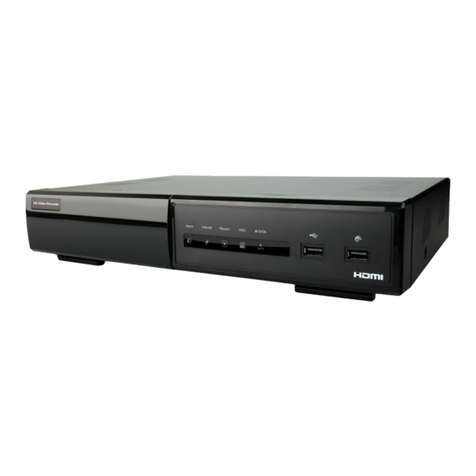
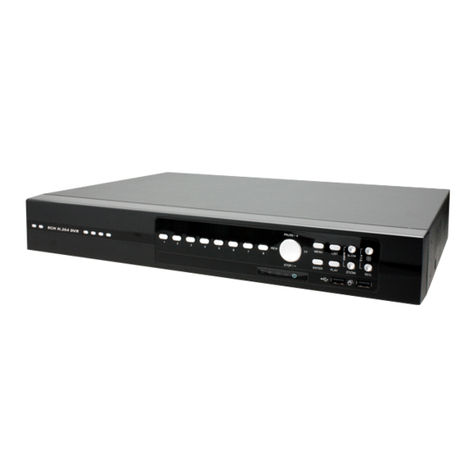
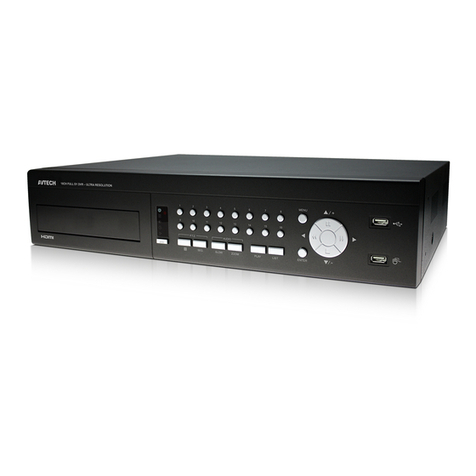
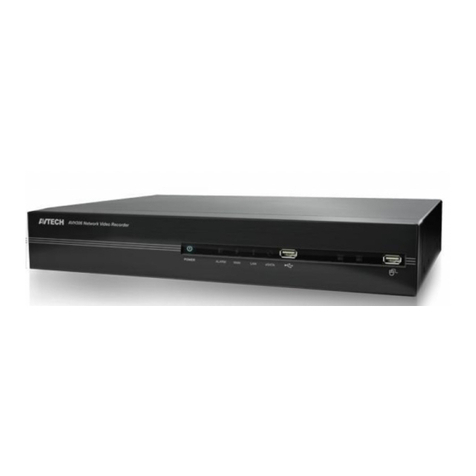
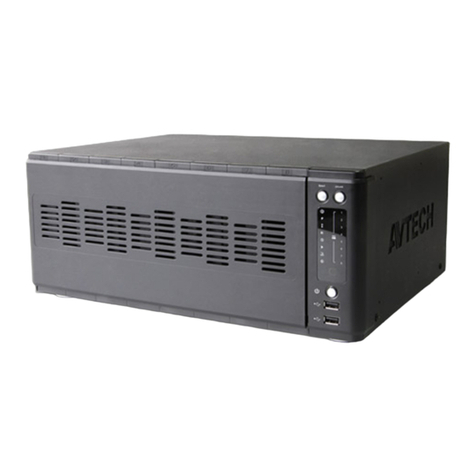
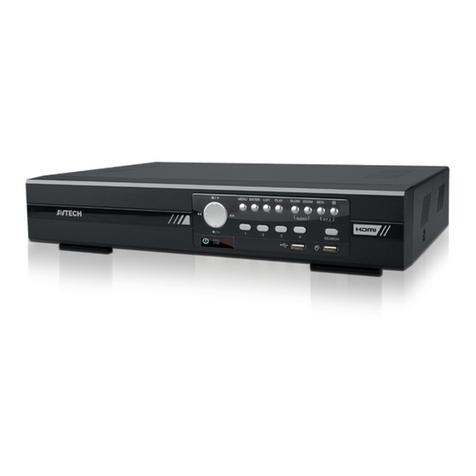
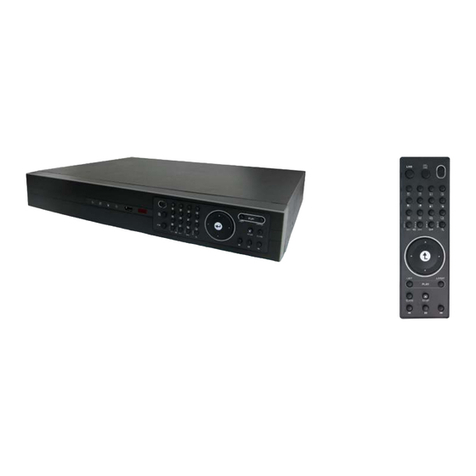
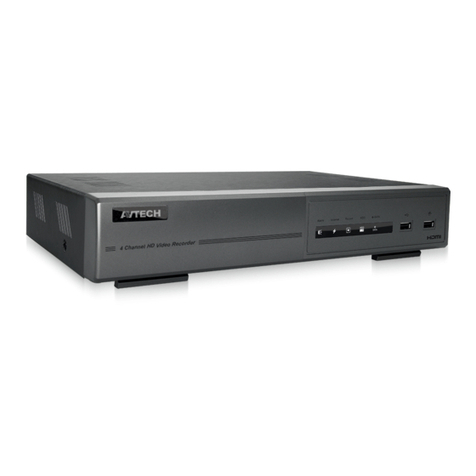
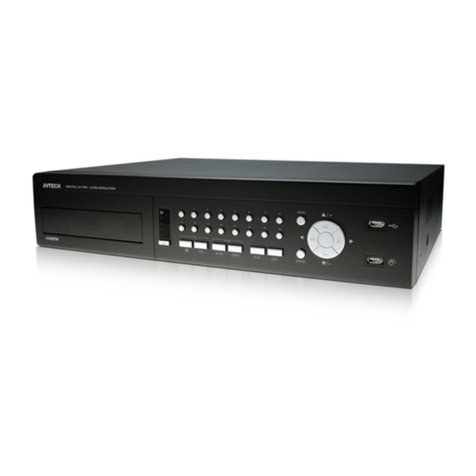
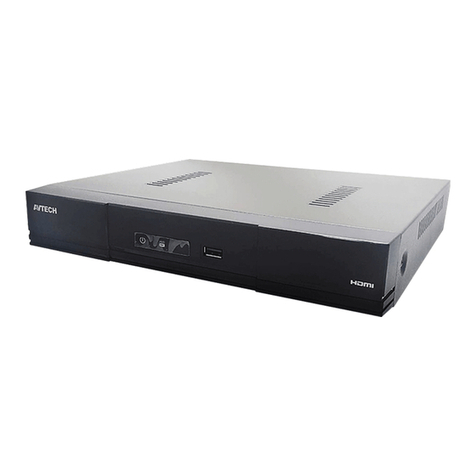
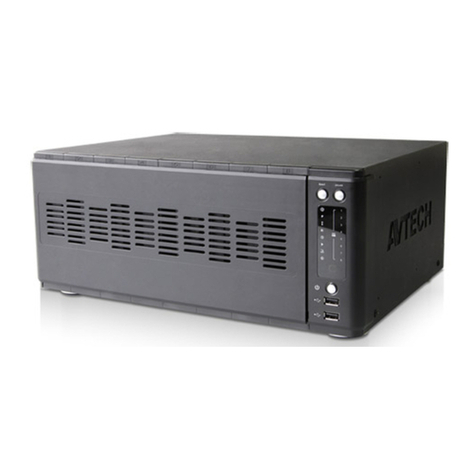
Avtech AVH408P Operating instructions

0401_304a_504p_0801_408P_504_408_516a_316_315_manual_V1.4
HD VIDEO RECORDER
SERIES
User Manual
Please read instructions thoroughly before operation and retain it for future reference.
Online manual download: www.surveillance-download.com/user/h0401.swf

IMPORTANT SAFEGUARD
All lead-free products offered by the company comply with the requirements of the
European law on the Restriction of Hazardous Substances (RoHS) directive, which means
our manufacture processes and products are strictly “lead-free” and without the hazardous
substances cited in the directive.
The crossed-out wheeled bin mark symbolizes that within the European Union the product
must be collected separately at the product end-of-life. This applies to your product and
any peripherals marked with this symbol. Do not dispose of these products as unsorted
municipal waste. Contact your local dealer for procedures for recycling this equipment.
This is a class A product. In a domestic environment this product may cause radio
interference in which case the user may be required to take adequate measures.
Federal Communications Commission Interference Statement
This equipment has been tested and found to comply with the limits for a Class A digital device, pursuant to
Part 15 of the FCC Rules. These limits are designed to provide reasonable protection against harmful
interference when the equipment is operated in a commercial environment. This equipment generates, uses,
and can radiate radio frequency energy and, if not installed and used in accordance with the instruction
manual, may cause harmful interference to radio communications. Operation of this equipment in a residential
area is likely to cause harmful interference in which case the user will be required to correct the interference at
his own expense.
This device complies with Part 15 of the FCC Rules. Operation is subject to the following two conditions:
(1) This device mat not cause harmful interference, and
(2) This device must accept any interference received, including interference that may cause undesired
operation.
Disclaimer
iPad and iPhone are trademarks of Apple Inc., registered in the U.S. and other countries. App Store is a
service mark of Apple Inc.
IOS is a trademark or registered trademark of Cisco in the U.S. and other countries and is used under license.
Google Play and Android are trademarks of Google Inc
We reserve the right to revise or remove any content in this manual at any time. We do not warrant or assume
any legal liability or responsibility for the accuracy, completeness, or usefulness of this manual. The content of
this manual is subject to change without notice.
This product doesn’t have a standby / off mode.

MPEG4 Licensing
THIS PRODUCT IS LICENSED UNDER THE MPEG4 VISUAL PATENT PORTFOLIO LICENSE FOR THE
PERSONAL AND NON-COMMERCIAL USE OF A CONSUMER FOR (i) ENCODING VIDEO IN
COMPLIANCE WITH THE MPEG4 VISUAL STANDARD (“MPEG-4 VIDEO”) AND/OR (ii) DECODING
MPEG4 VIDEO THAT WAS ENCODED BY A CONSUMER ENGAGED IN A PERSONAL AND
NON-COMMERCIAL ACTIVITY AND/OR WAS OBTAINED FROM A VIDEO PROVIDER LICENSED BY
MPEG LA TO PROVIDE MPEG4 VIDEO. NO LICENSE IS GRANTED OR SHALL BE IMPLIED FOR ANY
OTHER USE. ADDITIONAL INFORMATION INCLUDING THAT RELATING TO PROMOTIONAL INTERNAL
AND COMMERCIAL USES AND LICENSING MAY BE OBTAINED FROM MPEG LA, LLC. SEE
HTTP://WWW.MPEGLA.COM.
GPL Licensing
This product contains codes which are developed by Third-Party-Companies and which
are subject to the GNU General Public License (“GPL”) or the GNU Lesser Public License
(“LGPL”).
The GPL Code used in this product is released without warranty and is subject to the
copyright of the corresponding author.
Further source codes which are subject to the GPL-licenses are available upon request.
We are pleased to provide our modifications to the Linux Kernel, as well as a few new
commands, and some tools to get you into the code. The codes are provided on the FTP
site, and please download them from the following site or you can refer to your distributor:
http://download.dvrtw.com.tw/GPL/NVR/T-Series/linux.tar.gz

TABLE OF CONTENTS
1. HARDWARE OVERVIEW................................................................................................................... 1
1.1 Front Panel................................................................................................................................................ 1
1.2 Rear Panel ................................................................................................................................................1
2. CONNECTION.................................................................................................................................... 3
2.1 Hard Disk Installation ................................................................................................................................3
2.2 Camera IP Configurations by LAN ............................................................................................................6
2.2.1 AUTO Mode......................................................................................................................................................6
2.2.2 Static / DHCP Mode .........................................................................................................................................9
2.3 Manual Connection Setup.........................................................................................................................9
3. USER INTERFACE........................................................................................................................... 10
3.1 Local Access ........................................................................................................................................... 10
3.2 Local........................................................................................................................................................ 10
3.2.1 Device Status .................................................................................................................................................10
3.2.2 Channel Status...............................................................................................................................................10
3.2.3 Quick Operation .............................................................................................................................................11
3.2.4 Main Menu......................................................................................................................................................11
3.2.5 Playback Panel...............................................................................................................................................11
4. FREQUENTLY-USED FUNCTIONS ................................................................................................. 12
4.1 Key Lock / Unlock....................................................................................................................................12
4.2 IP Device Search.....................................................................................................................................12
4.3 User Level Creation.................................................................................................................................13
4.4 PTZ Control (1CH mode) ........................................................................................................................ 14
4.5 Event Search........................................................................................................................................... 15
4.6 Video Backup .......................................................................................................................................... 16
4.7 Video Playback on PC.............................................................................................................................16
4.7.1 Convert the file format to AVI .........................................................................................................................17
5. MAIN MENU ..................................................................................................................................... 18
5.1 QUICK START ........................................................................................................................................ 18
5.1.1 GENERAL ......................................................................................................................................................18
5.1.2 TIME SETUP..................................................................................................................................................20
5.1.3 SIMULATION..................................................................................................................................................20
5.2 SYSTEM.................................................................................................................................................. 21
5.2.1 ACCOUNT......................................................................................................................................................21
5.2.2 TOOLS ...........................................................................................................................................................21
5.2.3 SYSTEM INFO...............................................................................................................................................22
5.2.4 BACKUP SCHEDULE....................................................................................................................................23
5.2.5 ONLINE..........................................................................................................................................................24
5.2.6 REGULAR REPORT......................................................................................................................................24
5.3 EVENT INFORMATION .......................................................................................................................... 25
5.3.1 QUICK SEARCH............................................................................................................................................25
5.3.2 EVENT SEARCH ...........................................................................................................................................26
5.3.3 HDD INFO......................................................................................................................................................26
5.3.4 EVENT LOG...................................................................................................................................................26
5.4 ADVANCED CONFIG.............................................................................................................................. 27
5.4.1 CONNECTION ...............................................................................................................................................27
5.4.2 CAMERA........................................................................................................................................................28
5.4.3 DETECTION...................................................................................................................................................29

5.4.4 ALERT ............................................................................................................................................................29

5.4.5 NETWORK.....................................................................................................................................................30
5.4.6 DISPLAY ........................................................................................................................................................32
5.4.7 RECORD........................................................................................................................................................33
5.4.8 NOTIFY ..........................................................................................................................................................34
5.4.9 PSE ................................................................................................................................................................37

5.4.10 MULTICASTING...........................................................................................................................................37
5.5 SCHEDULE SETTING ............................................................................................................................38
5.5.1 RECORD........................................................................................................................................................38
5.5.2 EVENT ...........................................................................................................................................................38
APPENDIX 1 COMPATIBLE USB FLASH DRIVE LIST........................................................................ 39
APPENDIX 2 COMPATIBLE HARD DISK LIST .................................................................................... 40
APPENDIX 3 BATTERY REPLACEMENT............................................................................................ 41
APPENDIX 4 MOBILE SURVEILLANCE VIA EAGLEEYES ................................................................. 42
A4.1 Prerequisites ......................................................................................................................................... 42
A4.2 Where to download...............................................................................................................................42
APPENDIX 5 SET PUSH VIDEO.......................................................................................................... 43
A5.1 Prerequisite........................................................................................................................................... 43
A5.2 Enable Push Video ...............................................................................................................................44
A5.2.1 From iOS®Mobile Device (iPhone®/ iPad®)................................................................................................44
A5.2.2 From Android™ Mobile Device ....................................................................................................................44
APPENDIX 6 PRODUCT SPECIFICATIONS........................................................................................ 45
APPENDIX 7 DISK ARRAY COMPATIBLE LIST................................................................................... 50

HARDWARE OVERVIEW
1
1. HARDWARE OVERVIEW
1.1 Front Panel
Note: The functions on the front panel and rear panel may vary, depending on the mode you have.
1) LED indicators
Alarm or An alarm event occurs.
Internet or The device is connected to Internet.
e-SATA An external disk array is connected.
* This device is power-supplied.
*This device is connected to LAN.
Record* Recording is on.
HDD* Hard disks are installed in the device and connected well.
* For Selected models only
2) USB port ( )
Insert a compatible USB flash drive for video backup.
Note: For the compatible list of USB flash drives, please refer to “APPENDIX 1 COMPATIBLE USB FLASH
DRIVE LIST” at page 39.
3) Mouse port ( )
Insert a mouse for function operation.
1.2 Rear Panel
1) eSATA
This port is used to connect a storage device supporting eSATA interface; for instance, an external disk array.
Note: Please purchase a disk array supporting Linux system to ensure your device works properly. For
the compatible list, please refer to “APPENDIX 7 DISK ARRAY COMPATIBLE LIST” at page 48.
Note: If the disk array is not connected or detected well, check the mode of your disk array, or do a
reset default on your disk array and try again.
2) HDMI
This port is used to connect the monitor which supports HDMI interface.
Note: Direct connection to the monitor, which supports VGA or composite interface, is not supported.
Please prepare a converter in advance.
3) VGA (for selected models only)
This port is used to connect the monitor which supports VGA interface.
4) WAN (or INTERNET)
This port is used to connect your device to Internet.
5) DC IN
Connect the device to power with the regulated adapter.
6) (Power switch)
Switch to “–” to turn on the power, and “” to turn off the power.
7) AUDIO OUT (for selected models only)
Connect to a speaker.

HARDWARE OVERVIEW
2
8) Video Input (w/PoN) (for selected models only)
They are used to connect IP cameras locally. This device supports PoN (power-over-network), which could
provide power to all connected cameras. No power adapters are needed for cameras.
9) Video Input (w/PoE) (for selected models only)
They are used to connect IP cameras locally. This device supports PoE (power-over-ethernet), which could
provide power to all connected cameras. No power adapters are needed for cameras.
1) LAN (for selected models only)
This port is used to connect IP cameras to this device with a hub (if necessary) locally.
10) EXTERNAL I/O (for selected models only)
Insert the supplied external I/O block, and users are able to connect external devices.

CONNECTION
3
2. CONNECTION
2.1 Hard Disk Installation
A hard disk is necessary for the recorder to save video footage, and firmware upgrade might be failed if there’s no
hard disk installed in this recorder.
Note: Here takes a 16CH model as an example of how to connect a hard disk to your device.
Step1: Remove the top cover, and find the hard disk connector and bracket in the device.
CR2032
Bracket
Hard Disk
Connector
Bracket
Screws
Step2: Get a compatible hard disk. With the PCB side facing down, insert the hard disk to one of the hard disk
connector.
Note: To use a green hard disk, use ONLY the hard disk designed especially for surveillance to ensure
the device works properly.
CR2032
HardDisk

CONNECTION
4
Step3: Fasten the hard disk to the bracket by securing the screws on the bracket.
CR2032
Hard
Disk
Screws
Secured
Note: For the 16CH model, you may purchase a bracket accessory separately to install two more hard
disks in this device.
Step4: Replace the top cover and fasten the screws you loosened in Step1.
Type 2
Note: It’s necessary to install a hard disk first before firmware upgrade to ensure the upgrade process
works properly.
Step1: Remove the top cover, and find the hard disk connector and bracket in the device.
hddpower& sataport
hddbracket
hddbracket

CONNECTION
5
Step2: Get a compatible hard disk. With the PCB side facing down, align the hard disk with the hard disk power &
sata port, and insert the hard disk.
Note: To use a green hard disk, use ONLY the hard disk designed especially for surveillance to ensure
the device works properly.
Step3: Fasten the hard disk to the bracket by securing the screws on the bracket.
Note: You may find screws in the sales package.
harddisk
Step4: Replace the top cover and fasten the screws you loosened in Step1.
Table of contents
Other Avtech DVR manuals

Avtech
Avtech DGD1017A User manual

Avtech
Avtech PVR16 User manual

Avtech
Avtech DG10 Series User manual

Avtech
Avtech IC-AVH1109 User manual

Avtech
Avtech AVC796 User manual

Avtech
Avtech AVC 760 Setup guide

Avtech
Avtech AVH306 User manual

Avtech
Avtech avh-312 User manual

Avtech
Avtech AVC794 User manual

Avtech
Avtech AVC700 User manual

Avtech
Avtech AVC796 User manual

Avtech
Avtech DR163Z User manual

Avtech
Avtech AVH316 User manual

Avtech
Avtech DG1015 User manual

Avtech
Avtech DR163 User manual

Avtech
Avtech AVC-793 User manual

Avtech
Avtech AVH304 User manual

Avtech
Avtech DG1648 Assembly instructions

Avtech
Avtech AVH364 User manual

Avtech
Avtech AVC798 User manual