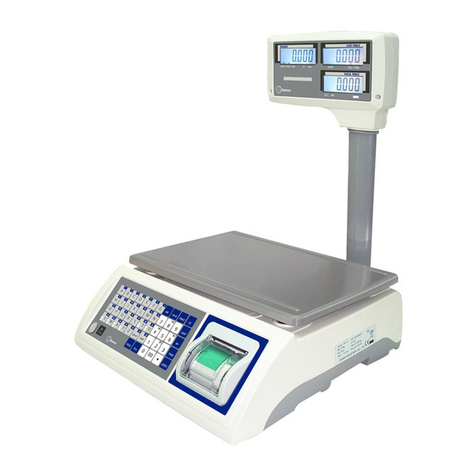
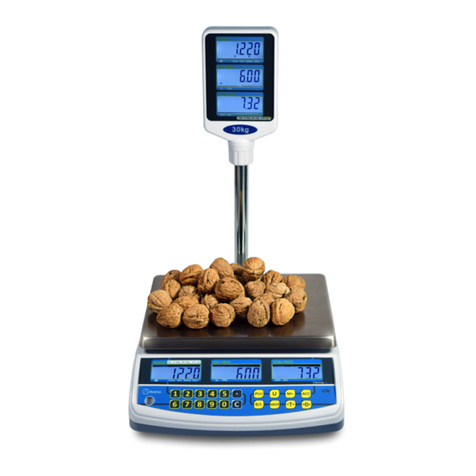
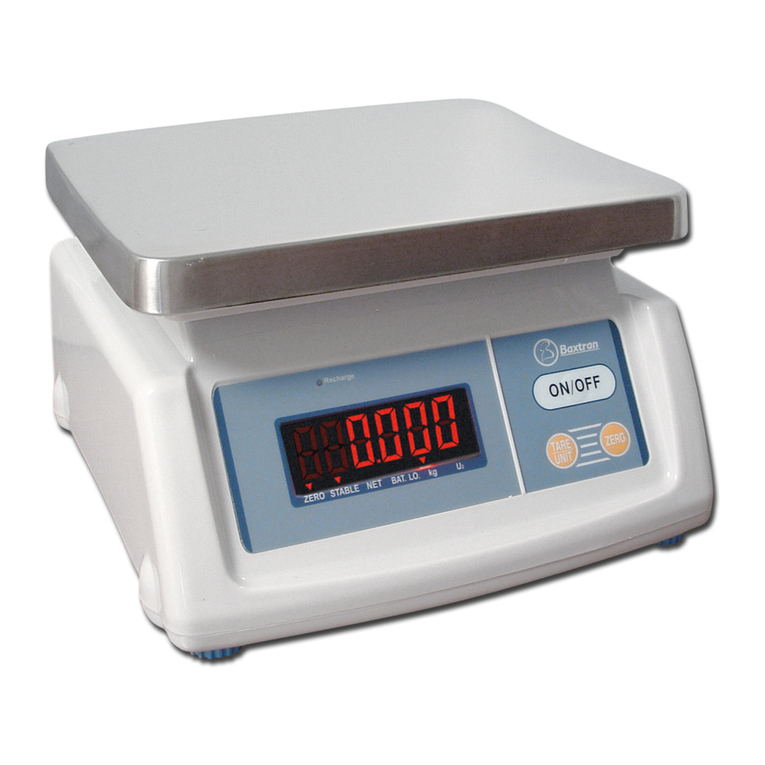
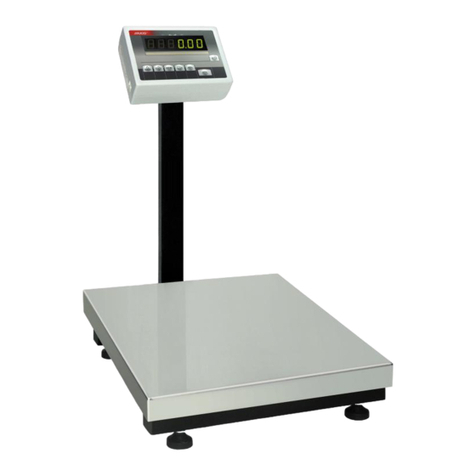
Baxtran CWP User manual

CWP
Bench scale
USER’S MANUAL

2
1. Main data
2. Main features
3. Structure
4. Operation keys instruction
5. Digit input
6. RS-232 output and printing
7. Power-on operation
8. Two weighing modes switching
9. Basic weighing mode
10. Setup in check weighing mode
11. Display in check weighing mode
12. Backlight selecting
13. Auto rectifying
14. Storage battery maintaining
15. Use guide
16. Data setting and calibrating
3
3
4
6
7
7
9
9
9
9
11
12
12
12
13
13
CONTENTS
USER’S MANUAL CWP. Bench scale
Disclaimer
We’ve been tried to provide complete and accurate information in this manual, however,
we make no representations and warranties with respect to the contents of this manual,
and reserve the right to make change to our products and manual without notice.

3
2.1 Indicator enclosure: all stainless steel
2.2 Indicator display angle adjustable (≥ 90º)
2.3 Mount style: table and wall
2.4 IP66
2.5 Two operation modes: weighing and check weighing
2.6 Complete keyboard calibration
2.7 Auto rectifying
2.8 Zero position auto tracking
2.9 Digit filtering
2.10 Full range tare
2.11 Overload indicating
2.12 Three-point (over, accept, under) indicating
2.13 Target-value weight weighing
2.14 Two setup modes of check weighing
a. Weight value input mode
b. Percentage mode
2.15 Unit conversion
2.16 RS-232 output (option)
2.17 Charge and battery voltage indicating
2.18 LED backlight and lighting mode set
2.19 Auto shut-off selecting
2.20 Printing function under normal weighing state
2. MAIN FEATURES
1.1 Signal input range: 0mV ~ 8mV
1.2 Zero point temperature drift 0.15 V/ºC
1.3 Sensitivity temperature drift 10 ppm/ºC
1.4 A/D conversion resolution ration: 500000
1.5 Display resolution ration: 30000
1.6 A/D conversion rate: 168T/S
1.7 Display update rate: 10T/S
1.8 Accuracy class: 3
1.9 Min. Display value: 1/ 2/ 5 available
1.10 Non-linearity error: 0.01%F·S.
1.11 Baud rate: 600, 1200, 2400, 4800, 9600 (option)
1.12 Load cell excitation voltage: DC5V, drives up to 4 load cells of 350 .
1.13 Operation temperature: 0 ~ 40 ºC
1.14 Storage temperature: -25ºC ~ 55ºC
1.15 Relative humidity: 90% (no condensation)
1.16 Power supply: DC 6V5Ah, free-maintenance storage battery and power adaptor of 9V, 500 mA.
1.17 Working time of storage battery power: ≥ 100 hours
(Fully charged, backlight off and drives only 1 load cell of 350 )
1.18 Display style: 6-digit 1-inch 7-segment LCD.
1.19 Dimensions: 300x350 mm, 500x400 mm.
1.20 Peso neto: 3 Kg
≤μ
≤
≤
Ω
≤
Ω
≤
1. MAIN DATA
USER’S MANUAL CWP. Bench scale

4
Adjustable knob
Indicator support
Hole for suspending on wall
(total 3 holes)
3.1 Structure diagram
3. STRUCTURE
Figure 1-a: Adjustable support
Load cell input (7-core)
RS.232 Interface (5-core)
Power supply adaptor
Battery switch
Seal ring assembly
PCB
Indicator enclosure
Indicator rear cover
Storage battery
Battery box cover
Figure 1-b: Rear view Figure 1-c: Assembly diagram
Figure 1: Appearance and structure of the indicator
USER’S MANUAL CWP. Bench scale

5
3.2 Panel
I/O
POWER %
MODE
SET
UNITS
0
ENTER
T
C
EXIT
BL
CHARGE
Auto Off
Print
Over
Accept
Under
>
=
<
Auto BL %
AC NTG 0
~~
lb
kg
pc
2
3
4
1
5
6
7
8
9
IIIIIIIVVVIVII
1. LCD screen
2. Red indication light: check weighing mode, the light is on when WX ≥ WH
3. Green indicating light: check weighing mode, the light is on when WH > WX > WL
4. Yellow indicationg light: check weighing mode, the light is on when WX WL
*Note : WX refers to the weight of load; WH refers to high limit value; WL refers to low limit value. See
item 10.3 for details.
5. Percentage unit indicating symbol: when you input the high and low limit value by percentage mode,
the triangle cursor appears here.
6. “Auto BL” indicating symbol: When you turn on the auto backlight mode, the tiangle cursor appears
here. See item 12.3 for details.
7. “CHARGE” indicating symbol: it is on when the battery is recharging
8. “Auto Off” indicating symbol: When you switch on the auto shut-off function, the triangle cursor
appears.
9. “Print” indicating symbol: When you turn on the printing function, the triangle cursor appears.
≤
3.3 LCD screen
Auto BL %
AC NTG 0
~~
lb
kg
pc
A. “lb” weight unit
B. “Kg” weight unit
C. Counting state indicating (optional)
D. Zero positioning indicating
E. Weight stabilization indicating symbol
F. Percentage input switched-on cursor
G. Auto-backlight function switched-on cursor
H. Net weight, tare and gross weight indicating
I. Power adaptor power-on indicating
J. Storage battery power-on and its voltage indicating
K. 1-inch, 7-segment (containing decimal point) digital character (6-digit)
L. Printing function switched on cursor
M. Auto shuft-off function switched-on cursor
A
B
C
DEFGHIJ
M
L
K
USER’S MANUAL CWP. Bench scale

6
3.4 Electrical connection
3.4.1 Power supply is provide with standard adaptor.
Figure 4-a: Power adaptor unit
3.4.2 Load cell input
The load cell input socket installed on the back of the indicator. The wire connection description as follow:
-+
6
5
4
3
2
1
7
+EXC -EXC
SHIELD
-SIG
+SIG 1
2
3
4
5
+ Excitation
- Excitation
+Signal
- Signal
Shield
I. Zero and place-shifting key
Under weighing state, when the displayed weight is not more than 2% of Max Capacity, you can
use this key to make the display return to zero (the repeat zero range can’t be more than 4% of the
Max Capacity). When this key is pressed, “ → 0 ← ” cursor on the LCD screen will appear.
Under calibrating state, this key is used for selecting digit place. When this key is pressed, the
selected digit will move to the left one and flash at the same time.
II. Tare and confirmation key
Under weighing state, when the weight loaded on the scale platform is not more than Max.
Capacity plus 9e (”e” refers to division value), you can make display return to zero by pressing this
key, and the cursor on the screen will change from “G” to “N”. At this time if tou remove the goods
from the scale platform, the screen displays a negative value. Press this key again, the display
returns to zero and the cursor “N” returns to “G”.
Under calibrating and setting states, this key is used to confirm the current operation and to remind
you proceed the next step.
III. Unit converting and digit increment key
Under weighing state according to F1.1, if you press this key once, the weight unit will convert
between “kg” and “lb”. Under calibrating and setting state, if you press this key, you can make the
selected digit change in the sequence of “0 → 1 → 2 ... 9 → 0”.
IV. Mode key
You can convert weighing modes between “basic weighing” and “check weighing” by pressing this
key. While calibrating and rectifying, you also need to use this key.
V. Clear key
Under weighing state, you can change the backlight status via this key.
In check weighing mode, it si used for clearing the previous value in storage. In addition, you can
press this key to withdraw from calibrating and rectifying states.
4. OPERATION KEYS INSTRUCTION
0
ENTER
T
UNITS
MODE
SET
C
EXIT
BL
Figure 4-b: Connection
USER’S MANUAL CWP. Bench scale

VI. Printing and value difference key.
1. In check weighing mode, you can press this key to change the displayed content and make
the display convert between value difference and normal value.
While setting the high and low limit under check weighing state, you can select percentage
setup mode via this key, and at the same time the triangle cursor of “%” indicating symbol will
appear.
2. Under weighing state when F1.5=0, the indicator will output serial printing signal after
pressing this key.
VII. I/O key.
This key is used for turning on or turning off power supply, and it has other functions while
calibrating.
7
%
I/O
POWER
While processing the operation of item 10.3, 10.4 in this manual or calibrating, you need to input the digit.
The digit input is all fulfilled via and in cooperating. refers to place-shifting key, it is used
for selecting digit place and the selected digit place will flash. At this time if you press , the selected
falshing digit will change in “0 → 1 → 2 ... 9 → 0”.
For example: to input a group of digit 2345.
Step 1: Press (C), the indicator display
* Note: While inputing the digit, first press (C) to make the indicator display and then
input the digit. It is possible that “X” refers to “ ”, “H”, “L” or “E” indicating symbol. And “0” refers
to the flashing place.
Step 2: Press 5 times, is displayed
Step 3: Press one, is displayed
Step 4: Press 4 times, is displayed
Step 5: Press one, is displayed
Step 6: Press 3 times, is displayed
Step 7: Press once, is displayed
Step 8: Press twice, is displayed
Step 9: Press (ENTER) to confirm and enter the next step.
* Note: Under some special states, you may press [EXIT] to withdraw.
Thus a group of digit input is finished.
5. DIGIT INPUT
UNITS
0 0
UNITS
C
EXIT
BL
C
EXIT
BL
UNITS
0
UNITS
0
UNITS
0
UNITS
ENTER
T
6.1 Serial output.
6.1.1 The 5-core metal socket (figure 5) is used for Rs232 hardware interface, the socket is mounted
on back of the indicator.
Figure 5: interface of serial signal output
6. OUTPUT AND PRINTING RS-232
5
4
2
1
3
TXD GND
USER’S MANUAL CWP. Bench scale

8
6.1.2 The serial data (ASCII code) is transmitted in continuous mode by MCS-51 way 1. Every group
of data has 17 frames including 1 frame of start character (02), 3 frames of state mark, 6 frames of data
displaying, 6 frames of tare data and 1 frame of enter, as follows:
STX State A State B State C Displayed value Tare value Enter
STX: start character, 02H
State A: Control character for decimal point ( D7 refers to verification bit)
D7 D6 D5 D4 D3 D2 D1 D0 Decimal point place
0 1 0 1 0 1 0 Without decimal point
0 1 0 1 0 1 1 1-digit decimal 0.0
0 1 0 1 1 0 0 2-digit decimal 0.00
0 1 0 1 1 0 1 3-digit decimal 0.000
0 1 0 1 1 1 0 4-digit decimal 0.0000
Verification
bit
State B: comprehensive control character.
D7 verification bit
D6 0
D5 1
D4 1
D3 Dynamic mark bit D3=0, stability; D3=1, non-stability (dynamic)
D2 Overload mark bit D2=0, normality; D2=1, overload
D1 Positive and negative mark bit D1=0, positive number; D1=1, negative number
D0 Gross weight and net weight mark bit D0=0, gross weight; D0=1, net weight
State C: output space character
6.1.3 Every frame consists of 10 digits. The first is start bit, “0”. The ninth is stop bit, “1”.
One of the other eight is correction bit and the other seven are all data bits (from low to high), the format
is as follows
No. 03
G=1.576 lb
T= 0.948 lb
N= 0.628 lb
Stop bitD0 D0 D0 D0 D0 D0 D0 D0
Verification bit
Figure 6: Frame format
6.2 Ticket printing output
6.2.1 Option of the indicator data
This indicator can be matched to EPSON TM-U295 micro-printer. In order to match to the printer, set
F1.5=0, and set F1.3 consistent to the printer. At this moment, if you press [P] key, the printer will print
the ticket as the following format:
Start bit
No. 04
G=0.714 kg
T= 0.429 kg
N= 0.285 kg
When the weight unit is lb. When the weight unit is kg.
Figure 7: Ticket printing format
USER’S MANUAL CWP. Bench scale

9
6.2.2 Connection between the indicator and printer.
If there is one cable provided together with the printer, connect one end of the cable to the printer
interface and the other end to the 5-core metal socket of the indicator as following:
Indicator Printer
1 3
2 7
TXD
S.GND
RXD
S.GND
Figure 8
* Note: The printer will not print if the net weight is a negative value.
The print number varies from 0~99. When it exceeds 99, it will back to 0 automatically.
Insert power adaptor or turn on the battery switch and press to turn on the indicator. After the
indicator is turned on, it will first display and then the version number, then it will check the
strokes from “9” to “0” successively. If its connection is correct and zero position is normal, the indicator
will display . You should check the scale body if the indicator gives out a warning sound and
displays or , and then -XXXXX after. Under power-on state, press to turn it off. To
change the battery, see item 14.4 for details.
*Note: The indicator will automatically enter basic weighing mode after power on.
7. POWER-ON OPERATION
I/O
POWER
You can convert between “basic weighing” and “check weighing” by pressing (MODE) key.
8. TWO WEIGHING MODES SWITCHING
MODE
SET
After power on, the scale will automatically enter basic weighing mode. Under this mode, the scale has
such basic functions as “ZERO”, “TARE”, “Weight unit converting”, “Arbitrary-point auto rectifying”,
“overload indicating” and so on.
9. BASIC WEIGHING MODE
10.1 Entering setup.
No matter whether it is in “basic weighing mode” or “check weighing mode”, you can make it to high and
low limit value setting process via operating keyboard. The method is as follows: Press (MODE) and
( ) simultaneously (you may also observe the former target value, high and low limit value and
percentage value in storage by using this method), at this time the indicator display XXXXX (XXXXX
refers to the previous target weight value in storage). If you do not need to amend it, press (ENTER) to
confirm, then go on to the next step. If need to revise, press (C) to make XXXXX turn to .
At this time, process sampling for target weight.
±Δ
10. SETUP IN CHECK WEIGHING MODE
%
MODE
SET
ENTER
T
C
EXIT
BL
Target value High limit value Low limit value
Figure 9
USER’S MANUAL CWP. Bench scale
I/O
POWER

10
10.2 Target weight input.
Load the target weight on platform, press (ENTER) or (EXIT) to confirm after weighing stabilisation.
While pressing (ENTER), it means you still neet to go on to the next setup for the high and low limit
value. At this time the indicator displays ( XXXXX refers to the high limit value in storage). While
pressing (EXIT), you can withdraw from setup state, at this time it returns to check weighing mode.
*Prompt: If you only need to change the target value and need not to amend the high and low limit
value, you should press (EXIT) to confirm and withdraw, at this time the high and low limit value is
based on the percentage value.
10.3 Input of high and low limit value in digit mode.
After the indicator displays , if you need to amend it, you should first press (C) to clear and
make it display (”0” at the last right flashes), then input the high limit weight data via and
key in cooperating and then press (ENTER) to confirm. If you do not need to amend the former
value, you may directly press (ENTER) to confirm.
When the indicator displays (”XXXXX” refers to the low limit value in storage), under simirlar
circumstances, if you need to amend it, you can first press (C) to clear and then input the digit, and
then press (ENTER) to confirm. If you do not need to amend it, directly press (ENTER). After the
low limit value confirming is finished, the indicator automatically enters “check weighing display mode”
and display the value between the load on the platform and the set target weight.
10.4 Input of high and low limit value in percentage mode
10.4.1 After the target weight setup is finished and the indicator displays , and if the item 10.4.2
can be met (i.e. the absolute value of the value difference between high limit value and target value is
equal to that of the value difference between low limit value and target value), you may input the high and
low limit value in percentage mode. The method is as follows: Press ( ) once, the indicator displays
(”XX.X” refers to the previous percentage value in storage) is displayed, at the same time the
triangle cursor used for indicating “%” appears. If you need to amend it, press firstly (C) to clear the
previous value and make it display , then input the percentage value by pressing and
key in cooperating, and then press (ENTER) to confirm. If do not need to amend, directly press
(ENTER) to confirm, it enters check weighing mode.
10.4.2 Only when the value difference between the high or low limit value and the target value meets the
following condiction, you can confirm the high and low value through percentage input style.
W0 - WL = WH - W0
“W0” refers to target weight; “WH” refers to high limit value; “WL” refers to low limit value;.
Percentage value= (W0 - WL) / W0 x 100 or (WH-W0) / W0 x 100
For instance: target weight W0=30kg; low limit value WL=29,7kg; high limit value WH=30,3kg.
Because of 30-29,7=30,3-30, you can input the high and low limit value via percentage mode. And at this
time the percentage value to be inputted is “1.0”.
Note: Be sure to retain a digit behind decimal point.
±Δ
ENTER
TC
EXIT
BL
ENTER
T
C
EXIT
BL
C
EXIT
BL
C
EXIT
BL
UNITS
0
ENTER
T
ENTER
T
C
EXIT
BL
ENTER
T
ENTER
T
%
C
EXIT
BL
UNITS
0
ENTER
T
ENTER
T
Auto BL %
Figure 10: Percentage input
USER’S MANUAL CWP. Bench scale

Other Baxtran Scale manuals
Baxtran
Baxtran AND200A User manual

Baxtran
Baxtran Super SS User manual

Baxtran
Baxtran BW User manual

Baxtran
Baxtran DIM Series User manual

Baxtran
Baxtran APM User manual

Baxtran
Baxtran Giropes TOUCH Series User manual

Baxtran
Baxtran DSN User manual

Baxtran
Baxtran BS Series User manual

Baxtran
Baxtran MPI-6 User manual

Baxtran
Baxtran XTI User manual

Baxtran
Baxtran RGT User manual

Baxtran
Baxtran ABD User manual

Baxtran
Baxtran TH User manual

Baxtran
Baxtran PTI User manual

Baxtran
Baxtran UCS User manual

Baxtran
Baxtran Giropes GLASSKS LCD User manual

Baxtran
Baxtran BAC User manual

Baxtran
Baxtran TW User manual

Baxtran
Baxtran RTN User manual

Baxtran
Baxtran IKP6 User manual