DeLOCK 11367 User manual

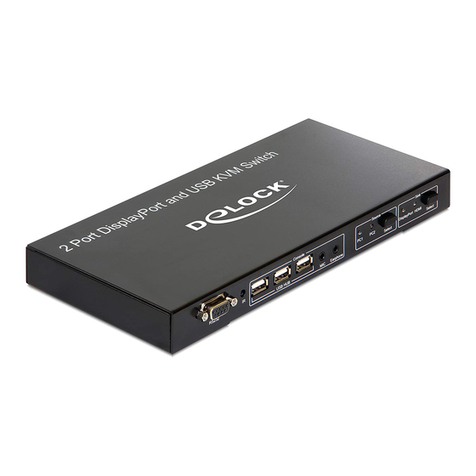
DisplayPort KVM Switch 2 – 1
Product-No:11367
User manual no:11367-a
www.delock.com
User manual
Bedienungsanleitung

-2-
English
Description
This KVM switch by Delock is a convenient solution for connecting two computers
with DisplayPort output to one DisplayPort monitor and / or one HDMI monitor. By
using the button or the remote control you can switch between both computers.
Additionally there is a DisplayPort and HDMI output for connection of two
monitors, of which only one can be active at a time. Furthermore, three USB
Type-A ports can be used to connect a mouse, keyboard, hard drive or USB
memory. The built-in USB headset feature allows you to use a headset and
microphone with both computers.
Specication
• Connectors:
Input:
2 x DisplayPort 20 pin female
2 x USB 2.0 Type-B female
1 x Sub-D 9 pin female
1 x DC 5 V power connector
1 x 3.5 mm 3 pin stereo jack female for optional IR-receiver
Output:
1 x DisplayPort 20 pin female
1 x HDMI-A 19 pin female
3 x USB 2.0 Type-A female
2 x 3.5 mm 3 pin stereo jack female
• 2 switch buttons with LED indicator for source (PC1, PC2) and sink (DisplayPort,
HDMI)
• Switching via button or infrared remote control
• DisplayPort 1.1a specication
• DisplayPort output:
Resolution up to 2560 x 1440 @ 60 Hz / 3840 x 2160 @ 30 Hz (depending on
the system and the connected hardware)
• HDMI / DP++ output:
Resolution up to 1920 x 1080 @ 60 Hz (depending on the system and the
connected hardware)
• DisplayPort output supports Dual Mode DP++
• Conguration and control of the device via RS-232 interface
• Robust metal housing
• Colour: black
• Dimensions (LxWxH): ca. 257 x 112 x 33 mm
• OS independent, no driver installation necessary

-3-
English
Power supply specication
• Wall power supply
• Input: AC 100 ~ 240 V / 50 ~ 60 Hz / 0.35 A
• Output: 5 V / 2 A
• Ground outside, plus inside
• Dimensions:
inside: ø ca. 2.1 mm
outside: ø ca. 5.5 mm
length: ca. 9 mm
System requirements
• PC with Mini DisplayPort female + USB Type-A female
• Monitor or TV with Mini DisplayPort or HDMI interface
Package content
• KVM switch with USB and audio
• 2 x cable USB A male to USB B male, length ca. 1 m
• 2 x cable DP male to Mini DP female, length ca. 0.9 m
• 2 x cable Mini DP male to DP male, length ca. 0.9 m
• External power supply
• Remote control
• User manual
Safety instructions
• Protect the product against moisture
• Protect the product against direct sunlight
Hardware Installation
1. Make sure that all of your devices are turned o.
2. Connect the included cables to the DisplayPort and USB-B ports of the KVM
switch. Afterwards connect these cables to the appropriate ports on your
computer.
3. Now you can connect the cables of your monitor, mouse, keyboard, speaker
and microphone to the KVM switch.
4. After starting the computer you can use the KVM switch.

-4-
English
Note:
Please don’t use the switch button while the computer is booting.
The included cables can be combined to a DisplayPort to DisplayPort cable if
required.
When using USB sticks, the maximum USB 2.0 data rate is 60 MB/s.
It is possible that wireless keyboards and mice do not work or only work to a
limited extent on the switch.
Operation for controlling the device via the RS-232 interface
1. Connect the serial port of the switch to a PC with a serial cable or a serial
adapter.
2. Start a terminal software for serial communication.
3. Choose the correct COM port and set the parameters as follows:
ANSI 4800 8-N-1-none
4. To control the function, input your command and nish with "Enter".
Both capital and small letters of the command are ne.
Input the next command within three seconds or "Overtime instruction" will
appear.
The input command should be correct, or it will be rejected with "Wrong
instruction"
If the input or output that you select is not connected, "Ineective instruction"
will inform you.
If the command was performed, you can see "Successful operation".
Command Function
ON Turn the product ON
OFF Turn the product OFF
QS This command shows which inputs and outputs are available,
and the current connections of input and output.
DP1 Select source1 as input, DisplayPort as output
DP2 Select source2 as input, DisplayPort as output
HDMI1 Select source1 as input, HDMI as output
HDMI2 Select source2 as input, HDMI as output

-5-
English
Support Delock
If you have further questions, please contact our customer support
You can nd current product information on our homepage: www.delock.com
Final clause
Information and data contained in this manual are subject to change without
notice in advance. Errors and misprints excepted.
Copyright
No part of this user manual may be reproduced, or transmitted for any purpose,
regardless in which way or by any means, electronically or mechanically, without
explicit written approval of Delock.
Edition: 09/2019

-6-
Deutsch
Kurzbeschreibung
Dieser KVM Switch von Delock ist eine praktische Lösung, um zwei Computer
mit DisplayPort Ausgang an einem DisplayPort Monitor und / oder einem HDMI
Monitor zu betreiben. Per Tastendruck am Gerät oder per Fernbedienung kann
man von einem Computer zum anderen schalten. Zusätzlich ist ein DisplayPort
und ein HDMI Ausgang vorhanden, wodurch zwei Monitore anschließbar sind,
von denen nur einer aktiv sein kann. Des Weiteren können über drei USB Typ-A
Anschlüsse Maus, Tastatur, Festplatten oder USB Speicher angeschlossen
werden. Die integrierte USB-Headset Funktion bietet die Möglichkeit, einen
Kopfhörer und ein Mikrofon mit beiden Computern zu verwenden.
Spezikation
• Anschlüsse:
Eingang:
2 x DisplayPort 20 Pin Buchse
2 x USB 2.0 Typ-B Buchse
1 x Sub-D 9 Pin Buchse
1 x DC 5 V Stromanschluss
1 x 3,5 mm 3 Pin Klinkenbuchse für optionalen IR-Empfänger
Ausgang:
1 x DisplayPort 20 Pin Buchse
1 x HDMI-A 19 Pin Buchse
3 x USB 2.0 Typ-A Buchse
2 x 3,5 mm 3 Pin Klinkenbuchse
• 2 Umschalttasten mit LED Anzeigen für Quelle (PC1, PC2) und Ziel (DisplayPort,
HDMI)
• Umschaltung durch Taste oder per Infrarot Fernbedienung
• DisplayPort 1.1a Spezikation
• DisplayPort Ausgang:
Auösung bis 2560 x 1440 @ 60 Hz / 3840 x 2160 @ 30 Hz (abhängig vom
System und der angeschlossenen Hardware)
• HDMI / DP++ Ausgang:
Auösung bis 1920 x 1080 @ 60 Hz (abhängig vom System und der
angeschlossenen Hardware)
• DisplayPort Ausgang unterstützt Dual Mode DP++
• Konguration und Steuerung des Gerätes über RS-232 Schnittstelle möglich
• Robustes Metallgehäuse
• Farbe: schwarz
• Maße (LxBxH): ca. 257 x 112 x 33 mm
• OS unabhängig, keine Treiberinstallation erforderlich

-7-
Deutsch
Netzteilspezikation
• Steckernetzteil
• Eingang: AC 100 ~ 240 V / 50 ~ 60 Hz / 0,35 A
• Ausgang: 5 V / 2 A
• Masse außen, Plus innen
• Maße:
innen: ø ca. 2,1 mm
außen: ø ca. 5,5 mm
Länge: ca. 9 mm
Systemvoraussetzungen
• PC mit Mini DisplayPort Buchse + USB Typ-A Buchse
• Monitor oder TV mit Mini DisplayPort oder HDMI Anschluss
Packungsinhalt
• KVM Switch mit USB und Audio
• 2 x Kabel USB A Stecker zu USB B Stecker, Länge ca. 1 m
• 2 x Kabel DP Stecker zu Mini DP Buchse, Länge ca. 0,9 m
• 2 x Kabel Mini DP Stecker zu DP Stecker, Länge ca. 0,9 m
• Externes Netzteil
• Fernbedienung
• Bedienungsanleitung
Sicherheitshinweise
• Produkt vor Feuchtigkeit schützen
• Produkt vor direkter Sonneneinstrahlung schützen
Hardware Installation
1. Stellen Sie sicher, dass Ihre Geräte ausgeschaltet sind.
2. Schließen Sie die beigelegten Kabel an die DisplayPort und USB-B
Anschlüsse des KVM Switches an. Verbinden Sie diese anschließend mit
den entsprechenden Anschlüssen an Ihren Computern.
3. Verbinden Sie nun die Kabel des Monitors, Maus, Tastatur, Boxen und
Mikrofon mit dem KVM Switch.
4. Nach dem Start der Computer können Sie den KVM Switch verwenden.

-8-
Deutsch
Hinweise:
Bitte betätigen Sie den Umschalter des KVM Switch nicht während die Computer
hochfahren.
Die mitgelieferten Kabel können bei Bedarf zu einem DisplayPort auf DisplayPort
Kabel kombiniert werden.
Bei der Verwendung von USB Sticks beträgt die maximale USB 2.0 Datenrate
60 MB/s.
Es ist möglich, dass drahtlose Tastaturen und Mäuse am Switch nicht oder nur
eingeschränkt funktionieren.
Anleitung zur Steuerung des Gerätes über die RS-232 Schnittstelle
1. Verbinden Sie die serielle Schnittstelle des Switches und den PC mit einem
seriellen Kabel oder einem seriellen Adapter.
2. Starten Sie eine Terminalsoftware zur serielle Kommunikation.
3. Wählen Sie den korrekten COM-Port und stellen Sie folgende Parameter ein:
ANSI 4800 8-N-1-none
4. Um die Funktion zu steuern, geben Sie Ihren Befehl ein und schließen Sie
mit "Eingabetaste" ab.
Sowohl Groß- als auch Kleinbuchstaben des Befehls sind in Ordnung.
Geben Sie den nächsten Befehl innerhalb von drei Sekunden ein, sonst
erscheint "Overtime instruction".
Der eingegebene Befehl muss korrekt sein, sonst wird er mit "Wrong
instruction" abgelehnt.
Wenn der von Ihnen gewählte Ein- oder Ausgang nicht angeschlossen ist,
werden Sie mit "Ineective instruction" informiert.
Wenn der Befehl ausgeführt wurde, sehen Sie "Successful operation".
Befehl Funktion
ON Schaltet das Produkt AN
OFF Schaltet das Produkt AUS
QS Dieser Befehl zeigt an, welche Ein- und Ausgänge verfügbar
sind und welche aktuellen Verbindungen zwischen Ein- und
Ausgang bestehen.
DP1 Wählt Quelle1 als Eingang, DisplayPort als Ausgang
DP2 Wählt Quelle2 als Eingang, DisplayPort als Ausgang
HDMI1 Wählt Quelle1 als Eingang, HDMI als Ausgang
HDMI2 Wählt Quelle2 als Eingang, HDMI als Ausgang

-9-
Deutsch
Support Delock
Bei weitergehenden Supportanfragen wenden Sie sich bitte an
Aktuelle Produktinformationen und Treiber Downloads nden Sie auch auf
unserer Homepage: www.delock.de
Schlussbestimmung
Die in diesem Handbuch enthaltenen Angaben und Daten können ohne vorherige
Ankündigung geändert werden. Irrtümer und Druckfehler vorbehalten.
Copyright
Ohne ausdrückliche schriftliche Erlaubnis von Delock darf kein Teil dieser
Bedienungsanleitung für irgendwelche Zwecke vervielfältigt oder übertragen
werden, unabhängig davon, auf welche Art und Weise oder mit welchen Mitteln,
elektronisch oder mechanisch, dies geschieht.
Stand: 09/2019

Declaration of conformity
Products with a CE symbol fulll the EMC directive (2014/30/EU), the
ErP directive (278/2009), LVD directive (2014/35/EU) and RoHS directive
(2011/65/EU+2015/863), which were released by the EU-comission.
The declaration of conformity can be downloaded here:
http://www.delock.de/service/conformity
WEEE-notice
The WEEE (Waste Electrical and Electronic Equipment)-directive, which became
eective as European law on February 13th 2003, resulted in an all out change
in the disposal of disused electro devices. The primarily purpose of this directive
is the avoidance of electrical waste (WEEE) and at the same time the support of
recycling and other forms of recycling in order to reduce waste. The WEEE-logo
on the device and the package indicates that the device should not be disposed
in the normal household garbage. You are responsible for taking the disused
electrical and electronical devices to a respective collecting point. A separated
collection and reasonable recycling of your electrical waste helps handling the
natural resources more economical. Furthermore recycling of electrical waste is
a contribution to keep the environment and thus also the health of men. Further
information about disposal of electrical and electronical waste, recycling and
the collection points are available in local organizations, waste management
enterprises, in specialized trade and the producer of the device.
EU Import: Tragant Handels- und Beteiligungs GmbH
Beeskowdamm 13/15, 14167 Berlin, Germany
Other manuals for 11367
1
Table of contents
Languages:
Other DeLOCK Switch manuals
DeLOCK
DeLOCK 62440 User manual
DeLOCK
DeLOCK 11482 User manual
DeLOCK
DeLOCK 64226 User manual

DeLOCK
DeLOCK 61100 User manual
DeLOCK
DeLOCK 18751 User manual
DeLOCK
DeLOCK 11367 User manual
DeLOCK
DeLOCK 87637 User manual
DeLOCK
DeLOCK 87762 User manual
DeLOCK
DeLOCK 18600 User manual
DeLOCK
DeLOCK 63264 User manual
DeLOCK
DeLOCK 63919 User manual
DeLOCK
DeLOCK 88015 User manual
DeLOCK
DeLOCK 64157 User manual

DeLOCK
DeLOCK 11476 User manual
DeLOCK
DeLOCK 62900 User manual
DeLOCK
DeLOCK 63739 User manual
DeLOCK
DeLOCK 11826 User manual

DeLOCK
DeLOCK 64155 User manual
DeLOCK
DeLOCK 64234 User manual
DeLOCK
DeLOCK 62793 User manual