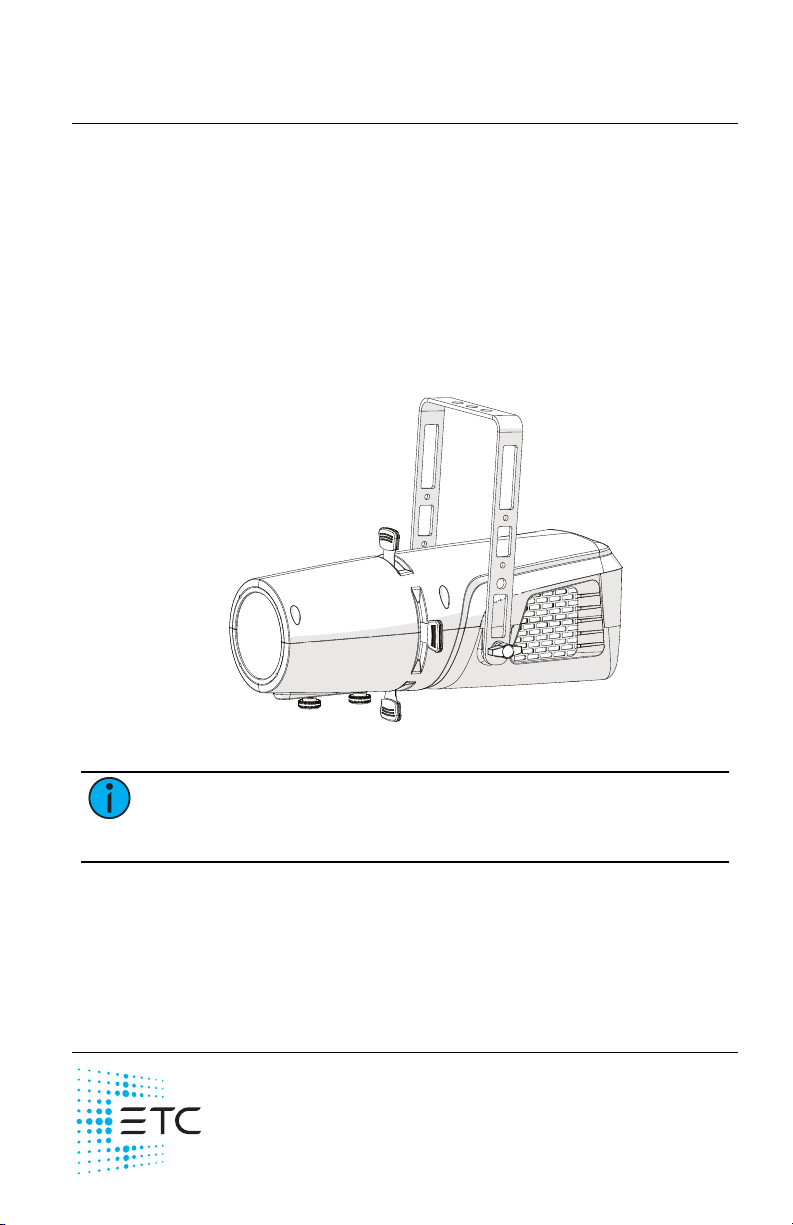
ETC Installation Guide
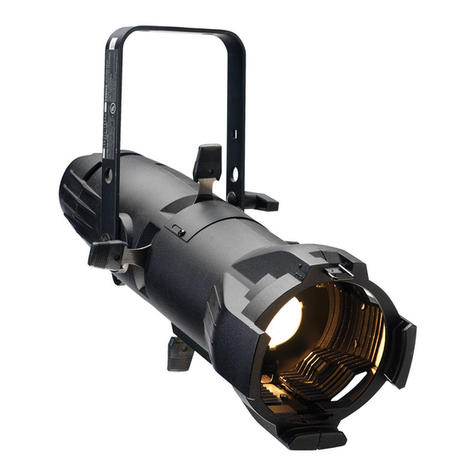
ColorSource Spot jr v2.0/v3.0/v4.0
Data Loss Behavior
When DMX data is lost, the fixture does one of the following actions:
• If you selected a preset or sequence, that preset or sequence
automatically plays.
• If no preset or sequence is active in the background, the fixture
goes dark and the DMXstart address flashes on the user interface.
Lock the User Interface
After you have set up the fixture, you can lock the user interface to
prevent additional changes.
1. Press and hold the Up button and Down button simultaneously for
3seconds. The display will show Loc to indicate that the user
interface is locked.
2. To unlock the user interface, press and hold the Up button and
Down button simultaneously for 3 seconds.
Play Presets and Sequences
The fixture has twelve factory-configured presets and five factory-
configured sequences. When you play a preset or sequence on a fixture:
• The same preset number or sequence number plays on any
connected fixtures that are not receiving DMX.
• If you power down the fixture, the preset or sequence resumes
when you power it on again.
You can re-record presets and sequences through an RDM device or
manually on the fixture. See
Re-record Presets on the facing page
.
1. Press the Mode button to activate the Presets/Sequences menu. The
last active preset or sequence plays automatically. (If DMX data is
present, the current preset or sequence plays in the background
and DMX data continues to take priority.)
2. Press the Up button or Down button as needed to scroll through the
available presets and sequences.
3. To stop the selected preset or sequence, press the Mode button a
second time. The display will revert to show the DMX start address.
ColorSource Spot jr Page 8 of 16 ETC