6 fos/4 Panel User Manual
User Interface
Effects
Effect Flicker
Rate 200
Min 0%
Max Int 100%
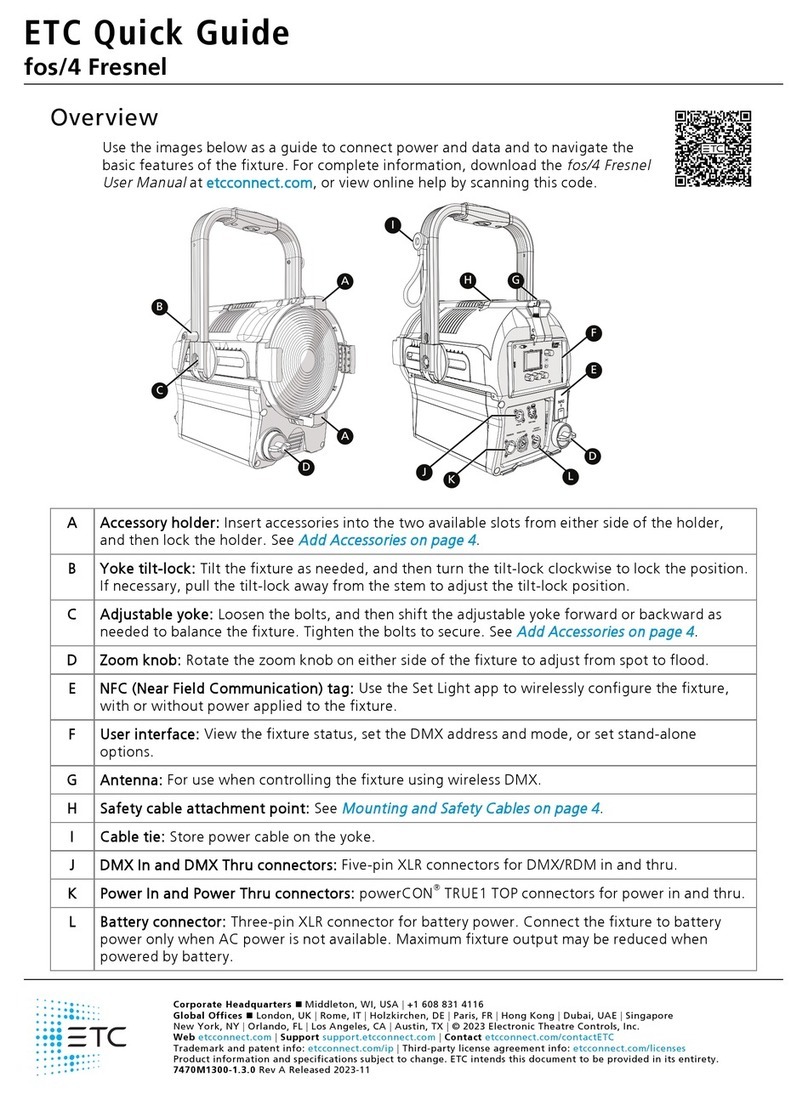
ADisplay: The colors of options on the display correspond to the colors of the encoders below the
display (F) and the Intensity encoder to the right of the display(B).
BIntensity encoder:
When in DMX mode, press the Intensity encoder to enter Focus mode when focusing the
fixture.
When configuring the fixture in one of the stand-alone modes, press the Intensity encoder to
toggle between the current intensity and 0, or turn the Intensity encoder to modify the white
fields on the display. See
Use Fixture in Stand-aloneMode on page13
.
When navigating from the Main Menu screen, turn the Intensity encoder to scroll through
menu options, and then press the Intensity encoder to select a menu option.
CMenu button: Press to view the Main Menu screen and configure the fixture. Press the button
again to return to the previous screen when you are setting configuration options.
DFunction button: Press repeatedly to toggle through the following modes:
Studio: Use one of three studio (white light) presets, or customize the presets.
Color: Use one of 12 color presets, or customize the presets.
Preset: Use one of 12 presets (color preset + fade time), or customize the presets.
Effects: Use one of 12 effects, or customize the effects.
DMX: View and set DMX parameters for the fixture.
See
Use Fixture in Stand-aloneMode on page13
and
Use Fixture in DMX Mode on page10
.
EAntenna: For use when controlling the fixture using wireless DMX (
page18
).
FEncoders(Red, Green, Blue):The colors of encoders correspond to options on the display.
Press to activate the options at the bottom of the display, or turn to modify the values on the
display.
GNFC(Near Field Communication) tag: Use the Set Light app to wirelessly configure the fixture,
with or without power applied to the fixture (
page18
).
HUSB port: Use for updating firmware, saving and loading fixture configuration settings, or
saving error logs via a flash drive. See
Troubleshooting and Maintenance on page20
.
IUI lock: Set this switch to lock the UI. This prevents inadvertent changes to the UI. See
Lock the
Display on page19
.