manuals.online logo
Brands
  1. Home
  2. •
  3. Brands
  4. •
  5. Geutebruck
  6. •
  7. Security Camera
  8. •
  9. Geutebruck G-Cam/EWPC-5280 User manual

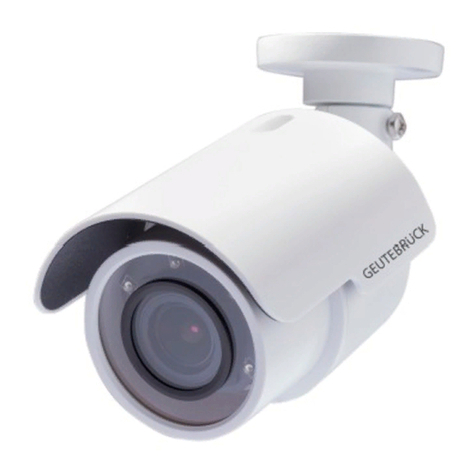
Geutebruck G-Cam/EWPC-5280 User manual

Other Geutebruck Security Camera manuals

Geutebruck G-Cam/EFD-5260 User manual

Geutebruck

Geutebruck G-Cam/EFD-5260 User manual

Geutebruck GFD-632/VP-IR User manual

Geutebruck

Geutebruck GFD-632/VP-IR User manual

Geutebruck G-Cam/EWPC-5270 User manual

Geutebruck

Geutebruck G-Cam/EWPC-5270 User manual

Geutebruck GSD-682 User manual

Geutebruck

Geutebruck GSD-682 User manual

Geutebruck G-Cam/EBC-2112 User manual

Geutebruck

Geutebruck G-Cam/EBC-2112 User manual

Geutebruck G-Cam/EWPC-5240 User manual

Geutebruck

Geutebruck G-Cam/EWPC-5240 User manual

Geutebruck XNet EcoFD-2410 User manual

Geutebruck

Geutebruck XNet EcoFD-2410 User manual

Geutebruck G-Cam/EWPC-3285 User manual

Geutebruck

Geutebruck G-Cam/EWPC-3285 User manual

Geutebruck G-Cam/EFD-3271 User manual

Geutebruck

Geutebruck G-Cam/EFD-3271 User manual

Geutebruck Guardian 704 ILB User manual

Geutebruck

Geutebruck Guardian 704 ILB User manual

Geutebruck G-Cam/EWPC-4270 User manual

Geutebruck

Geutebruck G-Cam/EWPC-4270 User manual

Geutebruck G-Cam/ESD-4510 User manual

Geutebruck

Geutebruck G-Cam/ESD-4510 User manual

Geutebruck G-Cam/E2 Series User manual

Geutebruck

Geutebruck G-Cam/E2 Series User manual

Geutebruck G-Cam/EBC-5101 User manual

Geutebruck

Geutebruck G-Cam/EBC-5101 User manual

Geutebruck G-Cam/EWPC-5280 User manual

Geutebruck

Geutebruck G-Cam/EWPC-5280 User manual

Geutebruck GSD-200 User manual

Geutebruck

Geutebruck GSD-200 User manual

Geutebruck G-Cam/ANPR-49 Series User manual

Geutebruck

Geutebruck G-Cam/ANPR-49 Series User manual

Geutebruck G-Cam/EFD-2251 User manual

Geutebruck

Geutebruck G-Cam/EFD-2251 User manual

Geutebruck G-Cam EWPC-3210 User manual

Geutebruck

Geutebruck G-Cam EWPC-3210 User manual

Geutebruck EcoBC-1110 User manual

Geutebruck

Geutebruck EcoBC-1110 User manual

Geutebruck G-Cam/EWPC-4450 User manual

Geutebruck

Geutebruck G-Cam/EWPC-4450 User manual

Geutebruck G-Cam/EBC-3141 User manual

Geutebruck

Geutebruck G-Cam/EBC-3141 User manual

Geutebruck G-Cam/EFD-2251 User manual

Geutebruck

Geutebruck G-Cam/EFD-2251 User manual

Geutebruck G-Cam/EFD-3245 User manual

Geutebruck

Geutebruck G-Cam/EFD-3245 User manual

Popular Security Camera manuals by other brands

Okina USA SIR36-870VF650LP user manual

Okina USA

Okina USA SIR36-870VF650LP user manual

Divio NDR155PA user manual

Divio

Divio NDR155PA user manual

Easy Access EasyGuard user manual

Easy Access

Easy Access EasyGuard user manual

Vivotek FD9389-EHV-v2 Quick installation guide

Vivotek

Vivotek FD9389-EHV-v2 Quick installation guide

TUYA COSMO W2 manual

TUYA

TUYA COSMO W2 manual

Eusso UNC7500-IR Advanced installation guide

Eusso

Eusso UNC7500-IR Advanced installation guide

urmet domus 1096/204 user manual

urmet domus

urmet domus 1096/204 user manual

VC VC20 series operating manual

VC

VC VC20 series operating manual

Axis Q1614 installation guide

Axis

Axis Q1614 installation guide

ieGeek DD201 manual

ieGeek

ieGeek DD201 manual

VADDIO ClearVIEW HD-USB PTZ 999-6990-000 Installation and user guide

VADDIO

VADDIO ClearVIEW HD-USB PTZ 999-6990-000 Installation and user guide

Vicon V662-D-1 Installation and operation guide

Vicon

Vicon V662-D-1 Installation and operation guide

Grundig GCH-K0274P owner's manual

Grundig

Grundig GCH-K0274P owner's manual

Lorex VANTAGE LBC7032 quick start guide

Lorex

Lorex VANTAGE LBC7032 quick start guide

4xem WPT Specifications

4xem

4xem WPT Specifications

Samsung SCV-3082 Specifications

Samsung

Samsung SCV-3082 Specifications

Vitek VTC-C544 Specifications

Vitek

Vitek VTC-C544 Specifications

Lumens VC-A50PNW installation guide

Lumens

Lumens VC-A50PNW installation guide

manuals.online logo
manuals.online logoBrands
  • About & Mission
  • Contact us
  • Privacy Policy
  • Terms and Conditions

Copyright 2025 Manuals.Online. All Rights Reserved.

G-Cam/EWPC-5280 Micro Bullet IP Camera Quick Guide
•The camera must be installed by qualified persons. The installation should comply with local regulations.
Do not replace the batteries of the camera independently. There is a risk of explosion if the battery is replaced
with an incorrect type. Used batteries must be disposed of according to local regulations.
•If you want to use an external power source, ask the camera manufacturer for a suitable device.
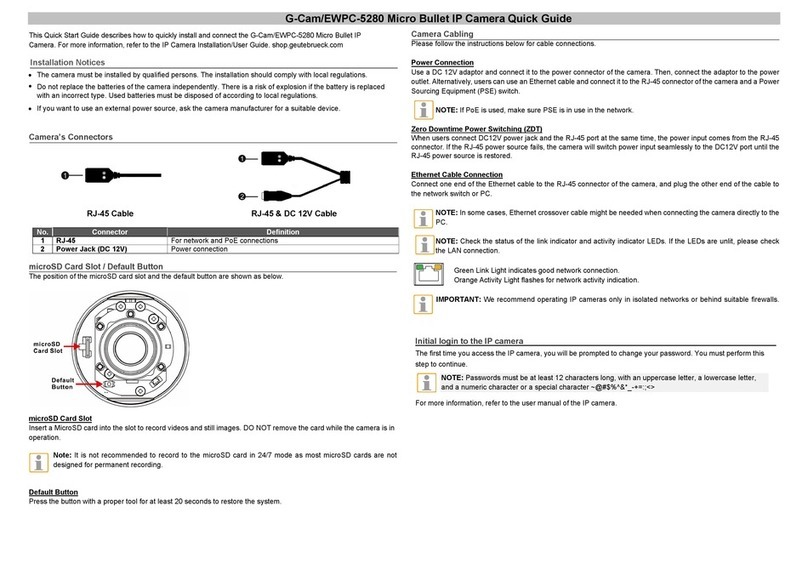
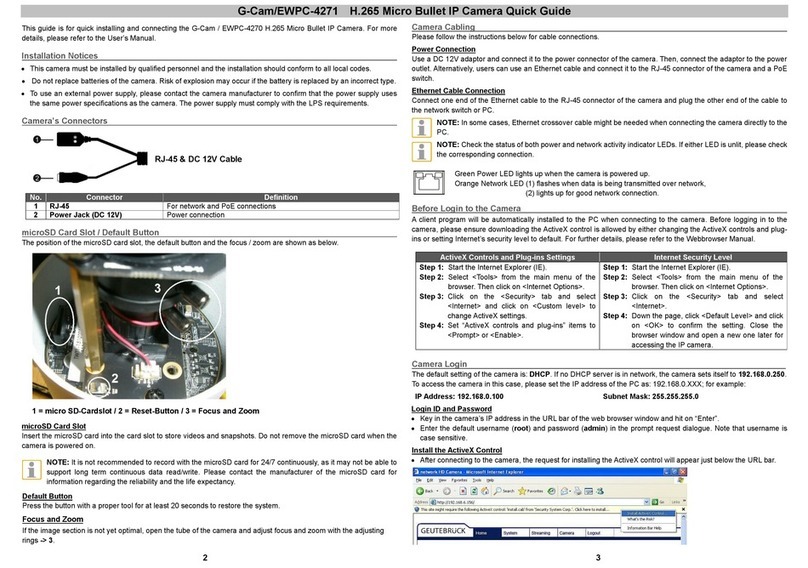
Camera’s Connectors
RJ-45 Cable
RJ-45 & DC 12V Cable
No.
Connector
Definition
1
RJ-45
For network and PoE connections
2
Power Jack (DC 12V)
Power connection
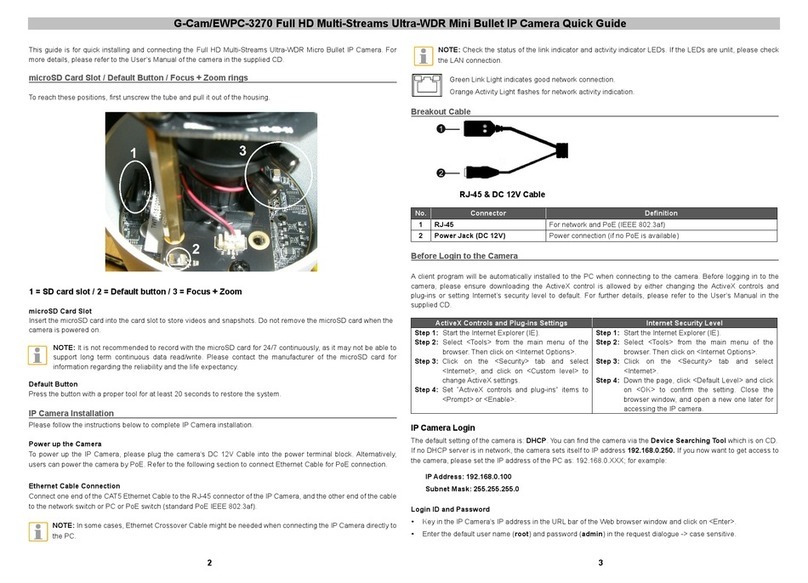
microSD Card Slot / Default Button
The position of the microSD card slot and the default button are shown as below.
microSD Card Slot
Insert a MicroSD card into the slot to record videos and still images. DO NOT remove the card while the camera is in
operation.
Note: It is not recommended to record to the microSD card in 24/7 mode as most microSD cards are not
designed for permanent recording.
Default Button
Press the button with a proper tool for at least 20 seconds to restore the system.
Camera Cabling
Please follow the instructions below for cable connections.
Power Connection
Use a DC 12V adaptor and connect itto the power connector of the camera. Then, connect the adaptor to the power
outlet. Alternatively,users can use an Ethernet cable and connect itto the RJ-45 connector of the camera and a Power
Sourcing Equipment (PSE) switch.
NOTE: If PoE is used, make sure PSE is in use in the network.
Zero Downtime Power Switching (ZDT)
When users connect DC12V power jack and the RJ-45 port at the same time, the power input comes from the RJ-45
connector. If the RJ-45 power source fails, the camera will switch power input seamlessly to the DC12V port until the
RJ-45 power source is restored.
Ethernet Cable Connection
Connect one end of the Ethernet cable to the RJ-45 connector of the camera, and plug the other end of the cable to
the network switch or PC.
NOTE: In some cases, Ethernet crossover cable might be needed when connecting the camera directly to the
PC.
NOTE: Check the status of the link indicator and activity indicator LEDs. If the LEDs are unlit, please check
the LAN connection.
Green Link Light indicates good network connection.
Orange Activity Light flashes for network activity indication.
IMPORTANT: We recommend operating IP cameras only in isolated networks or behind suitable firewalls.
This Quick Start Guide describes how to quickly install and connect the G-Cam/EWPC-5280 Micro Bullet
IP Camera. For more information, refer to the IP Camera Installation/User Guide.
Installation Notices
Initial login to the IP camera
The first time you access the IP camera, you will be prompted to change your password. You must perform this
step to continue.
For more information, refer to the user manual of the IP camera.
NOTE: Passwords must be at least 12 characters long, with an uppercase letter, a lowercase letter,
and a numeric character or a special character ~@#$%^&*_-+=:;<>
•

G-Cam/EWPC-5280
Micro Bullet IP Camera
Quick Guide
Ver. 1.0
Camera Login
The default IP address of the camera is: 192.168.0.250, so to access the camera for the first time, set the IP
address of the PC as follows: 192.168.0.XXX; for example:
IP Address: 192.168.0.100 Subnet Mask: 255.255.255.0
Login ID and Passwort
•Enter the corresponding IP address of the camera in the URL field of the web browser and press "Enter".
•Enter the default user name (root) and password (admin) in the pop-up window. Note that the user name
is case sensitive.
•Change the user password according to the instructions in the section "Logging in to the IP camera for the
first time".
Web browser view
•The figure below shows the home page of the IP camera's web interface. Which
functions are actually available depends on the camera model.
Live view in web browser
NOTE: Quick start guides for configuring the camera using GEUTEBRÜCK - software (G-Set and
GSC-Setup) can be found on our Partner Portal website under Support.
support.geutebrueck.com
The live view in the browser window is done in a H.264/H.265 StreamPlayer,
if this is not executable on your system, the system tries to display a compatible MJPEG view, which is
only possible in reduced quality.