manuals.online logo
Brands
  1. Home
  2. •
  3. Brands
  4. •
  5. Grandstream Networks
  6. •
  7. IP Phone
  8. •
  9. Grandstream Networks WP822 User manual

Grandstream Networks WP822 User manual

Other manuals for WP822

2

Other Grandstream Networks IP Phone manuals

Grandstream Networks WP810 User manual

Grandstream Networks

Grandstream Networks WP810 User manual

Grandstream Networks GXP2130 Series User manual

Grandstream Networks

Grandstream Networks GXP2130 Series User manual

Grandstream Networks BudgeTone User manual

Grandstream Networks

Grandstream Networks BudgeTone User manual

Grandstream Networks GXP2170 User manual

Grandstream Networks

Grandstream Networks GXP2170 User manual

Grandstream Networks GDS3710 User manual

Grandstream Networks

Grandstream Networks GDS3710 User manual

Grandstream Networks DP715 User manual

Grandstream Networks

Grandstream Networks DP715 User manual

Grandstream Networks GXP1760 User manual

Grandstream Networks

Grandstream Networks GXP1760 User manual

Grandstream Networks GXP-280 User manual

Grandstream Networks

Grandstream Networks GXP-280 User manual

Grandstream Networks GXV324 User manual

Grandstream Networks

Grandstream Networks GXV324 User manual

Grandstream Networks DP750 User manual

Grandstream Networks

Grandstream Networks DP750 User manual

Grandstream Networks GXP21 Series User manual

Grandstream Networks

Grandstream Networks GXP21 Series User manual

Grandstream Networks GXP2110 User manual

Grandstream Networks

Grandstream Networks GXP2110 User manual

Grandstream Networks GXP2140 User manual

Grandstream Networks

Grandstream Networks GXP2140 User manual

Grandstream Networks GXP2140 User manual

Grandstream Networks

Grandstream Networks GXP2140 User manual

Grandstream Networks GXP2135 User manual

Grandstream Networks

Grandstream Networks GXP2135 User manual

Grandstream Networks GXV-3000 User manual

Grandstream Networks

Grandstream Networks GXV-3000 User manual

Grandstream Networks GXV3370 User manual

Grandstream Networks

Grandstream Networks GXV3370 User manual

Grandstream Networks GXP1620 User manual

Grandstream Networks

Grandstream Networks GXP1620 User manual

Grandstream Networks GXP-1400 User manual

Grandstream Networks

Grandstream Networks GXP-1400 User manual

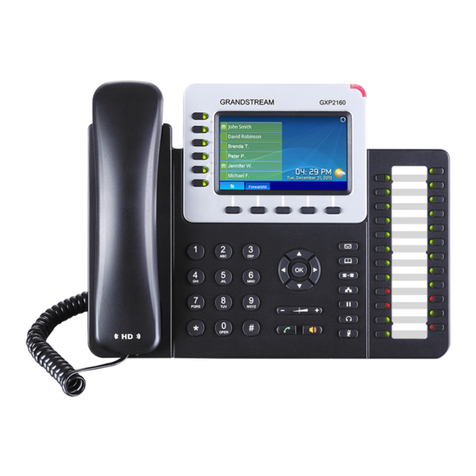
Grandstream Networks GXP2160 User manual

Grandstream Networks

Grandstream Networks GXP2160 User manual

Grandstream Networks GXP-280 User manual

Grandstream Networks

Grandstream Networks GXP-280 User manual

Grandstream Networks GXP-2020 User manual

Grandstream Networks

Grandstream Networks GXP-2020 User manual

Grandstream Networks GXP-1100 User manual

Grandstream Networks

Grandstream Networks GXP-1100 User manual

Grandstream Networks GXP-1400 User manual

Grandstream Networks

Grandstream Networks GXP-1400 User manual

Popular IP Phone manuals by other brands

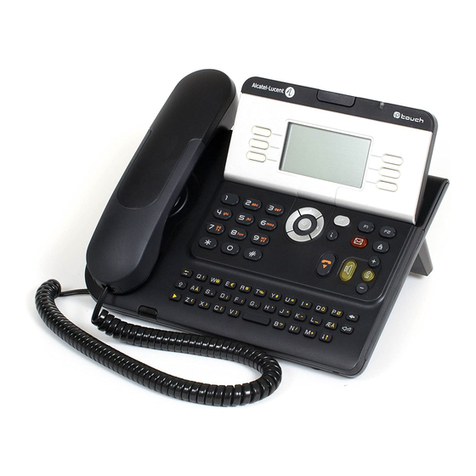
Alcatel 4028 manual

Alcatel

Alcatel 4028 manual

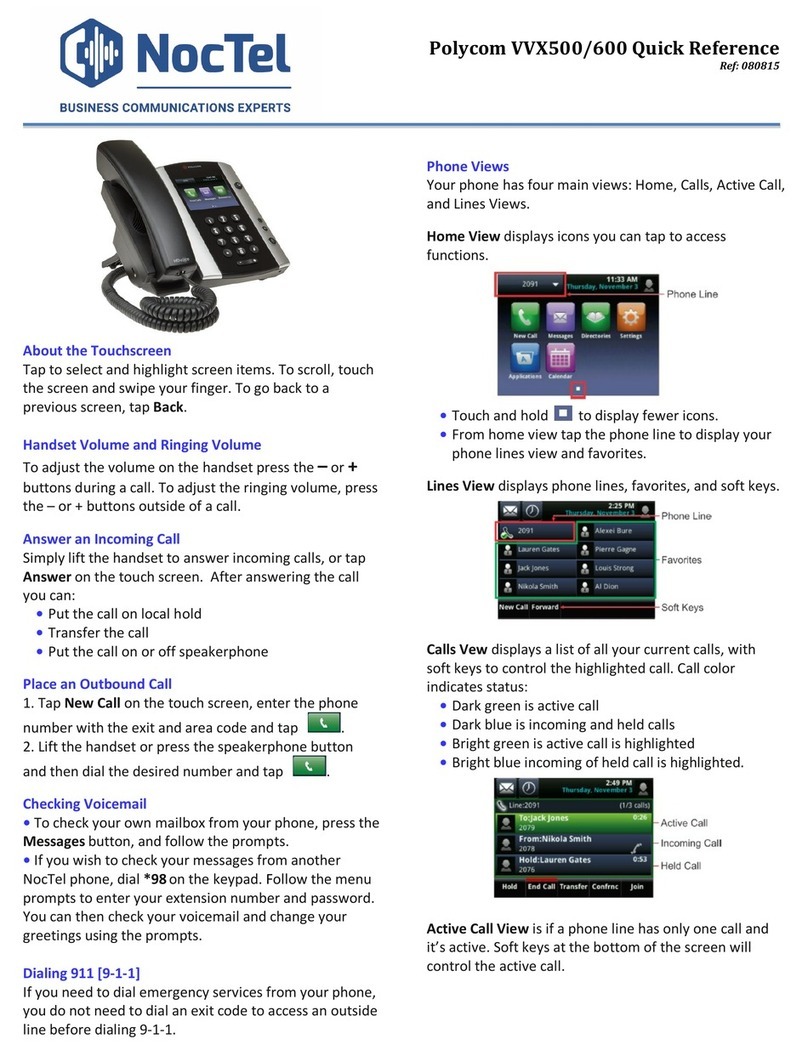
Polycom Polycom VVX 600 quick reference

Polycom

Polycom Polycom VVX 600 quick reference

Polycom SoundPoint IP 450 datasheet

Polycom

Polycom SoundPoint IP 450 datasheet

Cisco SPA-500 Series user guide

Cisco

Cisco SPA-500 Series user guide

Polycom SoundPoint IP 650 user guide

Polycom

Polycom SoundPoint IP 650 user guide

Proximus Maestro 3016 IP quick start guide

Proximus

Proximus Maestro 3016 IP quick start guide

Fanvil X4 user manual

Fanvil

Fanvil X4 user manual

Cisco 7962 user guide

Cisco

Cisco 7962 user guide

Snom 320 quick start guide

Snom

Snom 320 quick start guide

Yealink Yealink SIP-T46G Guide

Yealink

Yealink Yealink SIP-T46G Guide

Avaya 4625SW user guide

Avaya

Avaya 4625SW user guide

Yealink SIP-T52S quick start guide

Yealink

Yealink SIP-T52S quick start guide

Nortel 1140E Getting started

Nortel

Nortel 1140E Getting started

Nexotek NT-P500 user manual

Nexotek

Nexotek NT-P500 user manual

Avaya Integral 5 R3.0 user guide

Avaya

Avaya Integral 5 R3.0 user guide

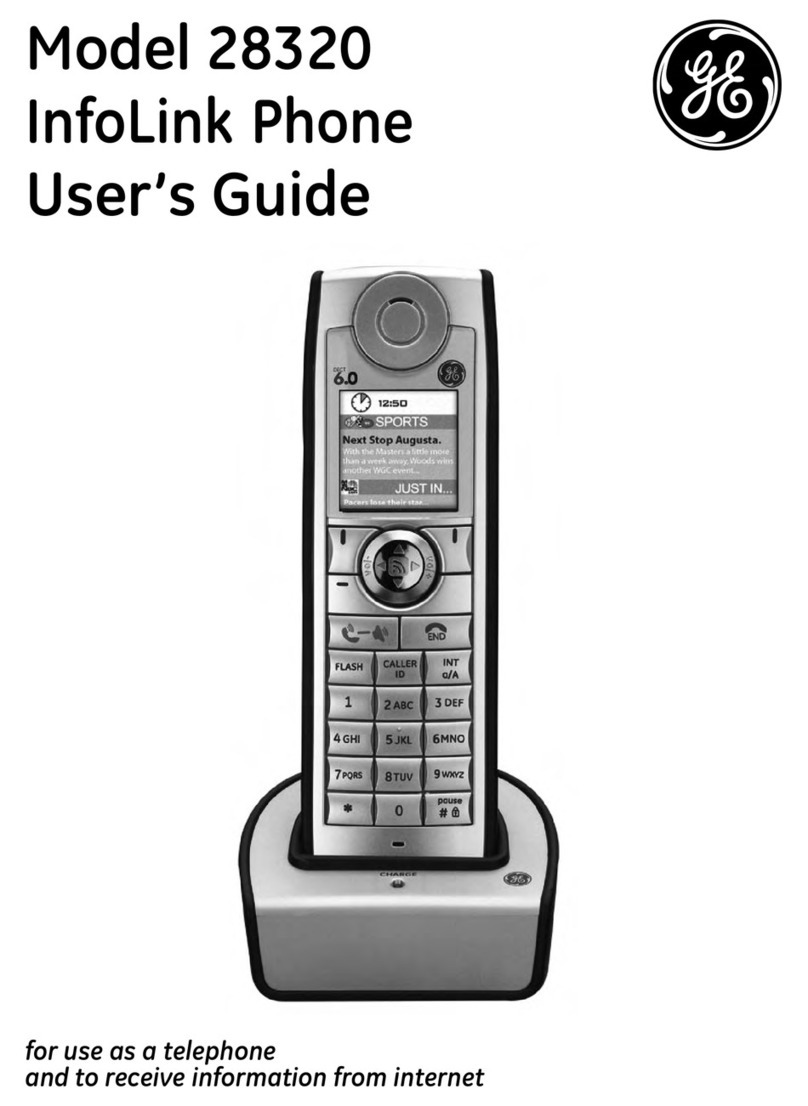
GE 28320EE2 - Dect 6.0 InfoLink 2 user guide

GE

GE 28320EE2 - Dect 6.0 InfoLink 2 user guide

Avaya 4600 Series Administrator's guide

Avaya

Avaya 4600 Series Administrator's guide

Mitel MIVOICE OFFICE 400 6940 SIP user guide

Mitel

Mitel MIVOICE OFFICE 400 6940 SIP user guide

manuals.online logo
manuals.online logoBrands
  • About & Mission
  • Contact us
  • Privacy Policy
  • Terms and Conditions

Copyright 2025 Manuals.Online. All Rights Reserved.

For certification information, please refer to User Manuals:
http://www.grandstream.com
Common part:
This equipment complies with radiation exposure limits set forth for an
uncontrolled environment.
This transmitter must not be co-located or operating in conjunction with
any other antenna or transmitter.
U.S. FCC Part 15 Regulatory Information
This device complies with part 15 of the FCC Rules. Operation is subject to
the following two conditions:(1) this device may not cause harmful
interference, and
(2) this device must accept any interference received, including interference
that may cause undesired operation.
Any Changes or modifications not expressly approved by the party
responsible for compliance could void the user's authority to operate the
equipment.
Note: This equipment has been tested and found to comply with the limits for
a Class B digital device, pursuant to part 15 of the FCC Rules. These limits
are designed to provide reasonable protection against harmful interference in
a residential installation. This equipment generates, uses and can radiate
radio frequency energy and, if not installed and used in accordance with the
instructions, may cause harmful interference to radio communications.
However, there is no guarantee that interference will not occur in a particular
installation. If this equipment does cause harmful interference to radio or
television reception, which can be determined by turning the equipment off
and on, the user is encouraged to try to correct the interference by one or
more of the following measures:
—Reorient or relocate the receiving antenna.
—Increase the separation between the equipment and receiver.
—Connect the equipment into an outlet on a circuit different from that to
which the receiver is connected.
—Consult the dealer or an experienced radio/TV technician for help.
The SAR limit of USA (FCC) is 1.6 W/kg averaged over one gram of tissue.
This model (FCC ID: YZZWP822) has also been tested against this SAR
limited.
The highest SAR value reported under this standard during product
certification for use at the ear is 0.793 W/kg and body is 0.681 W/kg.
Body-worn SAR testing was worn on the belt clip at a separation distance of
1.0cm. To meet RF exposure guidelines during body-worn operation, the
device should be used with the belt clip.
Canada Regulatory Information
Radio equipment
Operation of 5150-5250 MHz is restricted to indoor use only.
This device contains licence-exempt transmitter(s)/receiver(s) that comply
with Innovation, Science and Economic Development Canada’s
licence-exempt RSS(s). Operation is subject to the following two conditions:
(1) This device may not cause interference.
(2) This device must accept any interference, including interference that may
cause undesired operation of the device.
L’émetteur/récepteur exempt de licence contenu dans le présent appareil est
conforme aux CNR d’Innovation, Sciences et Développement économique
Canada applicables aux appareils radio exempts de licence. L’exploitation

est autorisée aux deux conditions suivantes :
1) L’appareil ne doit pas produire de brouillage;
2) L’appareil doit accepter tout brouillage radioélectrique subi, même si le
brouillage est susceptible d’en compromettre le fonctionnement.
CAN ICES-3 (B)/NMB-3(B)
Terminal equipment
This product meets the applicable Innovation, Science and Economic
Development Canada technical specifications.
The Ringer Equivalence Number (REN) indicates the maximum number of
devices allowed to be connected to a telephone interface. The termination of
an interface may consist of any combination of devices subject only to the
requirement that the sum of the RENs of all the devices not exceed five.
Ce produit répond àla innovation, des sciences et de Développement
économique Canada spécifications techniques applicables.
Le nombre équivalent de sonneries (REN) indique le nombre maximal de
terminaux qui peuvent être raccordés àune interface téléphonique. La
terminaison d'une interface peut consister en une combinaison de dispositifs,
àla seule condition que la somme des REN de tous les dispositifs ne
dépasse pas cinq.
EU Regulatory Information
Support Frequency Bands and Power:
WLAN 2412-2472 MHz < 20 dBm;
WLAN 5150-5250 MHz < 23 dBm;
WLAN 5250-5350 MHz / 5470-5725 MHz < 20 dBm;
Body-worn SAR testing has been carried out at a separation distance of 5
mm. To meet RF exposure guidelines during body-worn operation, the
device should be positioned at least this distance away from the body.
The simplified EU declaration of conformity referred to in Article 10(9) shall
be provided as follows:
Hereby, [Grandstream Networks, Inc.] declares that the radio equipment type
[WP822] is in compliance with Directive 2014/53/EU.
The full text of the EU declaration of conformity is available at the following
internet address: http://www.grandstream.com/support/resources/
Grandstream Networks, Inc.
126 Brookline Ave, 3rd Floor
Boston, MA 02215. USA
Tel : +1 (617) 566 - 9300
Fax: +1 (617) 249 - 1987
www.grandstream.com
For Certication, Warranty and RMA information, please visit
www.grandstream.com
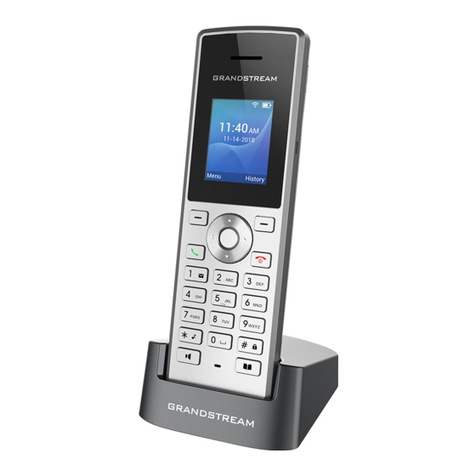
WP822
Cordless Wi-Fi IP Phone
Quick Installation Guide
~1~ ~2~
PRECAUTIONS
1x Charging
Station

WP822 PACKAGE CONTENTS
1x 5V Power
Adapter
1x WP822
Handset 1x Quick Installation Guide
EN
1x Handset
Belt Clip
• Do not attempt to open, disassemble, or modify the device.
• Do not use a third party power adapter.
• Do not expose the device to temperatures outside the
range of -20ºC to 60ºC.
• Do not expose the WP822 at environments outside of the
humidity range of 10-90% RH (non-condensing).
OVERVIEW
The WP822 is a portable Wi-Fi IP phone designed to suit a vari-
ety of enterprises and vertical market applications, including
retail, logistics, medical and security. This cordless Wi-Fi phone
comes equipped with integrated dual-band 802.11a/b/g/n/
ac Wi-Fi, an advanced antenna design and roaming support.
By adding 8-hour talk time and HD voice with dual-MICs, the
WP822 offers an affordable option and comes equipped with
a combination of features, mobility and durability to suit all
portable telephony needs.
5V
1x Rechargeable
Battery
The WP822 is not pre-congured to support or make
emergency calls to any type of hospital, law en-
forcement agency, medical care unit (“Emergency
Service(s)”) or any other kind of Emergency Service. You
must make additional arrangements to access Emer-
gency Services. It is your responsibility to purchase SIP-
compliant Internet telephone service, properly cong-
ure the WP822 to use that service, and periodically test
your conguration to conrm that it works as you expect.
It is also your responsibility to purchase traditional wire-
less or landline telephone services to access Emergency
Services.
GRANDSTREAM DOES NOT PROVIDE CONNECTIONS TO
EMERGENCY SERVICES VIA THE WP822. NEITHER GRAND-
STREAM NOR ITS OFFICES, EMPLOYEES OR AFFILIATES MAY
BE HELD LIABLE FOR ANY CLAIM, DAMAGE, OR LOSS,
AND YOU HEREBY WAIVE ANY AND ALL SUCH CLAIMS
OR CAUSES OF ACTION ARISING FROM OR RELATING
TO YOUR INABILITY TO USE THE WP822 TO CONTACT
EMERGENCY SERVICES, AND YOUR FAILURE TO MAKE
ADDITIONAL ARRANGEMENTS TO ACCESS EMERGENCY
SERVICES IN ACCORDANCE WITH THE IMMEDIATELY PRE-
CEDING PARAGRAPH.
The GNU GPL license terms are incorporated into the de-
vice rmware and can be accessed via the Web user
interface of the device at my_device_ip/gpl_license. It
can also be accessed here: http://www.grandstream.
com/legal/open-source-software
To obtain a CD with GPL source code information please
submit a written request to [email protected]
~3~ ~4~
SETTING UP THE WP822
Charging Station:
Plug the power adapter into a power source socket to start
using the charging station.
1: Charging station
2: Power adapter
• Open the battery cover.
• Insert the battery with the electrodes in the bottom left
corner.
• Close the battery cover.
Note: Please charge the battery fully before using the hand-
set for the rst time.
12
3
1: Battery cover
2: Battery
3: Rear of handset
Handset:
2
1
WP822 DESCRIPTION
2. Earphone
13. Color LCD
Screen
6. 4 Arrow key
combination
(Up, Down,
Left, Right)
15. Menu /
Ok key
8. Off-hook /
Dial key 16. On-hook or
Power key
9. Alphanumeric
keypad
7. Handsfree /
Speaker key
19. Microphone
10. */ Mute key
14. Softkeys
3. Volume
Up key
18. Contacts
17. #/ Lock key
12. 3.5 mm
headset
jack
11. LED
indicator
4. Volume
down key
5. PTT key
5V
1. Proximity
Sensor
~5~
CONNECTING WP822 TO WI-FI NETWORK
1. On LCD menu, press Menu key and navigate to Settings →
Network Settings → Wi-Fi.
2. Set Wi-Fi to “On” and navigate to “Wi-Fi Settings”. A list of Wi-Fi
networks will be displayed.
3. Select the desired network to connect to. (Enter the correct
password to connect if requested)
WP822 will display Wi-Fi icon on top of the main LCD menu if the
connection to the Wi-Fi network is successful.
ACCESSING WP822 WEB GUI
1. Press the UP button to see the IP address.
2. Type the phone’s IP address in your PC browser.
Note: The computer needs to be on same network as WP822.
3. Enter admin’s username and password to access the cong-
uration menu. (The factory default username is “admin” while
the default random password can be found on the sticker at
the back of the unit).
Refer to online documents and FAQ for more detailed
information: http://www.grandstream.com/our-products