manuals.online logo
Brands
  1. Home
  2. •
  3. Brands
  4. •
  5. KDDI
  6. •
  7. Cell Phone
  8. •
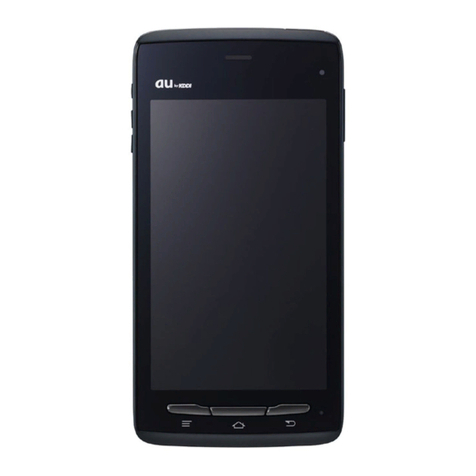
  9. KDDI Au TSX04 Installation guide

KDDI Au TSX04 Installation guide

Other KDDI Cell Phone manuals

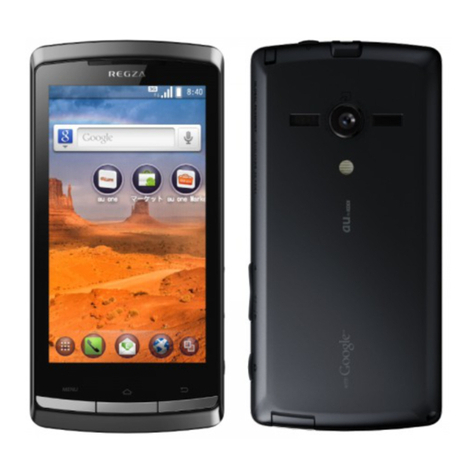
KDDI REGZA IS11T Installation guide

KDDI

KDDI REGZA IS11T Installation guide

KDDI au K004 Installation guide

KDDI

KDDI au K004 Installation guide

KDDI AU W31T User manual

KDDI

KDDI AU W31T User manual

KDDI SA002 User manual

KDDI

KDDI SA002 User manual

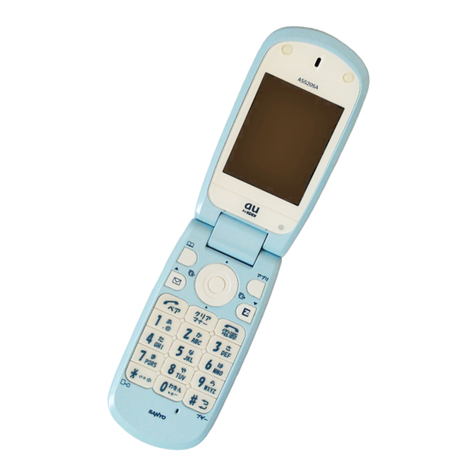
KDDI au A5520SA User manual

KDDI

KDDI au A5520SA User manual

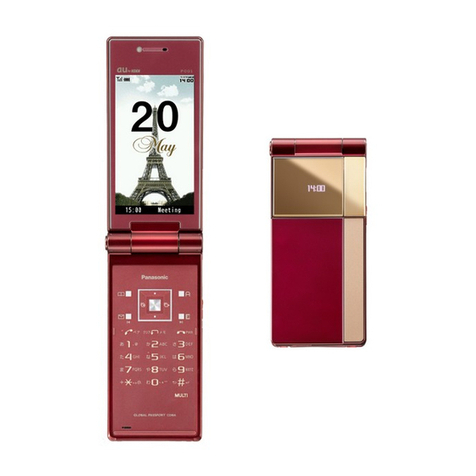
KDDI P001 User manual

KDDI

KDDI P001 User manual

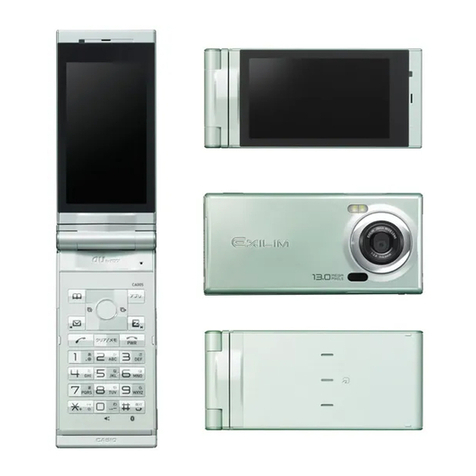
KDDI exilim CA005 User manual

KDDI

KDDI exilim CA005 User manual

KDDI ARROWS ES IS12F Installation guide

KDDI

KDDI ARROWS ES IS12F Installation guide

KDDI au S007 Installation guide

KDDI

KDDI au S007 Installation guide

KDDI au K003 User manual

KDDI

KDDI au K003 User manual

KDDI CA004 User manual

KDDI

KDDI CA004 User manual

KDDI CYBER-SHOT S001 User manual

KDDI

KDDI CYBER-SHOT S001 User manual

KDDI W62K Installation guide

KDDI

KDDI W62K Installation guide

KDDI AU A5506T Installation guide

KDDI

KDDI AU A5506T Installation guide

KDDI S002 User manual

KDDI

KDDI S002 User manual

KDDI SA001 User manual

KDDI

KDDI SA001 User manual

KDDI au K003 Specification sheet

KDDI

KDDI au K003 Specification sheet

KDDI ARROWS Z ISW11F Installation guide

KDDI

KDDI ARROWS Z ISW11F Installation guide

KDDI Au TS003 Installation guide

KDDI

KDDI Au TS003 Installation guide

KDDI au K008 Installation guide

KDDI

KDDI au K008 Installation guide

KDDI A5503SA Installation guide

KDDI

KDDI A5503SA Installation guide

KDDI au W32K Specification sheet

KDDI

KDDI au W32K Specification sheet

KDDI T007 User manual

KDDI

KDDI T007 User manual

KDDI K007 User manual

KDDI

KDDI K007 User manual

Popular Cell Phone manuals by other brands

Nokia 6700 classic user guide

Nokia

Nokia 6700 classic user guide

LG L34C user guide

LG

LG L34C user guide

Ericsson T60d manual

Ericsson

Ericsson T60d manual

Zte Score M user manual

Zte

Zte Score M user manual

Sony Xperia Z1 Compact Startup guide

Sony

Sony Xperia Z1 Compact Startup guide

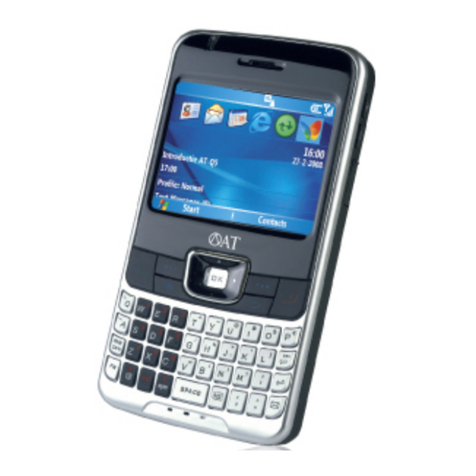
AT AT-Q5 user manual

AT

AT AT-Q5 user manual

Vingtor ACM-M-A-V2 Installation/configuration

Vingtor

Vingtor ACM-M-A-V2 Installation/configuration

Olitech EasyFlip 2 Quick setup guide

Olitech

Olitech EasyFlip 2 Quick setup guide

Zte Atrium Z793C user manual

Zte

Zte Atrium Z793C user manual

Alcatel IDEAL manual

Alcatel

Alcatel IDEAL manual

Zte BLADE A520 quick start guide

Zte

Zte BLADE A520 quick start guide

switel M222 user manual

switel

switel M222 user manual

LG LG-P503 user guide

LG

LG LG-P503 user guide

LG F2410 user guide

LG

LG F2410 user guide

Argom E500 manual

Argom

Argom E500 manual

Hisense U30 user manual

Hisense

Hisense U30 user manual

Argom Tech E401 user manual

Argom Tech

Argom Tech E401 user manual

Nokia 3595 - Cell Phone - GSM Manual Del Usuario

Nokia

Nokia 3595 - Cell Phone - GSM Manual Del Usuario

manuals.online logo
manuals.online logoBrands
  • About & Mission
  • Contact us
  • Privacy Policy
  • Terms and Conditions

Copyright 2025 Manuals.Online. All Rights Reserved.

T001
BasicManual
read this manual to master
the cellular phone
Illustrationsand
Screenshots
inThisManual
Noteson
CellPhoneUse
Contents
GettingReady
Makingand
AnsweringCalls
CharacterInput
GlobalFunction
PhoneBook
PairFunction
Mail
Camera
EZweb
EZNewsFlash/
auoneGadget
EZNavi
TV(1Seg)
InCaseof
LossofYourT001
Troubleshooting
Index
㪫㪪㪯㪇㪋
358
簡易英語
PLY
English Simple Manual
(簡易英語版)
English Simple Manual
(簡易英語版)
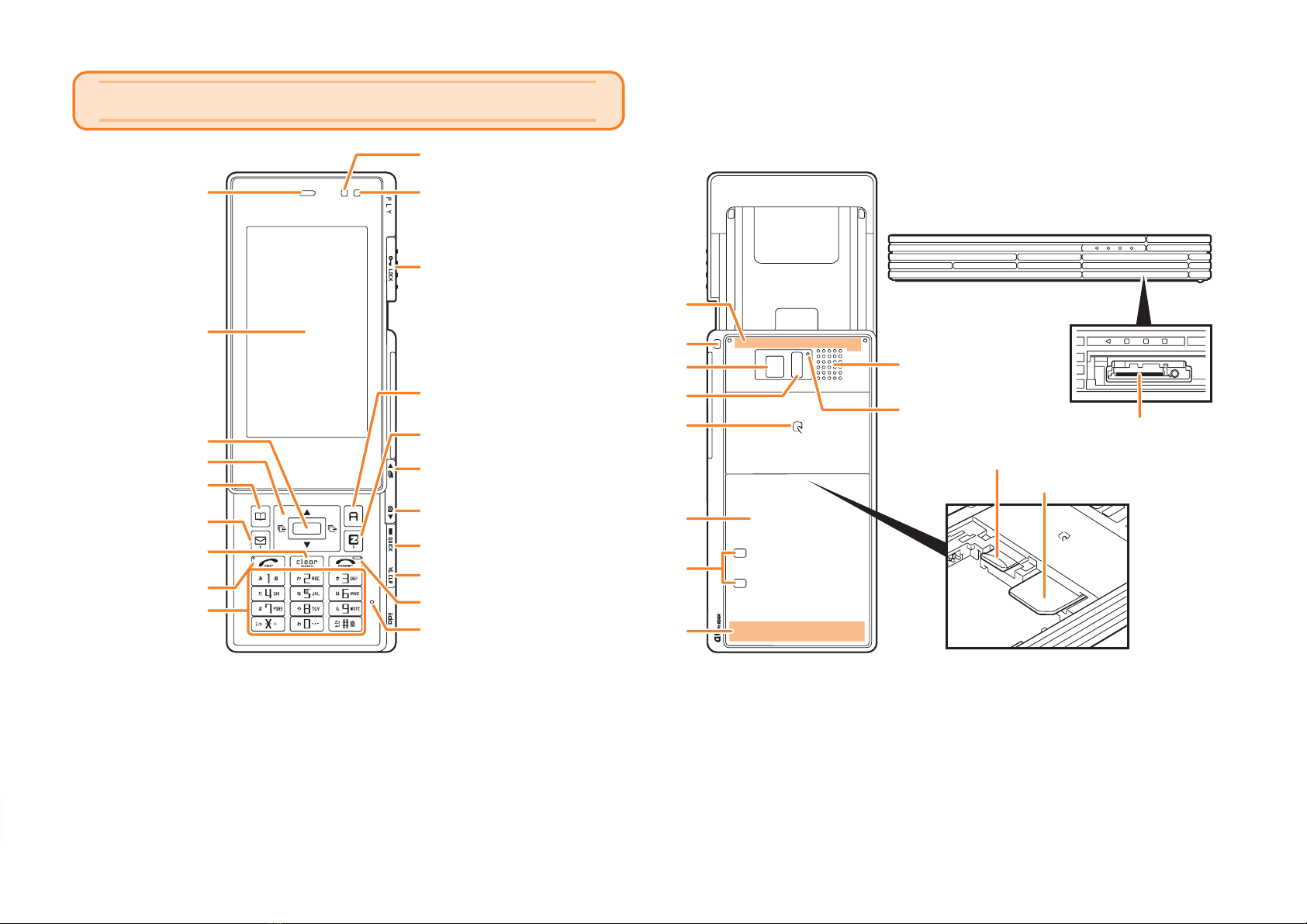
Camera (lens)
Battery pack/
Battery pack cover
Memory card slot
Power terminal
FeliCa mark
Speaker
Infrared port
External connection jack
Send key/Pair key
Up key (side)/
Customize key
Phone book key/
Soft key 1
Lux Sensor
Lock key
Clear key (side)
EZapps key/
Soft key 2
Mail key
EZ key
Clear key/
Memo key
Warp function key
Charge indicator/Incoming LED
Display
Center key
Earpiece
Keypad,
key,
key
Microphone
Down key (side)/
Camera key
Hand strap eyelet
Power key/End key
Quick key
au IC-Card
Built-in antenna
Camera lamp
Built-in antenna
Camera (lens)
Battery pack/
Battery pack cover
Memory card slot
Power terminal
FeliCa mark
Speaker
Infrared port
External connection jack
Send key/Pair key
Up key (side)/
Customize key
Phone book key/
Soft key 1
Lux Sensor
Lock key
Clear key (side)
EZapps key/
Soft key 2
Mail key
EZ key
Clear key/
Memo key
Warp function key
Charge indicator/Incoming LED
Display
Center key
Earpiece
Keypad,
key,
key
Microphone
Down key (side)/
Camera key
Hand strap eyelet
Power key/End key
Quick key
au IC-Card
Built-in antenna
Camera lamp
Built-in antenna
Turning Power On and Off
●Turning Power On
Hold down Ffor at least a few seconds.
●Turning Power Off
Hold down Ffor at least a few seconds.
Switching the Screen to English
From the stand-by screen: Press c.▶Press 3.▶Press 5.
▶Press 2.
1
8
Getting Ready
Charging the Battery Pack
The battery pack is not fully charged at the time of purchase.
Be sure to charge the battery pack before using the cell
phone for the first time.
An AC adapter is not included. Purchase a common AC
adapter 01/02 (sold separately).
Connect the common AC adapter 01/02 to the
cell phone with the battery pack attached.
Open the cover of the external connection jack. Check
the shape of the connector of the common AC adapter
01/02, and plug it straight into the external connection
jack.
Unfold the power plug of the common AC
adapter 01/02 and plug it into a 100 V AC power
outlet.
Confirm that the charge indicator lights.
Charging: The charge indicator lights.
Charging finished: The charge indicator goes out.
•
➡
•
➡
➡
•
•
Be sure to close the cover of the external connection
jack when charging is finished.
Do not pull or twist the cover of the external
connection jack forcibly.
Be sure to use the common AC adapter 02 (sold
separately) when charging overseas.
•
•
•
Common
AC adapter
01/02
100 V AC
power outlet
Power
plug



Charge indicator
Connector
External
connection jack
Common
AC adapter
01/02
100 V AC
power outlet
Power
plug



Charge indicator
Connector
External
connection jack
   External
connection
j
ack
J
ac
k
cover 100VAC
poweroutlet
CommonAC
adapter01/02
Connector
Powerplu
g
2
10
Getting Ready
Hiding/Redisplaying the
Alert Window
When the alert window is displayed on
the standby screen, you can temporarily
hide it by pressing K(Back) and then
display the Main menu by pressing [.
To redisplay the hidden alert window,
press Bwhen the standby screen is
displayed.
Turning On Power
Hold down Sfor at least one second.
You cannot receive or make calls if (out of range
indicator) is displayed.
Turning Off Power
When the standby screen is displayed, hold down Sfor
at least one second.
Switching the Display Language
to English
You can switch the display language for function names
and other items to English.
When the standby screen is displayed, press [.
Use Eto select
機能
(Function) and then
press [(選択 [Select]).
Use Gto select
画面表示
(Screen Display) and
then press [(選択 [Select]).
■
•
■
➡
➡
Use Gto select Set Language and then press
[(選択 [Select]).
Use Gto select English and then press
[(Set).
Initial Setup of E-mail and EZweb
To use e-mail and EZweb, you need to apply for an EZweb
subscription. If you did not apply for an EZweb subscription
at the time of purchase, contact an au shop or the au
Customer Service Center.
Also, before use, you need to configure initial settings. Your
e-mail address is assigned automatically in the initial setup.
When the standby screen is displayed, press L.
Press [(OK).
After a short while, your e-mail address is displayed.
Press [(OK).
The initial settings are complete.
You can also configure initial settings by pressing mM
or jJ.
Checking Your Phone Number
and E-mail Address
When the standby screen is displayed, press [
and then 0.
➡
➡
➡
➡
•
Alert windowAlert window
3
15
Making and Answering Calls
Making a Call
When the standby screen is displayed, use 0
to 9to enter a phone number.
When calling to a fixed-line phone, you also need to enter
the area code.
Press Q.
To end the call, press S.
After you enter a phone number, you can add 184 or
186 to the phone number as follows:
Press {[(Call).
Use gGto select Add Special No. and then press
{[(OK).
Use gGto select 184 or 186 and then press
{[(Add).
184: When you do not want to inform the other party of
your phone number.
186: When you want to inform the other party of your
phone number.
•
➡
•
•
➡
➡
➡
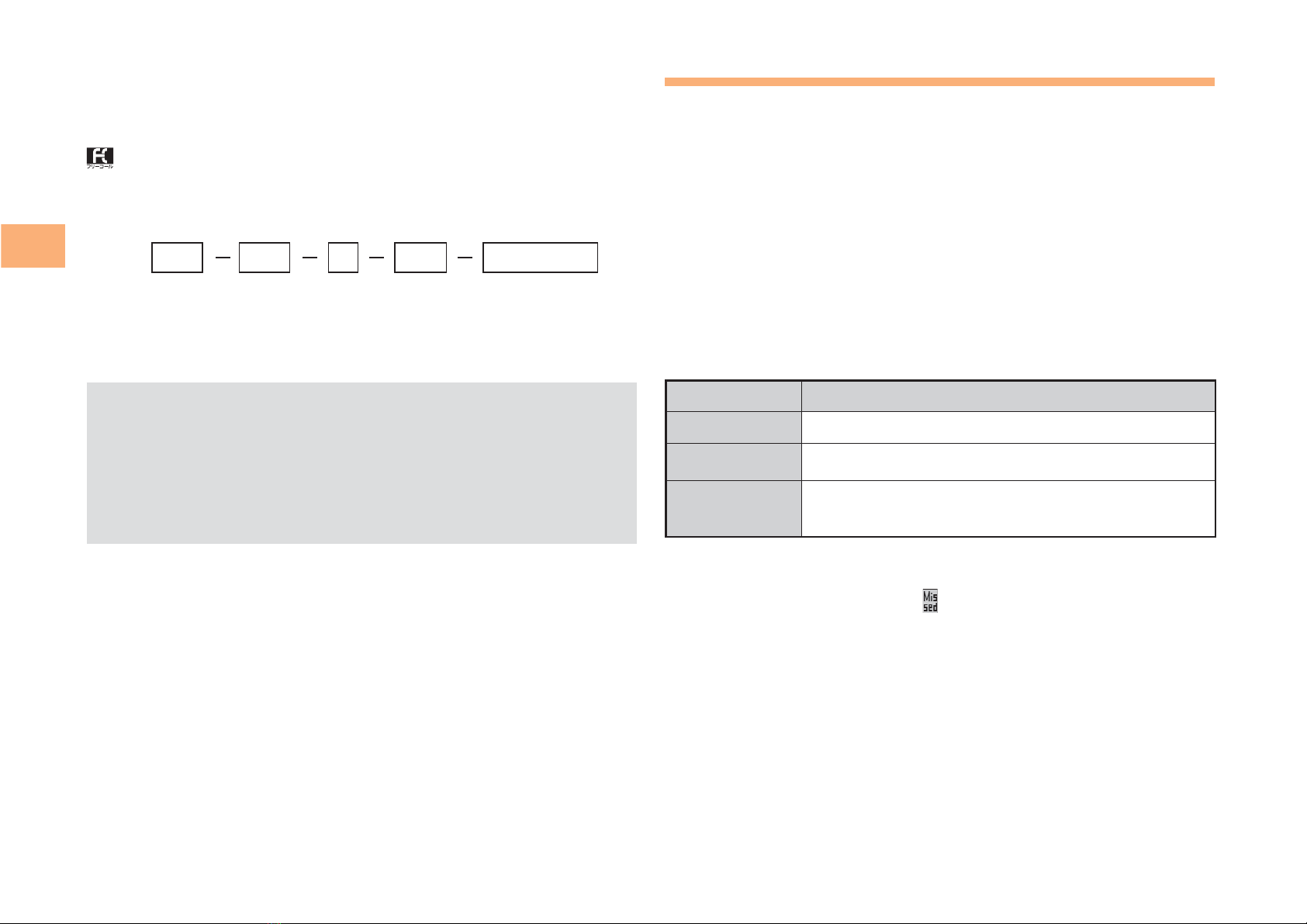
Making an International Call
au International Call Service
Available without any additional application
Example: To call 212-123-△△△△ in the USA
Press 005345.
↑
International access code
Press 1.
↑
Country code (USA)
Press 212.
↑
Area code
Press 123△△△△.
↑
Phone number
Press Q.
Calling charges for this service are added to monthly
cell phone calling charges and billed together.
Check the country code at the au Customer Service
Center.
For charges, refer to au MOBILE PHONE SERVICE
GUIDE or au Customer Service Center.
■
➡
➡
➡
➡
•
•
•
4
16
Making and Answering Calls
001 KOKUSAI MOBILE TALK
Application required.
For inquiries, contact the KDDI Customer Service Center.
0077-7160
(toll-free; open 9:00 to 20:00 everyday including
weekends and national holidays)
Charges for 001 KOKUSAI MOBILE TALK are charged
separately from monthly au telephone charges.
Check the country code at the au Customer Service
Center.
For charges, refer to au MOBILE PHONE SERVICE
GUIDE or au Customer Service Center.
■
•
•
•
001
↑
KDDIinternational
accesscode
↑
Country
code
(USA)
↑
Areacode
↑
Phonenumber
010 212 123
-
XXXX1001
↑
KDDIinternational
accesscode
↑
Country
code
(USA)
↑
Areacode
↑
Phonenumber
010 212 123
-
XXXX1
Answering a Call
To answer a call, press Q.
To end the call, press S.
Display When a Call is Received
The phone number of the caller appears.
If the caller's phone number and name are in the phone
book, the name is also displayed.
When the phone number of the caller is not displayed, one
of the following indicators may appear.
Indicator Meaning
ID Unsent The caller did not send a Caller ID.
Payphone The call is from a pay phone.
Not Support The call is from a phone that does not
support Caller ID.
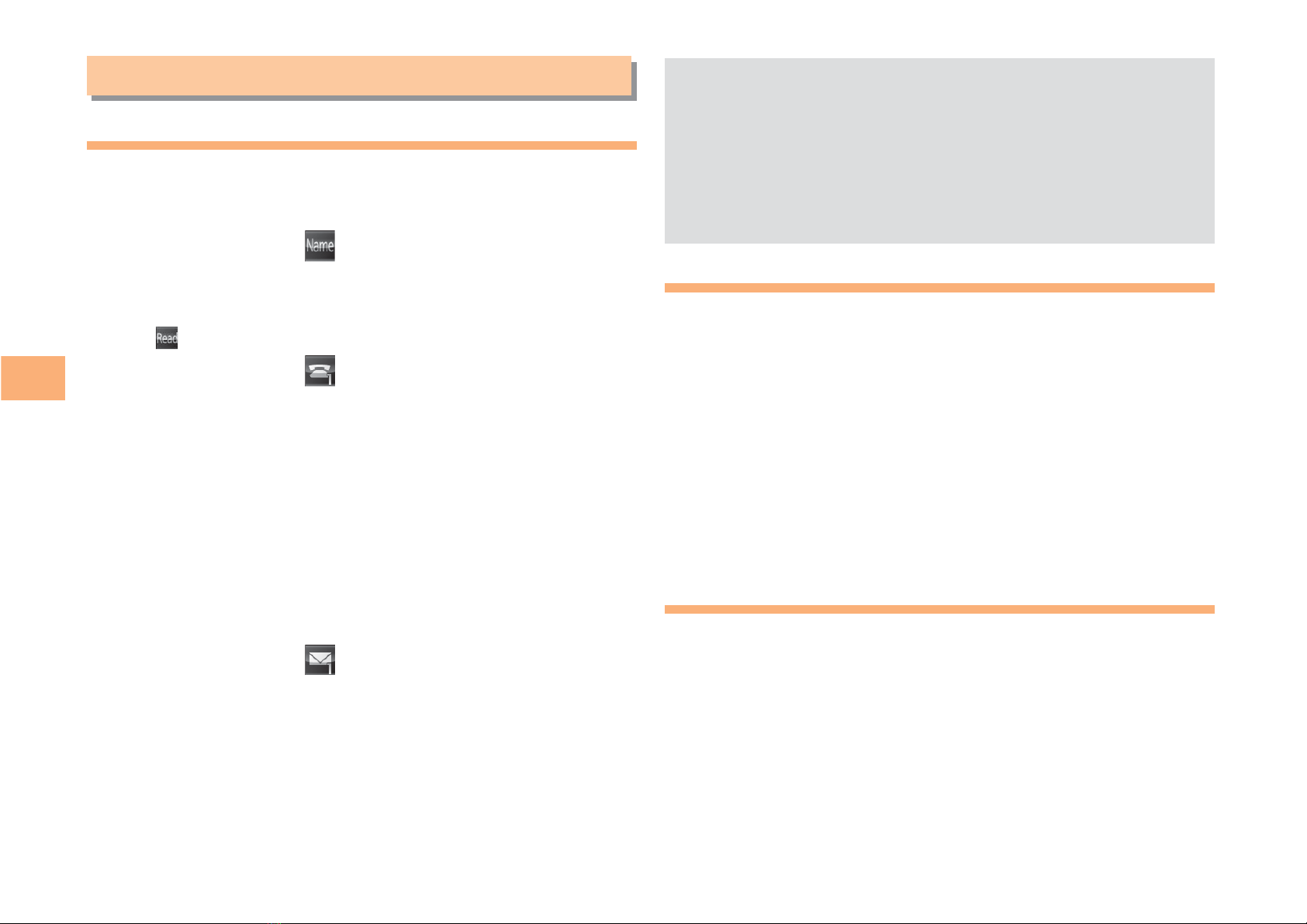
Missed Call Notification
If you did not answer a call, and Missed Call are displayed
to let you know that you missed a call.
To check the caller's phone number, use Fto select
Missed Call and then press [(Select). You can then return
the call (see page 17).
•
■
■
5
20
Global Function
Global Function
The T001 supports Global Passport CDMA services.
You can use your T001 overseas without any additional
application.
Setting the Area
When the standby screen is displayed, press [.
Use Eto select Tool and then press [(Select).
Use Gto select Global Function and then press
[(Select).
Precautions are displayed.
Check the precautions and then press [(OK).
Use Gto select Area Setting and then press
[(Select).
Use Gto select Overseas and then press
[(Select).
Use Gto select YES and then press [(OK).
➡
➡
➡
➡
➡
➡
Calling Japan from Overseas
When the standby screen is displayed, use 0
to 9to enter a phone number.
Press [(Call).
Use Gto select Voice Call and then press
[(OK).
Use Gto select Call to Japan and then press
[(OK).
Press [(Call).
Some functions are not available when Area Setting is
not set to Japan.
Manually update and set the PRL (preferred roaming
list) before traveling abroad.
When you make an international call from Japan to a
Global Passport CDMA-compatible cell phone, you
can do it in the same way as making domestic calls
within Japan.
To obtain (download) the PRL, you need to subscribe
to EZweb and make initial settings (see page 10) while
in Japan.
➡
➡
➡
➡
•
•
•
•
6
21
Character Input
Character Input
Character Entry Modes
When a character entry screen is displayed, you can select
a character entry mode if you press K(ChrTyp).
Menu Items
漢あ : Kanji conversion mode
カナ : Double-byte katakana mode
aA : Double-byte alphanumeric mode
12 : Double-byte number mode
カタカナ
: Single-byte katakana mode
abAB
: Single-byte alphanumeric mode
1234
: Single-byte number mode
Use Eto select a character entry mode and then
press [(Select).
Entering Alphanumeric Characters
You can use the keys 1to 0to enter characters. More
than one character is assigned to each key.
The following table shows the key assignment for entering
characters.
■
Number of Times to Press the Key
key123456789101112
:1.@−_/:〜?,ʼ!1
:2abcABC2
:3defD E F3
:4ghiG H I4
:5jklJKL5
:6mnoMN O6
:7pqrsP Q RS7
:8tuv T U V8
:9wxyzWX Y Z 9
:00Inputs symbols
:*Inputs symbols (switches an unconfirmed
character between uppercase and lowercase).
:;Adds a line break and displays characters in the
opposite order.
When you change your e-mail address, you cannot use
the characters in
■
for the account name (part of the
address to the left of @).
7
22
Character Input
Entering Two or More Characters
Assigned to the Same Key
After you enter the first character, press Cand then enter
the next character.
Deleting Characters
To delete one character at a time, move the cursor to the
character you want to delete and then press R. To delete
all characters to the right of the cursor, hold down Rfor
at least one second. If there are no characters to the right of
the cursor, holding down Rwill delete all the characters.
Starting a New Line
Press ;.
Certain functions such as c-mail do not support
entering new lines.
Entering E-mail Addresses
E-mail Address Compatible Characters
Before you enter an e-mail address, switch to the Single-
byte alphanumeric mode.
When changing your e-mail address, you can enter up
to 30 single-byte alphanumeric and symbol characters
for the account name (part to the left of @). Note the
following:
- Uppercase characters cannot be used.
- Period (.) or zero (0) cannot be used as the first
character.
■
■
■
•
■
•
•
How to Enter E-mail Addresses
Example: Entering "[email protected]"
Enter "taro.23".
t : Press 8once.
a: Press 2once.
r : Press 7three times.
o: Press 6three times.
. : Press 1once.
2: Press 2once and then ;.
3: Press 3once and then ;.
Enter "@".
@: Press 1twice.
Enter "toshiba" and then press [(OK).
t : Press 8once.
o: Press 6three times.
s: Press 7four times.
h: Press 4twice and then C.
i : Press 4three times.
b: Press 2twice and then C.
a: Press 2once.
Press J(SubMenu).
Use Gto select Phrase and then press
[(OK).
Use Gto select Internet and then press
[(Select).
Use Gto select .co.jp and then press
[(Select).
".co.jp" is entered.
■
➡
➡
➡
➡
➡
➡
8
24
Phone Book
Phone Book
Saving a Phone Book Entry
When the standby screen is displayed, hold down
Kfor at least one second.
Use Gto select [Name] and then press
[(Select).
Enter a name and then press [(OK).
The [Reading] for the name is entered automatically.
Use Gto select [Phone No.1] and then
press [(Select).
Enter a phone number and then press [(OK).
If the phone number is for a fixed-line phone, enter the
phone number starting with the area code.
Use Gto select a phone number type and
then press [(Select).
Follow the next step to enter an e-mail address. If
you do not want to enter an e-mail address, press
J(Reg).
Use Gto select [E-mail Address1] and then
press [(Select).
Enter an e-mail address and then press
[(OK).
Use Gto select an e-mail address type and
then press [(Select).
Press J(Reg).
➡
➡
➡
➡
•
➡
•
➡
➡
➡
➡
The phone book can store up to 1,000 entries.
The cell phone automatically saves an entry to the
lowest available memory number from 000 to 999.
You can save five phone numbers and five e-mail
addresses for each phone book entry.
You can also assign a group No., and enter birthday,
address, and other information.
Dialing from the Phone Book
When the standby screen is displayed, press K.
Use Eto select the entry containing the
phone number you want to dial and then press
[(Detail).
Use Gto select the phone number and then
press [(Select).
Use Gto select Voice Call and then press
[(OK).
Editing Phone Book Entries
When the standby screen is displayed, press K.
Select an entry and press [(Detail).
Press K(Edit).
Edit the contents and then press J(Reg).
Use Gto select Overwrite and then press
[(OK).
•
•
•
•
➡
➡
➡
➡
➡
➡
➡
9