Riso ComColor GD9630 User manual

Quick Guide
Please start by reading this guide.
It describes basic operations.
Series
061-360QG-EN0

This device is compliant with the substance emission
inspections of the German environmental label "RAL-UZ171".
CAUTION
After reading this guide, keep it handy for future reference.
The "Safety Precautions" are provided in the supplemental
Safety Information. Be sure to read through them prior to use.
ComColor GD Series Quick Guide
1
Thank you for using a ComColor GD Series product.
This ComColor GD Series product is a network-compatible inkjet printer that performs high-speed color
printing.
Preface
About the Guides
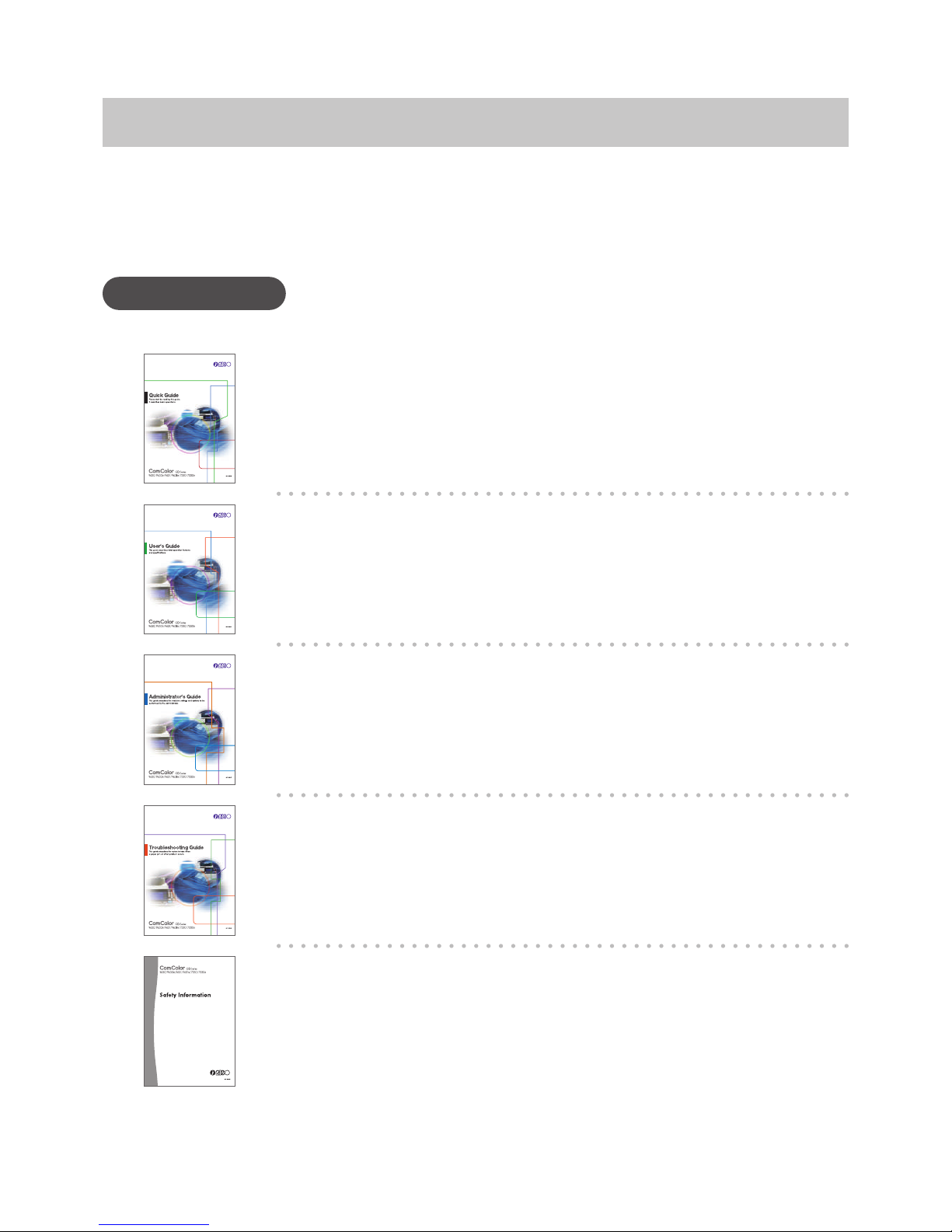
The ve guides described below are supplied with this machine.
User's Guide
This guide describes handling precautions and specications, as well as the operations
and settings of each function.
Read this guide for a more detailed understanding of the machine.
Troubleshooting Guide
This guide describes the actions to take when a paper jam or other problem occurs.
Safety Information
This guide describes safety precautions and specications.
Quick Guide (this guide)
This guide describes basic machine operations and how to replace consumables.
Keep this guide handy, such as near the machine, for easy reference.
Start by reading this guide.
For a detailed explanation of each function, see the "User's Guide".
Administrator's Guide
This guide describes the machine settings and optional equipment to be congured by
the administrator.
ComColor GD Series Quick Guide
2
About This Guide
Symbols Used in This Guide
Indicates cautions that should be noted for safe use of this machine.
Indicates important items that should be noted or are prohibited.
Indicates useful or additional information.
Names of Keys and Buttons
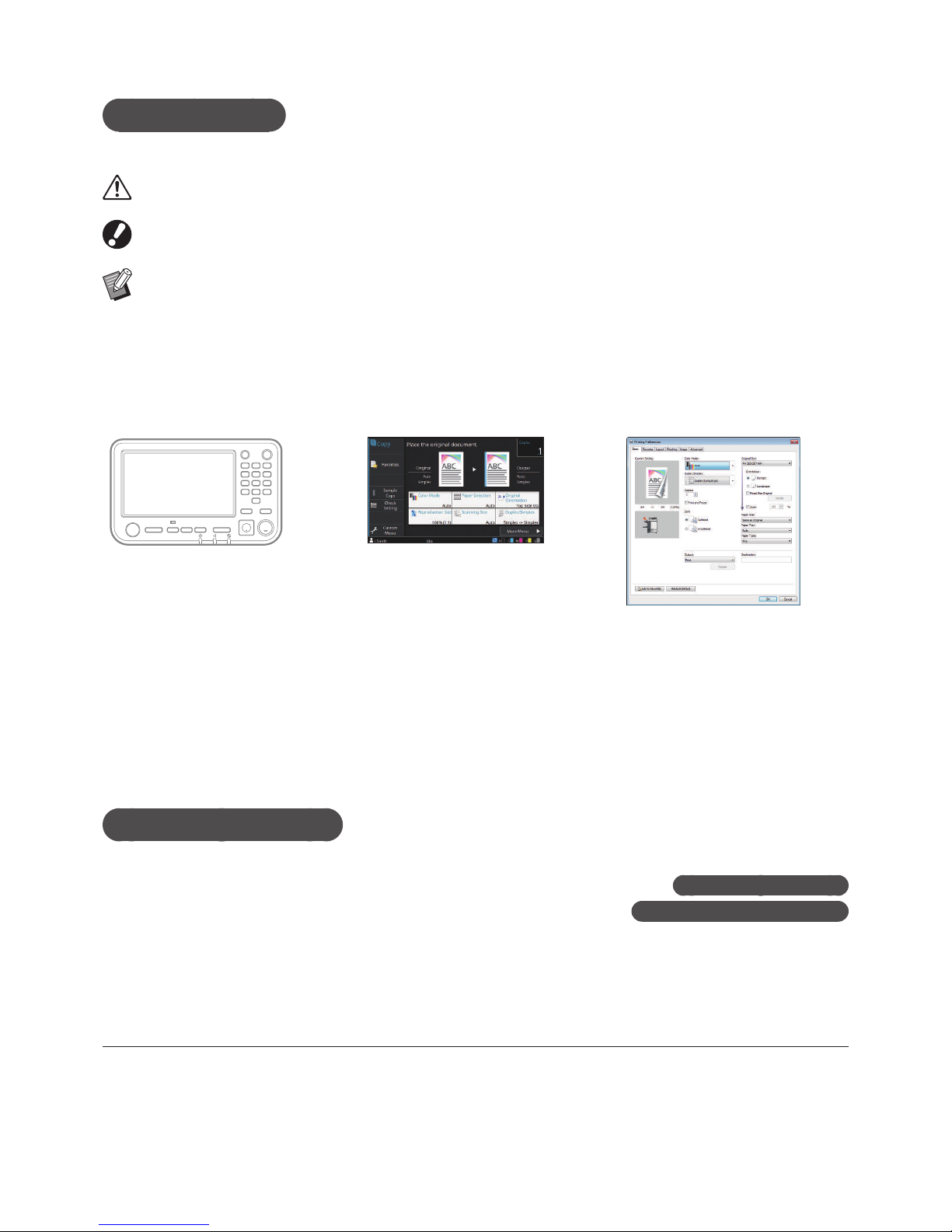
The names of hard keys on the operation panel and buttons/items on the touch panel screen or computer window
are indicated with square brackets [ ].
Operation panel
Example: Press the [Stop] key.
Touch panel screen
Example: Touch [Color Mode].
Computer window
Example: Select the [Mixed Size
Original] check box.
Illustrations and Operating Procedures in This Guide
• The operating procedures, screenshots, and illustrations in this guide are for the ComColor GD9630/GD9630R
with the optional scanner connected. This guide also assumes that each function is set to the factory setting, and
that [Login Setting] is set to [ON].
• The screenshots and illustrations in this guide may vary depending on the machine model and usage
environment, including the connected optional equipment.
Operating This Machine
This machine is operated using the buttons on the touch panel and the keys on the operator panel.
About This Machinep.4
Operating the Touch Panelp.7
(1) This guide may not be reproduced in whole or in part without the permission of RISO KAGAKU
CORPORATION.
(2) The contents of this manual may be changed without prior notice due to product improvements.
(3) RISO KAGAKU CORPORATION shall not be liable for any consequence of using this guide or the machine.
ComColor GD Series Quick Guide

3
Contents
Preparation
About This Machine....................................................................................4
Turning On the Power ................................................................................6
Operating the Touch Panel.........................................................................7
Logging In...................................................................................................8
Loading Originals .......................................................................................9
Getting Started
Copying ....................................................................................................10
Loading Orientation of Originals and Paper.................................. 11
About the Various Copying Functions ......................................................12
Scanning ..................................................................................................14
What is the [Favorites] Function? ..................................................15
Printing .....................................................................................................16
About the Various Printing Functions .......................................................18
Using Storage...........................................................................................20
Using a USB Flash Drive..........................................................................22
Routine Care
When Paper Runs Out .............................................................................24
When Ink Runs Out ..................................................................................26
Scanner Care ...........................................................................................28
Useful Tips ..............................................................................................29
Consumables .................................................................................................................. 29
RISO Console ................................................................................................................. 29
Cleaning the Print Head .................................................................................................. 29
Storing Consumables ...................................................................................................... 30
Originals That May Not Be Copied.................................................................................. 30
ComColor GD Series Quick Guide
4
Preparation
About This Machine
1
2
3
6
5
4
Main Unit and Optional Scanner
This section describes the main parts of the machine.
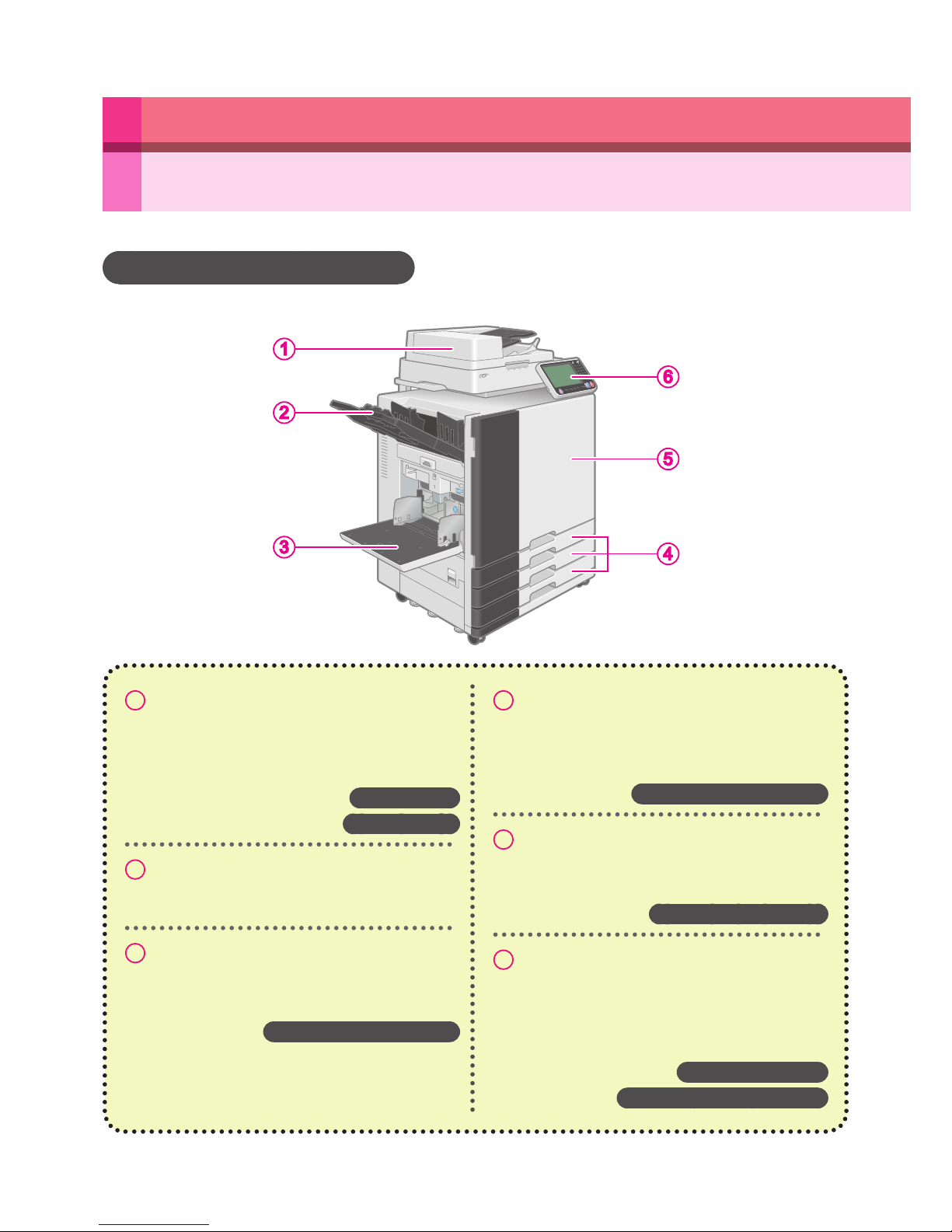
1Scanner
Use the scanner to copy or scan documents that
are read from the platen glass or the ADF
(automatic document feeder).
Copyingp.10
Scanningp.14
2Face down tray
Printouts are output face down.
3Standard tray
Load special paper (thick paper, envelopes, etc.)
here. You can also load plain paper.
When Paper Runs Outp.24
4Feed trays
Load the paper to be used for printing here.
Special paper such as thick paper cannot be
loaded.
When Paper Runs Outp.24
5Front cover
Open when paper is jammed or when replacing an
ink cartridge.
When Ink Runs Outp.26
6Operation panel
Use to perform operations or congure settings.
The viewing angle can be adjusted for improved
visibility.
The USB port is located on the left side.
Operation Panelp.5
Using a USB Flash Drivep.22
ComColor GD Series Quick Guide
5
Operation Panel
This section describes the main parts used with the operation panel.
About This Machine
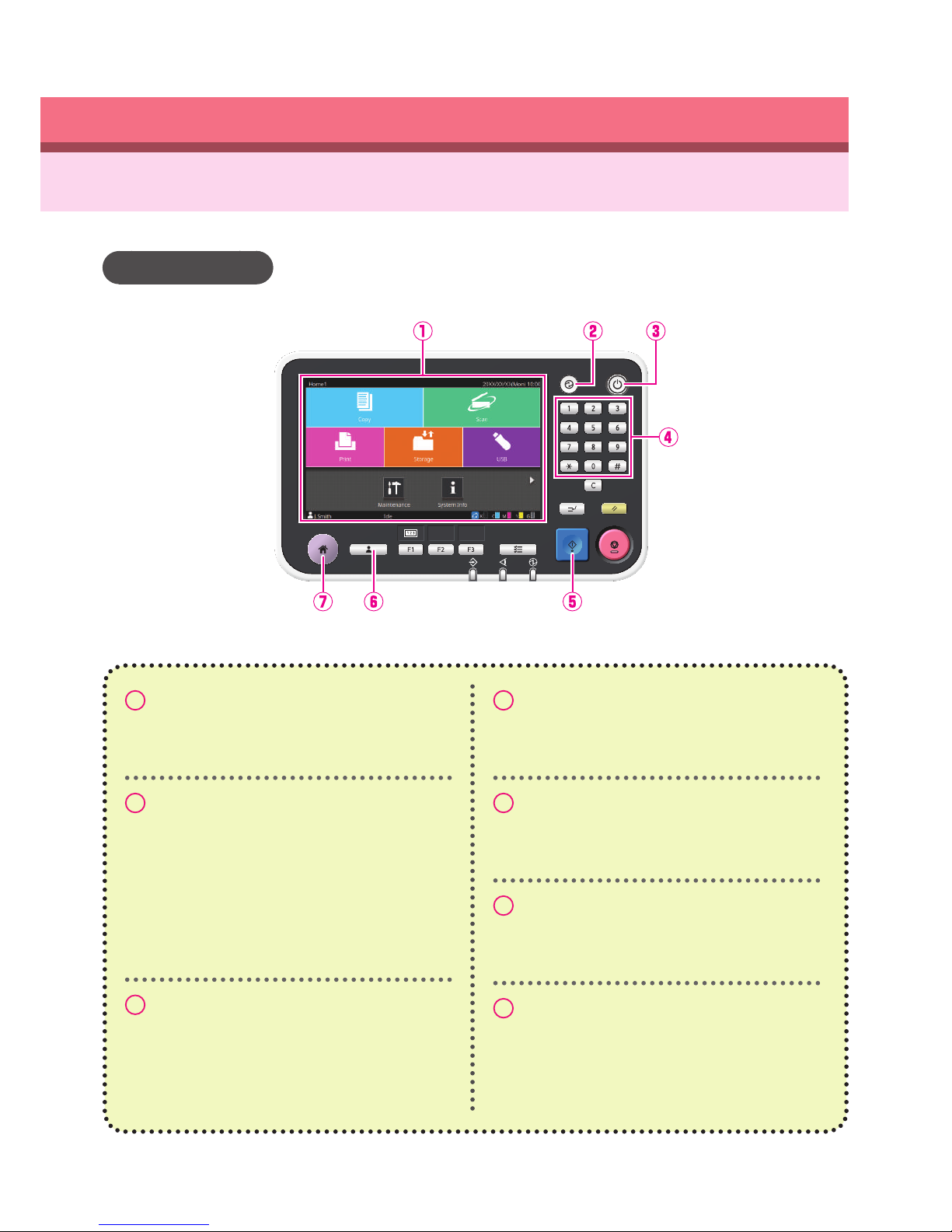
1Touch panel
Use to perform operations or congure settings.
2Wake Up key
This key lights up when this machine is in power
saving mode.
Pressing this key when it is lit makes the machine
ready for operation.
Pressing this key when it is not lit puts the
machine into sleep state.
3Power key
When pressed, the power turns on and the key
lights up.
To turn off the power, press and hold the key.
4Numeric keys
Use these keys to enter numbers.
5Start key
Press this key to start an operation.
6Login / Logout key
Press this key to log in or log out.
7Home key
Press this key to return to the [Home1] screen
(initial screen) from the screen for each function.
ComColor GD Series Quick Guide
6
Turning On the Power
Reducing power consumption
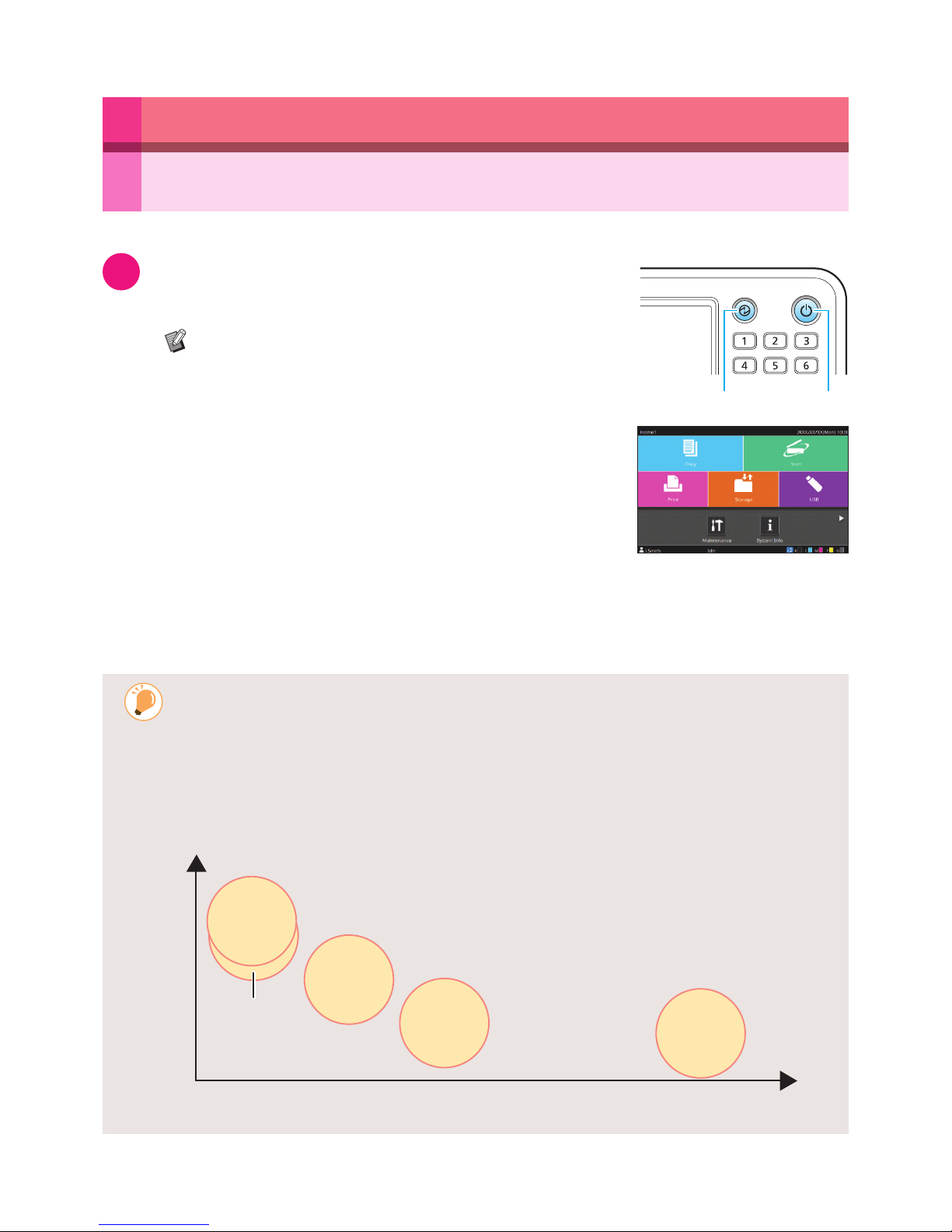
You can reduce the machine's level of power consumption by setting the power saving mode.
For the power saving mode, you can select the backlight OFF state and one of two types of sleep states with
different levels of power consumption ([Low] or [Standard]). The amount of time that elapses before the
machine enters each state, as well as the power consumption value, are set by the administrator.
It takes longer for the machine to resume operations after sleep state than backlight OFF state, but power
consumption is lower.
Recovery time LongShort
High
Low
Backlight OFF
147 W or less
Sleep
[Standard]
90 W or less Sleep
[Low]
4 W or less
Standby
0.5 W or
less
Ready state
150 W or
less
Power consumption
Preparation
Press the [Power] key on the
operation panel.
The machine automatically enters power saving
mode if you leave it unattended for some time.
Press the [Wake Up] key to operate the
machine. Wake Up Power
[Home1] screen
The [Home1] screen is displayed after the startup
screen.
1
ComColor GD Series Quick Guide

7
Operating the Touch Panel
Touch
Touching a button will select the item.
Flick
Flick your nger in any directions on the touch panel.
On the [Home1] screen, ick to switch to the [Home2] screen.
[Home1] screen [Home2] screen
On other screens, ick to scroll the setting items or lists.
Drag
Slide your nger in any directions without lifting from the touch panel.
Drag to scroll through setting items and lists. The scrolling will stop when you remove your nger from the touch
panel.
Preparation
ComColor GD Series Quick Guide
8
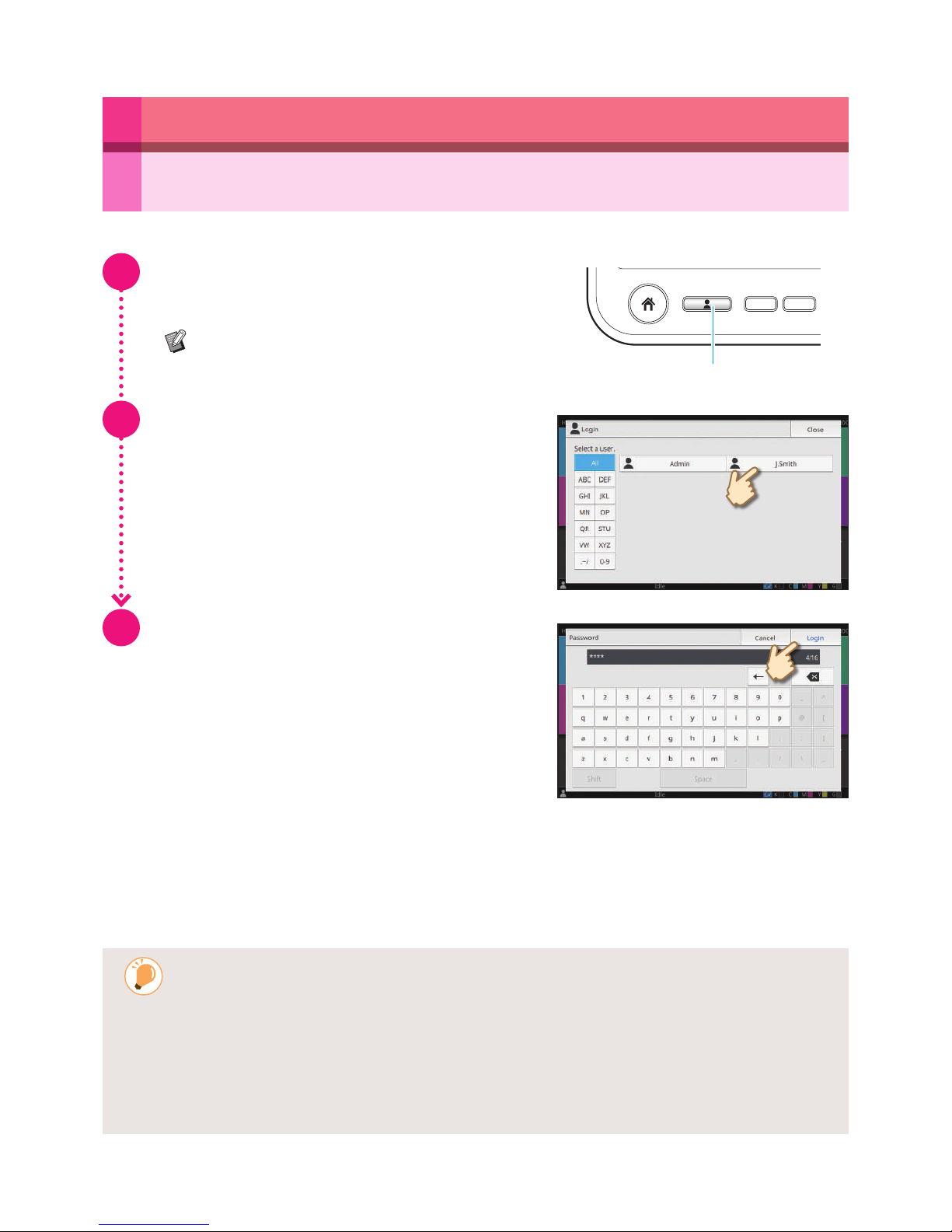
Logging In
When Logging In for the First Time
Change the temporary password provided by the administrator to a password of your own choosing.
1. Enter the temporary password on the [Password] screen, and touch [Login].
The [Change Password] screen is displayed.
2. Enter the new password and touch [Next].
3. Enter the new password again and touch [OK].
Preparation
Press the [Login/Logout] key.
The [Login] screen is displayed.
The [Login] screen can be displayed regardless
of the mode button that is touched.
F2F1
Login / Logout
Select the user name.
Enter your password and touch
[Login].
To log out, press the [Login/Logout] key.
1
2
3
ComColor GD Series Quick Guide
This manual suits for next models
5
Table of contents
Other Riso Printer manuals
Riso
Riso MZ970 User manual
Riso
Riso ComColor FW Series User manual
Riso
Riso HC5500T User manual
Riso
Riso Comcolor X1 Series User manual
Riso
Riso RZ Series User manual
Riso
Riso ComColor FT Series User manual

Riso
Riso ComColor FT Series User manual

Riso
Riso VALEZUS T2100 User manual
Riso
Riso HC5000T User manual
Riso
Riso RZ1090 User manual
Riso
Riso Comcolor Series Service manual

Riso
Riso ComColor FW Series User manual

Riso
Riso GR 3770 User manual
Riso
Riso SF EII Series User guide
Riso
Riso RZ 970 Series User manual

Riso
Riso GOCCOPRO QS200 User manual
Riso
Riso ComColor 9150 User guide
Riso
Riso HC5500 User manual
Riso
Riso MZ870 User manual

Riso
Riso GOCCOPRO 100 User manual