
ST STEVAL-IFP048V1 User manual
Other ST Computer Hardware manuals
ST
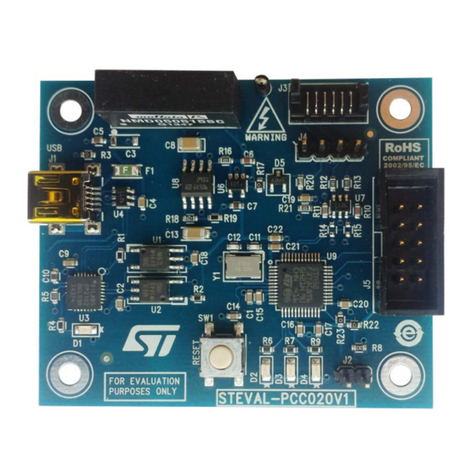
ST PCC020V1 User manual

ST
ST STR9 User manual
ST
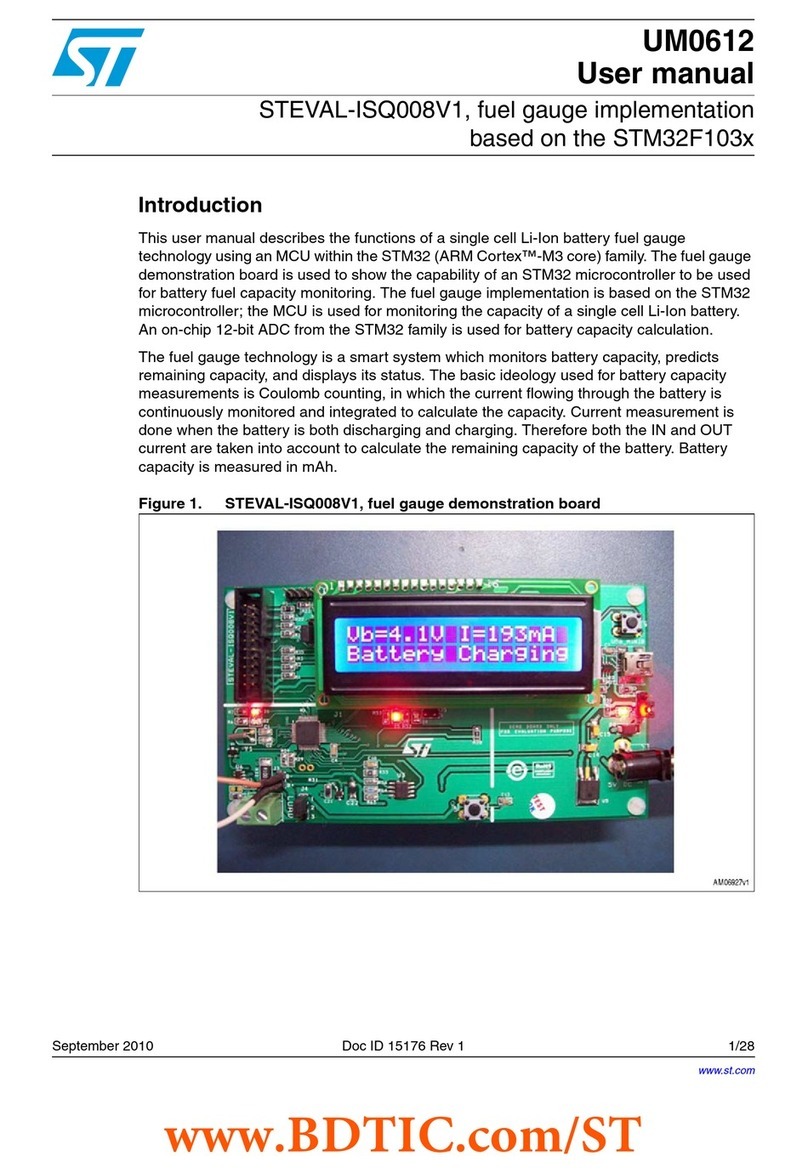
ST STEVAL-ISQ008V1 User manual
ST
ST FP-ATR-BLE1 User manual
ST
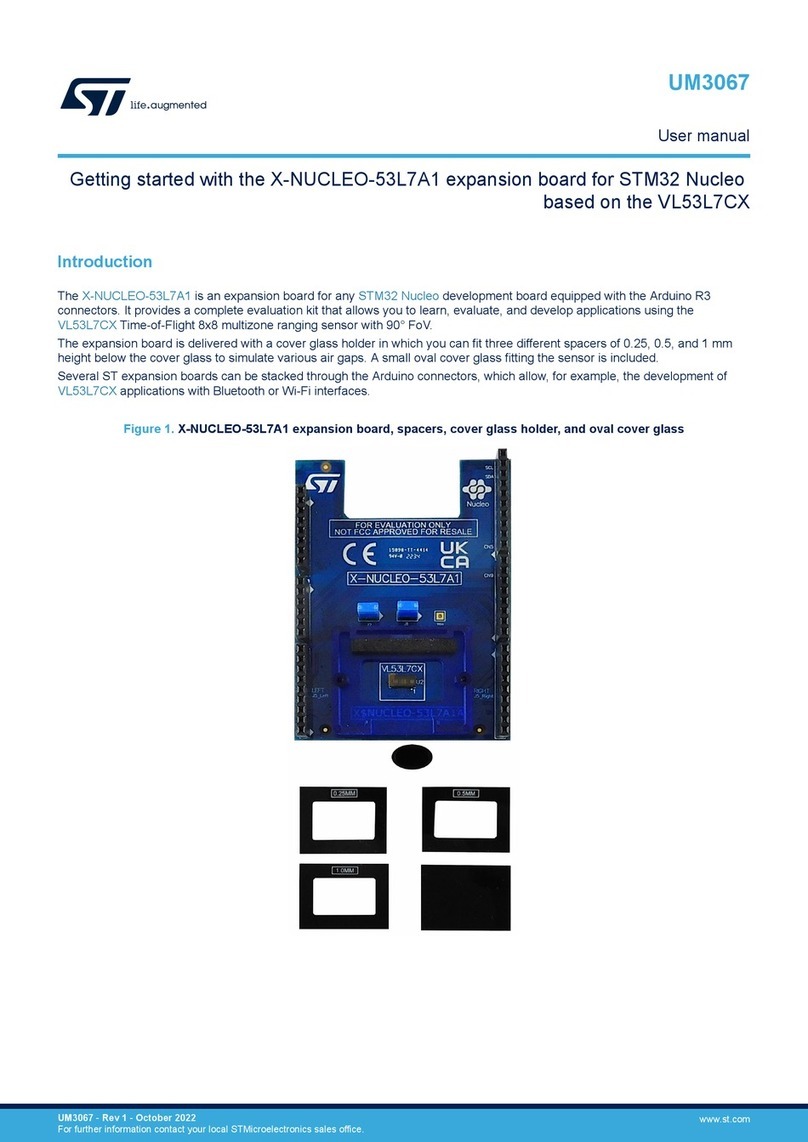
ST X-NUCLEO-53L7A1 User manual
ST
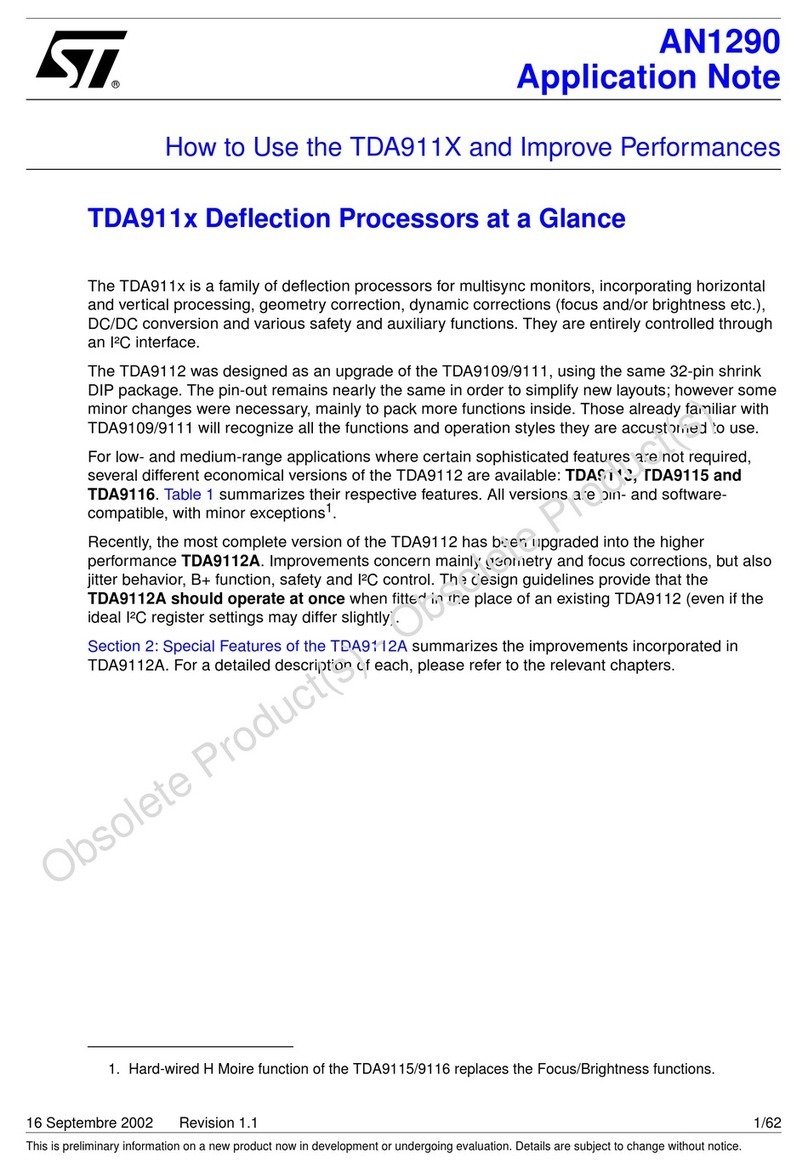
ST TDA911 Series Installation and operating instructions
ST
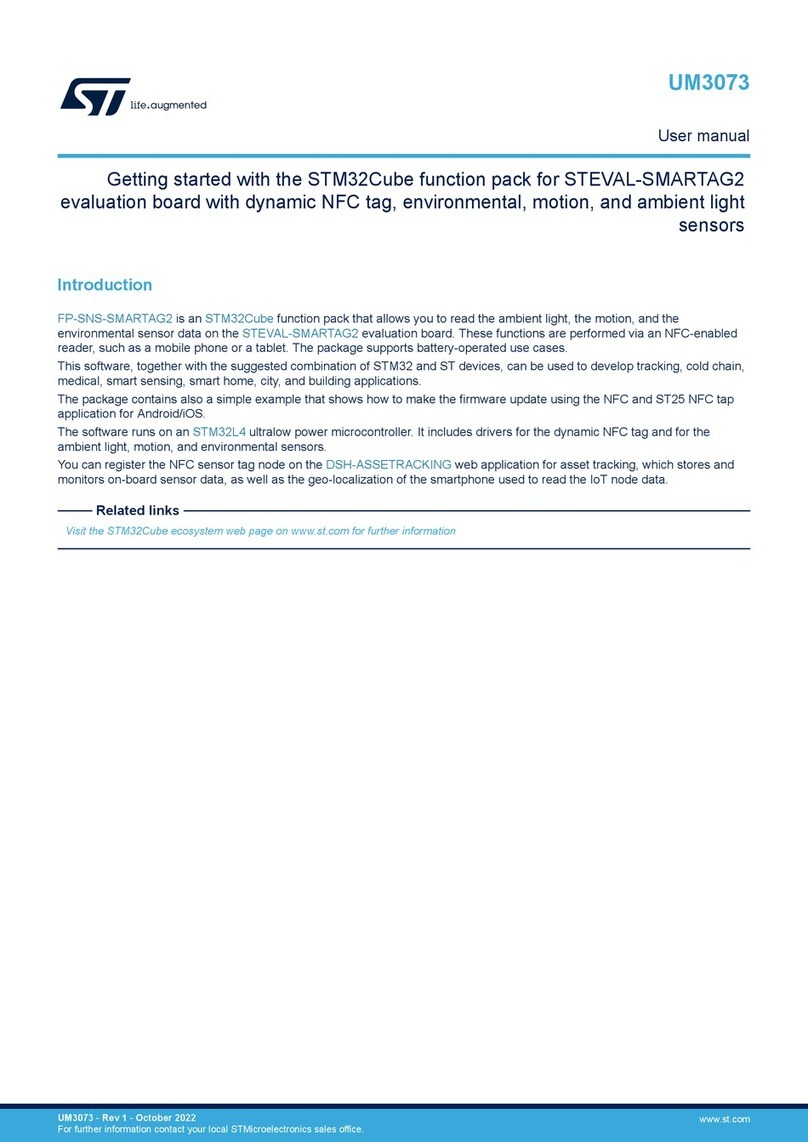
ST STM32Cube User manual

ST
ST X-NUCLEO-IHM12A1 User manual
ST
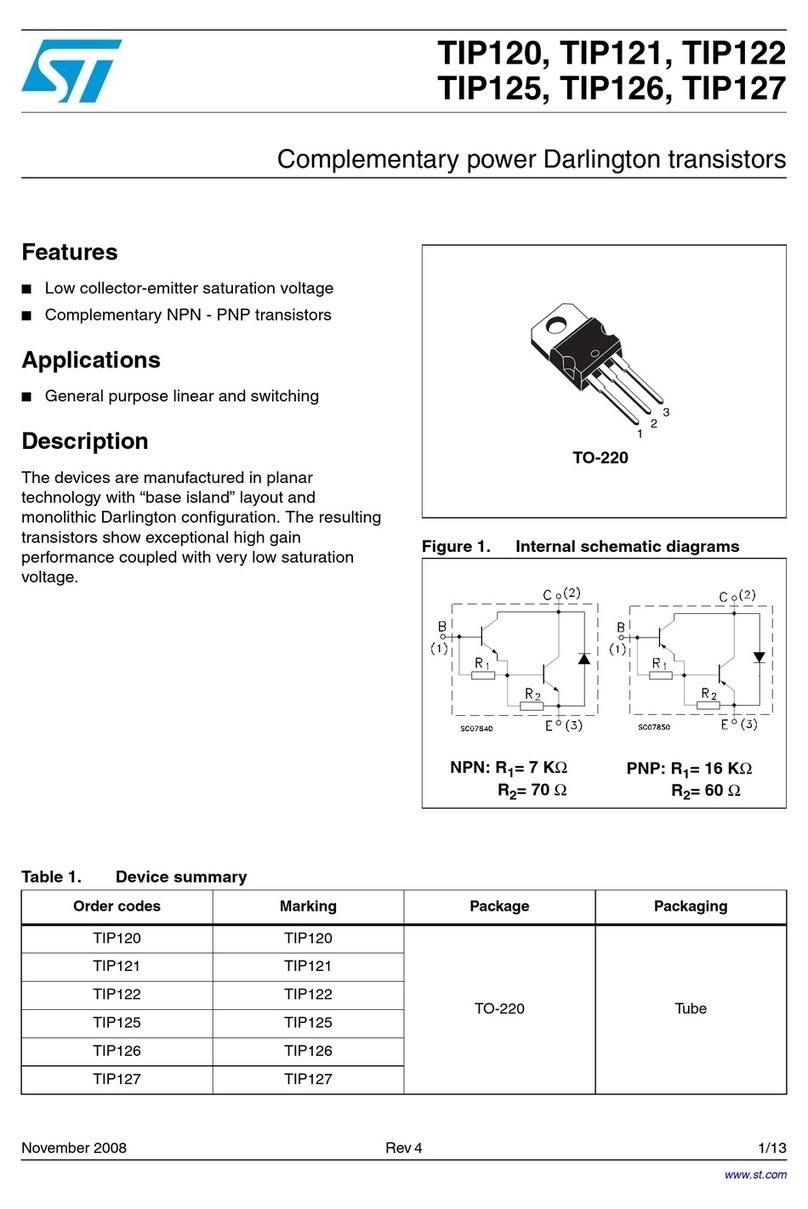
ST TIP120 User manual
ST
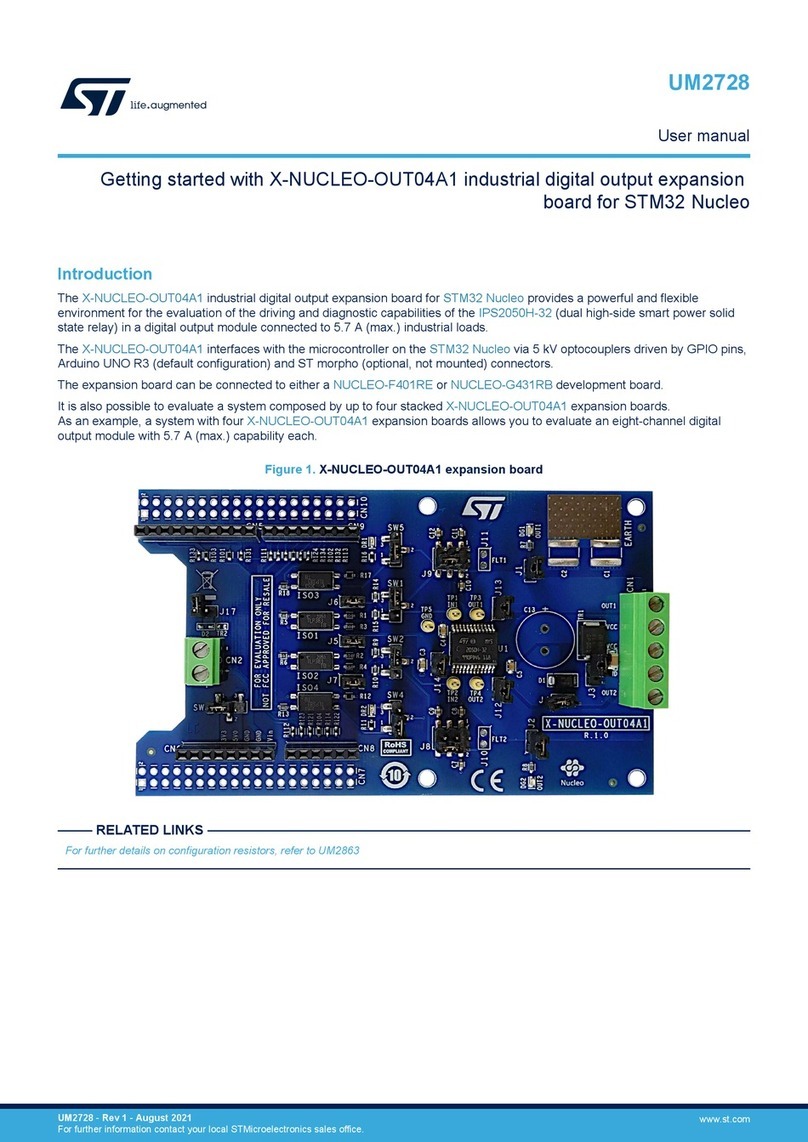
ST X-NUCLEO-OUT04A1 User manual
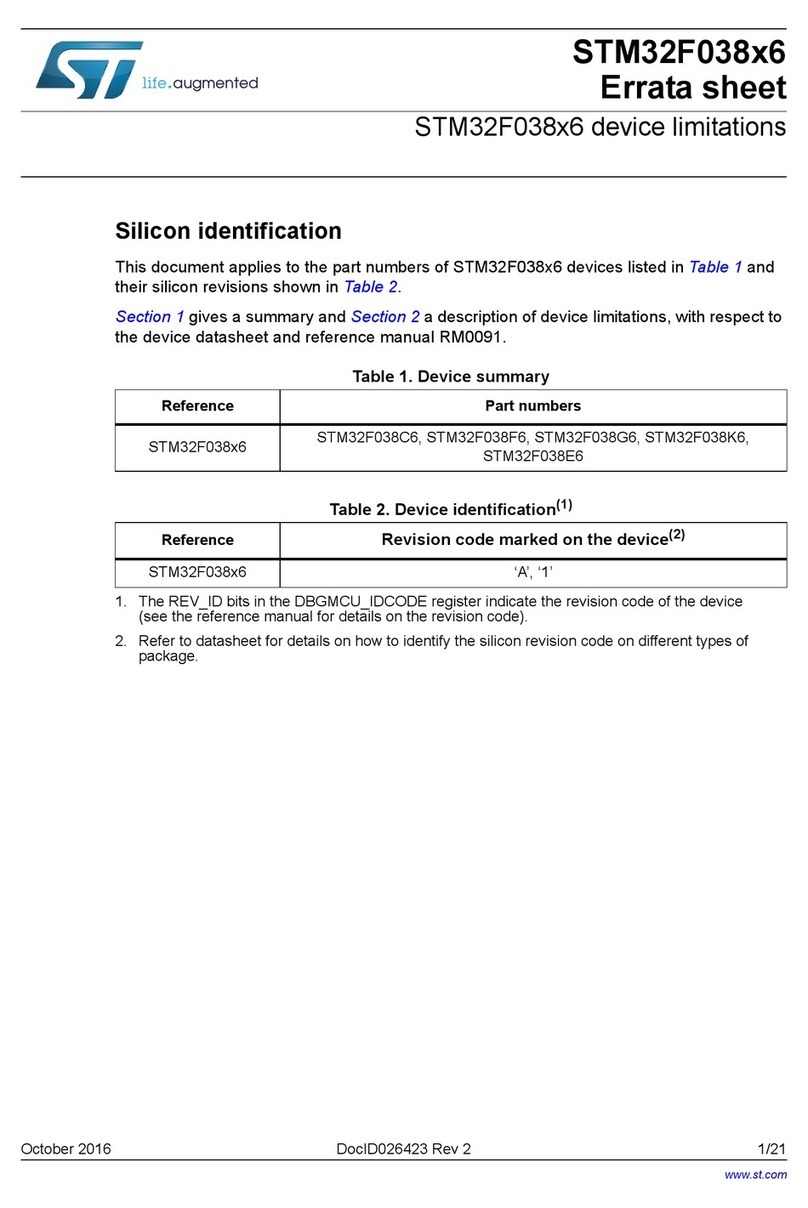
ST
ST STM32F038 6 Series User manual
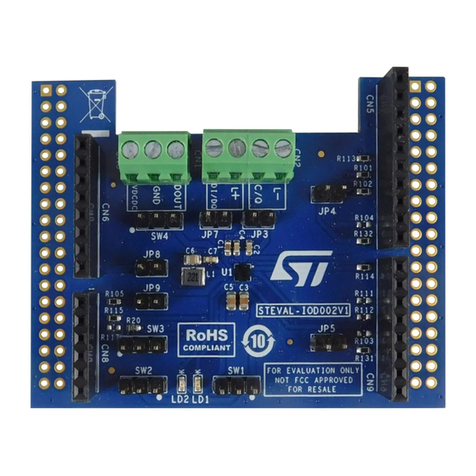
ST
ST STEVAL-IOD002V1 User manual
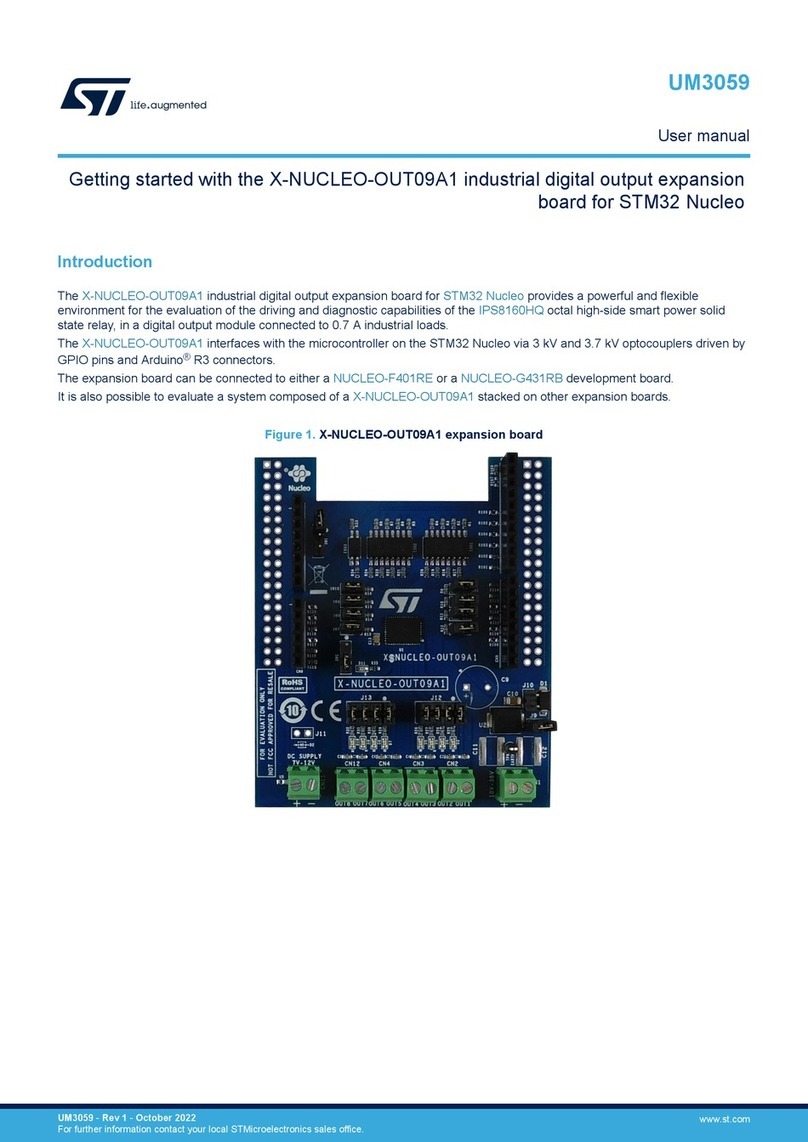
ST
ST X-NUCLEO-OUT09A1 User manual
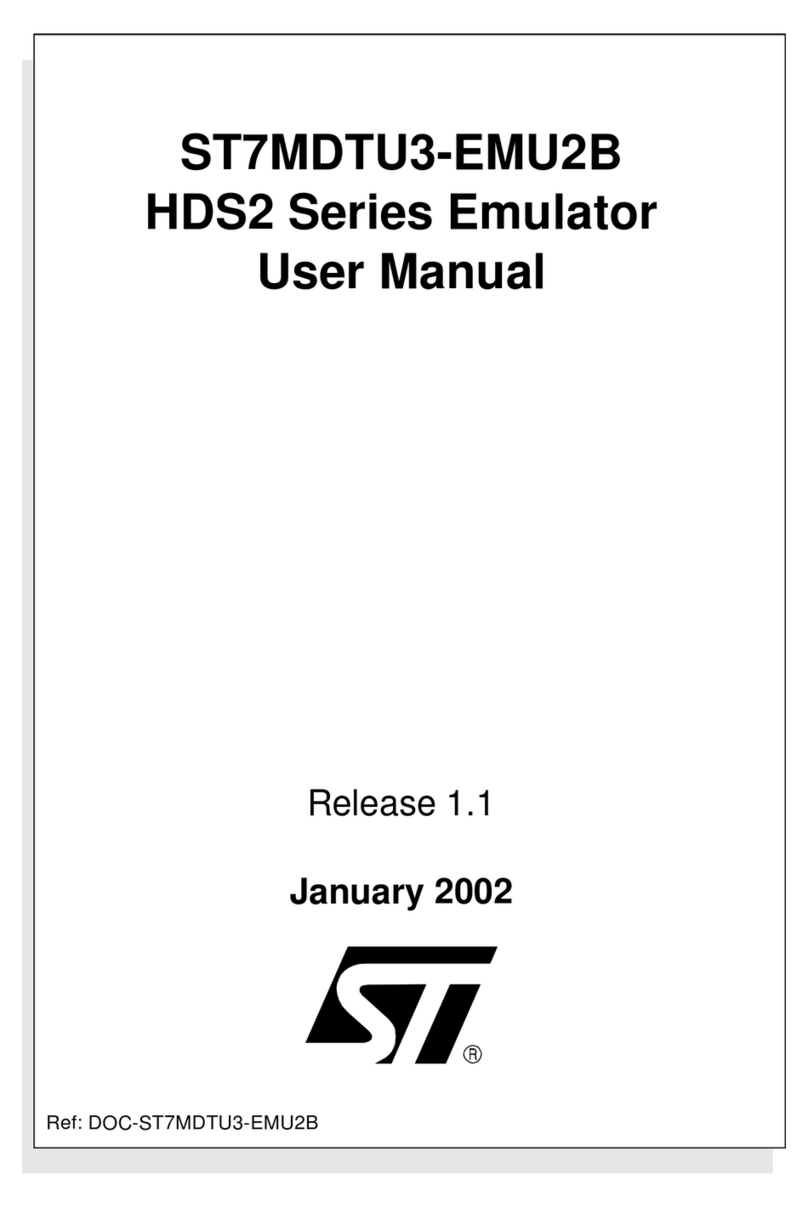
ST
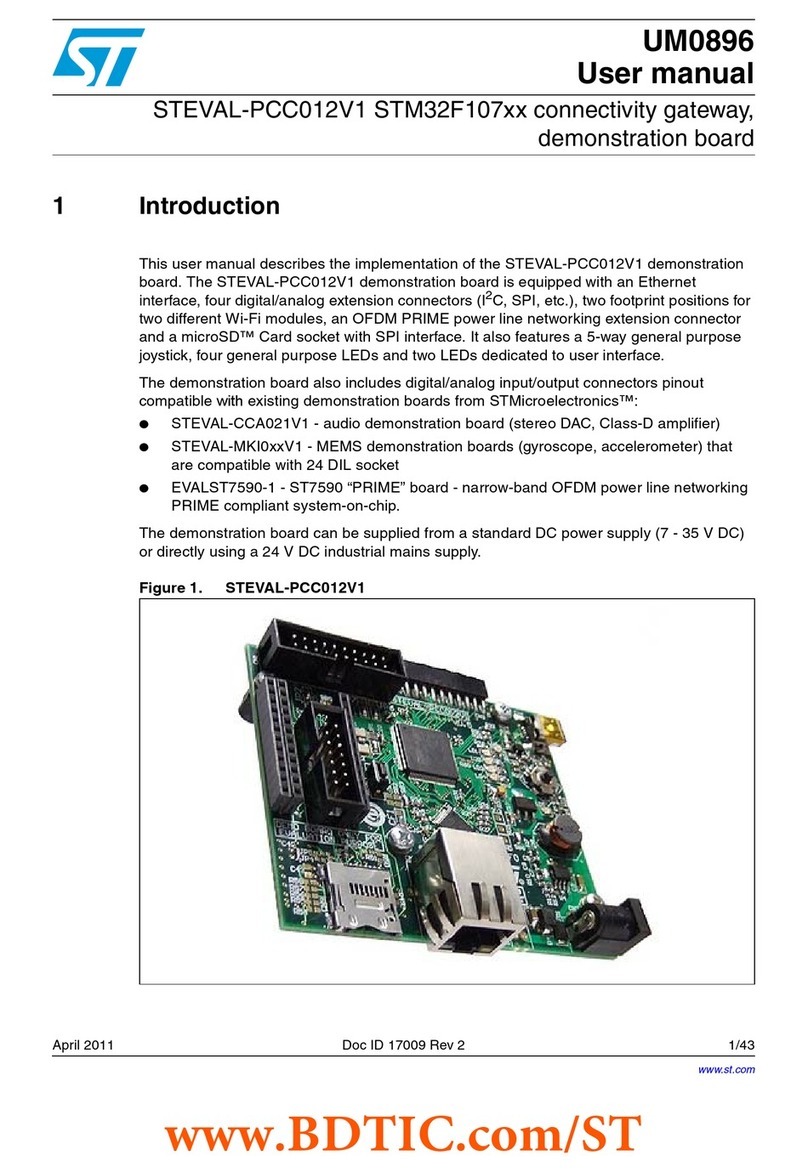
ST ST7MDTU3-EMU2B User manual
ST
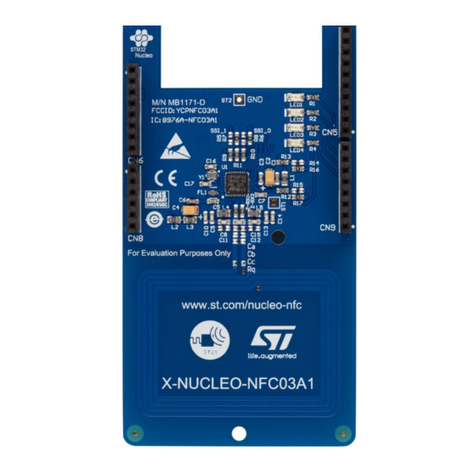
ST STM32F107Series User manual
ST
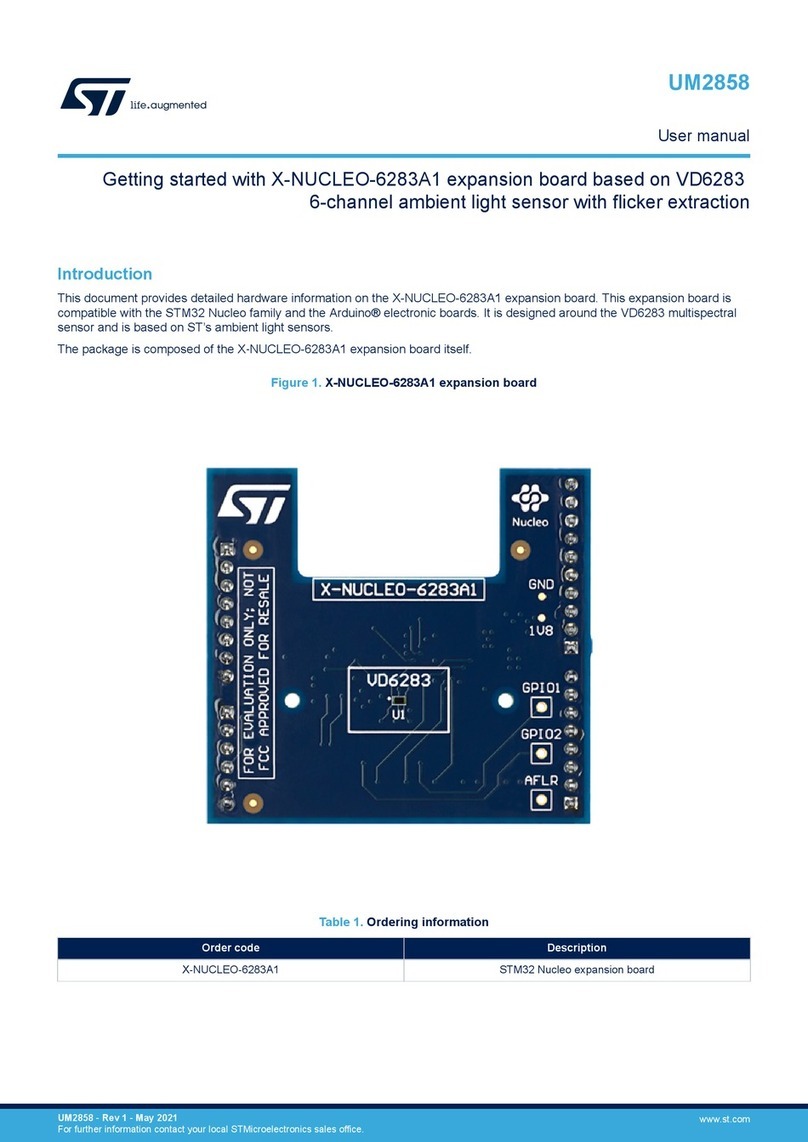
ST X-NUCLEO-NFC03A1 Parts list manual
ST
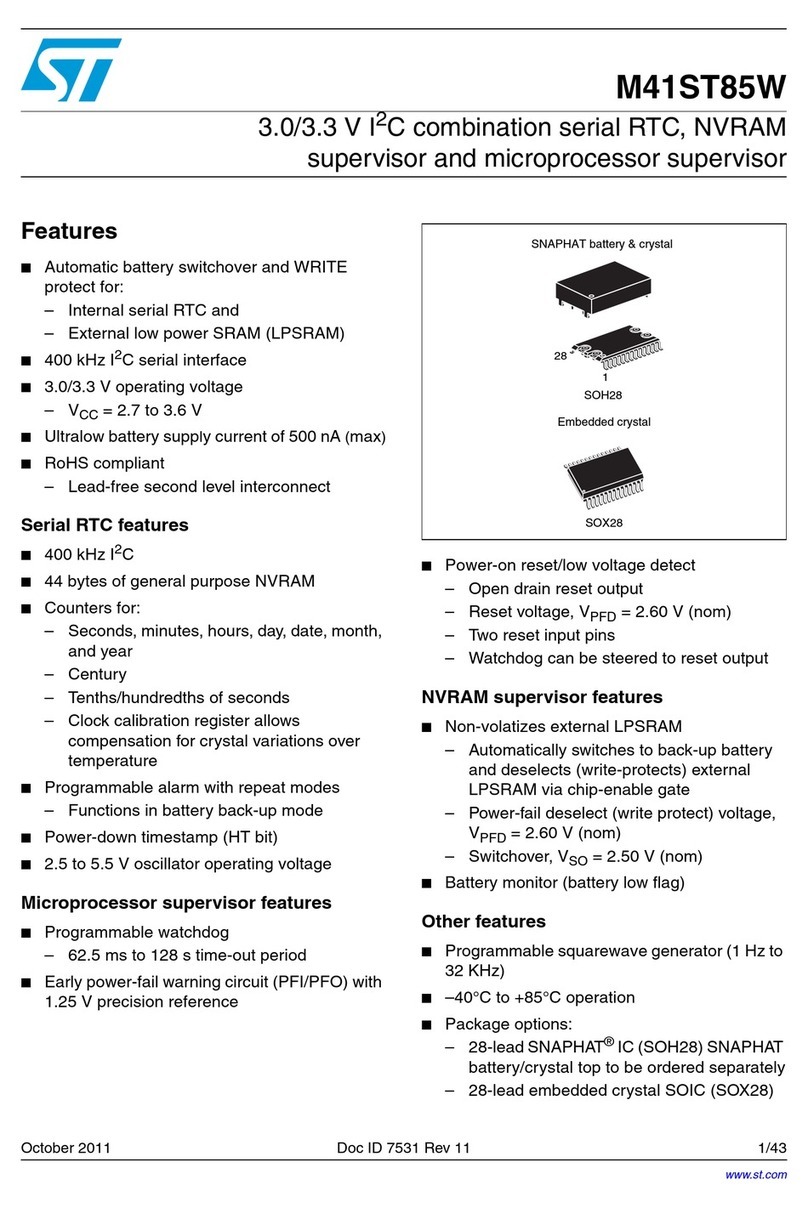
ST X-NUCLEO-6283A1 User manual
ST
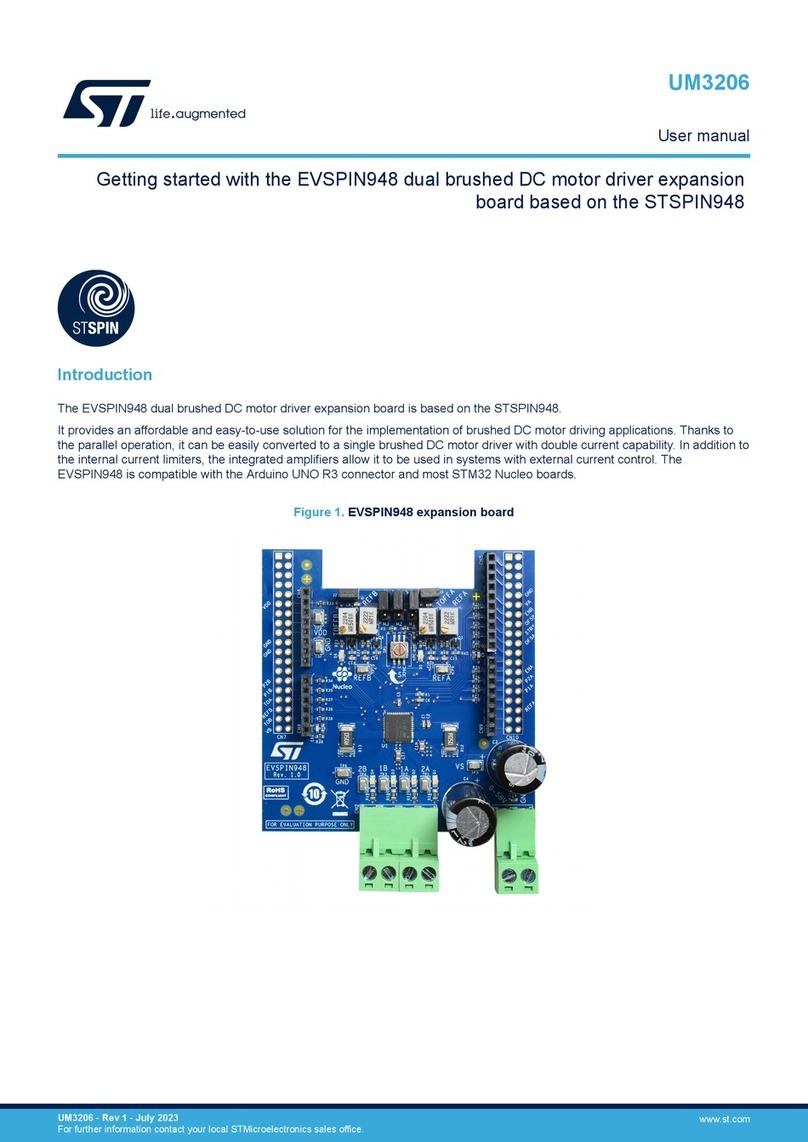
ST M41ST85W User manual
ST
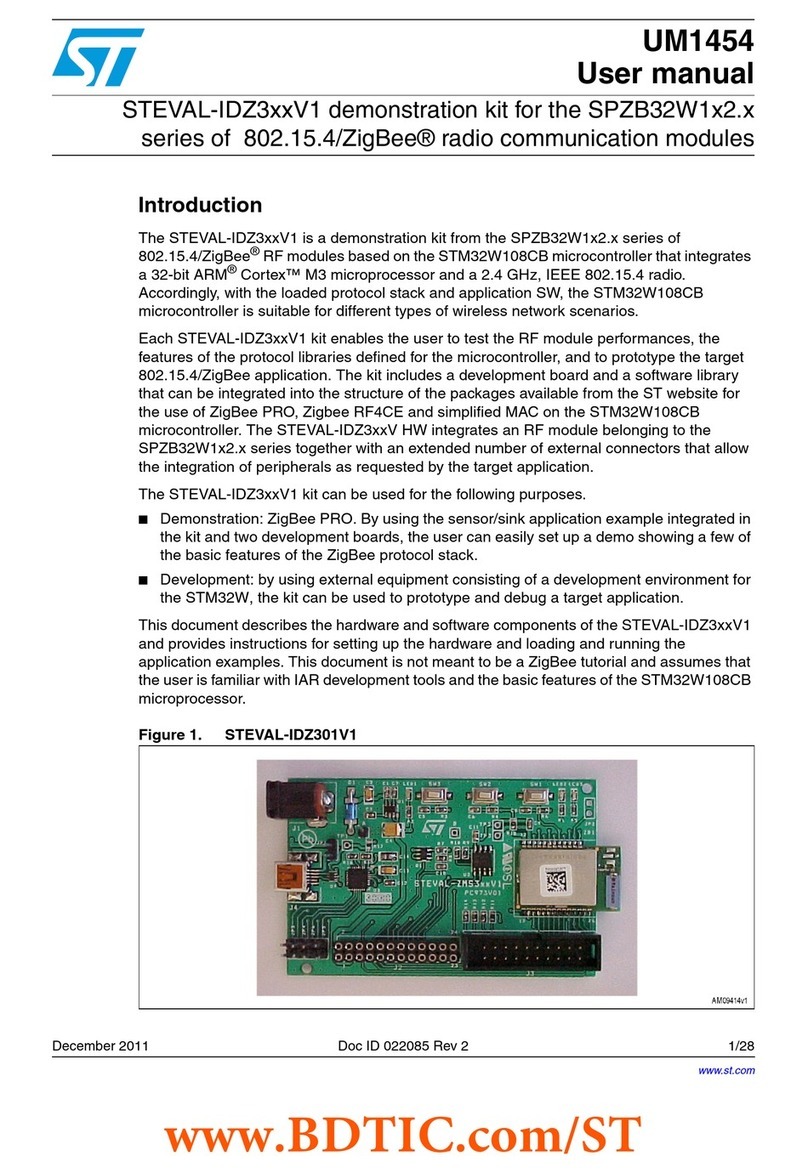
ST EVSPIN948 User manual
ST
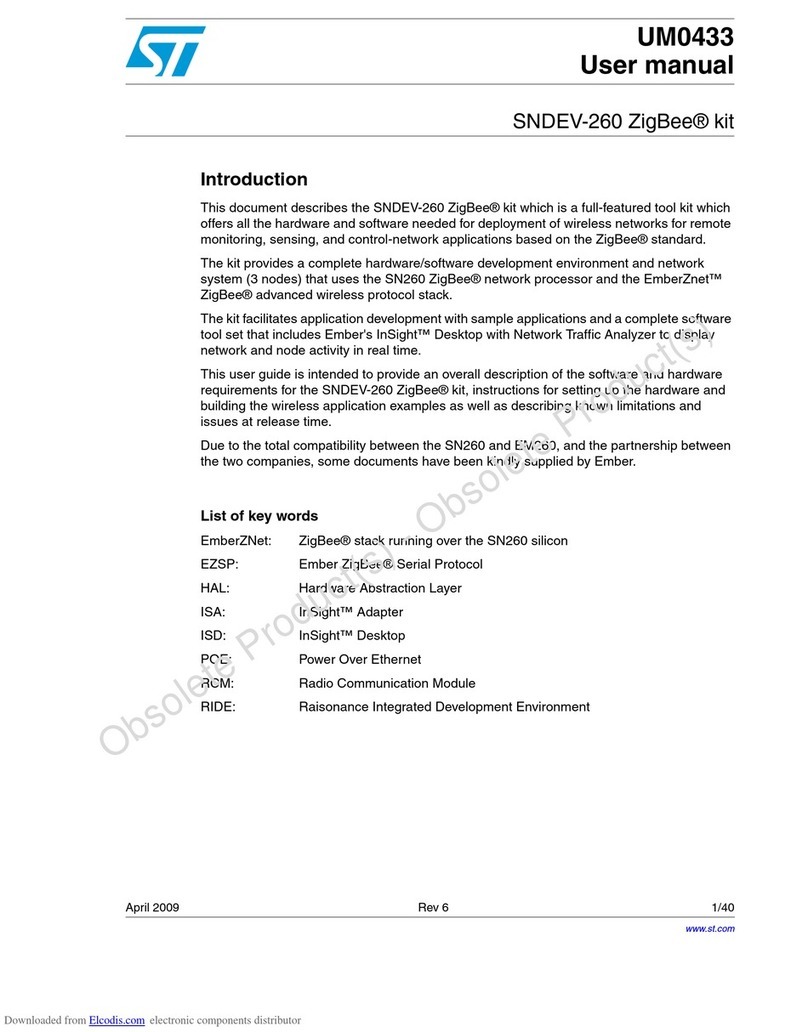
ST STEVAL-IDZ3V1 Series User manual
Popular Computer Hardware manuals by other brands

EMC2
EMC2 VNX Series Hardware Information Guide

Panasonic
Panasonic DV0PM20105 Operation manual

Mitsubishi Electric
Mitsubishi Electric Q81BD-J61BT11 user manual

Gigabyte
Gigabyte B660M DS3H AX DDR4 user manual

Raidon
Raidon iT2300 Quick installation guide

National Instruments
National Instruments PXI-8186 user manual





dbx
dbx Zone Pro 1260 user manual

Galaxy
Galaxy GHDX2-2430S-24F4D Installation and hardware reference manual

Intel
Intel AXXRMFBU4 Quick installation user's guide

Kontron
Kontron DIMM-PC/MD product manual

STEINWAY LYNGDORF
STEINWAY LYNGDORF SP-1 installation manual

Advantech
Advantech ASMB-935 Series user manual


