3.
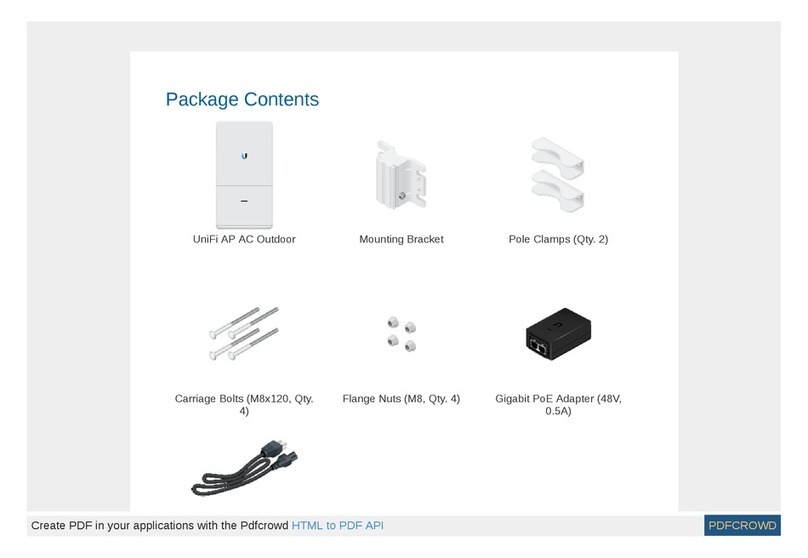
WARNING: Use only the included adapter, model POE-50-60W. Failure to do
so can damage the unit and void the product warranty.
airFiber Configuration
Access the airFiber Configuration Interface and configure the following settings:
Wireless Mode Configure one radio as the Master and the other as the Slave.
Frequency Setting The TX Frequency and RX Frequency settings must be the
reverse of each other on both the Master and the Slave.
1.
2. Configure the Ethernet adapter on your computer with a static IP address on the
192.168.1.x subnet.
3. Launch your web browser. Type https://192.168.1.20 in the address field and
press enter (PC) or return (Mac).
4. Enter ubnt in the Username and Password fields. Select your Country and
Language. You must agree to the Terms of Use to use the product. Click Login.
5. Click Settings, and then click the Wireless tab.
6. Configure the Basic Wireless Settings:
a. For one radio, select Master as the Wireless Mode. For the other radio, keep
the default, Slave.
b. Enter a name in the Link Name field. This should be the same on both the
Master and the Slave.
c. If needed, change the Channel Bandwidth, Output Power and/or Maximum
Modulation Rate settings.
7. Configure the TX Frequency and RX Frequency.
8. Configure the Wireless Security:
a. Select the Key Type, HEX or ASCII.
b. For the Key field:
HEX Enter 16 bytes (eight, 16-bit hexadecimal digits: 0-9, A-F, or a-f). You
can omit zeroes and use colons, similar to the IPv6 format.
ASCII Enter a combination of alphanumeric characters (0-9, A-Z, or a-z).
9. Click Save Changes.
10. In-Band Management is enabled by default, so each airFiber radio must have a
unique IP Address. (If the airFiber radios use the same IP Address, you may lose
access to the airFiber radios via the DATA ports.) Click the Network tab.
a. For the Management IP Address option:
DHCP Keep the default, DHCP, to use DHCP reservation on your router to
assign a unique IP Address.
Static Change the IP Address, Netmask, and other settings to make them
compatible with your network.
b. Click Save Changes.
11. Disconnect the Ethernet cables from the MGMT and DATA ports on the radio.
Configuration of the radio is complete.
Repeat the instructions in the airFiber Configuration section on the other radio.
For details on the airFiber Configuration Interface, refer to the airFiber AF-11FX User
Guide, available at: ui.com/download/airfiber
Note: One airFiber radio’s TX Frequency is the other radio’s RX
Frequency, and vice versa.
Note: The airFiber Configuration Interface supports IPv6 formats
excluding dotted quad and “::” (double-colon) notation.