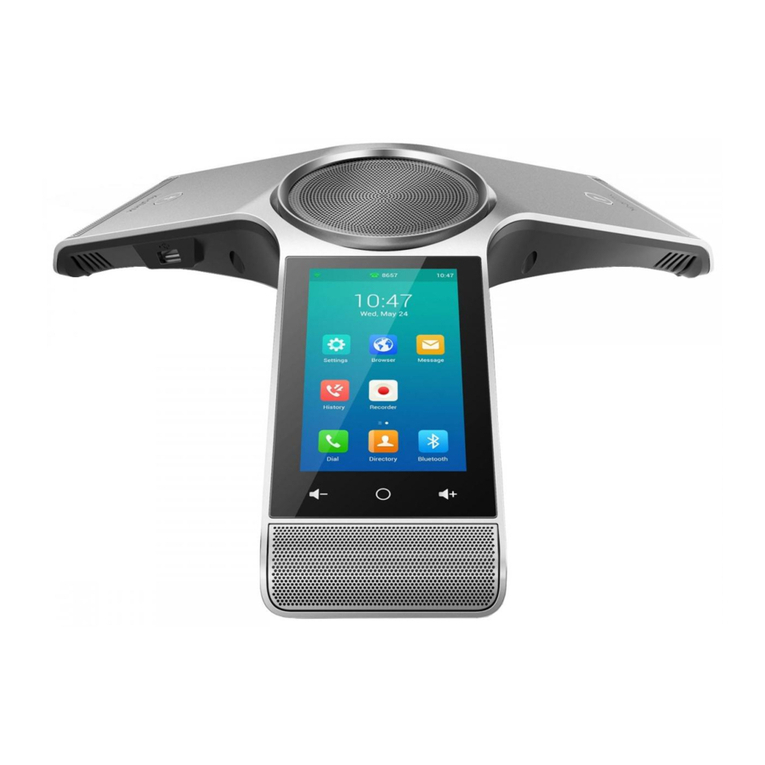
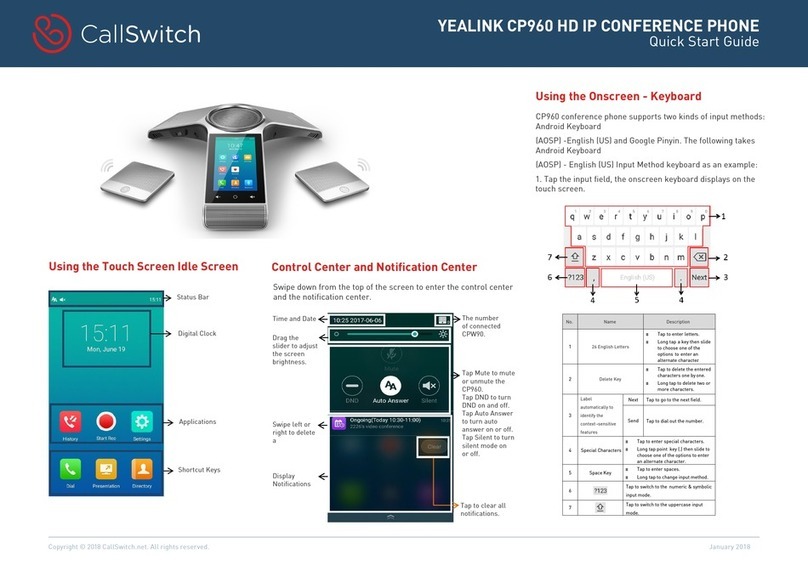
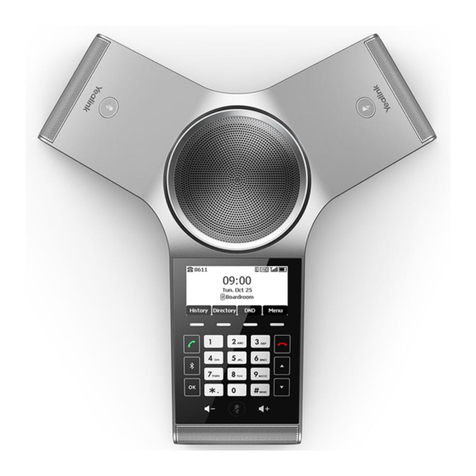
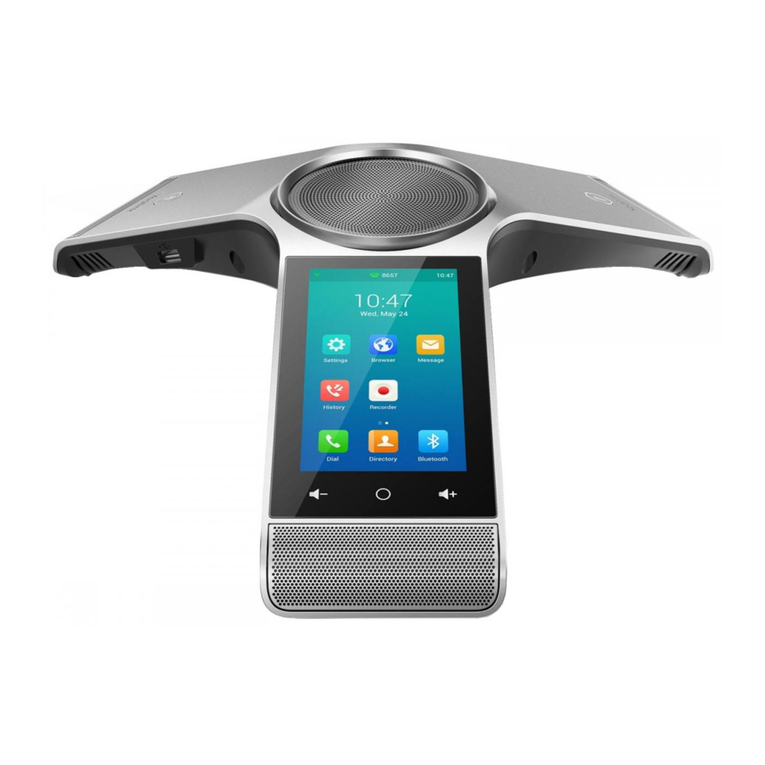
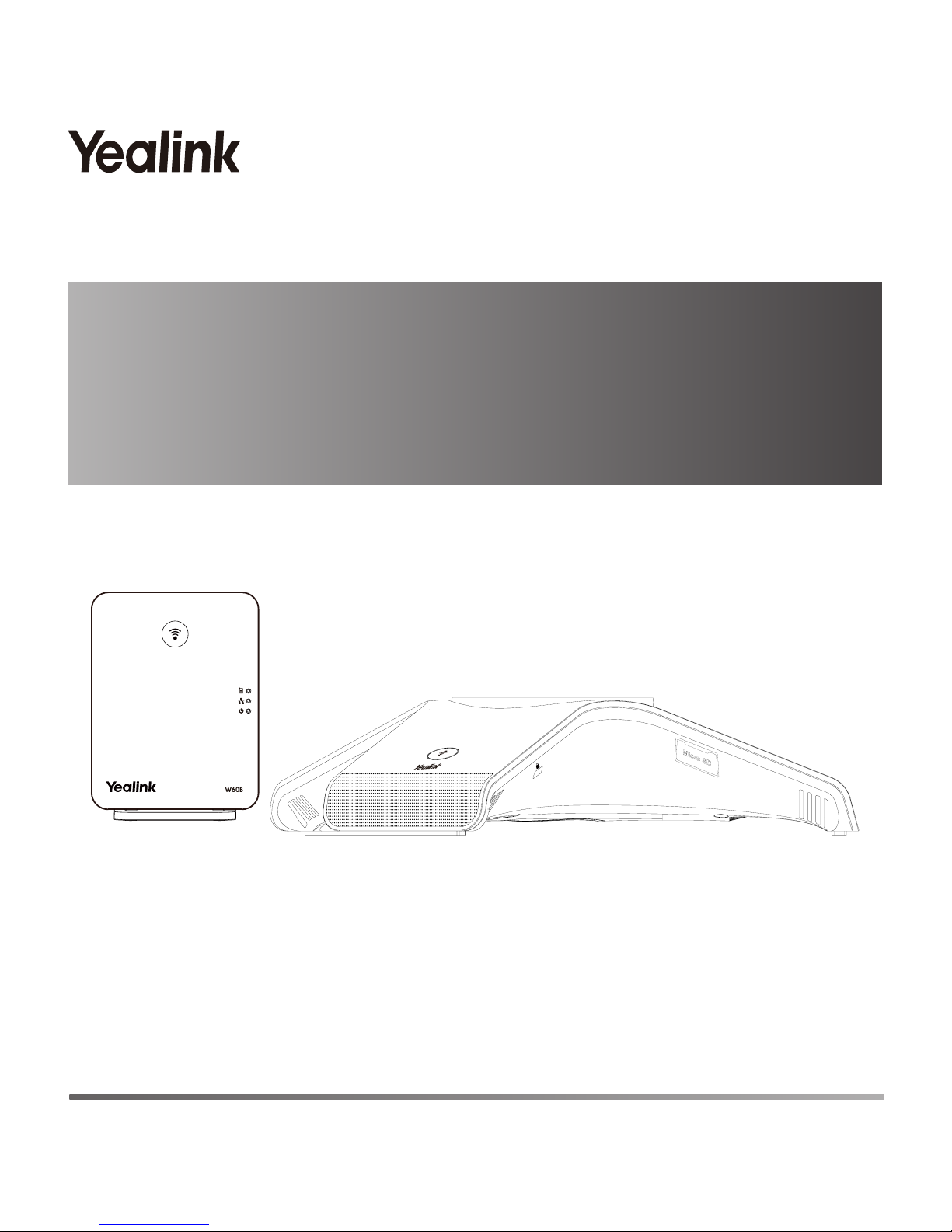
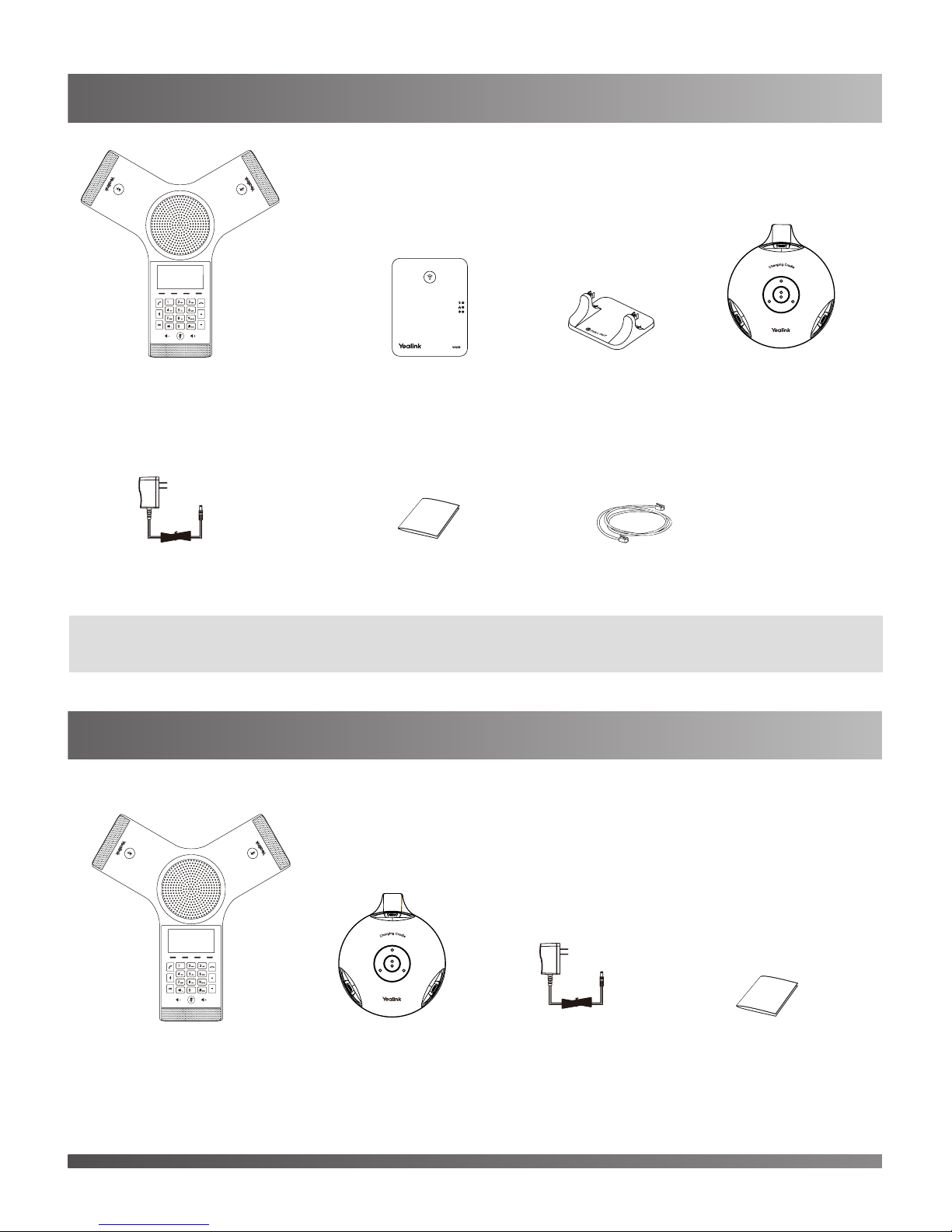
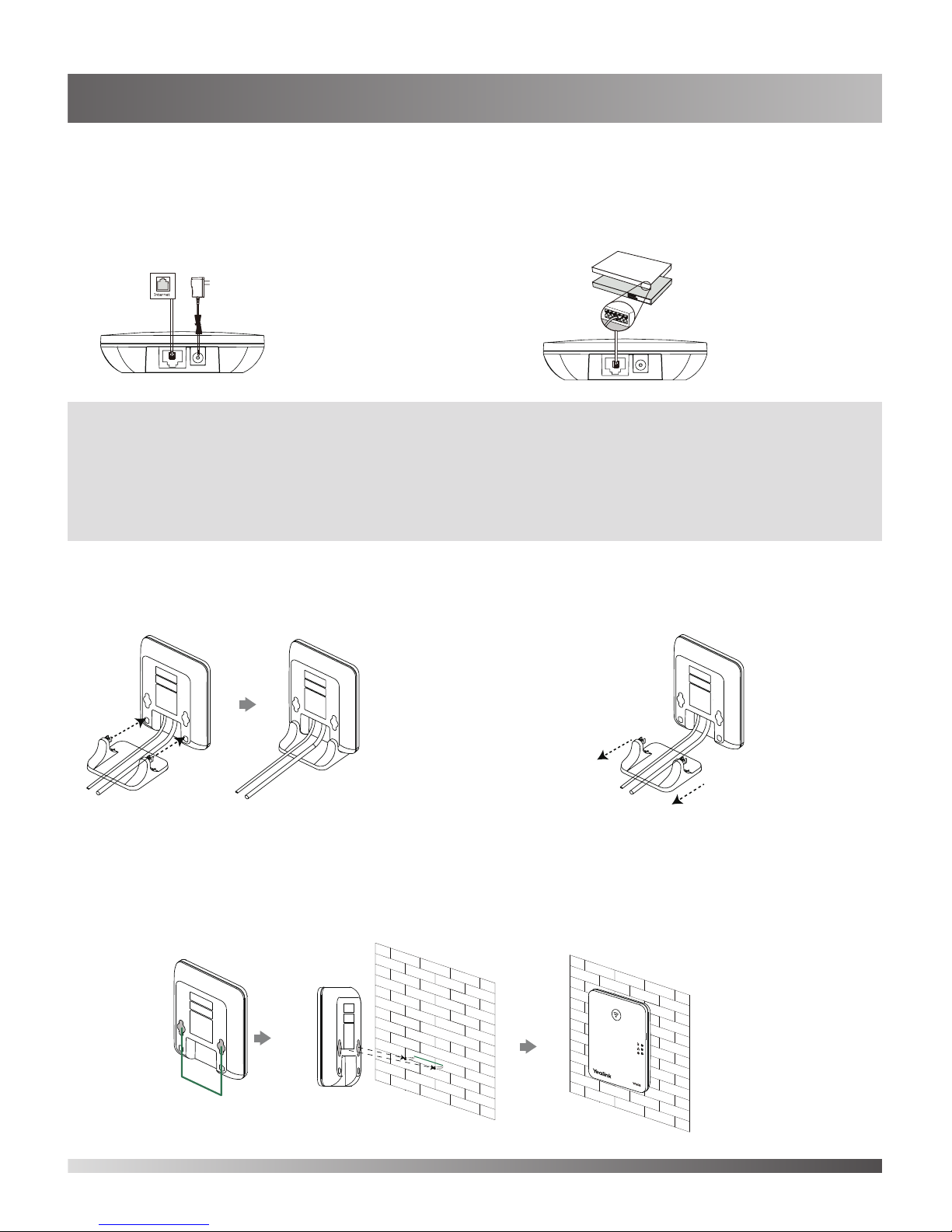
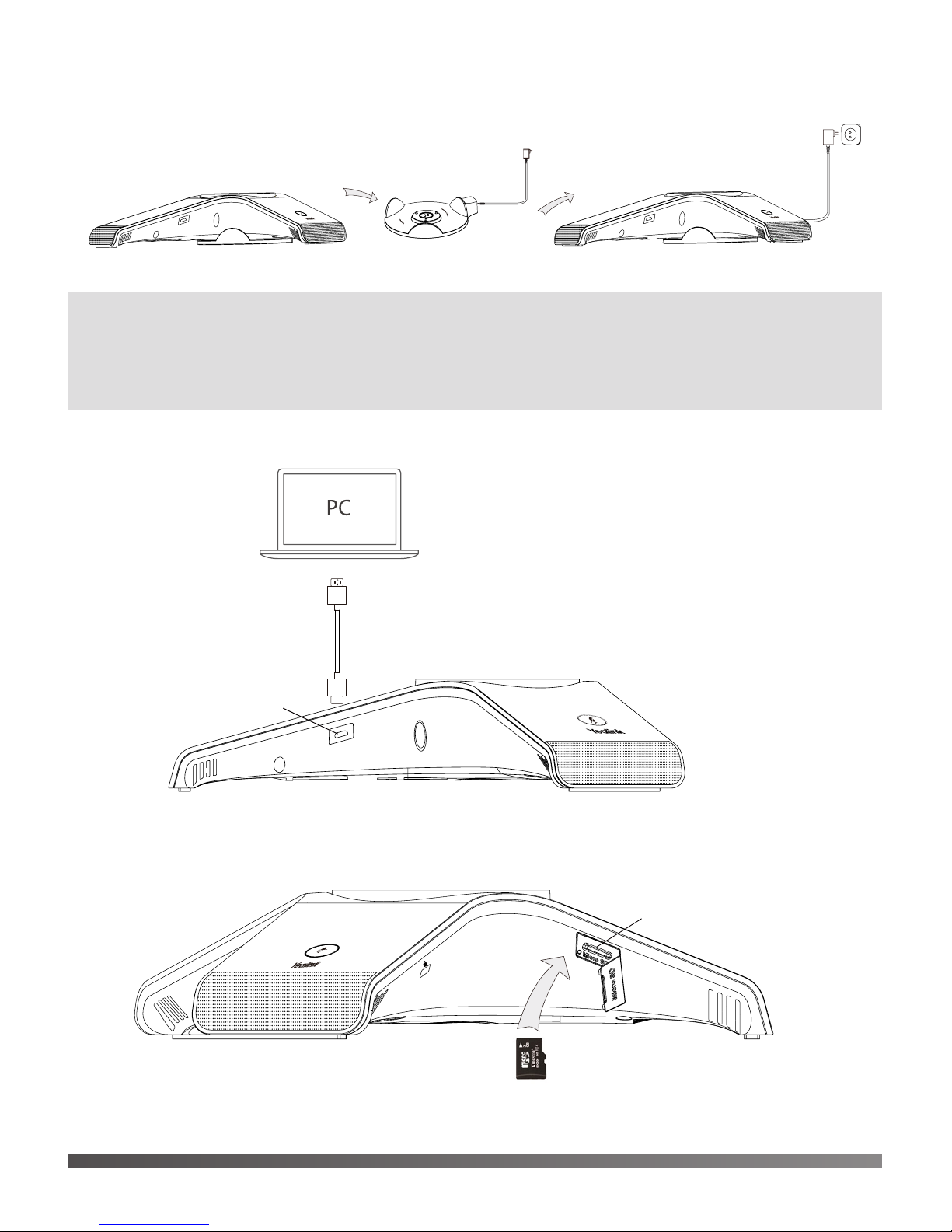
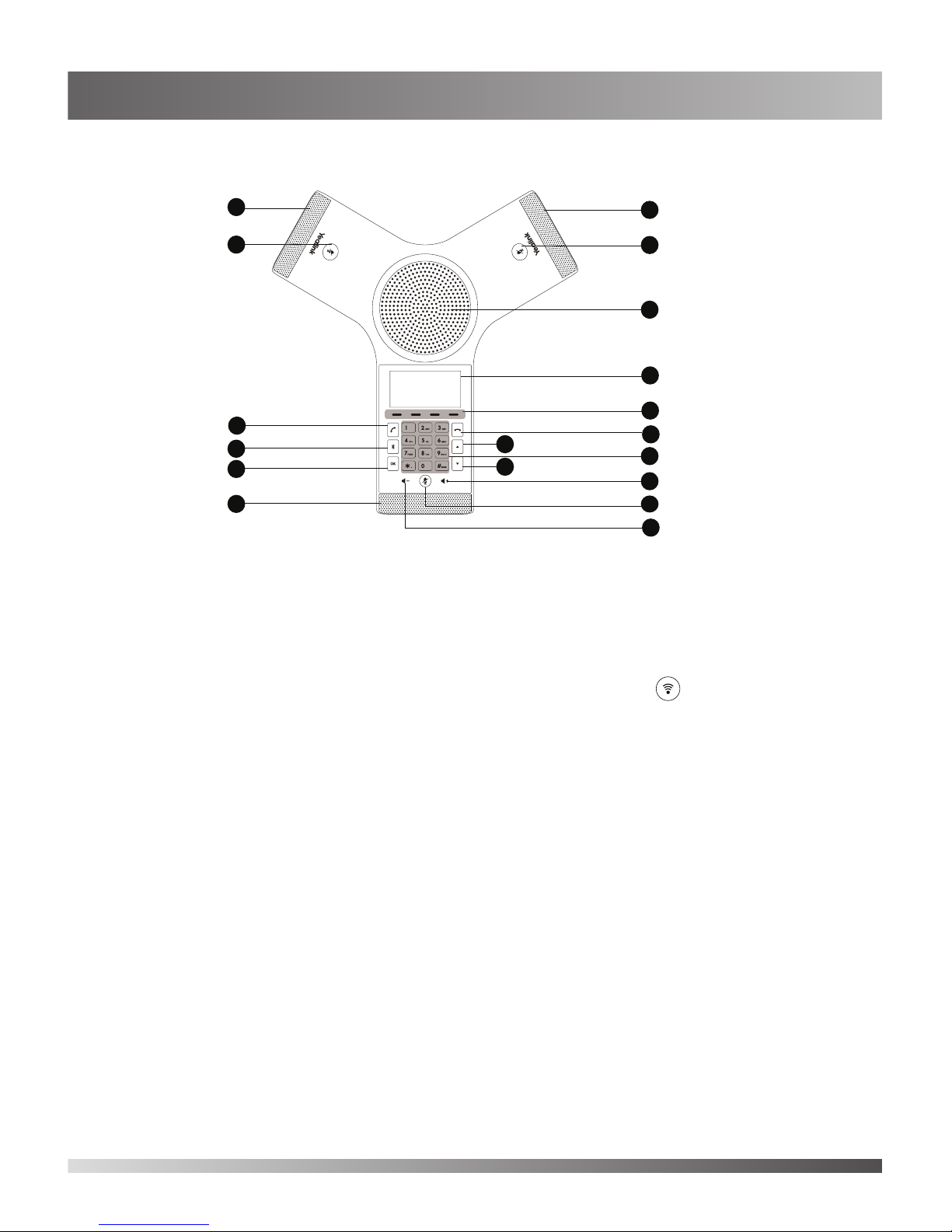
Yealink CP930W-Base User manual
Other Yealink Conference Phone manuals
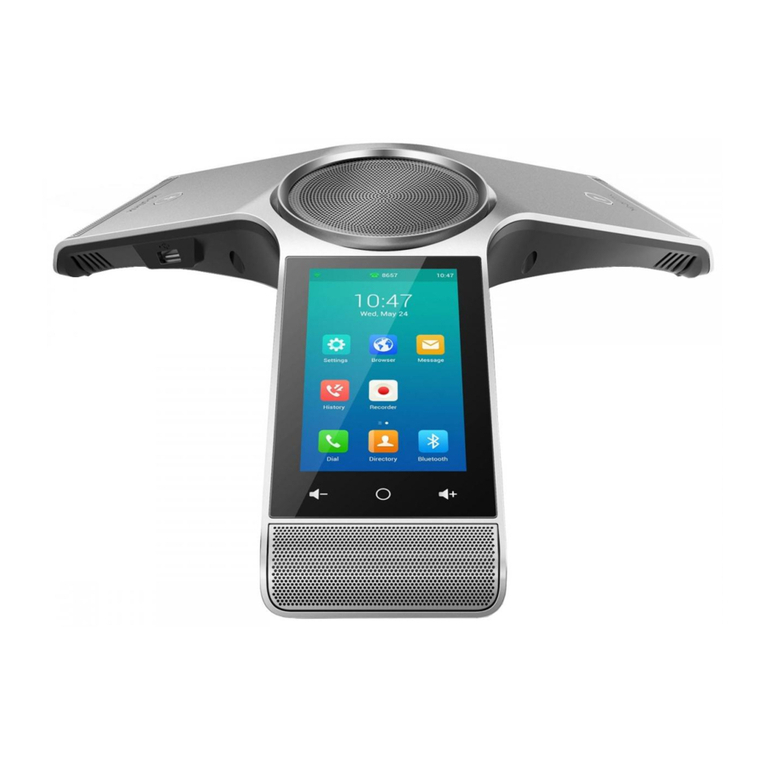
Yealink
Yealink One Talk CP960 User manual

Yealink
Yealink One Talk CP960 User manual
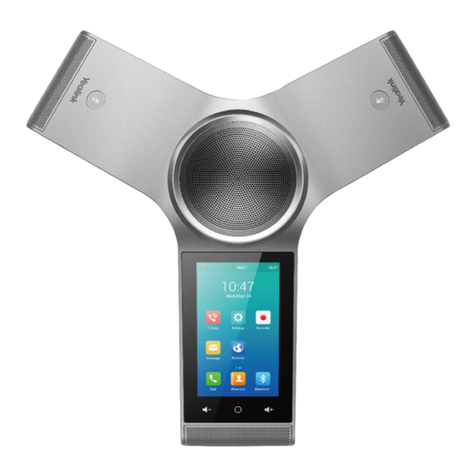
Yealink
Yealink One Talk CP960 User manual
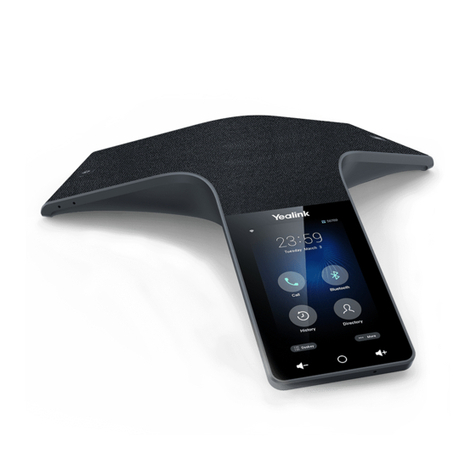
Yealink
Yealink CP925 User manual
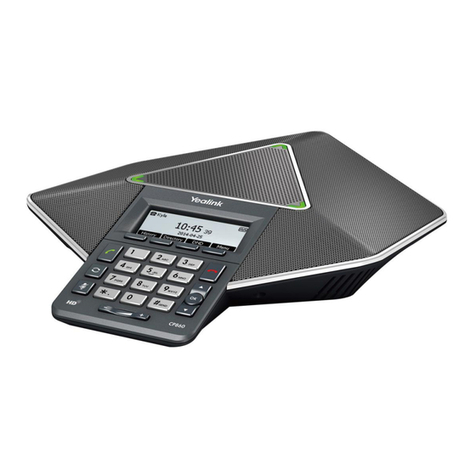
Yealink
Yealink CP860 SERIES User manual

Yealink
Yealink One Talk CP960 User manual
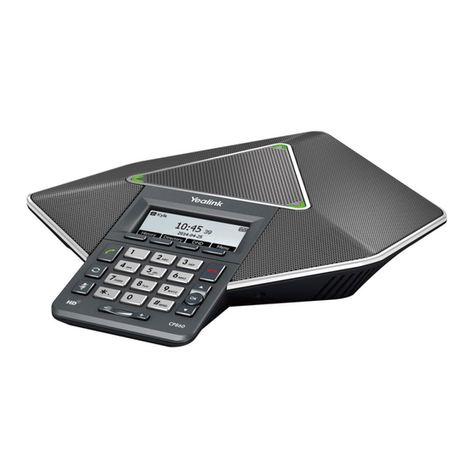
Yealink
Yealink CP860 SERIES User manual
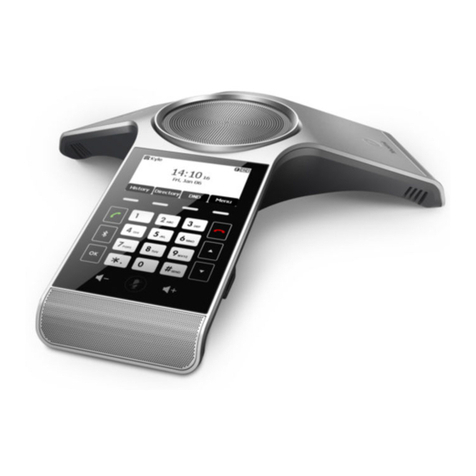
Yealink
Yealink CP920 User manual
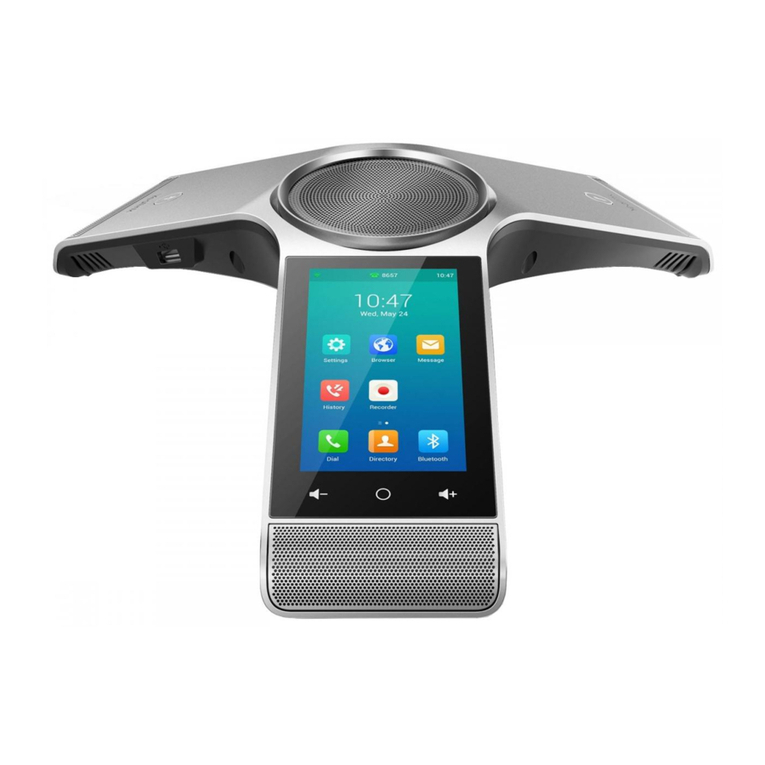
Yealink
Yealink One Talk CP960 User manual

Yealink
Yealink One Talk CP960 User manual
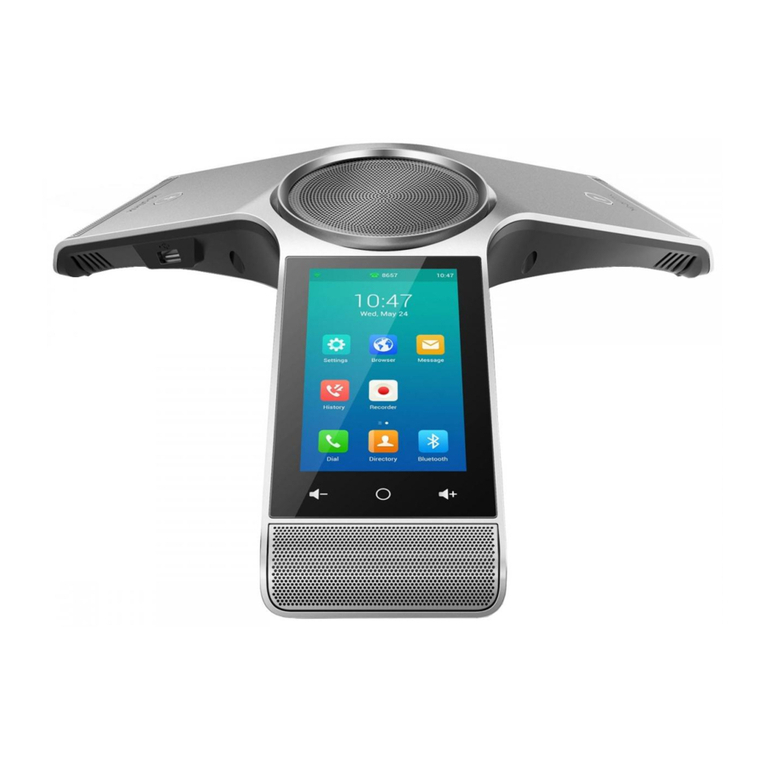
Yealink
Yealink One Talk CP960 User manual
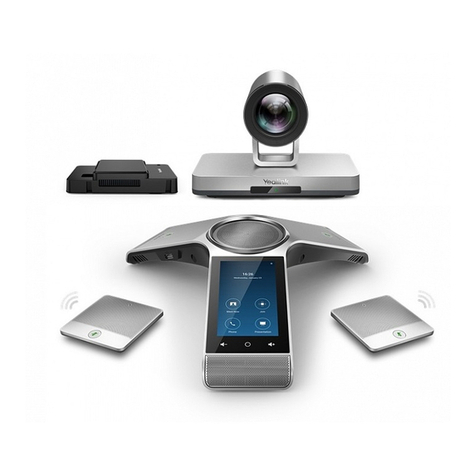
Yealink
Yealink Zoom Rooms CP960-UVC Quick reference guide
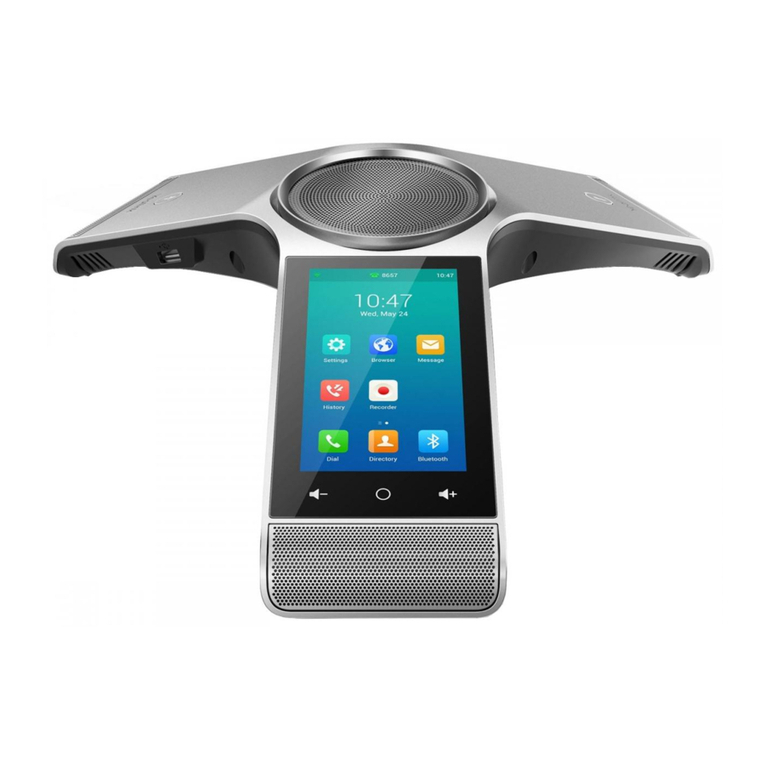
Yealink
Yealink One Talk CP960 User manual
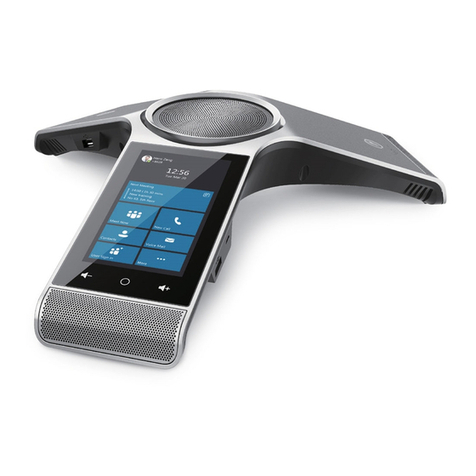
Yealink
Yealink CP960 Skype for Business User manual
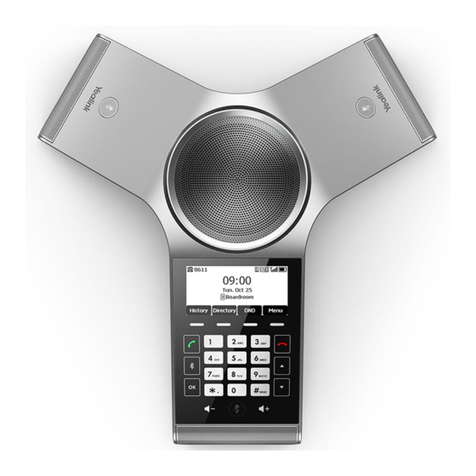
Yealink
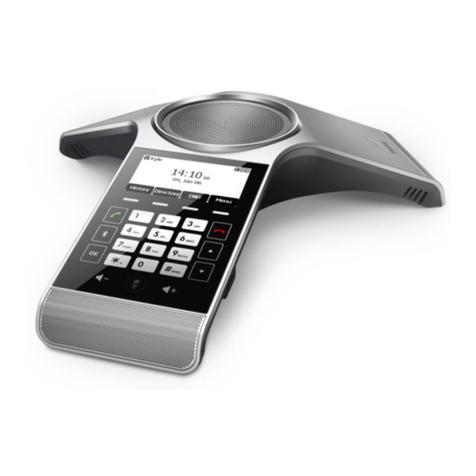
Yealink CP930W Telesystem User manual
Yealink
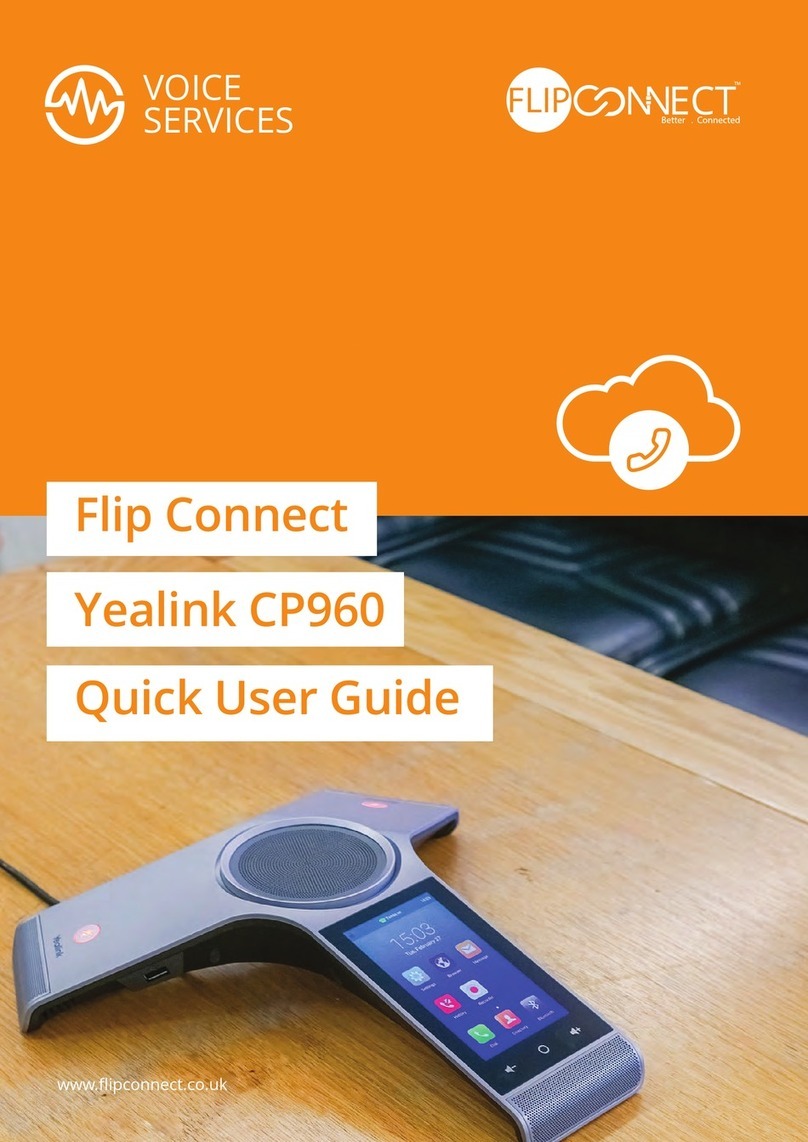
Yealink CP920 Instruction manual
Yealink
Yealink One Talk CP960 Instruction manual

Yealink
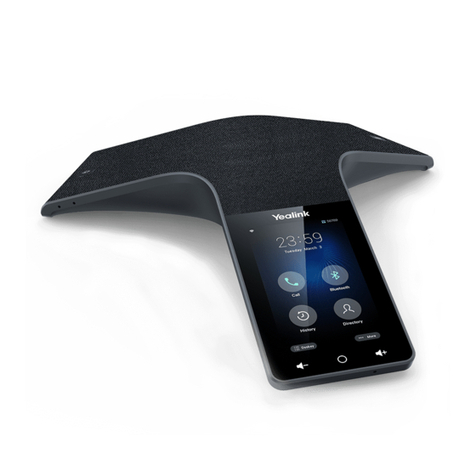
Yealink CP935W User manual
Yealink
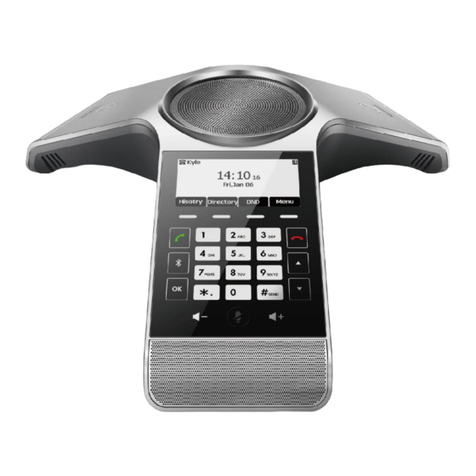
Yealink CP925 User manual
Yealink
Yealink CP920 User manual