manuals.online logo
Brands
  1. Home
  2. •
  3. Brands
  4. •
  5. Zultys
  6. •
  7. IP Phone
  8. •
  9. Zultys ZIP 33i User manual

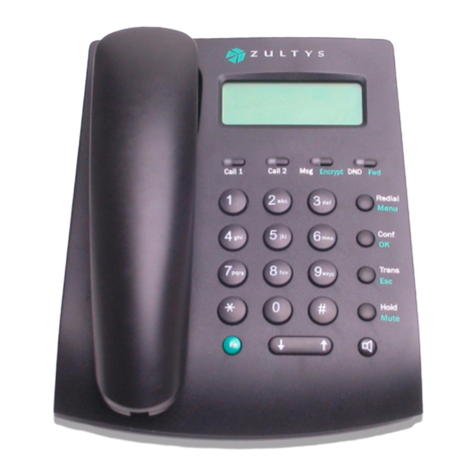
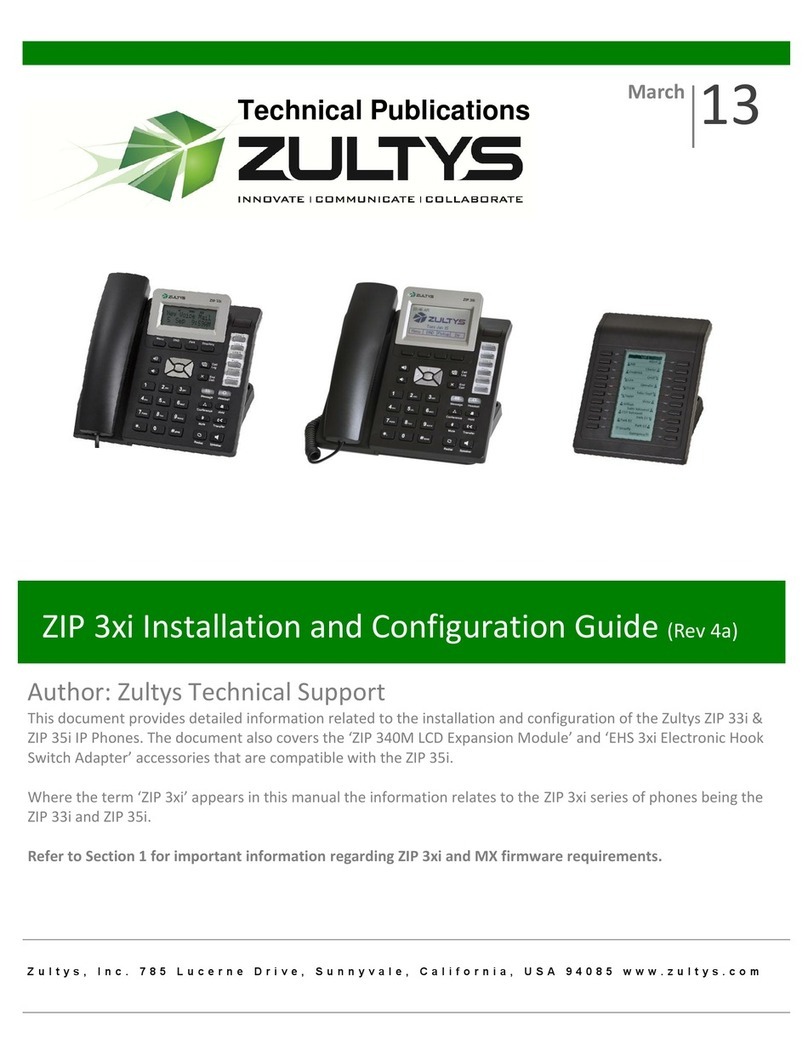
Zultys ZIP 33i User manual

Other manuals for ZIP 33i

6

Other Zultys IP Phone manuals

Zultys Z 22G User manual

Zultys

Zultys Z 22G User manual

Zultys ZIP2x2 User manual

Zultys

Zultys ZIP2x2 User manual

Zultys ZIP 33 G User manual

Zultys

Zultys ZIP 33 G User manual

Zultys ZIP 33i User manual

Zultys

Zultys ZIP 33i User manual

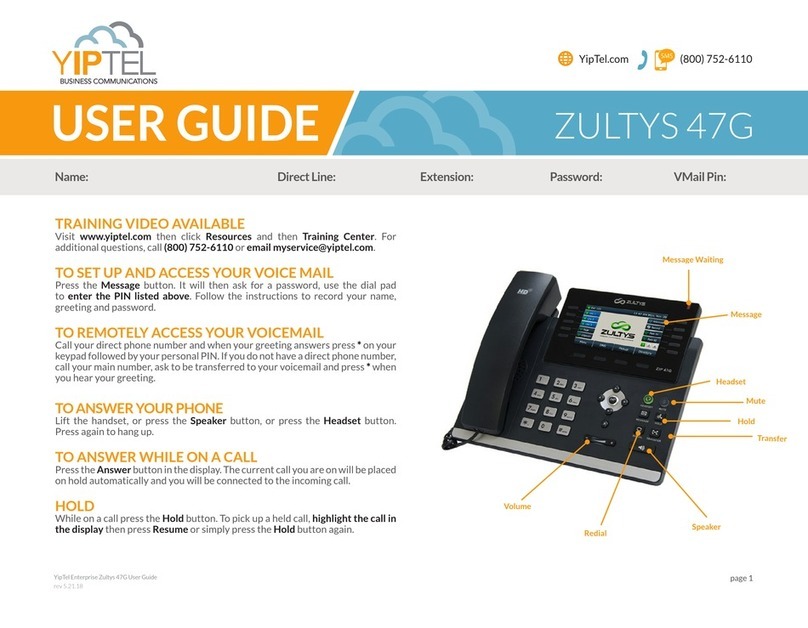
Zultys 47G User manual

Zultys

Zultys 47G User manual

Zultys ZIP 33G Instruction manual

Zultys

Zultys ZIP 33G Instruction manual

Zultys 37G User manual

Zultys

Zultys 37G User manual

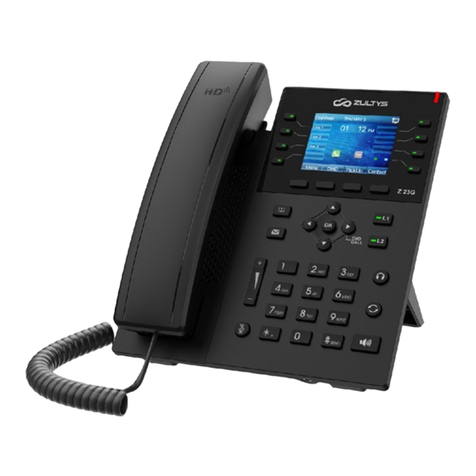
Zultys Z 23G User manual

Zultys

Zultys Z 23G User manual

Zultys ZIP 36G User manual

Zultys

Zultys ZIP 36G User manual

Zultys ZIP 37G User manual

Zultys

Zultys ZIP 37G User manual

Zultys ZIP2 User manual

Zultys

Zultys ZIP2 User manual

Zultys ZIP 33i User manual

Zultys

Zultys ZIP 33i User manual

Zultys ZIP 33i User manual

Zultys

Zultys ZIP 33i User manual

Zultys ZIP 4 5 Series User manual

Zultys

Zultys ZIP 4 5 Series User manual

Zultys ZIP4x5 User manual

Zultys

Zultys ZIP4x5 User manual

Zultys ZIP 47G User manual

Zultys

Zultys ZIP 47G User manual

Zultys ZIP 33i User manual

Zultys

Zultys ZIP 33i User manual

Zultys Z 21i User manual

Zultys

Zultys Z 21i User manual

Zultys ZIP 37G User manual

Zultys

Zultys ZIP 37G User manual

Popular IP Phone manuals by other brands

Cortelco C62 VoIP Phone user guide

Cortelco

Cortelco C62 VoIP Phone user guide

VanillaIP Polycom IP300 user manual

VanillaIP

VanillaIP Polycom IP300 user manual

Yealink Yealink SIP-T22P Quick installation guide

Yealink

Yealink Yealink SIP-T22P Quick installation guide

Viking SR-IP product manual

Viking

Viking SR-IP product manual

Yealink VP59 Teams user guide

Yealink

Yealink VP59 Teams user guide

Panasonic KX-UT133-B Administrator's guide

Panasonic

Panasonic KX-UT133-B Administrator's guide

Avaya one-X 9600 Series overview

Avaya

Avaya one-X 9600 Series overview

AVA Enterprises B179 Installation and administration guide

AVA Enterprises

AVA Enterprises B179 Installation and administration guide

Cisco Unified 7900 Series System guide

Cisco

Cisco Unified 7900 Series System guide

Polycom SoundPoint IP 450 datasheet

Polycom

Polycom SoundPoint IP 450 datasheet

Cisco SPA-500 Series user guide

Cisco

Cisco SPA-500 Series user guide

IPitomy IP290 user manual

IPitomy

IPitomy IP290 user manual

Polycom SoundPoint IP 650 user guide

Polycom

Polycom SoundPoint IP 650 user guide

Proximus Maestro 3016 IP quick start guide

Proximus

Proximus Maestro 3016 IP quick start guide

Polycom IP 450 user guide

Polycom

Polycom IP 450 user guide

Fanvil X4 user manual

Fanvil

Fanvil X4 user manual

Snom 320 quick start guide

Snom

Snom 320 quick start guide

Avaya Integral 5 R3.0 user guide

Avaya

Avaya Integral 5 R3.0 user guide

manuals.online logo
manuals.online logoBrands
  • About & Mission
  • Contact us
  • Privacy Policy
  • Terms and Conditions

Copyright 2025 Manuals.Online. All Rights Reserved.

Speed Dial
To configure a speed dial key:
To use the speed dial key:
1. Press when the phone is idle, and then select Features->DSS Keys.
2. Select the desired programmable key and then press .
4. Press to accept the change.
Press the speed dial key to call the preset number.
3. Select Speed Dial from the Type field, select the desired line from the Account ID field, and enter
the number in the Value field.
Quick Reference Guide
Customizing Your Phone
Contact Directory
To add a contact:
To edit a contact:
Call History
Note: You may add contacts from call history, refer to Call history above.
To delete a contact:
Press to place a call.
Press to add the entry to the local directory.
Press to delete the entry from the list.
1. Press when the phone is idle, press or to scroll through the list.
2. Select an entry from the list, you can do the following:
1. Press when the phone is idle, and then select Local Directory->Contact List.
3. Press when “Delete Selected Item?” prompts on the LCD screen.
3. Update the contact information, and then press to accept the change.
5. Press to accept the change.
4. Enter a contact name in the Name field, to select desired number field then type number.
For more information, refer to ZIP 33i User Guide. 96-35332-01
2. Press or to select Enter and then press .
3. Press or to select New Item and then press .
2. Press or to select the desired contact, press or to select Edit and then
2. Press or to select the desired contact, press or to select Del and then
press .
press .
ZIP 33i Business Phone
3. Press to exit Call History.
Basic Call Features
Placing a Call
Answering a Call
Ending a Call
Call Mute and Un-mute
Redial
Call Hold and Resume
To place a call on hold:
Using the handset:
Using the speakerphone:
Using the headset:
Using the handset:
Using the speakerphone:
Using the headset:
Using the handset:
Using the speakerphone:
Using the headset:
With the handset on-hook, enter the number, and then press .
Pick up the handset, enter the number, and then press .
1. With the headset connected, press to activate the headset mode.
2. Enter the number, and then press .
Note: You can reject an incoming call by pressing .
or
Enter the number and then lift the handset to initiate call
Pick up the handset.
Press .
Hang up the handset or press .
Press .
Press or .
Press .
ZIP 33i Quick Reference
Press to enter the Dialed Calls list, press or to select the desired call, and
then press or .
Press twice when the phone is idle to call the last dialed number.
To resume the call, do one of the following:
Press to mute the microphone during a call.
Press again to un-mute the call.
If there is only a call on hold, press or the flashing Line key.
Press during an active call.
Attended Transfer
Conference Call
Call Forward
Blind Transfer
Call Transfer
If there is more than one call on hold, press or to select the desired call, and
then press or the flashing Line key.
1. Press during an active call. The call is placed on hold.
2. Enter the number you want to transfer to, and then press .
3. Press when ready to complete the transfer or to cancel transfer.
To enable call forward:
Always ---- Incoming calls are all forwarded unconditionally.
Busy ---- Incoming calls are forwarded when the phone is busy.
No Answer ---- Incoming calls are forwarded when not answered after a preset period.
1. Press when the phone is idle, and then select Features->Forward.
2. Select the desired forward type:
3. Enter the number you want to forward to. For No Answer, enter the ring time to wait before
forwarding.
4. Press to accept the change. Forward icon will appear on screen.
1. Press during an active call. The call is placed on hold.
2. Enter the number of the second party, and then press .
3. Press again when the second party answers. All parties are now joined in the conference.
3. Press .
2. Enter the number you want to transfer to.
ZIP 33i Quick Reference
Voice Message
Volume Adjustment
To listen to voice mail messages:
Press or during a call to adjust the receiver volume of handset/speaker/headset.
Press or when the phone is idle to adjust the ringer volume.
When you have new voice messages waiting the Message key lights up and the red status
LED flashes.
1. Press .
2. Follow the voice prompts to access and listen to your voice massages.
Park and Pickup
Press to park the current call, note the Park ID displayed on screen.
To pickup a parked call press , enter the Park ID and then press .
Note: To conference two existing calls, place one call on hold then press while the other call is active.