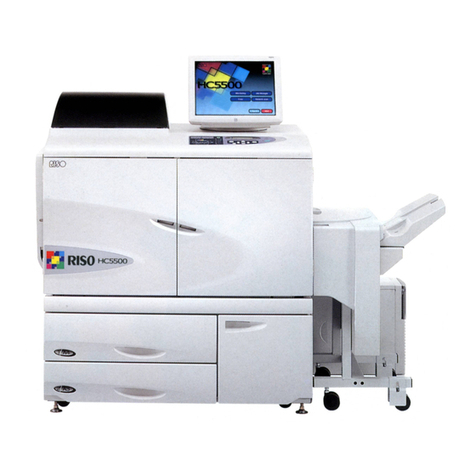
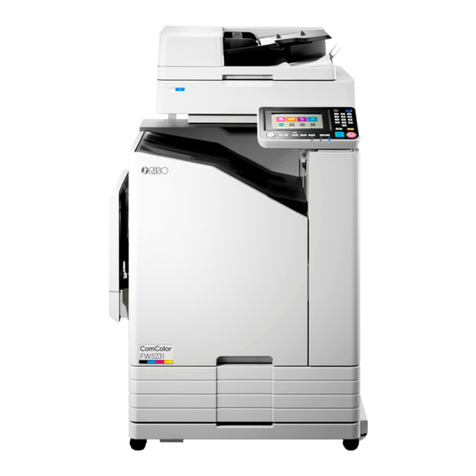
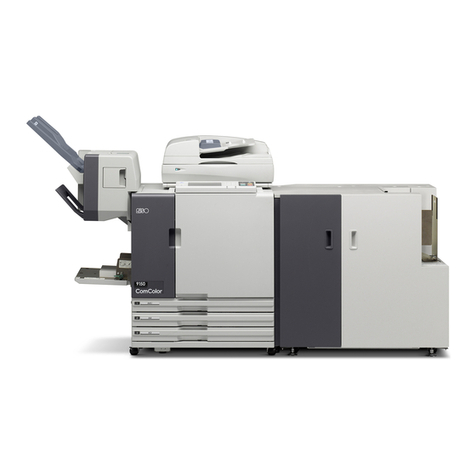
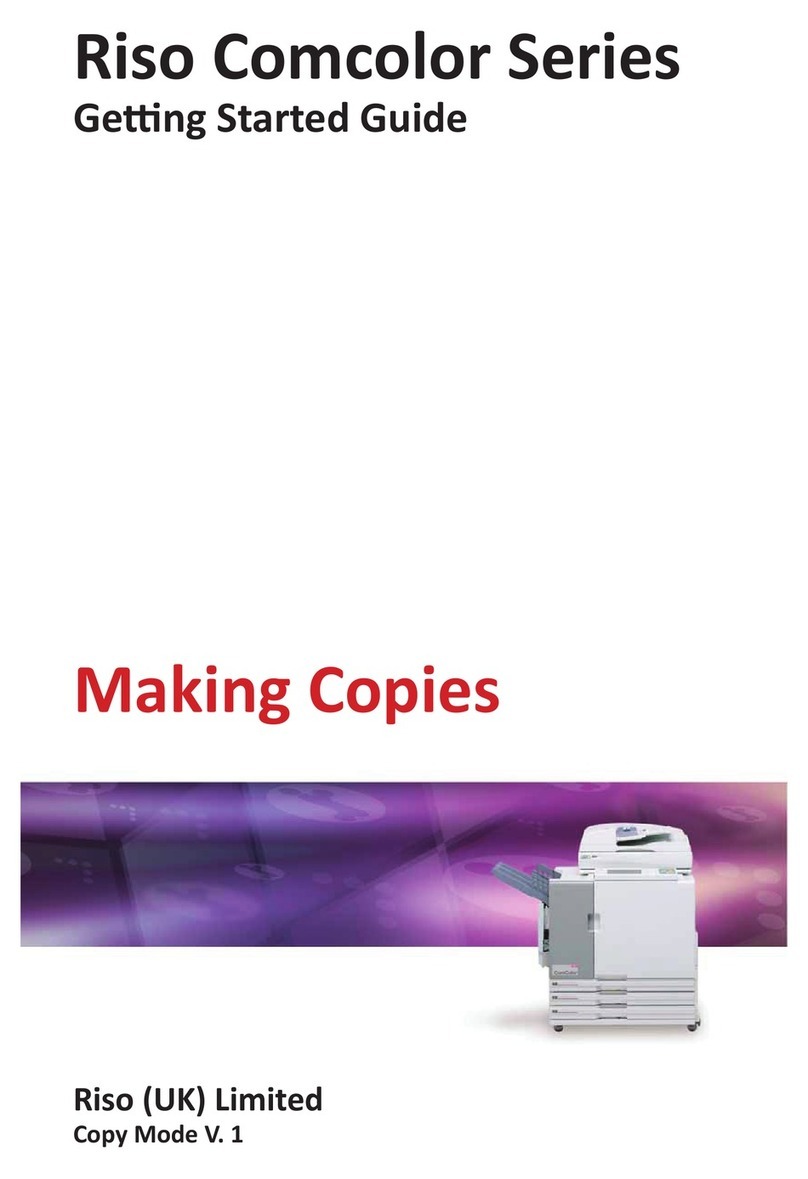
Riso HC5000 Product guide


US/UK-1
Contents
1. INTRODUCTION ....................................................... US/UK-4
Part Names ............................................................................................................................... US/UK-4
Control Panel............................................................................................................................ US/UK-6
Paper Specifications ............................................................................................................... US/UK-8
Managing the Cartridge ........................................................................................................ US/UK-10
HC5000 Features to Recognize ............................................................................................ US/UK-11
2. Let's Print .................................................................. US/UK-14
Printing Process Overview ................................................................................................... US/UK-14
Set Size and Type of Paper ................................................................................................... US/UK-16
View Data to Print .................................................................................................................. US/UK-18
3. Useful HC5000 Functions ...................................... US/UK-20
Print Position Adjustment ..................................................................................................... US/UK-20
Test Print ................................................................................................................................ US/UK-21
Reprint (Temporary Data Retrieval) ..................................................................................... US/UK-22
Storage ................................................................................................................................... US/UK-24
4. Potential Print Solutions and Applications .......... US/UK-26
Duplex Printing ...................................................................................................................... US/UK-28
Multi-up ................................................................................................................................... US/UK-30
Pagination for Booklet Formats ........................................................................................... US/UK-32
Job Separation ....................................................................................................................... US/UK-35
Form ........................................................................................................................................ US/UK-39
5. Useful Features....................................................... US/UK-42
Adjust Contrast ...................................................................................................................... US/UK-42
Adjust Density........................................................................................................................ US/UK-43
Express halftone images with dot density (Error Diffusion) ............................................. US/UK-44
Express halftone images with dot size (Dot Screen) ......................................................... US/UK-44
6. Printer Monitoring................................................. US/UK-46
RISO Console PS7R .............................................................................................................. US/UK-46
7. Trouble shooting.................................................... US/UK-48
Out put Does Not Look Clear And Sharp ............................................................................ US/UK-48
Replace the Ink Cartridge ..................................................................................................... US/UK-49
Head Maintenance ................................................................................................................. US/UK-50
Accessories............................................................................................................................ US/UK-51

Scan Function ........................................................................................................................ US/UK-51
Finisher Function................................................................................................................... US/UK-51

US/UK-2
is one of the World’s
fastest and economical full colour
Printer.
HC5000 provides colour printing at an affordable price by using the FORCEJET™ ENGINE.
The core component FORCEJET™ ENGINE combines 4 individual Fixed-Array print heads (YMCK) and high-
speed paper feeding capabilities. In addition the HC5000 is equipped with advanced output features such as
duplex.

US/UK-3
Windows/Macintosh
Paper
Paper
Paper
KCMY
Print Controller
(
Colour management:
ComColor™
Standard)
Paper size
Paper Type
Colour Information
Order print job
FORCEJET™
Engine
Controls ink
output and
printing speed
What is ?
RISO's trademark "ComColor™" is a synthesis of Communication
and Colour.
ComColor™is a new type of printer that satisfies the need for "practical, fast and on-
demand" printing for business, as well as for daily life.
The HC5000 will ensure you never have to worry about the high cost and slow printing
speed that usually is associated with colour printing.
Mechanism
To enable high-speed full-colour printing,
the HC5000 print controller (colour management system:
ComColor™Standard) formats data transferred
from the PC into the most suitable format for the printer.
The "FORCEJET™ENGINE" is a
printing mechanism with a "High
Speed Line Ink Jet", and is the
heart of the HC5000.
The FORCEJET™ENGINE was
developed to attain the targets of
"Full Colour, High Speed, High
Durability, and Low Running Cost".
Become more connected through
the world of ComColor™.

US/UK-4
1

INTRODUCTION
Part Names
Ink Compartment Cover
Four different colour cartridges are installed
in this compartment. Open this cover to
replace an ink cartridge when “Ink Replace-
ment”indicator light up.
See "Replace the Ink Cartridge" — in this
booklet page US/UK-49.
See User's Manual for Printer Main Body
page 3-16.
Standard Paper Feed Tray
Heavy paper or custom sized paper (non-standard) needs be
loaded into this tray; Paper feed tray 1 and 2 will not accept non-
standard sized paper. When not is use, this tray should be kept
closed. If unused paper is left on this tray, it will absorb moisture
and could cause the paper jamming. It is recommended to
return any unused paper back to its original package after
printing.
Make sure that you load the
paper with the printable side
face upward.
○○○○○○○○○○○○○○○○○○○○○○○
○○○○○○○○○○○○○○○○○○○○○

US/UK-5
Control Panel
See "Control Panel" — in this booklet
page US/UK-6.
Make sure that you load the
paper with the printable side
face downward.
Stacking guide (side)
Main Power Switch and Power Key
The Main Power Switch (located on the right side of the
machine) should be kept on. The power can be turned on
and off by using the Power Key, which is located on the
control panel.
Stacking Tray
Printed paper is received and
stacked on this tray. The paper
guides of the stacking tray are
adjusted automatically according to
the paper size you select (Do not
force the paper guide manually).
Paper Feed Tray 1/Tray 2
Due to the paper feeding mechanism,
avoid loading thick paper which could
cause paper jams. For more detail, please
refer to the specifications of the recom-
mended paper.
○○○○○○○○○○○○○○○○
Stacking guide (end)
○○○○○○○○○○○○○
○○○○○
○○○○○○○○○○
Main Power Switch
Power Key

Introduction
US/UK-6
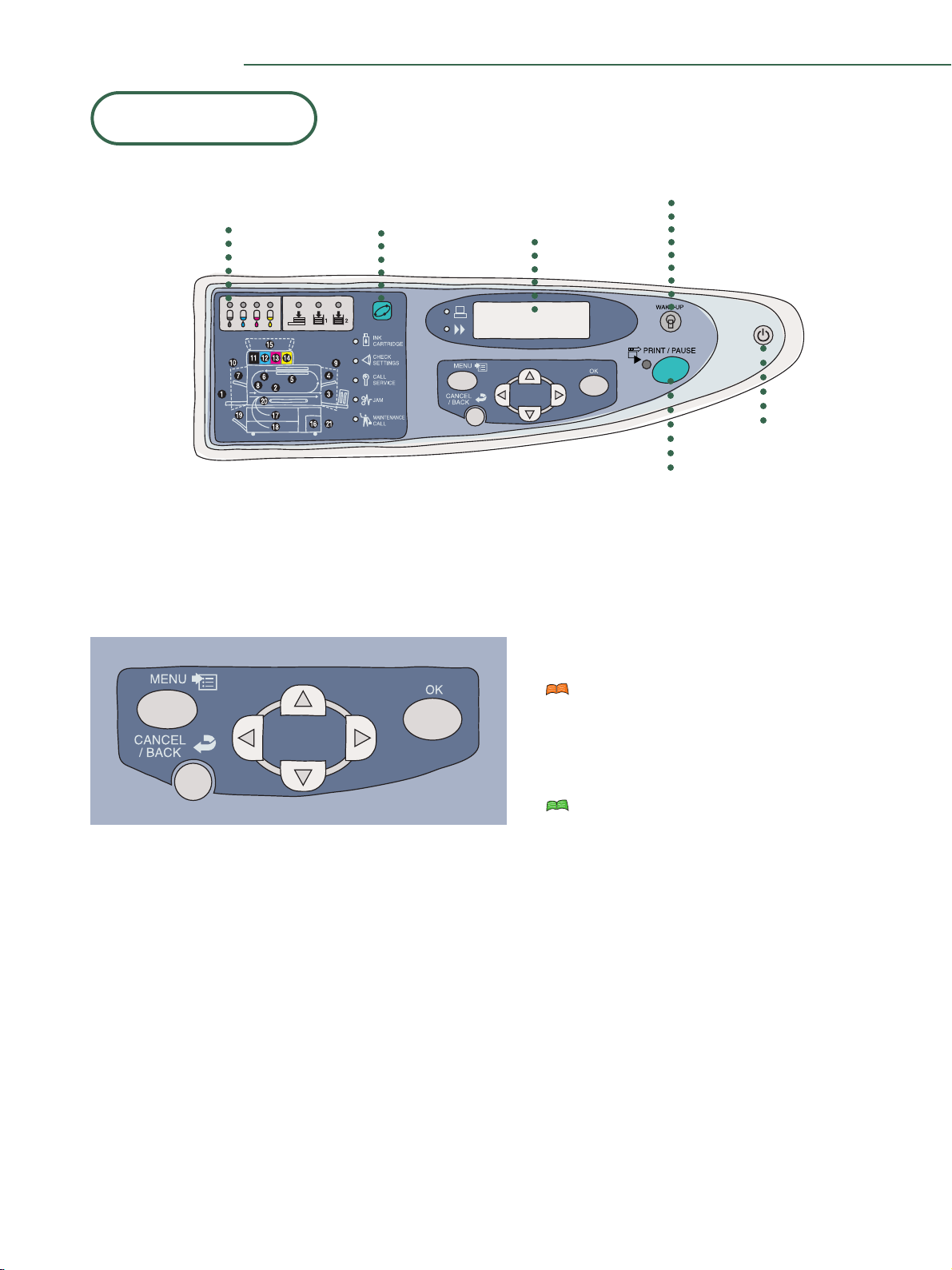
Control Panel Use to set the printer and check status.
Ready
Auto
Keys
PRINT/PAUSE Key
Switches Print Mode ON and OFF.
See "Printing Mode ON/OFF" — in this booklet page
US/UK-12.
MENU Key
Use for "MENU Setting" on the display.
See User's Manual for Printer Main Body
page 2-2.
Arrow Keys
Use to select the target menu or to change the
setting.
OK Key
Confirm a setting.
CANCEL/BACK Key
Remaining Volume
Notice Indicators
FORCEJET™
Link Indicator Message Display
WAKE-UP Key
PRINT/PAUSE Key
Power Key
○○○○○○
○○○○○○
○○○○○○
○○○○○○○○○ ○○○○○○○
○○○○○○

US/UK-7
Explanation of Error Symbols and Display
If an error occurs during printing, printing stops and an indicator will light up on the Operation Panel. An error
message may appear in the display depending on the type of error. Check the display message and error code and
follow the recommended procedures listed below.
INK CARTRIDGE
Ink is empty. The Ink cartridge indicated by
the light needs to be replaced.
CHECK SETTINGS
Check the location indicated by the light.
Some device inside has not correctly been
set, or the cover is not securely closed.
CALL SERVICE
Error requiring servicing. If this message
persists, write down the error number and
contact your local dealer (or service repre-
sentative).
JAM
Paper jam has occurred. Check the location
that the light indicates and remove the
jammed paper. A sticker inside the front
cover will explain how to remove the paper.
MAINTENANCE CALL
The cleaning tank is full or maintenance is
required. Contact your local dealer (or
service representative).
FORCEJET™ Link Symbol
The FORCEJET™ENGINE
controls printing speed, size
and quality of the paper, and
the amount of ink used. The
symbol shows it is functioning
correctly.
See User's Manual for Printer
Main Body page 3-3.

Introduction
US/UK-8
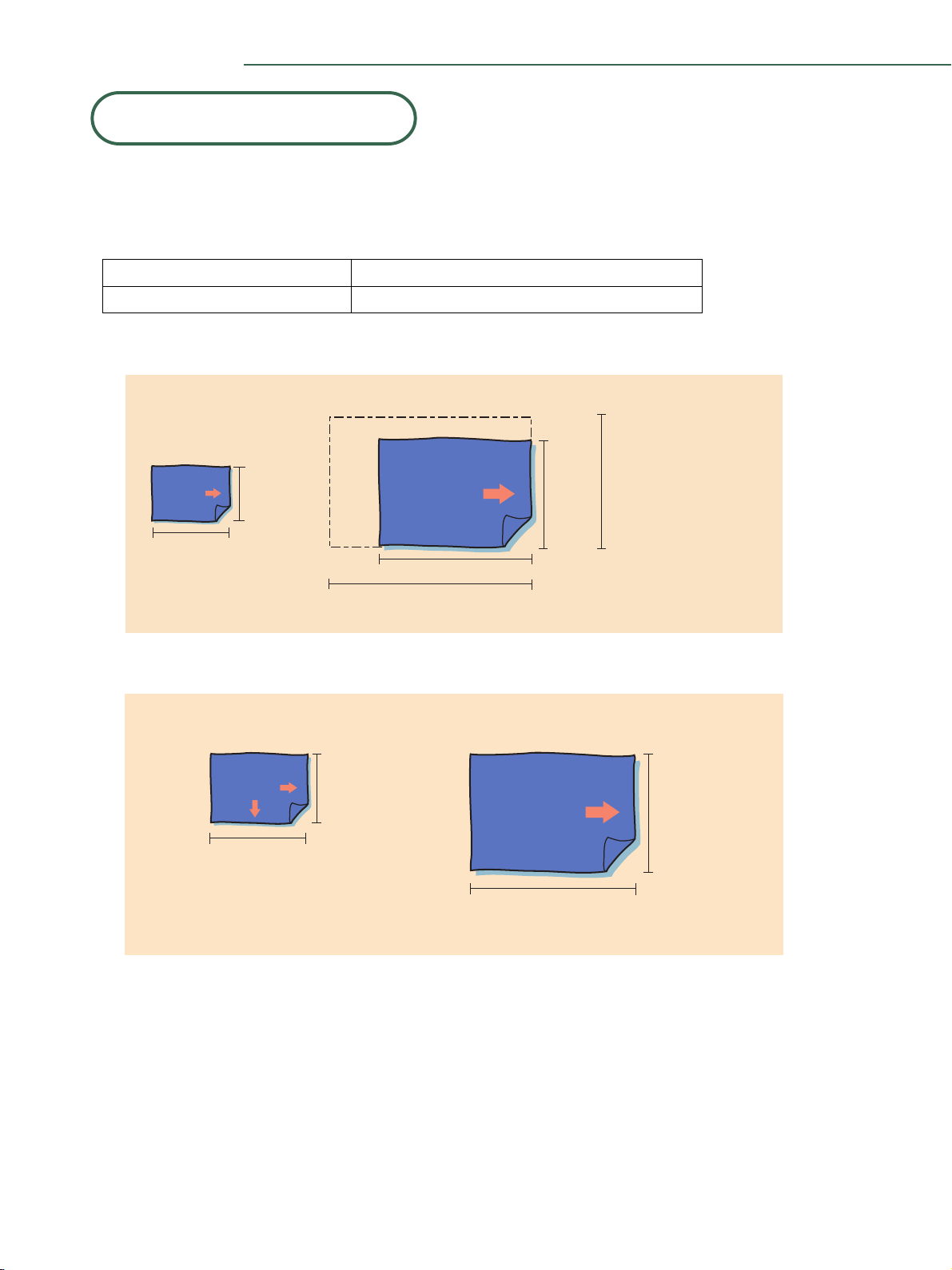
Paper Specifications
Usable Paper:
Paper that conforms to the following restrictions can be used for printing.
• Paper weight
For Standard Paper Feed Tray 46g/m2–157g/m2(12-lb bond to 42-lb bond)
For Paper Feed Trays 52g/m2–104g/m2(14-lb bond to 28-lb bond)
• Paper Sizes That Can Be Used in the Standard Feed Tray
• Paper Sizes That Can Be Used in Paper Feed Tray 1/Paper Feed Tray 2
Maximum sizeMinimum size
182mm (7
3
/
16
")
257mm
(10
1
/
8
")
297mm (11")
* Both orientations are available.
420mm (17")
Paper ejection
direction (*)
Paper ejection
direction
Maximum size
Minimum size
297mm
(11")
90mm
(3
9
/
16
")
148mm
(5
13
/
16
") 420mm (17")
Registering Paper Size :
420mm - 550mm (17" - 21
5
/
8
")
Registering Paper Size :
297mm - 340mm
(11" - 13
3
/
8
")
Paper ejection
direction
Paper ejection
direction
Table of contents
Other Riso Printer manuals

Riso
Riso Print Gocco Arts User manual

Riso
Riso RZ9 Series User manual

Riso
Riso RISOGRAPH RN2000 User manual

Riso
Riso VALEZUS T2100 User manual

Riso
Riso Comcolor Series User manual

Riso
Riso HC5500 User manual

Riso
Riso HC5500 User manual

Riso
Riso ComColor FW Series User manual

Riso
Riso ComColor 9150 Original instructions

Riso
Riso RZ 970 Series User manual

Riso
Riso GR 3770 User manual

Riso
Riso ComColor FT Series User manual

Riso
Riso ComColor GL Series User manual

Riso
Riso SF EII Series User guide

Riso
Riso ComColor FW Series User manual

Riso
Riso ComColor FT Series User manual

Riso
Riso Comcolor X1 Series User manual

Riso
Riso VALEZUS T1200 Service manual

Riso
Riso KZ30 User manual

Riso
Riso 9050 User guide