Sharp PC-G850VS User manual

SHARP&PC-G850V(S)&&&Manual&
!
1!
SHARP
POCKET COMPUTER
MODEL
PC-G850V(S)
User Manual/ Interface

SHARP&PC-G850V(S)&&&User&Manual&-&&Appendix!A:!11-Pin!Interface&
!
2!
Copyright © 2016 spellbound
Version 1.1, 12/2016
!&

SHARP&PC-G850V(S)&&User&Manual&-&Appendix!A:!11-Pin!Interface&
!
3!
Appendix&A:&11-Pin&Interface&
!
Signals&and&Pin-Out&
On the left side of the PC-G850V(S) there is an 11-pin interface intended for
communication with other devices. It is a multi-functional interface, hence it can operate
in different (sub-)modes. The actual mode is selected through operational commands or
menue items of the PC-G850V(S).
1. SIO / RS-232C-mode (e.g. OPEN“COM:“)
2. SSIO-mode (Synchronous Serial Input/Output)
a. CE-126P print protocol (e.g. LPRINT without preceding OPEN)
b. LPRT-protocol (e.g. OPEN“LPRT:“)
3. PWM-mode (Pulse Width Modulation)
a. CE-126P tape protocol (e.g. BSAVE/BLOAD with a CE-126P)
b. Generic PWM-protocol (e.g. BSAVE/BLOAD with another PC-G850V)
4. PIO-mode (e.g. OPEN“PIO:“)
Programmable, 8-bit parallel port interface
5. PIC-mode (activated by the PIC-loader in the assembler menue)
Programming interface for PIC microcontrollers
The association of physical pins to logical signals (called pin-out) as well as the
configured direction for input (I) or output (O) depends on the active mode. The following
table gives an overview. Looking from the left side of the PC-G850V(S) pin-1 is the
leftmost and pin-11 the rightmost.
Pin
#
SIO-Mode
SSIO/PWM-Mode
PIO-Mode
PIC-Mode
Signal
I/O
Signal
I/O
Signal
I/O
Signal
I/O
1
-
-
-
-
-
-
-
-
2
VCC(+5V)
-
VCC(+5V)
-
VCC(+5V)
-
VCC(+5V)
-
3
GND
-
GND
-
GND
-
GND
-
4
RTS
O
BUSY
O
Bit0
I/O
CP
O
5
DTR
O
DOUT
O
Bit1
I/O
CLK#
O
6
RXD
I
XIN
I
Bit2
I/O
DATAIN
I
7
TXD
O
XOUT
O
Bit3
I/O
DATAOUT
O
8
CD
I
DIN
I
Bit4
I/O
LOWBATT#
I
9
CTS
I
ACK
I
Bit5
I/O
-
-
10
DSR
I
EX1
I
Bit6
I/O
-
-
11
CI
I
EX2
I
Bit7
I/O
-
-
The next sections describe the SIO-mode and respective connection options in detail.
The other modes are covered subsequently.
!&

SHARP&PC-G850V(S)&&&User&Manual&-&&Appendix!A:!11-Pin!Interface&
!
4!
SIO-Mode:&RS-232&Standard&and&Conventions&
The PC-G850V(S) in SIO-mode exposes the signals of the RS-232 standard, but with
different voltage levels (see below). This section provides the necessary basics of the
standard and covers some specifics of the PC-G850V(S).
Within the RS-232 standard the terms DTE (Data Terminal Equipment) and DCE (Data
Communication Equipment) are introduced. The DTE is the PC-G850 for example and
the DCE is a modem or another peripheral device, like a serial printer.
When two computers shall communicate directly (i.e. without a modem), you need a so
called null-modem (cable/adaptor), which connects the outputs of one DTE with the
inputs of the other and vice versa (crossed signals).
Typically 25-pin (Sub-D 25 / DB-25) or 9-pin (Sub-D 9 / DB-9) plugs and jacks are used
to connect RS-232 capable devices.

SHARP&PC-G850V(S)&&User&Manual&-&Appendix!A:!11-Pin!Interface&
!
5!
The pin-out and meanings are summarized in the following table.
Signal
Name
Alternative
Name
Direction
(DTE-
View)
Semantics
Pin#
DB-9
Pin#
DB-25
TXD
Transmitted Data
SD
Out
Data from DTE to DCE
3
2
RXD
Received Data
RD
In
Data from DCE to DTE
2
3
RTS
Request To Send
(Ready To Send)
RS
Out
DTE requests permission
from DCE to send data
7
4
RTR
Ready To Receive
DTE is ready to receive
data from DCE
CTS
Clear To Send
CS
In
DCE is ready to receive
data from DTE
8
5
DTR
Data Terminal Ready
ER
Out
DTE interface ready for
operation
4
20
DSR
Data Set Ready
DR
In
DCE interface ready for
operation
6
6
CD
Carrier Detect
In
DCE detects remote DCE
(e.g. telephone line)
1
8
CI
Call Indicator
RI
In
Call of a remote DCE
9
22
GND
Signal Ground
SG
None
Signal-ground (reference)
5
7
FG
Frame Ground
PG
None
Shield
-
1
Remark:
In the late 1980’s there was a shift in the meaning of the RTS-signal:
Originally the DTE (computer) requests the DCE (modem) for permission that the DTE
may send data - and the DCE “answeres” via CTS. But this protocol is asymmetric
because the DTE has no means to notify the DCE to wait for internal computations when
the DCE sends data. For this reason “Request To Send” was re-claimed: The DTE
requests the DCE to send data – or in other words, the DTE is “Ready To Receive”
(RTR). RTR and CTS are now independent of each other and the protocol between DTE
and DCE is symmetric. But in most cases the name “Request To Send” (RTS) was kept,
hence it is fairly ambiguous.
The PC-G850V(S) implements the newer, symmetric RTR-semantics (but the signal
name RTS has been kept). This is in contrast to the preceding pocket computer model
PC-E500(S), which implements the original RTS meaning and therefor needs the
XON/XOFF-protocol in addition, when it reads data/programs from a PC. The PC-
G850V(S) sets the DTR-signal to HIGH, when the SIO-interface is active, but it does not
care about the DSR-input. So there is no DTR/DSR-handshake. The RTS/CTS-
handshake, or alternatively the XON/XOFF-protocol can be configured in the
TEXT/Sio/Format-submenue by the item "flow".
!&

SHARP&PC-G850V(S)&&&User&Manual&-&&Appendix!A:!11-Pin!Interface&
!
6!
SIO-Mode:&Signal&Levels&
!
The next table summarizes the logic- and voltage-levels of the RS-232 standard in
comparison with UART-TTL and the PC-G850V(S).
Logic
level
Voltage level
Semantics for data
signals (RXD,TXD)
Semantics for
control signals
(RTS,CTS,etc.)
RS-232
LOW
-15V to -3V
1 (Mark), Idle, Stop
Inactive
HIGH
+3V to +15V
0 (Space), Start
Active
UART-TTL
LOW
0V
0 (Space), Start
Active
HIGH
+3,3V / +5V
1 (Mark), Idle, Stop
Inactive
PC-G850V(S)
LOW
0V
1 (Mark), Idle, Stop
Inactive
HIGH
5V
0 (Space), Start
Active
So the PC-G850V(S) exposes inverted UART-TTL level signals in SIO-mode, just as
most other SHARP pocket computers do. That means the logic is identical to the RS-232
standard (HIGH=0/active), but the voltage level is TTL.
ð In order to connect peripheral devices with the PC-G850V(S) that operate at
RS-232 voltage levels, a level converter is mandatory!
The state of the TXD- and RTS-signals in SIO-mode is undefined, except for the
following cases:
1. The interface has explicitly been opened in SIO-mode (e.g. OPEN“COM:“) when in
operational main mode “BASIC”.
2. R- or W-commands are executed in operational main mode “Monitor”.
3. Data transfer via SIO in operational main mode “TEXT”.
!&

SHARP&PC-G850V(S)&&User&Manual&-&Appendix!A:!11-Pin!Interface&
!
7!
SIO-Mode:&Data&Transfer&Cable&CE-T800&and&CE-T801&
!
The data transfer cables CE-T800 and CE-T801 are RS-232 level converters with an
integrated null-modem wiring. They can be used to connect the PC-G850V(S) to a
personal computer (PC) or other devices.
With these cables you can transfer data, program source-code or machine language
programs from or to a PC by using the TEXT/Sio-submenue or the SIO-commands (R,
W) of the integrated hex-monitor (MON). The DB-25 plug of the cable can be connected
directly to a PC (if necessary via a DB-9 adaptor), when there is a physical COM port.
Alternatively it can be connected to a USB-port through an additional serial-to-USB
adaptor. Don't use a null-modem adaptor or wiring for a PC-connection (because it's
already integrated in the cable).
However if a peripheral RS-232 device like the 4-color plotter CE-515P shall be
connected, a null-modem adaptor/wiring is mandatory in order to compensate the
integrated one.
On the CE-T800 pins 6 and 20 are not connected, pin 11 is not connected on both
models (CE-T800 and CE-T801).
Attention: Never touch the pins of the DB-25 plug. Static electricity may be harmful for the
circuits.
A free working area of about 300bytes is required for data transfer from a PC.
!&

SHARP&PC-G850V(S)&&&User&Manual&-&&Appendix!A:!11-Pin!Interface&
!
8!
SIO-Mode:&USB&PC-Adaptor&Cable&with&Hardware-Handshake&&
!
An elegant, hence powerful DIY-alternative for the connection of the PC-G850V(S) with a
modern PC is based on a pre-built USB-UART adaptor cable with open endings.
Specification:
FTDI USB-UART/TTL adaptor cable based on FT232R-chip, 5V, 6 pins
(GND,5V,RXD,TXD,RTS,CTS)
For physical connection with the 11-pin interface of the PC-G850V a common multi-pin-
connector with 2.54mm spacing can be used. You need to solder the UART-lines of
adaptor to the multi-pin-connector by using a null-modem wiring then:
FTDI-UART
Signal (Color)
PC-G850V(S)
Signal (Pin)
GND (black)
GND (3)
RXD (yellow)
TXD (7)
TXD (orange)
RXD (6)
CTS (brown)
RTS (4)
RTS (green)
CTS (9)
VCC (red)
-
Additionally there should be a 10kOhm resistor between pin-4 and pin-3 of the multi-pin-
connector. It serves as a pulldown for the RTS-signal, to get a defined LOW level.
Without it, you might experience I/O-errors when transferring data from a PC to the PC-
G850V(S), because the PC may not receive wait requests from the pocket computer.
Finally you have to download the tool FT_PROG from the website of the manufacturer:
www.ftdichip.com. With this tool you must logically invert the signals RXD, TXD, RTS and
CTS of the FTDI-chip, because the SIO-mode (RS-232 interface) of the PC-G850V(S)
operates on inverted UART-logic (see above). This is a one-off process and the settings
are persisted within the integrated EEPROM of the FTDI-chip.

SHARP&PC-G850V(S)&&User&Manual&-&Appendix!A:!11-Pin!Interface&
!
9!
SIO-Mode:&RS-232&Printer&
With the SIO-mode you can also make use of printers that provide an RS-232 interface,
like the 4-color plotter CE-515P or CE-516P.
Do not connect an RS-232-printer to the PC-G850V(S) without a voltage level converter!
The data transfer cable/converter CE-T800/801 can be used in combination with a null-
modem wiring or adaptor. To connect the CE-515P/516P via RS-232 a DIN-4 plug is
needed. The correct wiring (inluding null-modem) is as follows:
Be sure to have the DIP-switches on the back side of the CE-515P/516P configured
correctly (see printer manual for details).
Furthermore you have to adopt the RS-232 parameters in the TEXT/Sio/Format sub-
menue of the PC-G850V(S) in order to get a connection with the CE-515P:
• baud rate = 1200
• data bit = 8
• stop bit = 1
• parity = none
• end of line = CR
• flow = RS/CS
Now, to actually direct outputs to a RS-232-printer, you have to open the 11-pin interface
explicitely in SIO-mode (OPEN“COM:“) – and close it after use (CLOSE). Character-
strings and control codes are transmitted via the PRINT#1,“...” command in
between.
OPEN“COM:“
PRINT#1,“HELLO WORLD“
…
CLOSE
The commands LPRINT, LLIST, LFILES however are not routed to the 11-pin interface
in SIO-mode.
!&
DIN-4 Plug
CE-T800/1 DB-25 Plug
Pin#
Signal
Pin#
Signal
1
+12V
-
-
2
BUSY#
4
RTS
3
GND
7
GND
4
DATA#
3
RXD
!

SHARP&PC-G850V(S)&&&User&Manual&-&&Appendix!A:!11-Pin!Interface&
!
10!
SSIO-Mode&&
!
The SSIO-mode serves for the purpose of synchronous serial data transfer – in contrast
to the asynchronous serial data transfer of the SIO-mode. “Synchronous” means, that the
sender provides an additional strobe/clock signal, to which the receiver aligns. This
makes an explicit baud-rate obsolete, to which both sides have to be configured in SIO-
mode. Hence the settings of the TEXT/Sio/Format-submenue are irrelevant in SSIO-
mode.
The SSIO-mode provides different submodes resp. protocols.
SSIO-Mode:&CE-126P&Print&Protocol&
!
This is the default protocol for the 11-pin interface of the PC-G850V(S). It is the protocol
for the printer CE-126P and it is active if and only if there is no other (sub-)mode
selected. The commands LPRINT, LLIST and LFILES are routed to the printer in this
mode.
The integrated cassette interface of the CE-126P can also be used by the PC-G850V(S)
and the respective protocol shares the handshake with the print protocol, but it uses
PWM for data transfer instead of SSIO (see below).
The pin-out and signal semantics within the CE-126P print protocol is as follows:
Pin
#
Signal
Direction
Semantics
4
BUSY
Out
Clock pulse for synchronous, serial data transmission
5
DOUT
Out
Data line
6
XIN
In
No function
7
XOUT
Out
HIGH: CE-126P sub-device select (i.e. printer vs.
cassette interface) resp. command transfer
LOW: Idle or data transmission
8
DIN
In
No function
9
ACK
In
CE-126P ready to receive data or commands
(handshake)
10
EX1
In
No function
11
EX2
In
No function
This manual suits for next models
1
Table of contents
Other Sharp PDA manuals

Sharp
Sharp Zaurus SL-5500 User manual
Sharp
Sharp PC-1500 Product manual
Sharp
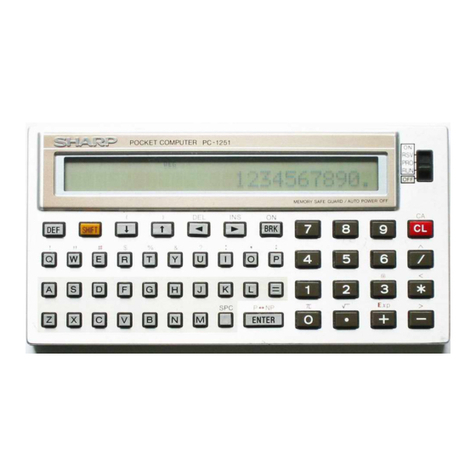
Sharp PC-1251 User manual
Sharp
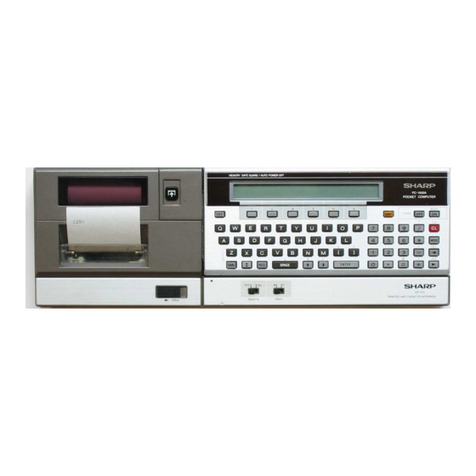
Sharp PC-1500 User manual
Sharp
Sharp PC-1500 Product manual
Sharp
Sharp PC-1500 Instructions for use
Sharp
Sharp Zaurus SL-5500 User manual
Sharp
Sharp PC-1251 User manual
Sharp
Sharp ZAURUS ZR-5000 User manual
Sharp
Sharp Zaurus SL-5500 User guide
Sharp
Sharp TM-20 User manual
Sharp
Sharp Zaurus SL-5500 User manual
Sharp
Sharp PC-1600 User manual
Sharp
Sharp SL-6000L User manual
Sharp
Sharp PC-1246 User manual
Sharp
Sharp PC-1500 User manual
Sharp
Sharp Zaurus SL-5500 Quick start guide
Sharp
Sharp PC-1360 User manual
Sharp
Sharp Zaurus SL-5500 Manual
Sharp
Sharp PC-1246S; PC-1248 User manual