manuals.online logo
Brands
  1. Home
  2. •
  3. Brands
  4. •
  5. Viavi
  6. •
  7. Test Equipment
  8. •
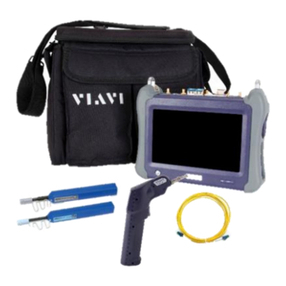
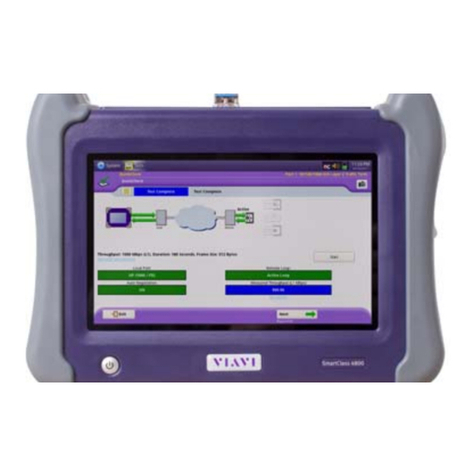
  9. Viavi T-BERD/MTS 5800 User manual

Viavi T-BERD/MTS 5800 User manual

Other Viavi Test Equipment manuals
Viavi P5000i User manual

Viavi

Viavi P5000i User manual

Viavi SmartClass OLP-85 Series User manual

Viavi

Viavi SmartClass OLP-85 Series User manual

Viavi FIT-82P03 User manual

Viavi

Viavi FIT-82P03 User manual

Viavi Parent Guide User manual

Viavi

Viavi Parent Guide User manual

Viavi MTS 2000 Parts list manual

Viavi

Viavi MTS 2000 Parts list manual

Viavi Certifier Series User manual

Viavi

Viavi Certifier Series User manual

Viavi MTS 2000 User manual

Viavi

Viavi MTS 2000 User manual

Viavi HST-3000 Parts list manual

Viavi

Viavi HST-3000 Parts list manual

Viavi OLP-88 User manual

Viavi

Viavi OLP-88 User manual

Viavi CT-X User manual

Viavi

Viavi CT-X User manual

Viavi T-BERD/MTS-5800 Parts list manual

Viavi

Viavi T-BERD/MTS-5800 Parts list manual

Viavi T-BERD MTS 5800 Parts list manual

Viavi

Viavi T-BERD MTS 5800 Parts list manual

Viavi T-BERD 6000A V2 User manual

Viavi

Viavi T-BERD 6000A V2 User manual

Viavi T-BERD MTS 5800 Parts list manual

Viavi

Viavi T-BERD MTS 5800 Parts list manual

Viavi ALT-9000 User manual

Viavi

Viavi ALT-9000 User manual

Viavi ALT-9000 Parts list manual

Viavi

Viavi ALT-9000 Parts list manual

Viavi T-BERD MTS 5800 Parts list manual

Viavi

Viavi T-BERD MTS 5800 Parts list manual

Viavi T-BERD MTS 5800 Parts list manual

Viavi

Viavi T-BERD MTS 5800 Parts list manual

Viavi SmartClass FBP-OLP-82 User manual

Viavi

Viavi SmartClass FBP-OLP-82 User manual

Viavi ATC-5000NG User manual

Viavi

Viavi ATC-5000NG User manual

Viavi T-BERD 5800 User manual

Viavi

Viavi T-BERD 5800 User manual

Viavi OneAdvisor ONA-800 User manual

Viavi

Viavi OneAdvisor ONA-800 User manual

Viavi OneAdvisor ONA-1000 400G Technical manual

Viavi

Viavi OneAdvisor ONA-1000 400G Technical manual

Viavi T-BERD 5800 User manual

Viavi

Viavi T-BERD 5800 User manual

Popular Test Equipment manuals by other brands

Ambit P.F. Series instruction manual

Ambit

Ambit P.F. Series instruction manual

Megger BMM500 Series user guide

Megger

Megger BMM500 Series user guide

RJG Lynx Sensor Tester operating instructions

RJG

RJG Lynx Sensor Tester operating instructions

Mark-10 TT02 Series user guide

Mark-10

Mark-10 TT02 Series user guide

Martel 3001 Operator's manual

Martel

Martel 3001 Operator's manual

ElproSys DiagProg4 instruction manual

ElproSys

ElproSys DiagProg4 instruction manual

Redtech TRAILERteck T05 user manual

Redtech

Redtech TRAILERteck T05 user manual

Venmar AVS Constructo 1.0 HRV user guide

Venmar

Venmar AVS Constructo 1.0 HRV user guide

Test Instrument Solutions SafetyPAT operating manual

Test Instrument Solutions

Test Instrument Solutions SafetyPAT operating manual

Hanna Instruments HI 38078 instruction manual

Hanna Instruments

Hanna Instruments HI 38078 instruction manual

Kistler 5495C Series instruction manual

Kistler

Kistler 5495C Series instruction manual

Waygate Technologies DM5E Basic quick start guide

Waygate Technologies

Waygate Technologies DM5E Basic quick start guide

StoneL DeviceNet CK464002A manual

StoneL

StoneL DeviceNet CK464002A manual

Seica RAPID 220 Site preparation guide

Seica

Seica RAPID 220 Site preparation guide

Kingfisher KI7400 Series Training manual

Kingfisher

Kingfisher KI7400 Series Training manual

Kurth Electronic CCTS-03 operating manual

Kurth Electronic

Kurth Electronic CCTS-03 operating manual

SMART KANAAD SBT XTREME 3G Series user manual

SMART

SMART KANAAD SBT XTREME 3G Series user manual

Agilent Technologies BERT Serial Getting started

Agilent Technologies

Agilent Technologies BERT Serial Getting started

manuals.online logo
manuals.online logoBrands
  • About & Mission
  • Contact us
  • Privacy Policy
  • Terms and Conditions

Copyright 2025 Manuals.Online. All Rights Reserved.

VIAVI//Public
T-BERD/MTS 5800 Portable Network Tester
T-BERD/MTS-5800 Portable Network Tester
QUICK CARD
Figure 1: Equipment Requirements
Updating Software via USB
This quick card outlines how to upgrade the SmartClass 4800 or T-BERD/MTS 5800 to the
latest software revision using a USB Flash Drive. Note: the software must be downloaded
to a PC and extracted to a formatted 4GB to 16GB USB flash drive. If the downloaded file
is copied directly to the USB flash drive, the upgrade will fail.
EQUIPMENT REQUIREMENTS
Equipment Requirements:
•Laptop or Personal Computer with
InternetAccess
•4GB to 16GB USB Flash Drive
FORMAT USB FLASH DRIVE
1.
Press the Power button
to turn on the test set.
2.
Insert the USB Flash Drive into a USB
port on the side of the T-
BERD/MTS test
set.
3.
Tap the System icon
in the Status Bar at the top of the
display to show the System menu.
4.
Tap the Removable Storage
Icon
to show the Removeable Storage menu.
5.
Tap to format the USB Flash
Drive.
6. Tap and remove the USB Flash
Drive from the USB port of the test set.
7.
Insert the formatted USB flash drive
into your Laptop or Personal Computer.
Figure 2: System Menu
Figure 3: Removable Storage Menu
VIAVI//Public
T-BERD/MTS 5800 Portable Network Tester
T-BERD/MTS-5800 Portable Network Tester
QUICK CARD
2
1. On Laptop or Personal Computer, open an
Internet browser and navigate to the
software update portal for your test set:
►SmartClass 4800:
https://4800.updatemyunit.net/
►T-BERD/MTS 5800:
https://5800.updatemyunit.net/
►T-BERD/MTS 5800v2:
https://5800v2.updatemyunit.net/
►T-BERD/MTS 5800-100G:
https://5800-100g.updatemyunit.net/
►MAP 2100:
https://map-2100.updatemyunit.net/
Note: You must use the upgrade
corresponding to the correct platform.
For example, you cannot upgrade a T-
BERD 5800v2 using T-BERD 5800-100G
software.
2. Click a Flag icon to download software from
the nearest server:
►Europe Server
►North America Server
►Singapore Server.
3. Select “Run” or “Open file” to extract the
upgrade files to a USB drive. If you save the
.exe file directly to the USB flash drive, the
update will fail.
►Note: If your browser displays a warning
that the update is an unrecognized or
uncommon app, click “See more”, “…”,
“More info”, “Keep” and/or “Run
anyway” to continue.
4. Enter or browse to the path of the USB Stick
and press the OK button to extract update
files to the USB Flash Drive.
DOWNLOAD ARCHIVE AND EXTRACT TO USB FLASH DRIVE
Figure 4: updatemyunit.net
Figure 6: Enter or Browse to the path of the USB Flash Drive
VIAVI//Public
T-BERD/MTS 5800 Portable Network Tester
T-BERD/MTS-5800 Portable Network Tester
QUICK CARD
© 2023 VIAVI Solutions, Inc,
Product specifications and descriptions in this
document are subject to change without notice.
Patented as described at viavisolutions.com/patents
Contact Us
To reach the VIAVI office nearest you,
visit viavisolutions.com/contact
+1 844 GO VIAVI
(+1 844 468-4284)
1. Eject and remove the USB Flash Drive
from the Laptop or Personal Computer.
2. Insert the USB Flash Drive into a USB
port on the side of the T-BERD/MTS test
set.
3. Plug the T-BERD/MTS test set intoAC
power. You cannot update the software
while running on battery.
4. Tap the System icon in the
Status Bar at the top of the display to
show the System menu.
5. Tap the Upgrade Icon to show the
Upgrade menu.
6. Select USB for the upgrade method.
7. Tap and follow screen
prompts to complete the software
upgrade.
➢Notes:
•V4.3 includes an upgrade to the
operating system, platform
software, and test applications.
•The BERT test application will be
renamed “Transport”.
•The update may take up to 30
minutes to complete.
UPGRADE TEST SET
Figure 7: System Menu
Figure 8: Upgrade Menu