manuals.online logo
Brands
  1. Home
  2. •
  3. Brands
  4. •
  5. X10
  6. •
  7. Security System
  8. •
  9. X10 DC8700P User manual

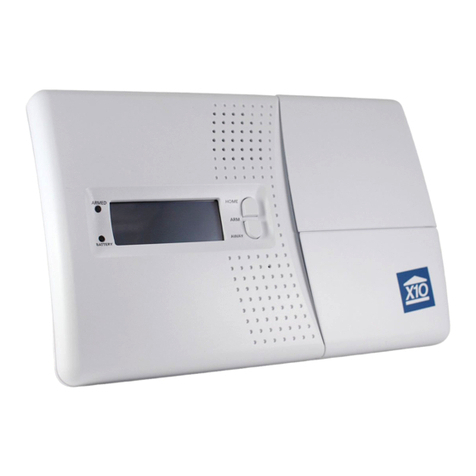
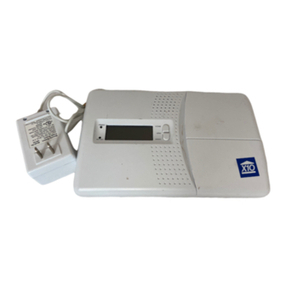
X10 DC8700P User manual

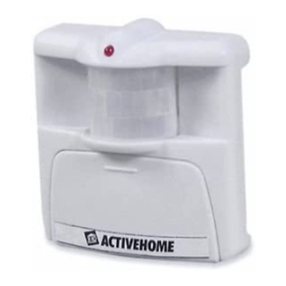
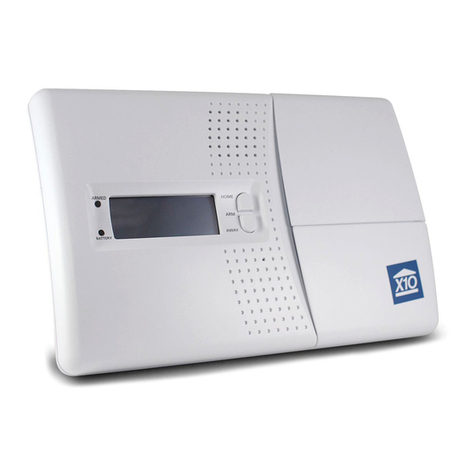
This manual suits for next models

1

Other X10 Security System manuals

X10 PH7208 User manual

X10

X10 PH7208 User manual

X10 SC1200-G User manual

X10

X10 SC1200-G User manual

X10 Powerhouse DS7000 User manual

X10

X10 Powerhouse DS7000 User manual

X10 IN42A Manual

X10

X10 IN42A Manual

X10 IN49A Manual

X10

X10 IN49A Manual

X10 IN62A Manual

X10

X10 IN62A Manual

X10 VT38A User manual

X10

X10 VT38A User manual

X10 SC12A User manual

X10

X10 SC12A User manual

X10 VANGUARD VK77A User manual

X10

X10 VANGUARD VK77A User manual

X10 MS12A Installation manual

X10

X10 MS12A Installation manual

X10 PK9000 Installation manual

X10

X10 PK9000 Installation manual

X10 ActiveEYE MS15A Installation manual

X10

X10 ActiveEYE MS15A Installation manual

X10 Ninja VK74A User manual

X10

X10 Ninja VK74A User manual

X10 PROTECTOR+ User manual

X10

X10 PROTECTOR+ User manual

X10 MS13A Installation manual

X10

X10 MS13A Installation manual

X10 UX21A User manual

X10

X10 UX21A User manual

X10 PA5800 User manual

X10

X10 PA5800 User manual

X10 XCamPro User manual

X10

X10 XCamPro User manual

X10 Monitor Plus DC8700P User manual

X10

X10 Monitor Plus DC8700P User manual

X10 IN39A Manual

X10

X10 IN39A Manual

X10 Ninja VK74A User manual

X10

X10 Ninja VK74A User manual

X10 IN46A Manual

X10

X10 IN46A Manual

X10 VT38A User manual

X10

X10 VT38A User manual

X10 SC1200 User manual

X10

X10 SC1200 User manual

Popular Security System manuals by other brands

Polon-Alfa 4000 Installation and maintenance manual

Polon-Alfa

Polon-Alfa 4000 Installation and maintenance manual

Nexcom NViS 14162 Series user manual

Nexcom

Nexcom NViS 14162 Series user manual

Eminent EM8670 Quick install

Eminent

Eminent EM8670 Quick install

urmet domus alpha 1060 INSTALLATION AND USE BOOKLET

urmet domus

urmet domus alpha 1060 INSTALLATION AND USE BOOKLET

SmartPool YardGuard YG03 manual

SmartPool

SmartPool YardGuard YG03 manual

DSC PC5964 Mounting instructions

DSC

DSC PC5964 Mounting instructions

Secure USAB-1 operating instructions

Secure

Secure USAB-1 operating instructions

B&B 480 SERIES Operation & maintenance manual

B&B

B&B 480 SERIES Operation & maintenance manual

ADEMCO VISTA-20P Series Installation and setup guide

ADEMCO

ADEMCO VISTA-20P Series Installation and setup guide

Inner Range Concept 2000 user manual

Inner Range

Inner Range Concept 2000 user manual

Johnson Controls PENN Connected PC10 Install and Commissioning Guide

Johnson Controls

Johnson Controls PENN Connected PC10 Install and Commissioning Guide

Aeotec Siren Gen5 quick start guide

Aeotec

Aeotec Siren Gen5 quick start guide

Swann SW-P-MC2 Specifications

Swann

Swann SW-P-MC2 Specifications

Ecolink Siren+Chime user manual

Ecolink

Ecolink Siren+Chime user manual

EDM Solution 6+6 Wireless-AE installation manual

EDM

EDM Solution 6+6 Wireless-AE installation manual

Siren LED GSM operating manual

Siren

Siren LED GSM operating manual

Detection Systems 7090i Installation and programming manual

Detection Systems

Detection Systems 7090i Installation and programming manual

FRIEDLAND MA10 Installation and operating instructions

FRIEDLAND

FRIEDLAND MA10 Installation and operating instructions

manuals.online logo
manuals.online logoBrands
  • About & Mission
  • Contact us
  • Privacy Policy
  • Terms and Conditions

Copyright 2025 Manuals.Online. All Rights Reserved.

Supervised Security System
With Digital Central Station Communicator
1stDraft
PANIC PANIC
ARM DIS-
HOME ARM
ARM DIS-
AWAY ARM
SECURITY
LIGHT
ON OFF
A
I
EM
OC
GK
•
•
•
•
••
•
•
INSTANTDELAY
BRIGHT DIM
ENTRY
DOOR/WINDOW SENSOR
MOTION DETECTOR
Lamp Module
A
I
EM
OC
GK
•
•
•
•
••
•
•
1
9
513
15 3
711
•
•
•
••
•
•
UNIT
HOUSE
BATTERY
ARM
DISARM
LIGHTS
ON
LIGHTS
OFF
PANIC
MonitoredSecuritySystem,ModelDC8700P
Monitor Plus™
ARM AC POWERMONITOR BATTERY LOW
ZONES
19
210
3
4
5
6
7
8
11
12
13
14
15
16
BYPASS
ON - LIGHTS - OFF
ZONES 9-16
PANIC
AWAY - ARM - HOME
™
®
32
READ THIS FIRST
This equipment generates and uses radio
frequency energy, and if not installed and used
properly, that is, in strict accordance with the
manufacturers instructions, may cause
interference to radio and television reception. It
has been type tested and found to comply with
the limits for remote control security devices in
accordance with the specifications in Sub- arts
B and C of art 15 of FCC Rules, which are
designed to provide reasonable protection against
such interference in a residential installation.
However, there is no guarantee that interference
will not occur in a particular installation. If this
equipment does cause interference to radio or
television reception, which can be determined by
unplugging the equipment, try to correct the
interference by one or more of the following
measures.
• Reorient the antenna of the radio/TV
experiencing the interference.
• Relocate the console with respect to the
radio/TV.
• Move the console away from the radio/TV.
• lug the console into an outlet on a different
electrical circuit from the radio/TV experiencing
the interference.
If necessary, consult your local X10 Dealer for
additional suggestions.
Your console’s telephone dialer is designed to
conform to federal regulations, and you can
connect it to most telephone lines. However, each
telephone or telephone device that you connect
to the telephone line draws power from the
telephone line. We refer to this power draw as the
device’s ringer equivalence number, or REN.
If you use more than one telephone or other device
on the line, add up all the RENs. If the total is
more than five, your telephones might not ring. In
rural areas, a total REN of three might impair
ringer operation. If ringer operation is impaired,
remove one of the devices from the line.
Note: You must not connect your console to:
• Coin-operated systems
• arty-line systems
• Most electronic key telephone systems
Your console’s telephone dialer complies with art
68 of FCC Rules. You must, upon request, provide
the FCC registration number and the REN to your
telephone company. Both numbers are shown on
the bottom of the console.
The telephone portion of your security console
has been tested and found to comply with all
applicable UL and FCC standards.
In the unlikely event that your console causes
problems on the telephone line, the telephone
company can disconnect your service. The
telephone company attempts to notify you in
advance. If advance notice is not practical, the
telephone company notifies you as soon as
possible and advises you of your right to file a
complaint with the FCC.
Also, the telephone company can make changes
to its lines, equipment, operations, or procedures
that could affect the operation of this console. The
telephone company notifies you of these changes
in advance, so you can take the necessary steps
to prevent interruption of your telephone service.
Note: The security functions of this system have
not been tested by Underwriters Laboratories.
CONTENTS
INTRODUCTION ................................................................................................... 4
SETTING U THE CONSOLE .............................................................................. 5
SETTING U REMOTE CONTROLS ................................................................... 8
SETTING U DOOR/WINDOW SENSORS ......................................................... 9
SETTING U MOTION SENSORS .....................................................................12
SETTING U REMOTE MODULES ................................................................... 15
SETTING U FOR THE MONITORING STATION.............................................. 17
USING THE SYSTEM .........................................................................................18
TURNING LIGHTS ON AND OFF REMOTELY .................................................. 23
RE LACING BATTERIES ...................................................................................24
TO CLEAR ALL SENSORS AND REMOTES FROM THE CONSOLE ............... 25
TROUBLESHOOTING ........................................................................................26
54
Choosing a location for the
console
Before you select a location for the
Monitor Plus console, think of the areas
in your home where you would be most
likely to use the Remote Controls, Door/
Window Sensors, and Motion Sensors.
Select a location that is central to those
areas and that is within the console’s
range (up to 100 feet).
Living Room
Dining Room
Kitchen
Hallway
Study
Here are some other things to consider
when choosing the console’s location:
• It must be close to a modular
telephone jack so you can easily
connect the telephone dialer.
• The console’s loud alarm might
frighten you if you trip it while you are
next to it, so it is best to place the
console in a large open area (like a
living room). But, you should also
place it close to a window so
neighbors are more likely to hear the
alarm.
Your X10 owerhouse Monitor Plus
Security System lets you feel secure.
The system includes a security console
with a digital communicator that
connects to a professional digital
monitoring station in the event of a break
in. The system includes two Door/
Window Sensors, a Motion Sensor, a
Lamp Module, and two Remote
Controls: one hand held, one keychain.
Features:
Quick Installation: The Monitor Plus
security system installation is a snap.
The system is easy to install and use.
Wireless Sensors: The Door/Window
Sensors, and Motion Sensor are
completely wireless and communicate
to the base console via radio frequency.
uilt in Digital Communicator: Calls
the monitoring station in the event of a
break in.
Fully expandable: You can protect up
to 16 zones with your security system,
plus you can control lights and
appliances by Remote Control, to start
a complete home automation system.
Panic Alarm: Lets you sound the alarm
without calling the monitoring station.
Automatic lighting control: When the
Monitor Plus Security System is armed,
an automatic timer can be put into action
which turns lights, stereos, TVs, etc. on
and off at random times to make your
home look and sound lived in.
X10 Home Automation compatible:
Adding X10 Home Automation products
such as Lamp Modules, Appliance
Modules, and Wall Switches, etc., is
easy with this system, since it is already
configured to control the full range of
X10 Home Automation products.
Self checking, fully monitored
system: Every sensor installed is self-
checking, and if any fail to report in to
the base console at the correct time
interval, the sensor's zone indicator on
the alarm console flashes to alert you.
If you then try to arm the system, a
special warning tone is sounded, and
you must press a button to acknowledge
and bypass the warning before you can
complete the arming sequence.
attery backed-up console: If the
power fails or is cut, the house lights
will, of course, stop working - but the
security system doesn't, with all
features including telephone dialing and
alarm siren still ready for action using
easy to replace AA alkaline backup
batteries in the console. An indicator on
the console warns you when the
batteries need changing.
SETTING UP THE CONSOLEINTRODUCTION
76
INSTALLATION
Mounting the Console
If desired, the Security Console can be wall mounted using the included mounting
bracket. Attach the mounting bracket to a standard electrical wall box, which you
can purchase at most hardware stores. Hooks on the bracket locate in slots at the
back of the console. A small screw is provided that can be used to prevent the unit
from being lifted off the hooks.
;;;;;;;;
;;;;;;;;
;;;;;;;;
;;;;;;;;
;;;;;;;;
;;;;;;;;
;;;;;;;;
;;;;;;;;
;;;;;;;;
;;;;;;;;
;;;;;;;;
Fitting backup batteries
Slide out the battery drawer from the bottom of the console and insert four AA
Alkaline batteries (sold separately). Refit the drawer making sure it is fully home in
the cabinet. When AC power is applied the battery LED on the front panel goes out.
It is not necessary to disconnect power from the console when fitting or replacing
batteries.
™
®
+
–
+
–
+
–
+
–
Or you can simply place the console on a flat surface and connect the telephone
cord and power supply as shown on the next page.
Warning: To reduce the risk of electric shock, never plug a telephone cord into a
telephone line jack until the other end of the cord is plugged into the telephone
device.
If you already have a phone plugged into the jack, use the included 'T' adapter to
plug the console and telephone into the same jack.
If your telephone wiring does not have a modular jack, you can:
• Update the wiring yourself. Most good electrical stores sell adapters to convert
older wiring methods to modular wiring.
• Have the telephone company update the wiring for you.
Note: The telephone company charges to install the necessary jacks.
The USOC number of the jacks to be installed is RJ11C (or RJ11W for a wall plate
installation).
You can use the console with either pulse or touch-tone phone systems.
Attaching cables
1. lug one end of the supplied
telephone cord into the console and
the other end of the telephone cord
into a modular telephone jack.
Attach the mounting bracket to a
standard electrical wall box.
Slide the Console
onto the hooks on
the bracket and
attach the screw.
The power plug
on the back of
the Console will
protrude into the
wall box and you
can feed the
cables down
through the
recesses in the
back of the
Console.
2. Connect the power
supply to the
console and plug it
into an AC outlet
that is not controlled
by a wall switch.
98
1. Mount the Door/Window Sensor and
the magnetic switch in the intended
location using the supplied screws
or double sided tape.
2. Install the magnet using the supplied
screws or double sided tape. The
arrows on the Door/Window Sensor
magnet and switch should be
aligned carefully so that they face
each other.
Note: The sensor and magnetic switch
supplied are already connected
together. If the wire is too long, you can
shorten it by cutting it to the length
required, stripping the ends and
reconnecting to the magnetic switch.
Installing Door/Window
Sensors
We recommend that you purchase
enough sensors to protect the front and
back door and any windows that are
obscured from view or easily accessible
(including basement windows).
Initializing Door/Window
Sensors
This rocedure initializes the Door/
Window Sensors so that the Console
recognizes signals from the sensor.
1. Install two AA alkaline batteries in
the battery compartment (batteries
sold separately).
SETTING UP DOOR/WINDOW SENSORS
TEST
MAX MIN
DELAY
TEST
MAX MIN
DELAY
+
–
+
–
1. Install four AAA alkaline batteries in
the battery compartment (batteries
sold separately).
2. Set the INSTALL/RUN switch on the
console to INSTALL (located under
the flip up door).
3. ress ARM HOME or ARM AWAY
on the security/home automation
remote control. The Console emits
a tone.
4. Set the consoles slide switch back
to RUN1 or RUN2.
Note: If you do not hear a tone, press
the CODE button (located on the front
under the label) with a pencil, then
reinstall the remote as described above.
PANIC PANIC
ARM DIS-
HOME ARM
ARM DIS-
AWAY ARM
SECURITY
LIGHT
ON OFF
A
I
EM
OC
GK
•
•
•
•
••
•
•
INSTANTDELAY
BRIGHT DIM
ENTRY
4. Set the console's slide switch back
to RUN1 or RUN2.
5. To set up additional key chain
remote controls (up to eight), repeat
steps 1 and 2.
Note: If you do not hear a tone, remove
the batteries and then hold down the
ARM button for 3 seconds. Refit the
batteries and press ARM again. The
LED indicator will flash twice. You can
now install the key chain remote as
described above.
You can install any combination of
Remote Control types for a total of up
to sixteen Remote Controls. For
example, you can install eight key chain
remote controls and eight security/home
automation remote controls or any other
combination for a total of sixteen.
Security/Home Automation
Remote Control
Key Chain Remote Control
1. Install two AAA alkaline batteries in
the battery compartment (batteries
sold separately).
2. Set the INSTALL/RUN switch on the
console to INSTALL (located under
the flip up door).
3. ress ARM on the key chain. The
Console emits a tone.
BATTERY
ARM
DISARM
LIGHTS
ON
LIGHTS
OFF
PANIC
SETTING UP REMOTE CONTROLS
2. Set the INSTALL/RUN switch on the
console to INSTALL (located under
the flip up door).
3. ress TEST on the Door/Window
Sensor and hold for about a second.
Release the TEST button and the
LED blinks twice to confirm it has
been initialized.
1110
Note: You can use any standard N.C.
type magnet switches. N.C. means
Normally Closed. This type of magnetic
switch is supplied with the sensors.
These switches are normally closed
when the door or window is closed, and
open when the magnet is moved away.
This type of magnetic switch is used so
that if the wire between the switch and
the Door/Window Sensor is cut, the
alarm trips (tamper proof).
If you want to connect more than one
magnetic switch to a sensor you must
connect them in series (not in parallel).
You cannot use N.O. (Normally Open)
magnetic switches with this sensor.
You can protect more than one door or
window from a single sensor by
installing additional magnetic switches.
Loop the switches in series from one
door or window to the next (using any
suitable wire).
DOOR/WINDOW SENSOR
For sliding windows, however, it is best
to mount the magnet and switch at the
bottom of the window with the arrows
facing each other. This way the magnets
will make a "clean break" from the switch
when the window is opened.
DOOR/WINDOW SENSOR
Testing Door/Window
Sensors
To test a Door/Window Sensor:
1. Set the INSTALL/RUN switch on the
console to RUN2 (located under the
flip-up door).
2. Open the door or window. The light
on the sensor blinks, the console
chimes and the zone light for the
sensor lights.
If the light on the sensor does not blink
and the console doesn't chime, check
that the Door/Window Sensor magnet
and switch are correctly aligned with the
arrows facing each other.
Typical Door/Window Sensor
mounting methods
4. ress TEST again. The Console's
next unused zone indicator lights
and the Console beeps to indicate
it has accepted the sensor.
Note: If you do not hear a tone,
remove the batteries from the
sensor and then hold down the
TEST button for 3 seconds. Refit the
batteries and install the sensor again
as described above.
5. Set the switch on the front of the
Door/Window Sensor to MIN if you
are using it to protect a window or
MAX if you are using it to protect a
door.
6. lace one of the enclosed numbered
stickers on the sensor to show its
zone number.
To set up additional sensors (up to 16)
repeat steps 1-6.
If you mount the magnetic switches on
metal doors or metal door frames you
should ensure that they are no more
then 3/16" apart. On wooden surfaces
they can be up to 3/8" apart.
Do not mount the magnet directly onto
a metal surface, use a wood or plastic
spacer.
DOOR/WINDOW SENSOR
The ideal location for the Door/Window
Sensor is high at the top of a window.
1312
lace the Motion Sensor on a
countertop or fix it to the wall using the
included mounting bracket.
6ft
Direction
of entry
Less sensitive
direction
Installing Motion Sensors
MOTION DETECTOR
The mounting bracket allows the Motion
Sensor to be swivelled up and down and
from left to right to obtain the desired
coverage.
The Motion Sensor should be placed at
a height of about 6 feet for best
coverage. osition the Motion Sensor
horizontally for maximum range.
Correct Wrong
For optimum performance the Motion
Sensor should be placed so that an
intruder walks across its path rather than
towards it.
The Motion Sensor can "see" up to a
distance of about 40 feet with a 90
degree field of view. It can be placed up
to about 100 feet away from the
Console.
36912151821242730333639
3
6
9
Zone A Zone B Zone C Zone D
Ran
g
e
(
ft
)
Mounting
Height (ft)
Zone A
Zone B
Zone C
Zone D
Approx. 40ft
SETTING UP MOTION SENSORS
This procedure initializes each Motion
Sensor just like you initialize Door/
Window Sensors. Each Motion Sensor
will be assigned to one of the 16 zones.
1. Install four AA alkaline batteries in
the battery compartment on the
front of the Motion Sensor (batteries
sold separately).
Note: lace the Motion Sensor face
down so that it doesn't "see" anything
during installation. Otherwise if it is sees
motion it might be installed twice,
causing erroneous operation later.
Initializing Motion Sensors
3. ress the CODE button on the back
of the Motion Sensor with a pencil
to reset the code.
4. ress TEST on the back of the
Motion Sensor. The Console's next
unused zone indicator lights and the
Console sounds a tone to indicate
that the receiver accepted the
Motion Sensor.
TEST
HIGH
CODE
LOW
SENSITIVITY
MOTION DETECTOR
5. lace one of the enclosed number
stickers on the Motion Sensor to
show the zone number.
6. To Set up additional Motion Sensors
(up to 16 zones) repeat steps 1-5.
Note: If you do not hear a tone, press
the CODE button again, then reinstall
the sensor as described above.
2. Set the INSTALL/RUN switch on the
console to INSTALL (located under
the flip-up door).
1514
SETTING UP REMOTE MODULES
Setting up Lamp Modules
Lamp Module
A
I
EM
OC
GK
•
•
•
•
••
•
•
1
9
513
15 3
711
•
•
•
••
•
•
UNIT
HOUSE
When the alarm trips, lamps connected
to Lamp Modules set to A-13 (or other
codes on request from the monitoring
station - see page 18) flash on and off
for the duration of the alarm. After 4
minutes (or when you disarm the alarm)
the lamps stop flashing and remain on.
If you arm the system to give an exit
delay, Lamp Modules set to the same
House Code and Unit Code as the
console will turn on during the exit
countdown time. You can also control
Lamp Modules set to this code from the
LIGHT ON and LIGHT OFF buttons on
the remote controls, or from the
SECURITY LIGHT button on the Key
Chain Remote.
Choose a lamp you want to be a part of
the security system. Make sure the
lamp's on/off switch is on and plug the
lamp into the Lamp Module. lug the
Lamp Module into any convenient AC
outlet. Set the House Code and Unit
Code dials on the Lamp Module to A-
13 (or other codes on request from the
monitoring station - see page 18).
Setting up Wall Switch
Modules
When the alarm trips, lights connected
to Wall Switch Modules (sold separately)
set to A-13 (or other codes on request
from the monitoring station - see page
18) flash on and off for the duration of
the alarm. After 4 minutes (or when you
disarm the alarm) the lights stop flashing
and remain on.
If you arm the system to provide an exit
delay, Wall Switch Modules set to the
same House Code and Unit Code as
the console will turn on during the exit
countdown time. You can also control
Wall Switch Modules set to this code
from the LIGHT ON and LIGHT OFF
buttons on the remote controls.
NOTE: Follow the installation
instructions included with the Wall
Switch Module, (sold separately). Set
the House Code and Unit Code to A-13
(or other codes on request from the
monitoring station - see page 18) if you
want the lamp to flash during an alarm.
Remote Switch
1
9
513
A
I
EM
All types of Motion Sensors sense
motion by detecting a change in
temperature. Therefore, to help prevent
false alarms, do not place the Motion
Sensor near heating or air conditioning
vents.
Testing the Motion Sensor
The Motion Sensor includes a special
test mode which works as follows:
1. Set the sensitivity switch to 1.
2. Hold down the TEST button on the
back of the Motion Sensor until the
LED blinks twice.
3. Release the TEST button and wait
for about 20 seconds for the Motion
Sensor to settle.
4. Walk past the Motion Sensor. The
LED indicator lights as you move
and goes out if you keep very still,
or walk out of range of the detector.
If the range is low (less than 30 ft.) check
that the Motion Sensor is horizontal and
at a height of at least 5 ft. from the
ground.
The Motion Sensor will automatically
switch back to normal operation after
two minutes in test mode. If you want to
switch it back manually just press the
TEST button again.
To test the alarm
1. Arm the console and wait for about
45 seconds.
2. Walk in front of the Motion Sensor
and check that the alarm is
triggered.
After triggering the console, the Motion
Sensor automatically "locks out" for
around 45 seconds to save battery life.
Adjusting the Sensitivity of
Motion Sensors
Set the switch on the left of the Motion
Sensor (looking at the back) to 1 to trip
alarm if ANY movement is detected
(most sensitive).
Set the switch to 2 to trip the alarm only
if two successive movements are
detected or continuous movement is
detected in a short time (less sensitive
to pets).
1716
Introduction to monitoring
The Monitor Plus™ Security System
incorporates the same digital
communicator technology found in
expensive high-end security products.
Features supported include account
number downloading and verification,
remote configuration and alarm type
confirmation.
When one of the sensors is activated
while the system is armed, a loud piercing
siren sounds. If the alarm is not disarmed
within the next few seconds using one of
the security coded remote controls, the
security system console automatically
dials the monitoring station and sends a
digitally coded message allowing the
station operator to identify your address,
telephone number and even the type of
alarm that occurred.
Automatic Lighting Control
When the Monitor Plus Security System
is armed in the away mode, an
automatic timer can be put into action
to turn lights, stereos, TVs, etc. on and
off at random times to make your home
look lived in.
art of the information downloaded to
the console includes four unit codes for
X10 modules that can be used to give
your home a lived-in look. A code is
downloaded to give the location
(longitude and latitude) of your home,
which is then used to calculate the time
of dusk, and also a time is downloaded
to say when lights should all turn off.
Module Code 1 is turned on at dusk and
turns off at the set off-time (this is the
same code that flashes during an alarm
and can be controlled by the Keychain
and Security/Home Automation remotes).
This could be used for control of an
outside security light, for example.
The other 3 codes are for X10 modules
that turn on and off randomly between
dusk and the set OFF time. These could
be used for inside lights to give the
impression that your home is occupied.
The date and time is also downloaded
for daylight savings time.
Registering with the
Monitoring Station.
Once you have installed the Motion
Sensor, Door/Window Sensors and
Remote Controls you are ready to set
up for monitoring. To do this, all you need
to do is:
• Fill out the enclosed monitoring
agreement and mail or fax it to ORCA
Monitoring Services.
• Call ORCA Monitoring Services at
1-800-FOR-ORCA (1-800-367-6722)
and follow the instructions to have
your system initialized.
Note: Although you can register your
system as soon as it has been installed,
the Monitoring Station will not respond
to alarm calls until the signed monitoring
agreement has been received and you
have been allocated your security code
which will be notified to you by return.
SETTING UP FOR THE MONITORING STATION
WARNING: THE POWERHORN is
extremely loud! Do not stand near it
when you trip the alarm. Prolonged
exposure could cause permanent
hearing damage.
Using the POWERHORN with
other X10 controllers
In a panic situation, you can trip the
POWERHORN from other types of
Controllers as follows:
1. ress (and hold) the ON button
corresponding to the House and Unit
codes set on the POWERHORN.
After about 4 seconds the
POWERHORN trips. ress OFF to
turn it off.
2. Alternatively, repeatedly press All
Lights On followed by All Units Off.
Or repeatedly press the ON and
OFF buttons corresponding to the
POWERHORN's Unit Code. This will
trigger the POWERHORN after
about two ON-OFF sequences and
will continue as long as you keep
repeating the sequence. The siren
will shut off about 4 seconds after
the last key press.
Setting up the POWERHORN
The POWERHORN Remote owerline
Siren (sold separately) responds to
signals transmitted by the console (over
your house wiring).
When the alarm is tripped, the
POWERHORN is also tripped and
continues to sound until about 4
seconds after the alarm is reset or
disarmed.
1. Set House Code and Unit Code dials
on the POWERHORN to A-13
2. lug the POWERHORN into a
standard AC outlet (not one
controlled by a wall switch).
NOTE: If you do not want to trigger the
POWERHORN when you turn on the
security light, you must request the
Monitoring Station to download the
information to re-configure your console
to generate an All Lights On/All Units
Off sequence. Then set the
POWERHORN codewheels to the
same House Code as your lamp
modules but to a different Unit Code.
Power Horn
A
I
EM
OC
GK
•
•
•
•
••
•
•
1
9
513
15 3
711
•
•
•
••
•
•
UNIT
HOUSE
™

1918
11. Daylight parameters: Sets dusk
times for midwinter and midsummer
to activate lived-in look lighting
control (see option 10). Dusk times
for the rest of the year are calculated
automatically. Defaults are 4 M in
midwinter and 10 M in midsummer.
12. Preset off time: Time for the lights
to turn off after they have been
turned on automatically at dusk
(when armed in the away mode).
13. Daylight Savings Date: Date for
daylight savings time.
14. Panic Dialing ON/OFF: If this
option is set to ON, the console dials
out whenever PANIC is pressed. If
this option is set to OFF, the console
only dials out when PANIC is
pressed and the system is armed.
Default is ON.
15. Chirp ON/OFF: If chirp is ON, the
console chirps when it needs
programming. The default is OFF.
16. Siren ON/OFF: If the siren is set to
off, it will not be activated when the
alarm is triggered, although the
console still dials out. The default is
ON.
17. Flashing lights ON/OFF: If this
option is turned off, the lights will not
flash when the alarm is triggered,
although the console still dials out.
The default is ON.
18. Tone or Pulse: To change the dialer
to Touch Tone or ulse dialing. The
default is Tone dialing.
Console Zone Indicators
The console displays the status of the
first eight zones. These indicators can
display four states, as follows:
Steady on: means that particular door
or window is open.
Steady off: means that particular door
or window is closed.
Slow Flashing: means that particular
Door/Window Sensor, or Motion Sensor
is reporting a problem. Low battery for
example.
Fast Flashing: means that particular
Door/Window Sensor or Motion Sensor
reported a problem and the fault was
bypassed, or a door or window is open
and has been bypassed.
attery Light: Indicates the batteries
in the Console are low and need
replacing.
Monitor Light: Indicates the unit needs
to call the service station.
Armed Light: Indicates the unit is
armed and ready to activate.
USING THE SYSTEM
Calling Customer Service
After you have registered your system
you can easily call the customer service
center if you need help, or to change
any of the default options as follows:
• Set the Base Console slide switch to
RUN1 or RUN2.
• ress the MONITOR button. The
console automatically dials the
customer service number.
• ick up the handset of a phone
connected to the same line as the
console.
Alternatively, you can dial the telephone
number in the usual way with any
telephone connected to the same line
as the console - just pick up the phone
and dial 1-800-FOR-ORCA.
Options downloaded by the
service station
The options that are downloaded to your
security console when you register it are
listed below. You can change any of the
default options by calling the service
station (see above) and following the
instructions given to you.
1. 1st Monitoring Station Number:
The 1st number the console dials to
call the monitoring station.
2. 2nd Monitoring Station Number:
Backup phone number for the
monitoring station in case the first
number doesn't respond.
3. Service Station Number: Number
for the service station.
4. Account number: Your 8 digit
account number.
5. Exit delay: The amount of time the
console gives you to leave the house
when armed. (0-1000 seconds). The
default is 60 seconds.
6. Entry delay: The amount of time
you have to disarm the alarm when
you enter your home. (0-1000
seconds). The default is 30 seconds.
7. Delay before dialing: The amount
of time the console waits after it has
been triggered before calling the
monitoring station (to give you time
to disarm the system before it dials
in case of a false alarm). The default
is 40 seconds.
8. Test Dial Frequency: How many
days the console waits to call the
service station to check-in. Default
is 30 days.
9. House/Unit Code to flash lights:
(active only if the console is armed
in the away mode). The default
setting is code A-13.
10. House/Unit Codes for Lived-in
look: To control lights and
appliances to make your home look
lived in (active only if the console is
armed in the away mode). The
default settings are A-14, A-15, and
A-16.
(1-800-367-6722)